This guide is for sellers and non-admin users. It covers the steps needed to open Meddicc Score inside HubSpot and use it in your daily workflow.
If you need help with card placement, permissions, licences, framework settings, automations, or account configuration, please contact your Admin and use the full setup guide.
1. Open the Card in HubSpot
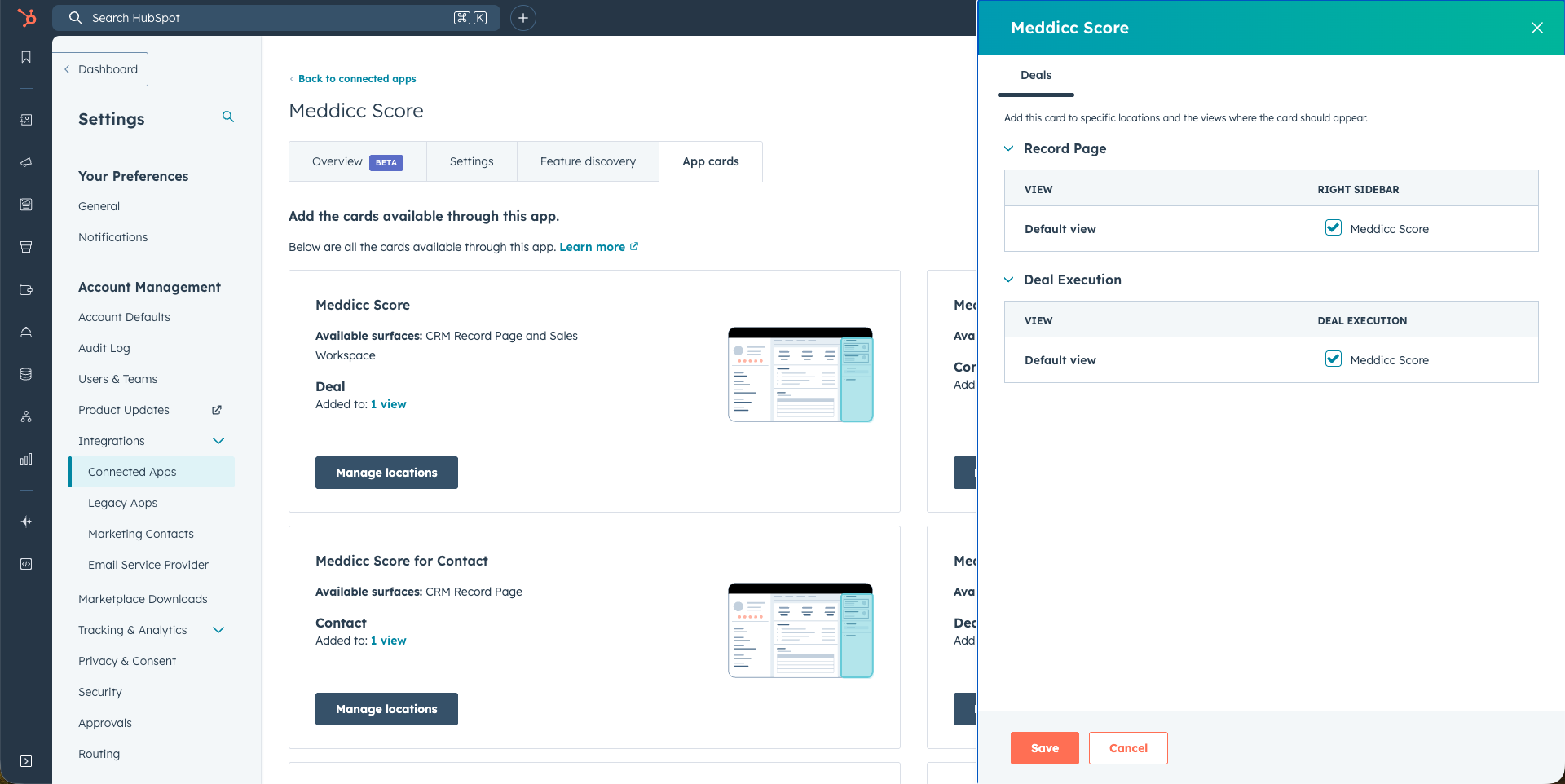
Once your Admin adds the Meddicc Score card to your HubSpot record view, it appears inside your records.
The app may appear in these locations:
- Deal: middle column, right sidebar, and Deal Execution
- Contact: middle column and right sidebar
- Company: middle column and right sidebar
If you open a record and do not see the card, ask your Admin to add the Meddicc Score card to that view.
If the card says that Meddicc Score is not connected or needs to be reauthorized, contact your HubSpot or Meddicc Score Admin. You do not need to install the app individually when it is already connected for your HubSpot account.
2. Use Deal Cards to Score Opportunities
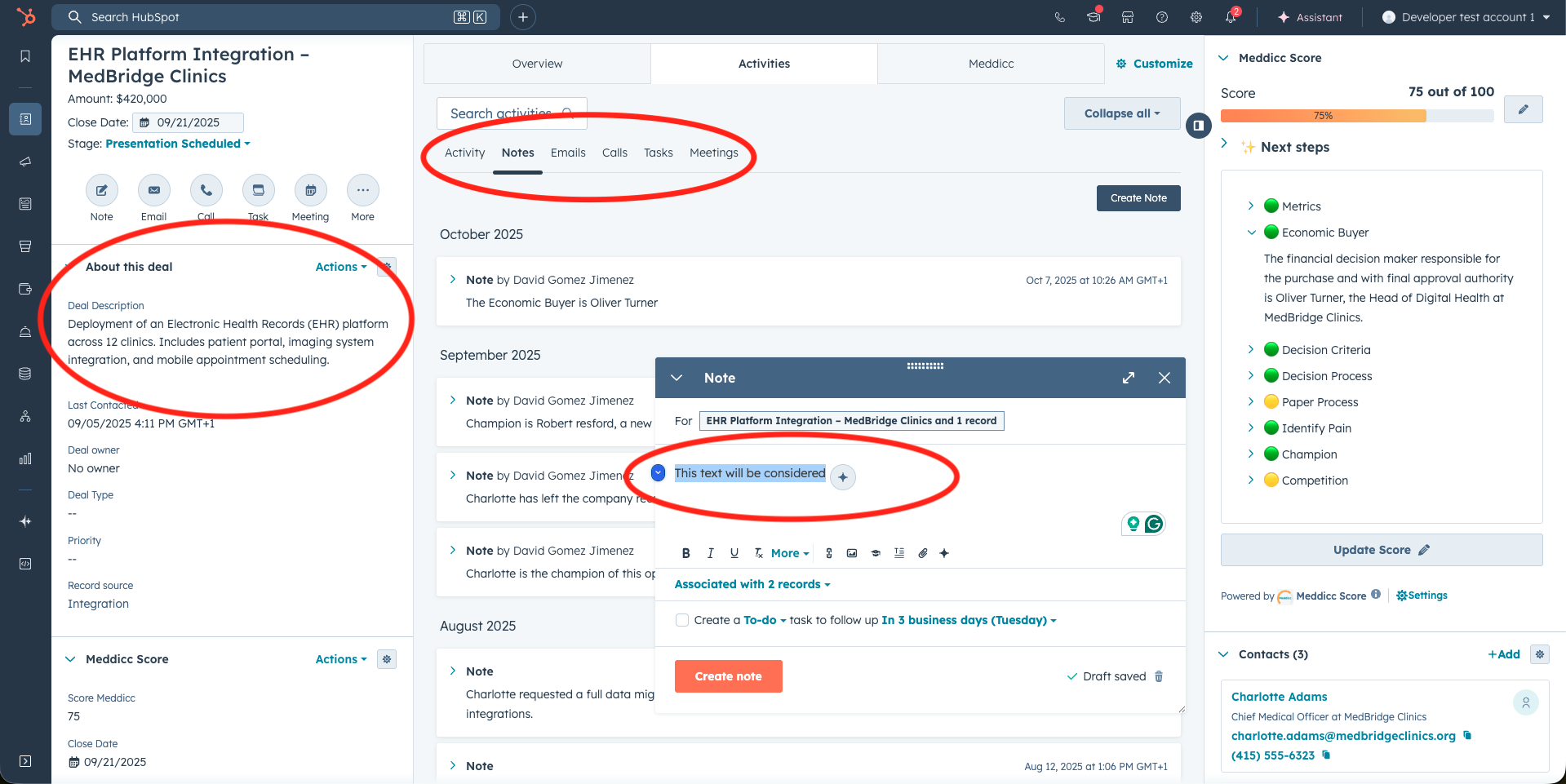
- The first time you open a Deal, the default framework selected by your Admin is used.
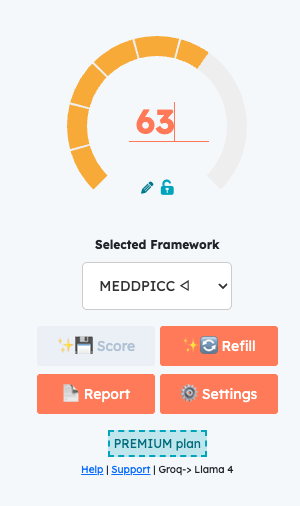
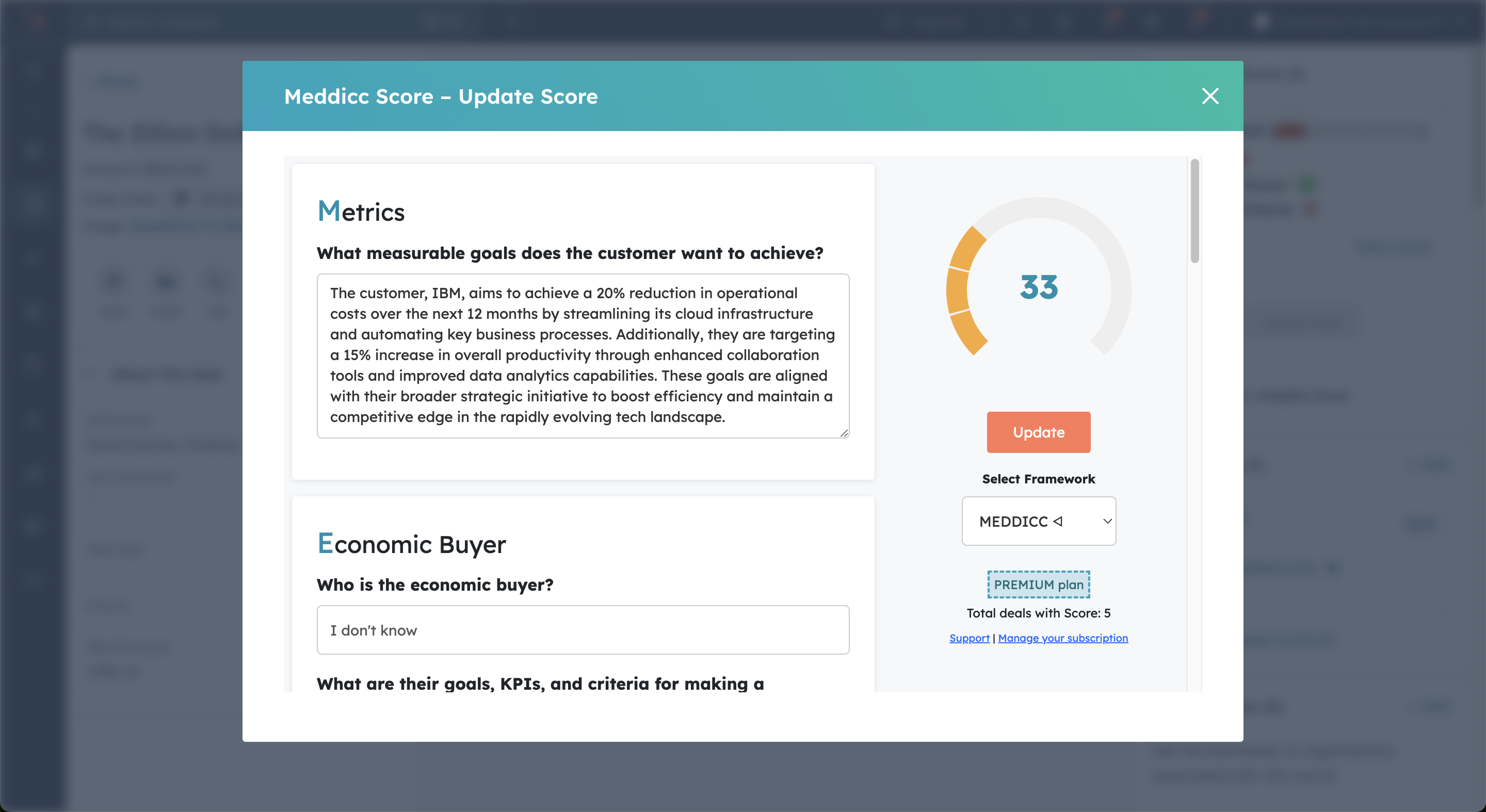
- Click Update Score or the pencil icon to open the form.
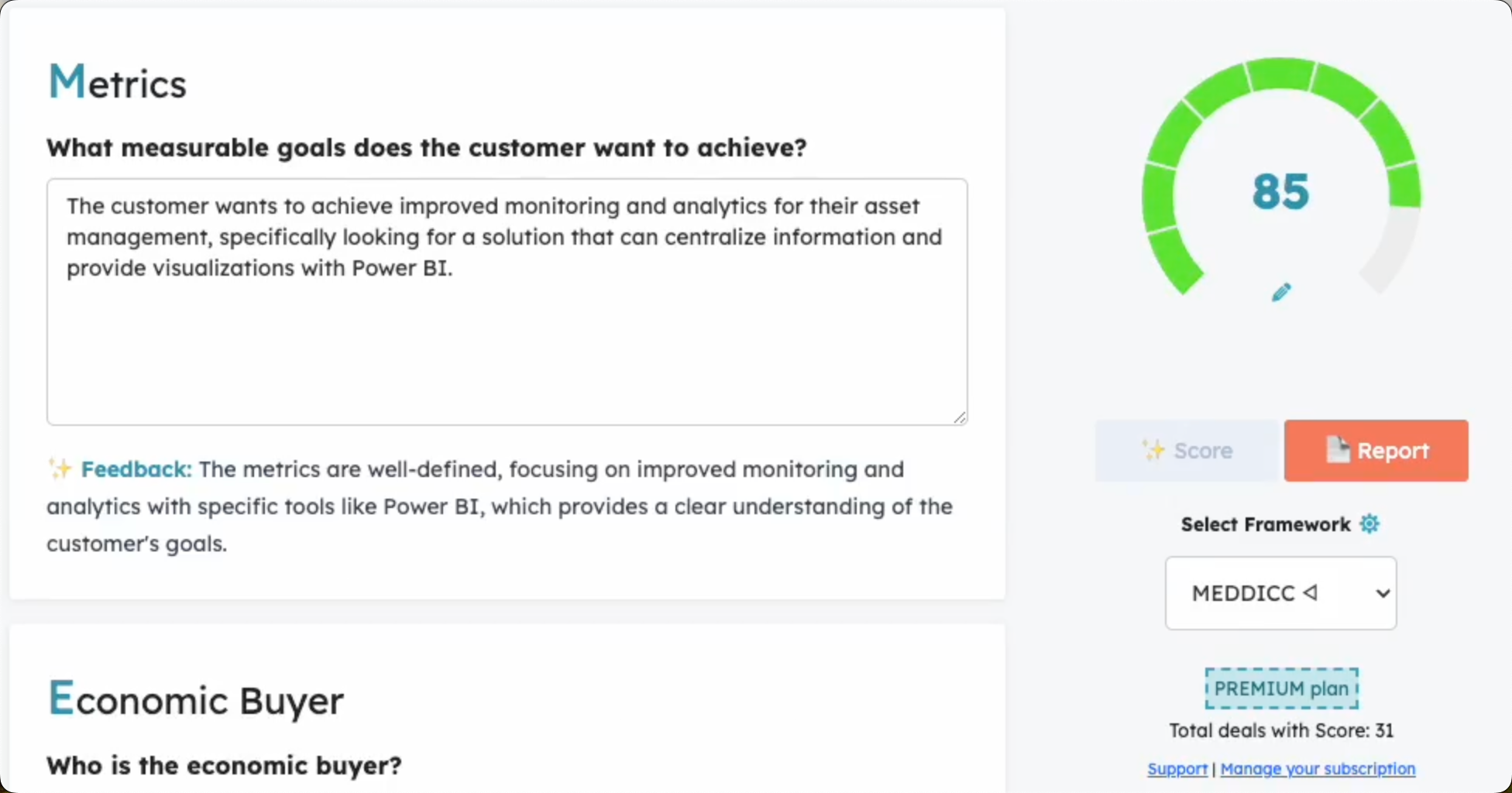
- Meddicc Score reviews recent deal activity in HubSpot, such as emails, meetings, calls, tasks, notes, and core deal data, to pre-fill the framework responses.
- You can review and edit the suggested answers before saving.
- Click Refill if new information has been added to the deal and you want AI to refresh the responses.
- Lock individual responses if you do not want them overwritten during a refill.
- Click Score to recalculate the score after updating the form.
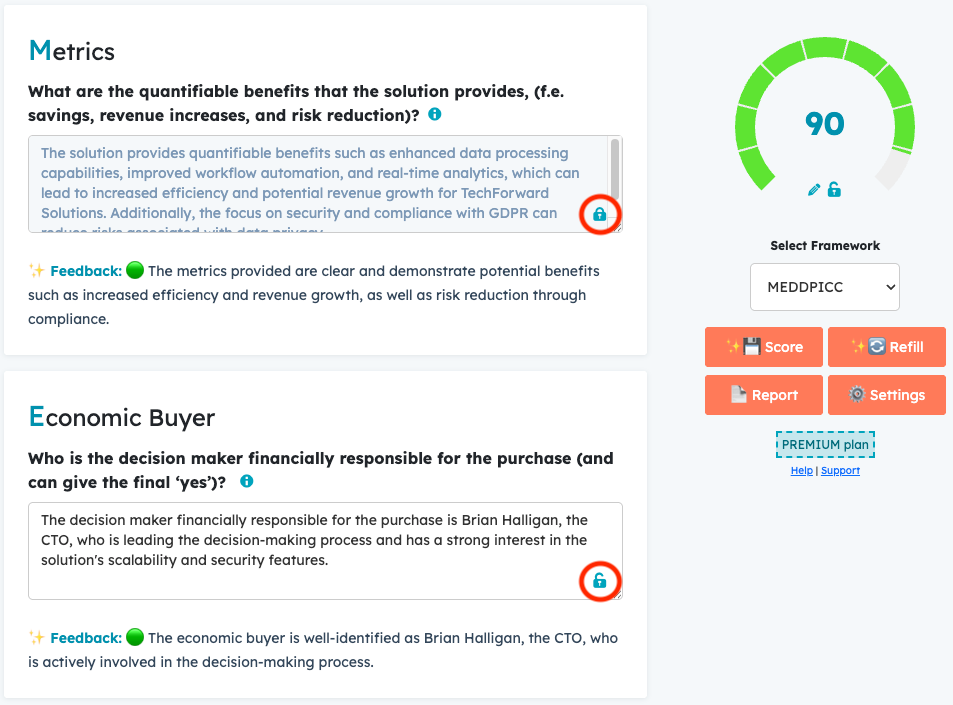
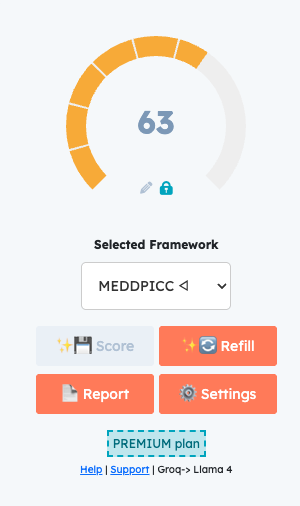
- You can also adjust the score manually if your Admin has enabled that permission for sellers.
- The score can also be locked so it is not changed by future edits or automations.
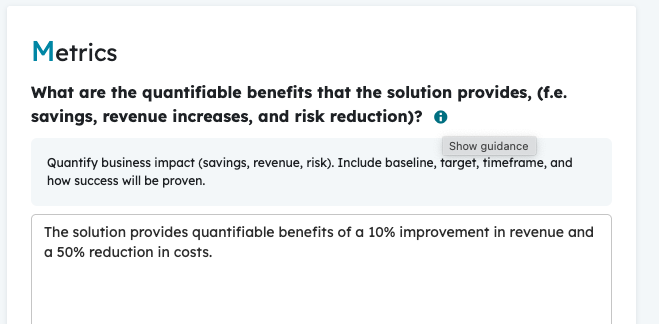
Each question can also include guidance text. Click the info icon if you want more context on how to answer it.
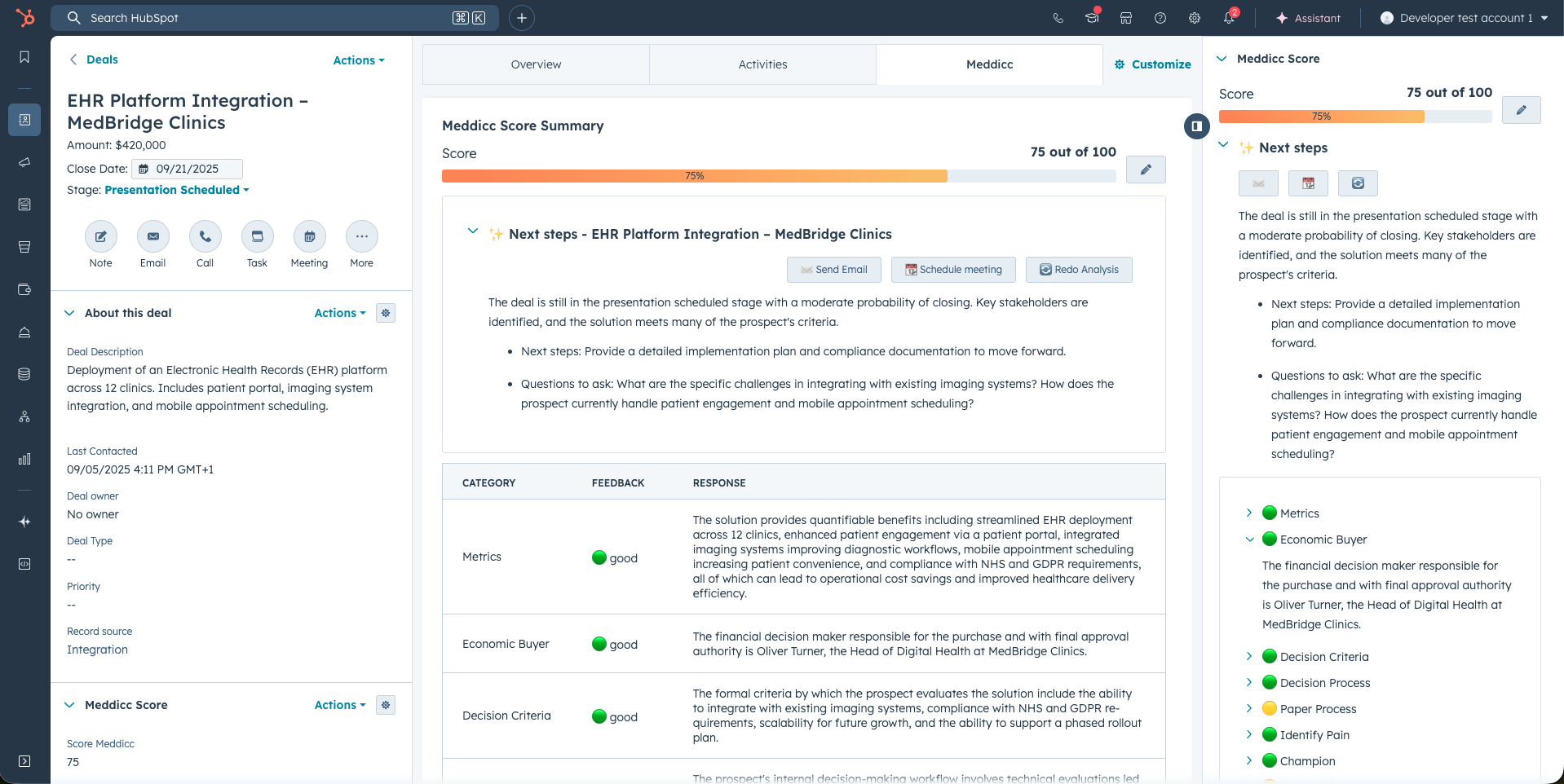
3. Use Next Steps and Analysis
- After scoring, Meddicc Score suggests Next Steps and follow-up questions to help you move the deal forward.
- For closed deals, it can show a Win Analysis or Post-Mortem Analysis.
- You can also send an email, schedule a meeting, or reopen the form from the deal card.
4. Use Contact and Company Cards
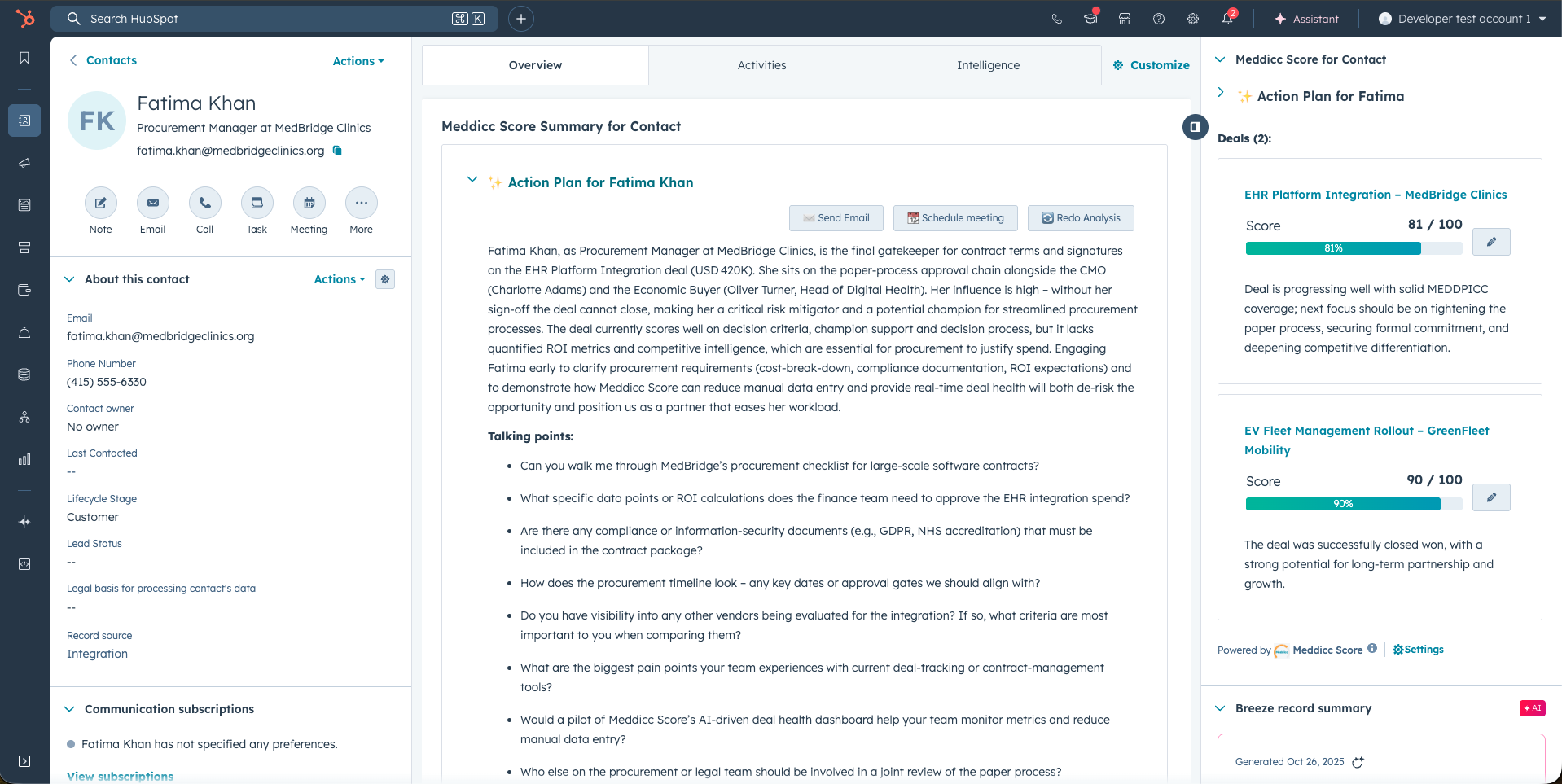
Contact cards help you prepare your next interaction with a contact:
- See the deals where that contact is involved.
- Review an AI-generated action plan and talking points.
- Draft an email or schedule a meeting from the card.
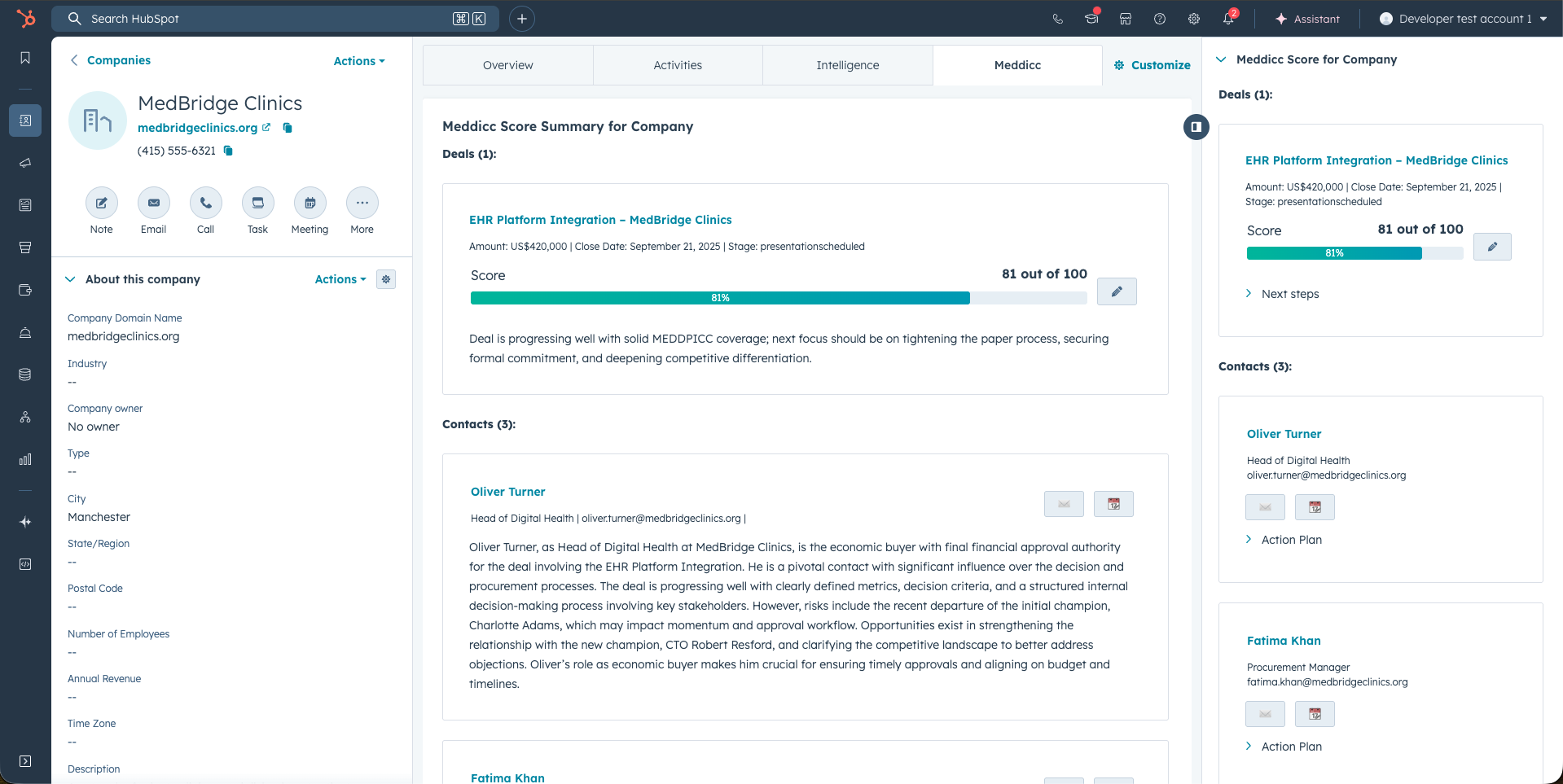
Company cards give you a broader account view:
- See related deals and contacts for that company.
- Open deal forms, review contact plans, send emails, or schedule meetings from one place.
5. Optional Tools: Org Charts and Competitor Charts
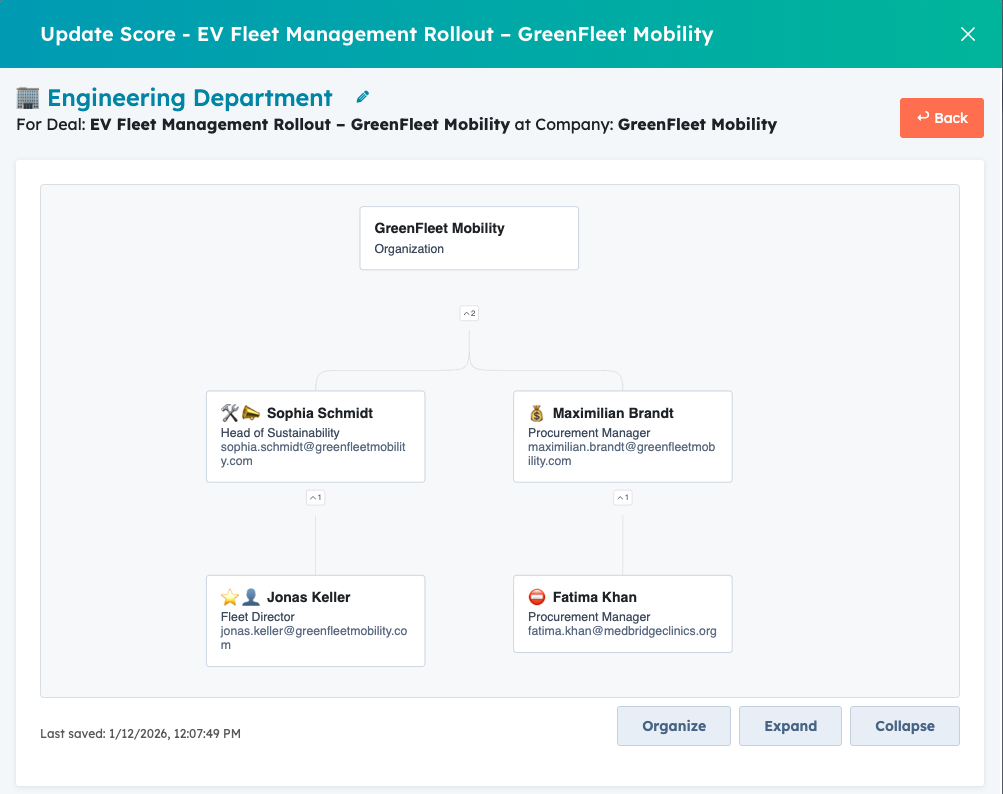
If your team uses them, you can open these tools from the Deal form:
- Org Chart: map stakeholders, reporting lines, and buying roles such as Economic Buyer or Champion.
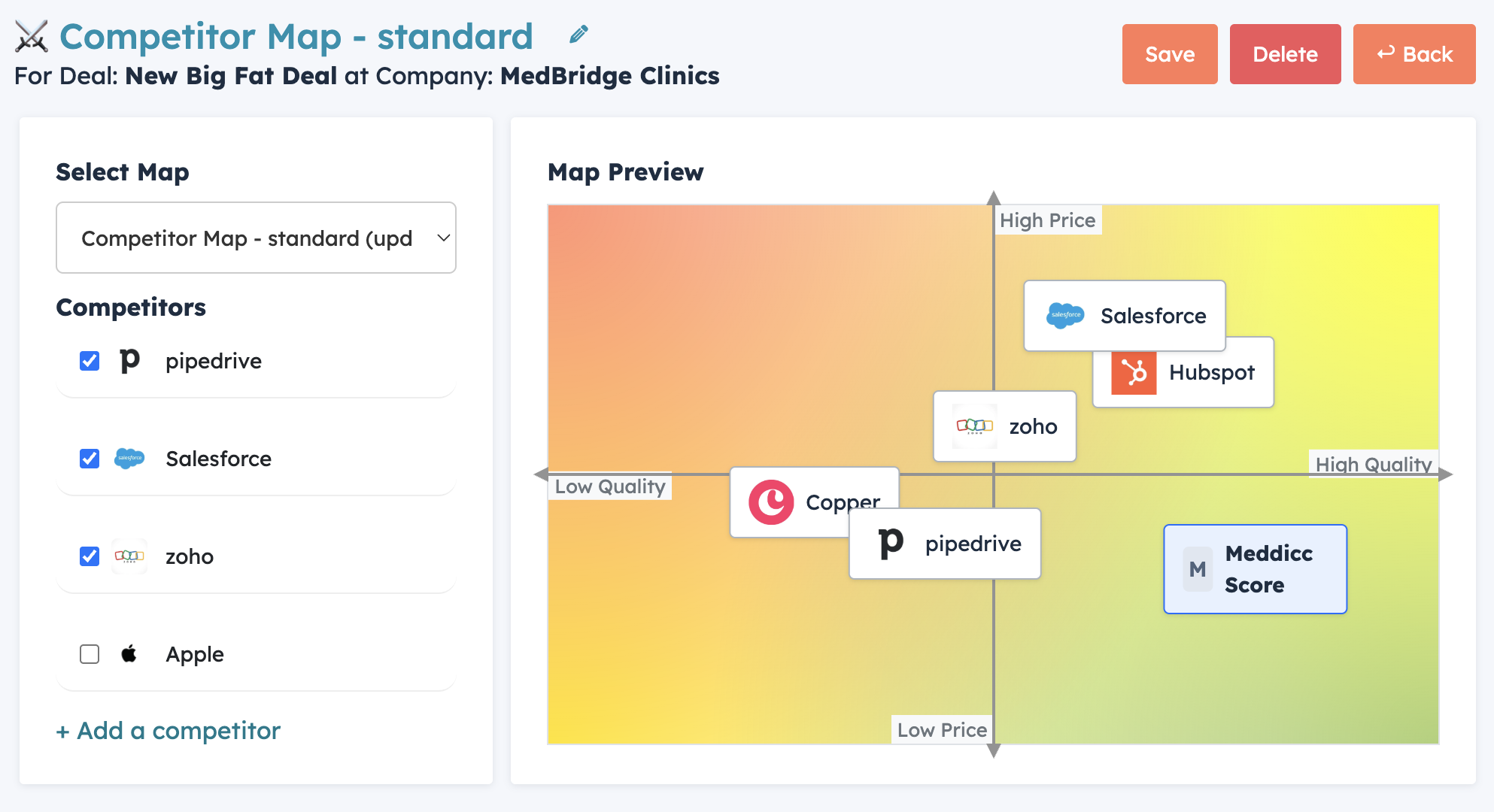
- Competitor Charts: compare your position against competitors for a specific opportunity.
6. Change the Framework (If Enabled)
- Your Admin can allow sellers to switch frameworks for a specific deal.
- If enabled, you can choose a different framework and AI will pre-fill it using the deal data.
- Changing the framework does not automatically rescore or overwrite previous saved answers.
7. Access the Report (If Enabled)
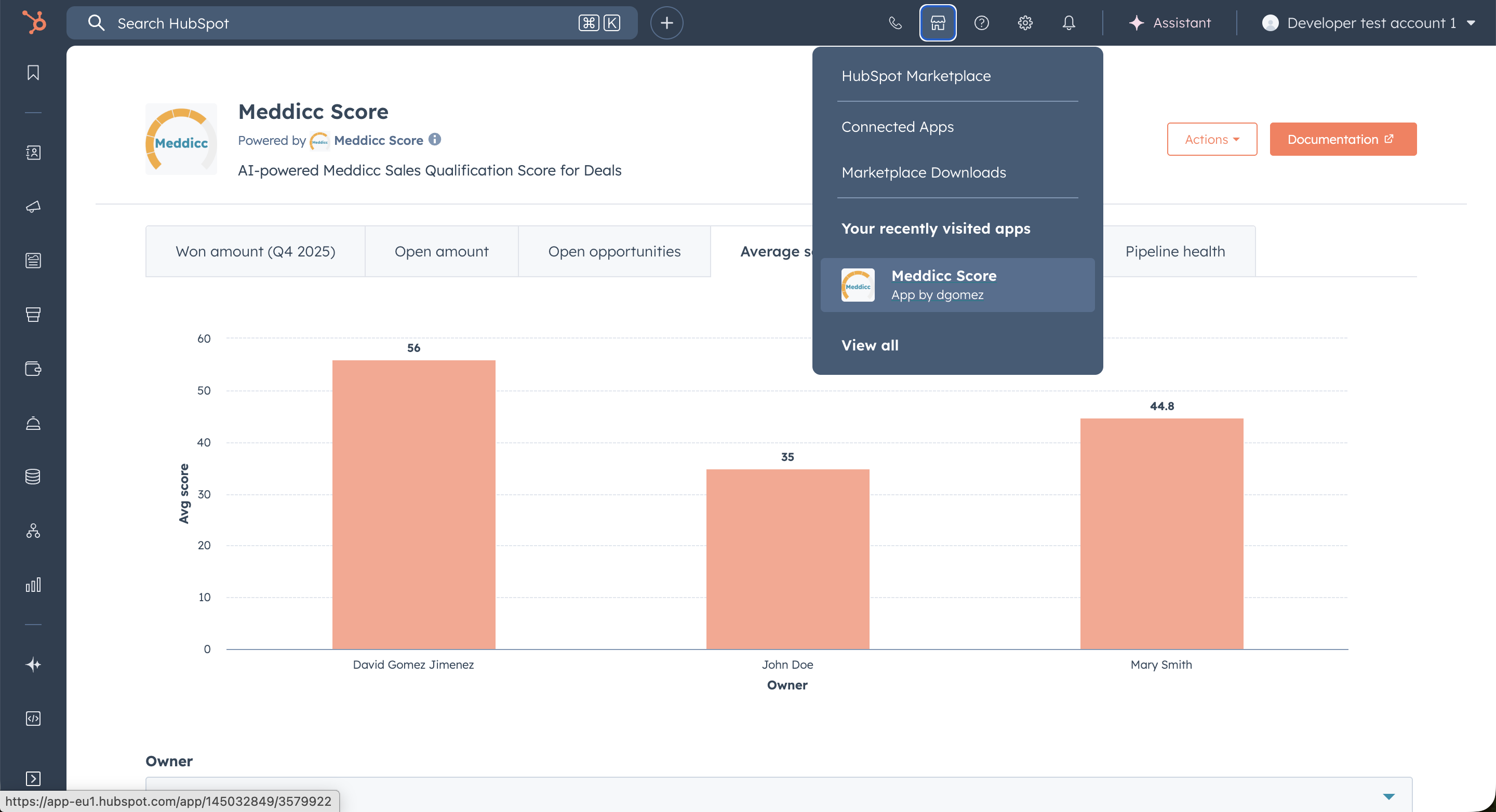
- Open the Meddicc Score home screen from the HubSpot marketplace icon.
- If your Admin has enabled report access for non-admin users, you can review your deals and score trends there.
- Admins may have access to broader team reporting than standard sellers.
When to Ask Your Admin for Help
- You do not see the Meddicc Score card, or the card says that the account needs to connect or reauthorize the app.
- You need access to change frameworks, edit scores manually, or view reports.
- You need changes to settings, users, licences, automations, or the default framework.