If you are a seller or non-admin user and only need the end-user steps, use the simplified seller guide.
1. Connect Your HubSpot Account
Click the Install app button below to link your HubSpot account.
Important: Meddicc Score only needs to be installed once per HubSpot account. A Super Admin, or another user with the required HubSpot app marketplace permissions, should complete this connection. After that, other users on the same HubSpot account can use Meddicc Score without installing the app individually.

The person completing this account connection may need permission to install marketplace apps and approve the requested CRM access. See below
2. Login to Your HubSpot Account
Simply use your standard HubSpot login credentials.
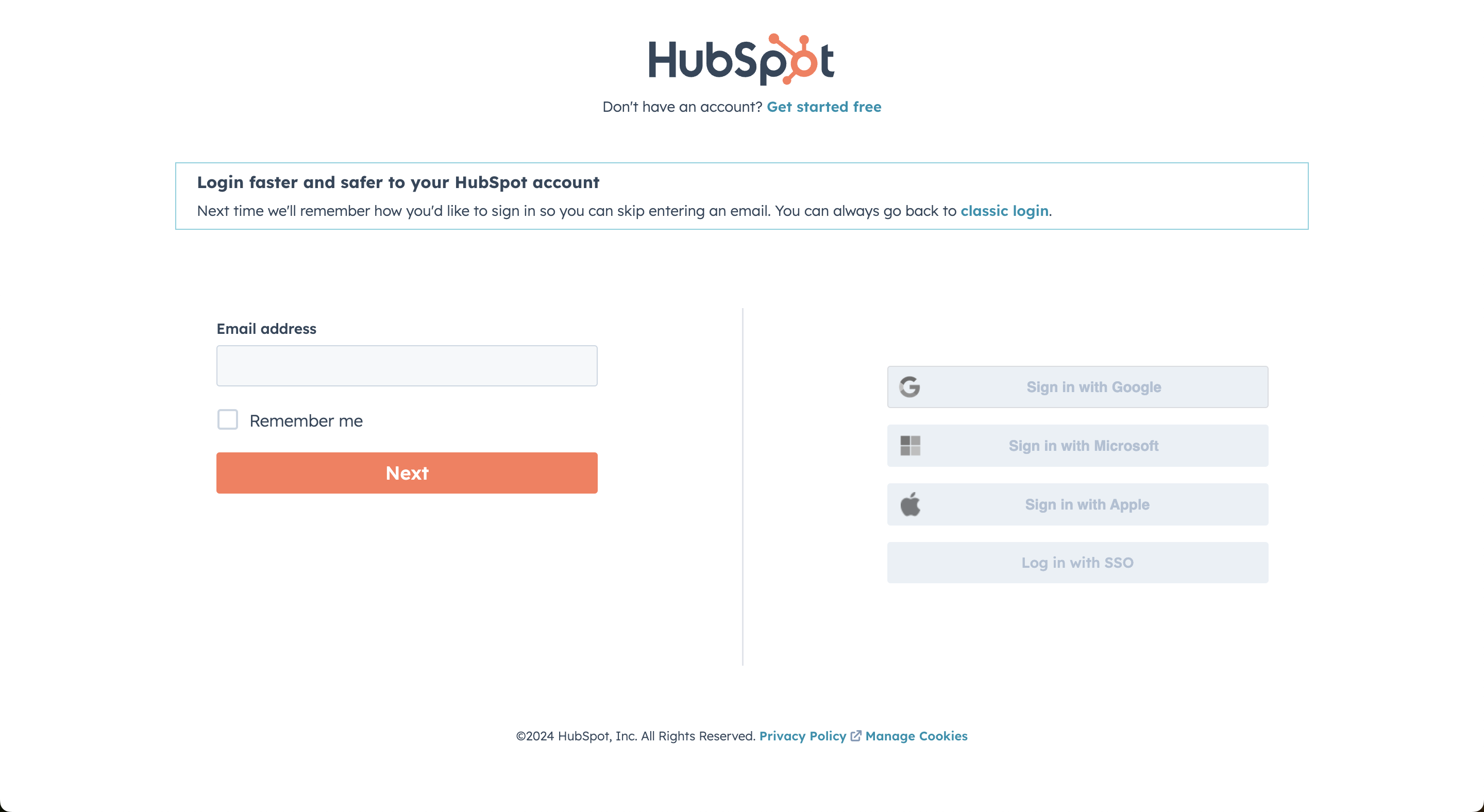
3. Select Your HubSpot Account and confirm Permissions
If you have multiple accounts, select the one you wish to use. Single accounts will be chosen automatically.
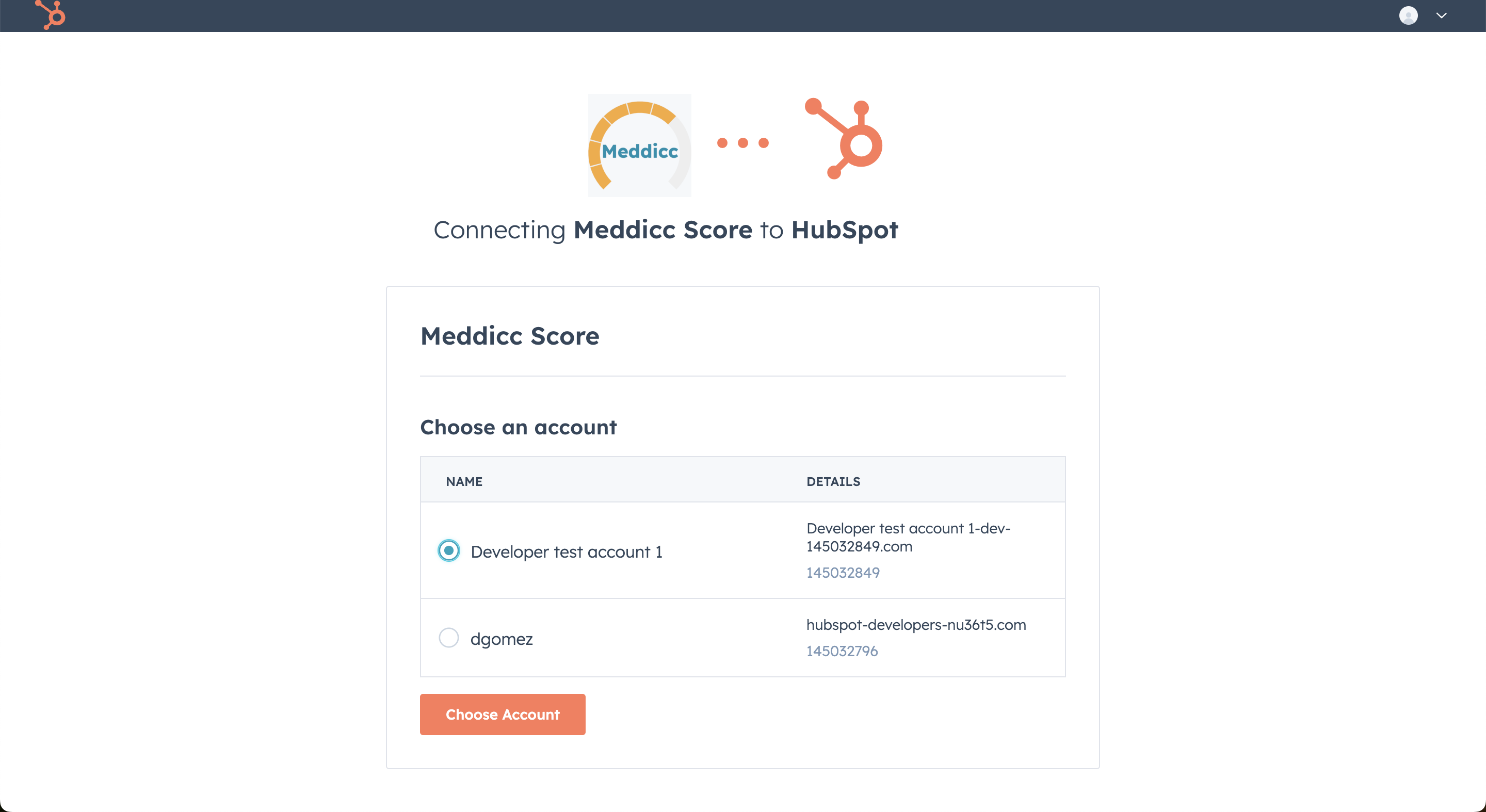
Approve the necessary permissions for Meddicc Score to interface with your HubSpot CRM and click on “Connect app”. Congratulations, Meddicc Score is now connected for this HubSpot account.
The first user to connect the account becomes the Meddicc Score Admin by default. Additional users can access the app when they open a configured Meddicc Score card, and more Meddicc Score Admins can be assigned later.
4. Add Cards to the Views
After the account connection, Meddicc Score is available to users of that HubSpot account. The app cards still need to be placed in the relevant HubSpot record views. HubSpot Admins can choose their locations under Settings > Connected Apps > Meddicc Score > App cards > Manage Locations. Cards can be added to different views, including the Default view.
* Users must have Customize record page layout permissions or Super Admin permissions to create cards and customize a record. If you are unable to add the card, see the I cannot add cards to my view section below for troubleshooting steps.
See more information on the HubSpot official article.
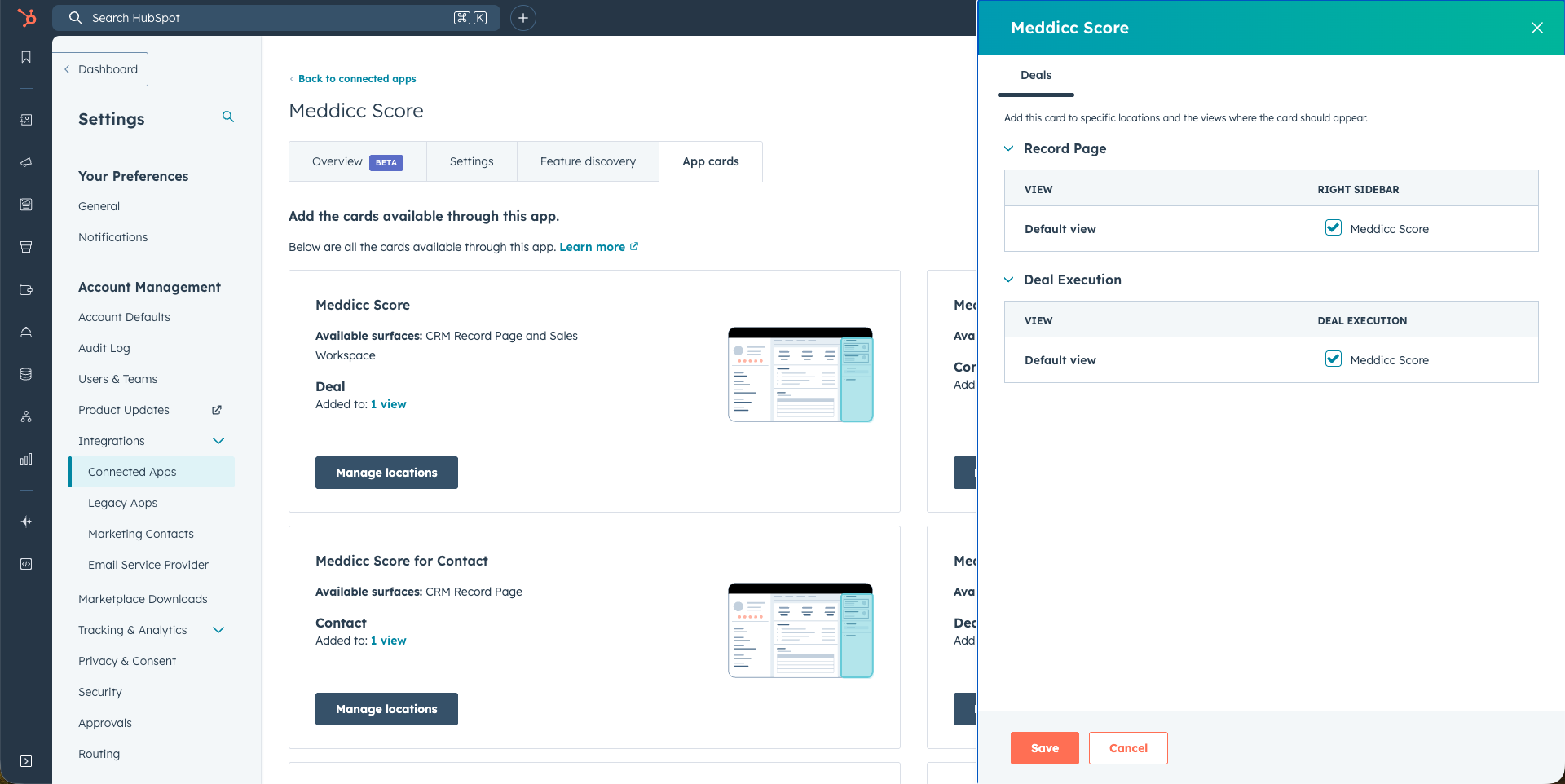
You may configure a dedicated view for the sellers or other team members who will use Meddicc Score and consume a licence. Users do not need to install the app individually. The first time they open a configured card, Meddicc Score creates their user profile and gives them the access available for the account.
5. Access Meddicc Score in HubSpot
Meddicc Score is easily accessible within your HubSpot records, but you may need to configure the app card to display on your Deal, Contact, or Company record pages.
HubSpot Admins can select the location by going to Settings > Connected Apps > Meddicc Score > App cards > Manage Locations. They can be added to the different views (Default view is the first one).
* Users must have Customize record page layout permissions or Super Admin permissions to create cards and customize a record. If you are unable to add the card, see the I cannot add cards to my view section below for troubleshooting steps.
See more information on the HubSpot official article.
The information shown is similar but every location take advantage of the available space to render the best experience. The current locations are:
- Deal: Middle Colum, Right Sidebar and Deal Execution
- Contact: Middle Colum and Right Sidebar
- Company: Middle Colum and Right Sidebar
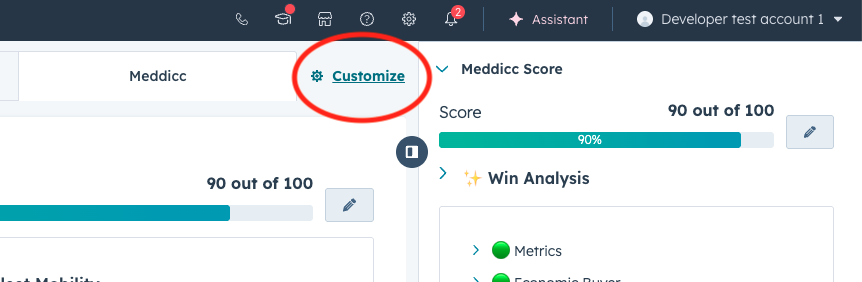
It can also be configure by Admin(s) or users with permits, by clicking inside the record on "Customize", select the view (Default view?) and then add the cards on the proper locations. Please note that it is possible to have also a dedicated tab just for the Meddicc Card:
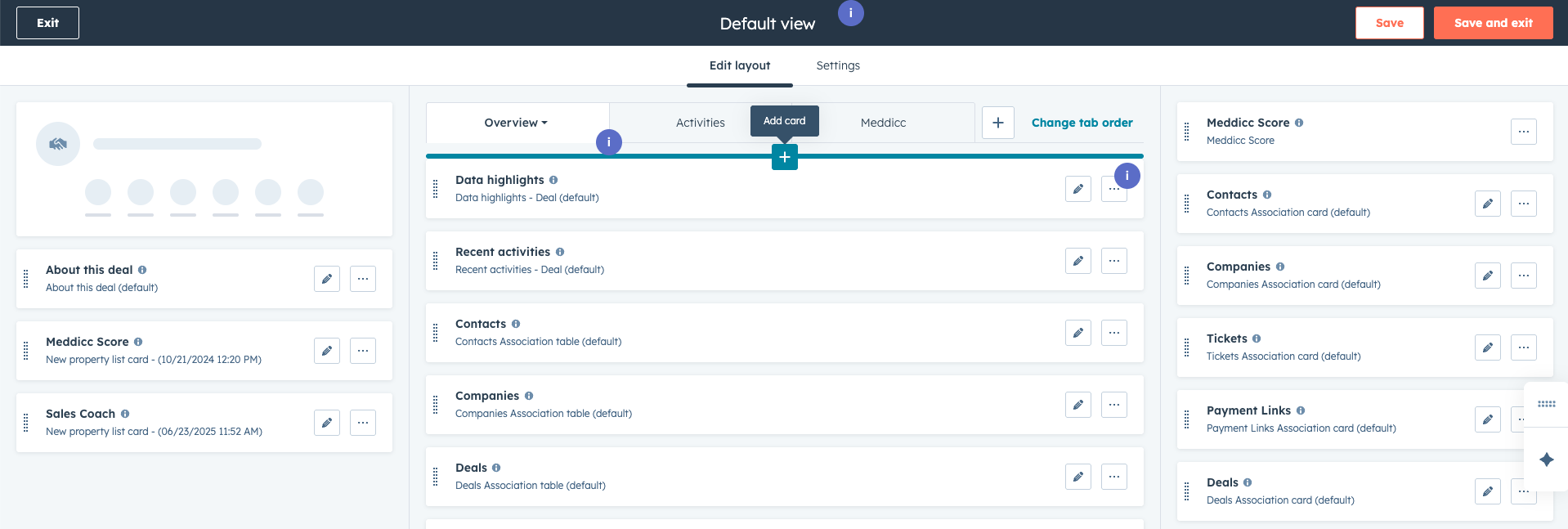
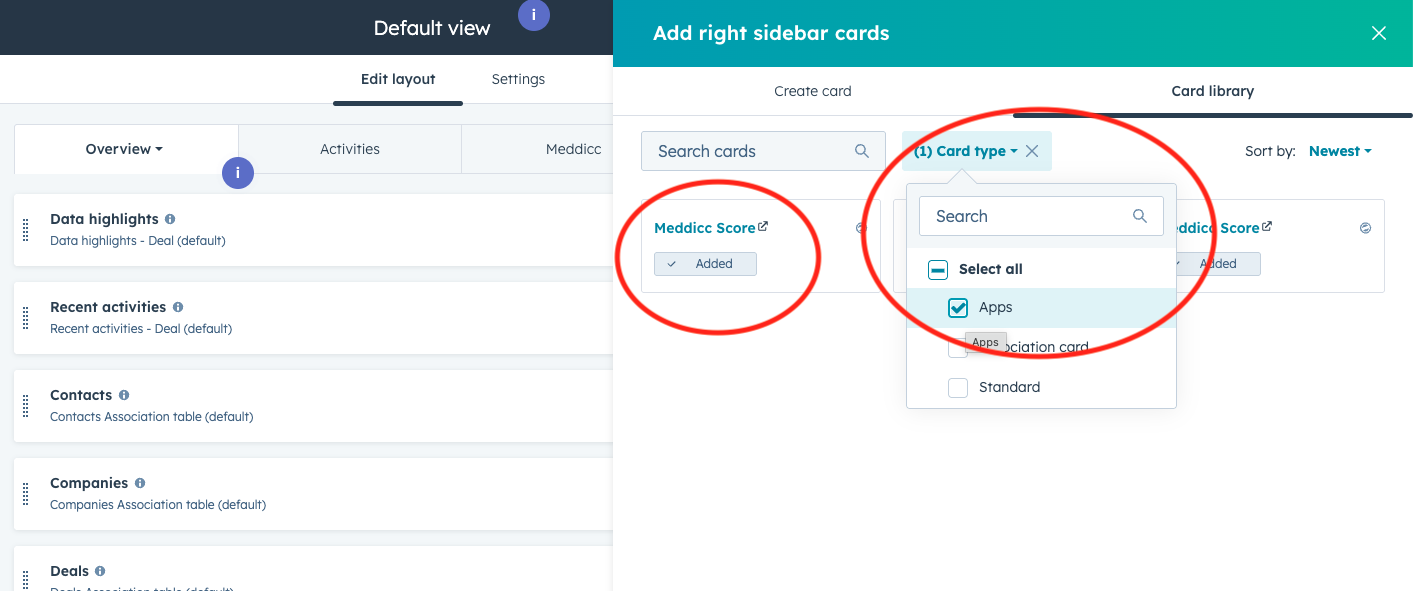
To add a card, click on the "+" sign and search for Meddicc Score. It will be located on Card Library > Card type > Apps:
5.1 Deal Cards
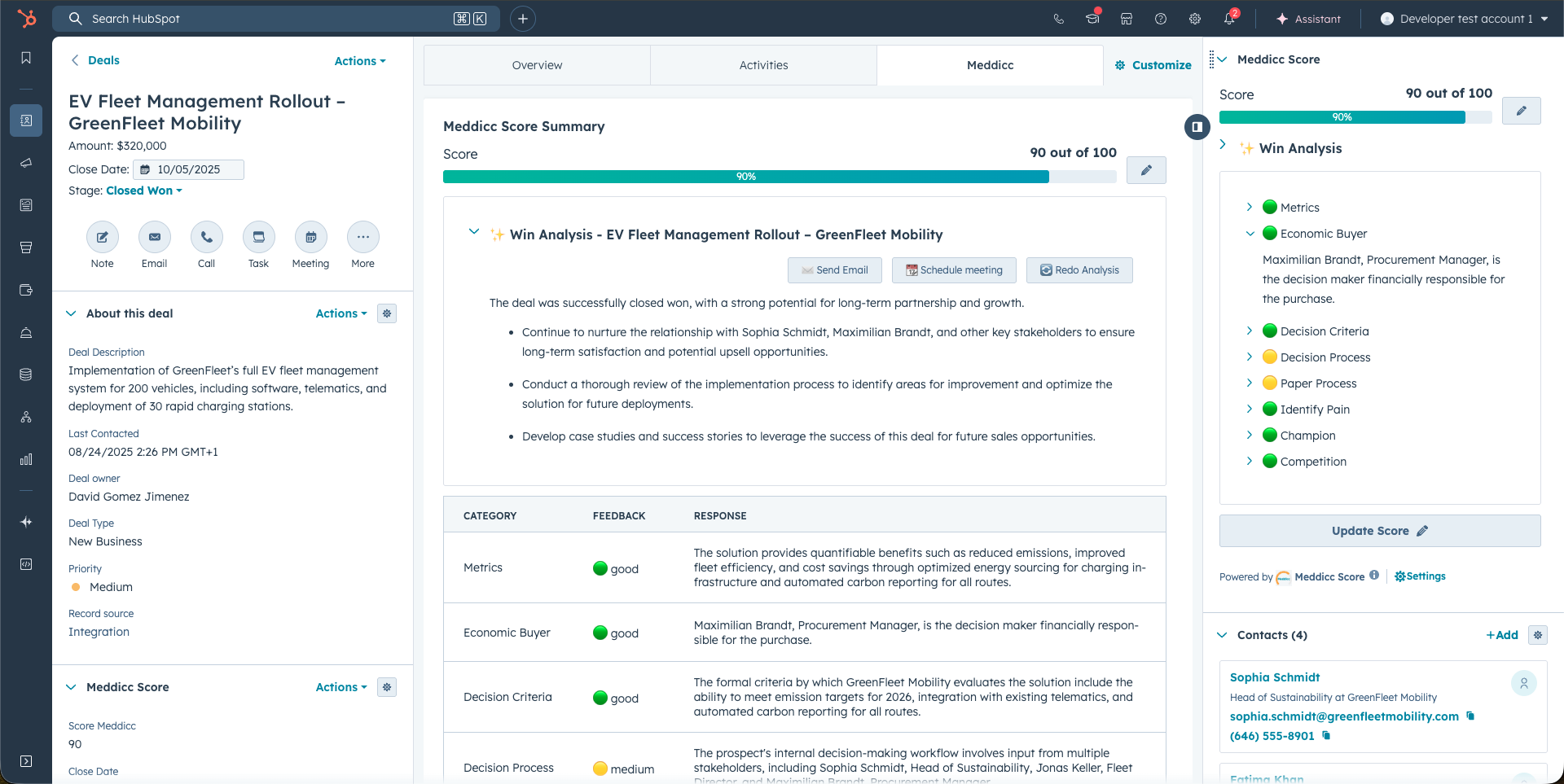
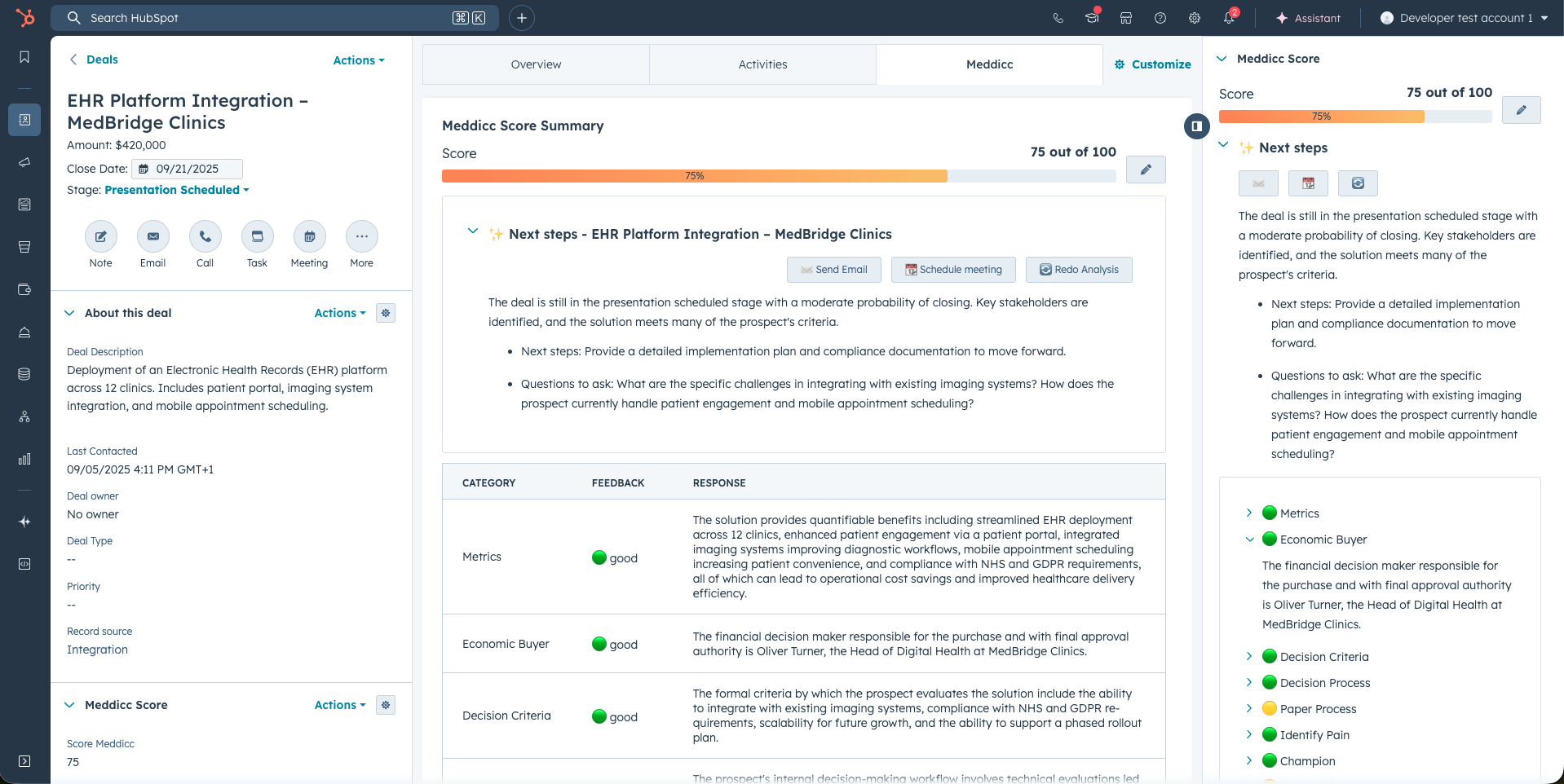
- The Deal Cards are the most important for the Sales process. They show the different categories or questions on the sales framework, a icon indicating the AI feedback (bad, medium or good) an the response stored.
- On the side card, the response is showed when cliking on the category.
- Moreover, a "Next Steps" is also created, that is transformed in "Win Analysis" for the deals marked closed-won and a "Post-mortem Analysis" for the closed-lost.
- It is also has some buttons to "Send Email" and "Schedule Meeting".
- Clicking on "Redo Analysis", it will trigger to re-fill the form and score it again. Clicking on "Update Score", users can access to modfiy the responses and/or score it again
- Qualification Intelligence tracks how the deal's score and completion change over time, shows improved and still-missing qualification fields, and highlights risks such as stale scoring or stage progression without qualification improvement. When enough closed-won and closed-lost MEDDICC history is available for the account, the expandable Account pattern section shows qualification fields associated with wins in that account. These are historical patterns, not guarantees or causal predictions.
- Onboarding Handoff, for closed-won deals, turns the key deal and customer information into a structured handoff for the onboarding team, helping Sales and Onboarding align quickly after a deal closes. The AI prompt used to generate the handoff can be customized in Settings to match your process, terminology, and preferred output. Onboarding Handoff is also available through the API for integrations and automated workflows.
5.2 Contact Cards
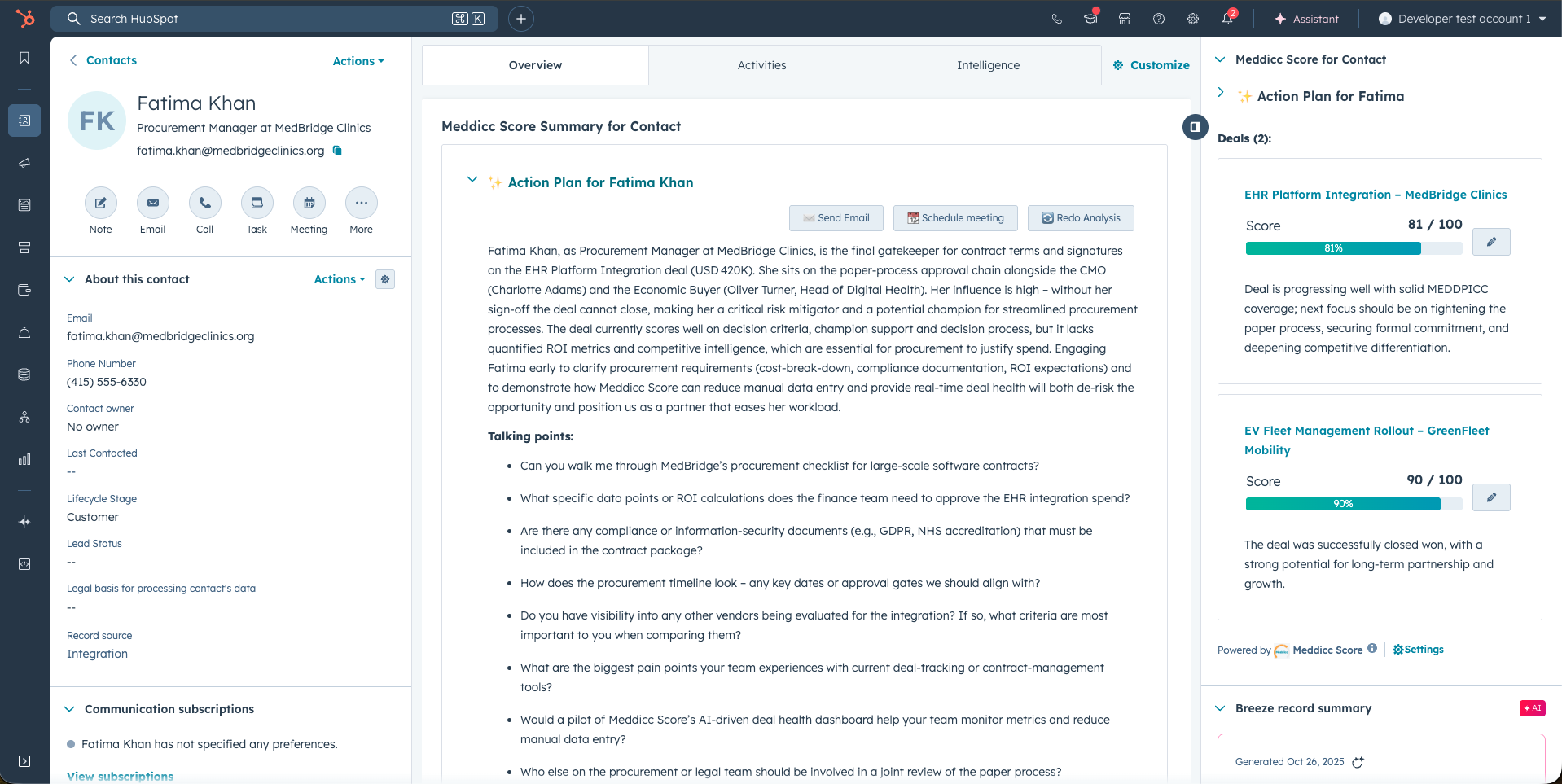
- The Contact Cards list all the deals where the contact is involed on.
- Morevoer, it makes an AI generated Action Plan for this contact, summarizing the importance and providing talking points / potential questions for the next interaction, according to the sales framework. If AI is disabled in Settings, the Action Plan is generated deterministically from the number of associated deals and their scores.
- It also generate a draft email to be sent according to the plan, ready by clicking on "Send Email". It is also possible to "Schedule a Meeting", or re-do the contact analysis.
5.3 Company Cards
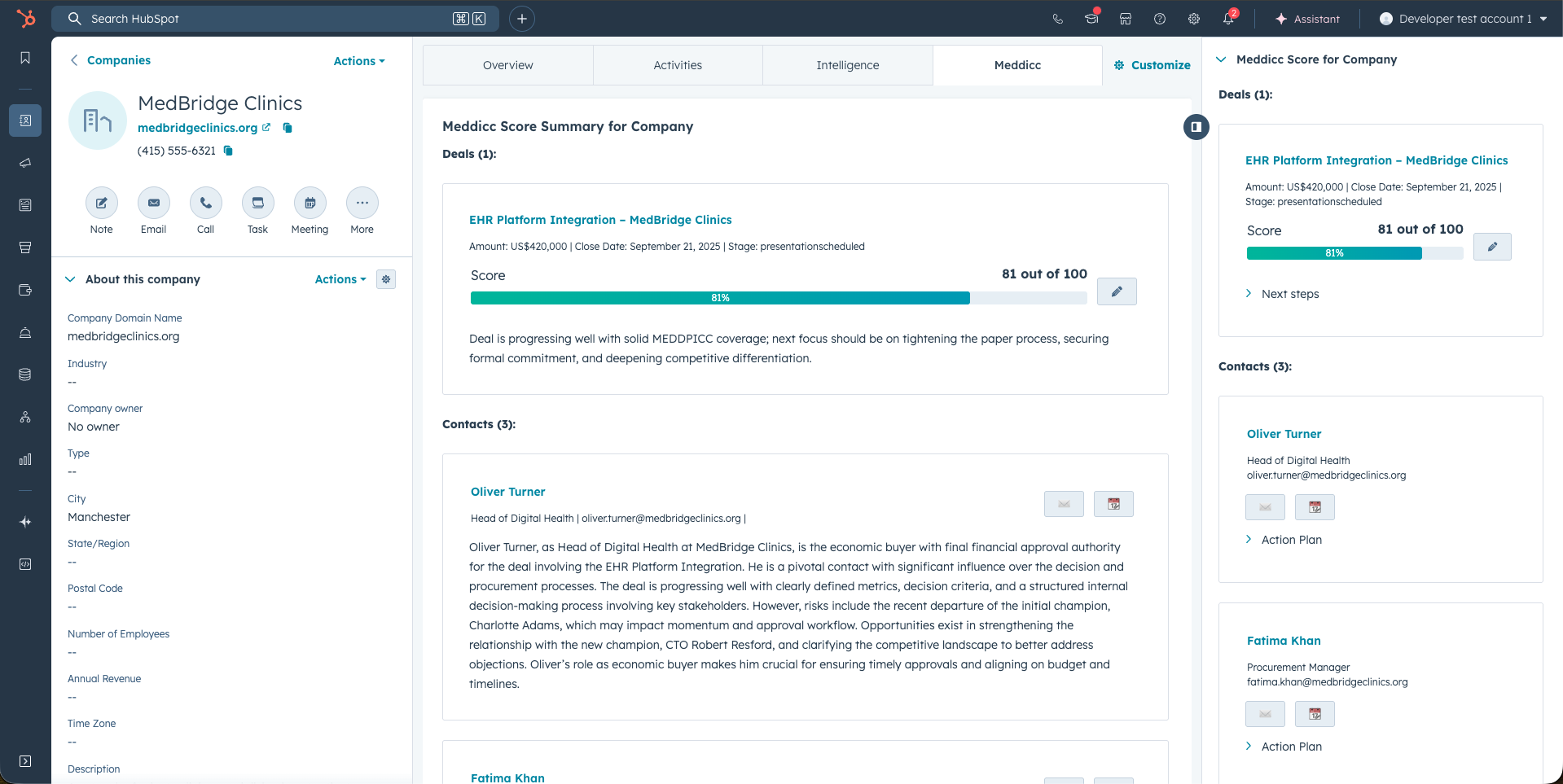
- The Company Cards show a list of the deals and contacts relevant for this company.
- From the deal list is possible to access the form and modify it. From contacts, the action plan is shown and it is also posible to send a pre-drafted email and schedule a meeting to that contact.
6. Deal Cards - Begin Scoring
- The first time you access a Deal, the default framework (normally MEDDICC) is used. (The default framework can be changed in Settings). The Deal appear with zero score and all categories empty.
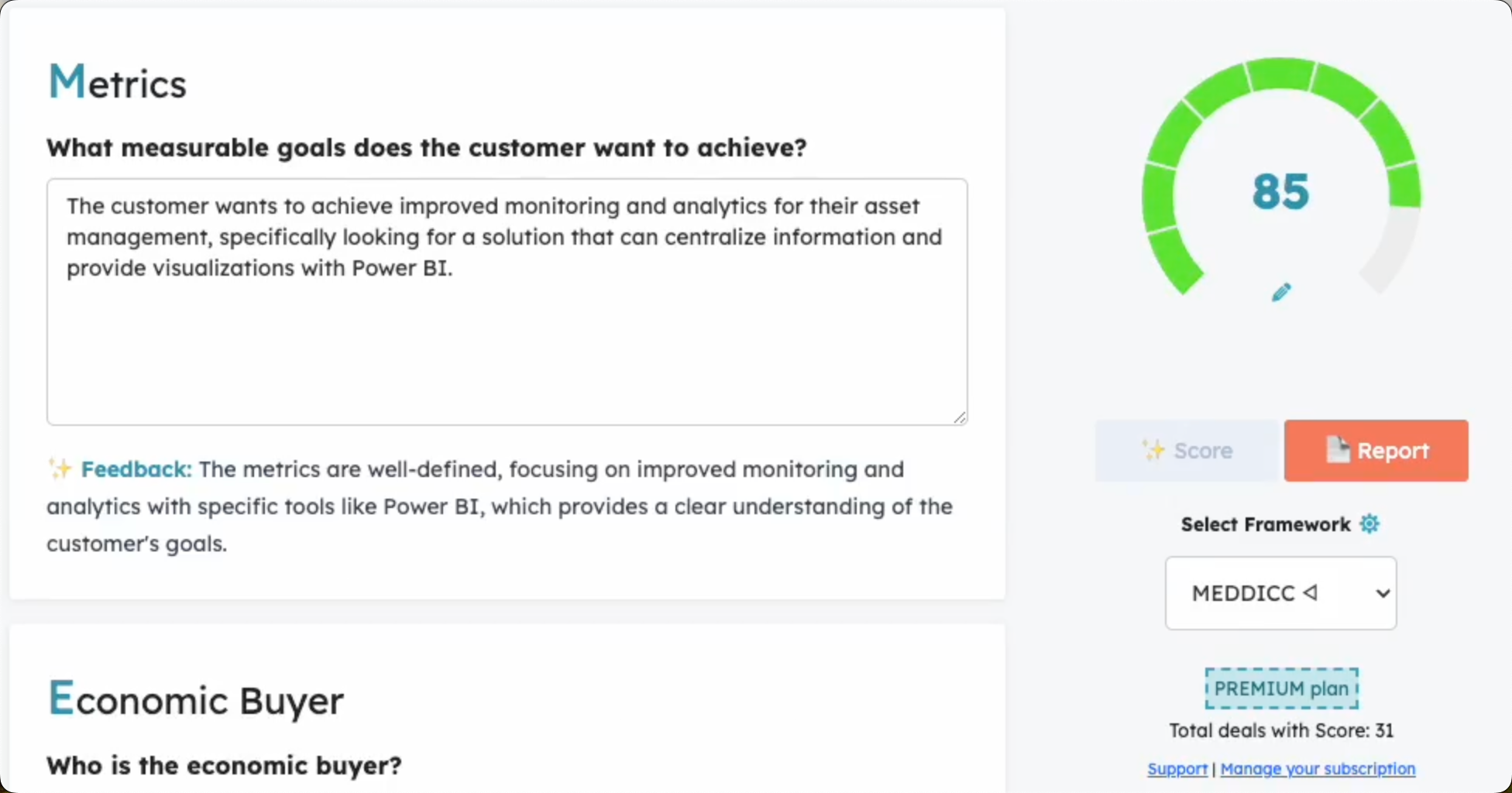
- When clicking on "Update Score" (or the pencil), a modal window is launched. Meddicc Score retrieves the relevant information from up to 100 recent Deal Engagements recorded in HubSpot, using the activity types and optional day limit selected in Settings. All five types (Emails, Meetings, Calls, Tasks and Notes) are enabled by default. Learn how to choose activity types. General data from the deal such as description, close date, contacts etc is also considered, plus Associated Deals, Contacts and Companies. Previous custom fields related to MEDDICC implementations that may have been filled in the past are also considered. AI analyzes this data to auto-fill responses for the Framework Questions. Note: Comments to engagements or attachments to the engagements are not gathered since they are not available in the HubSpot API.
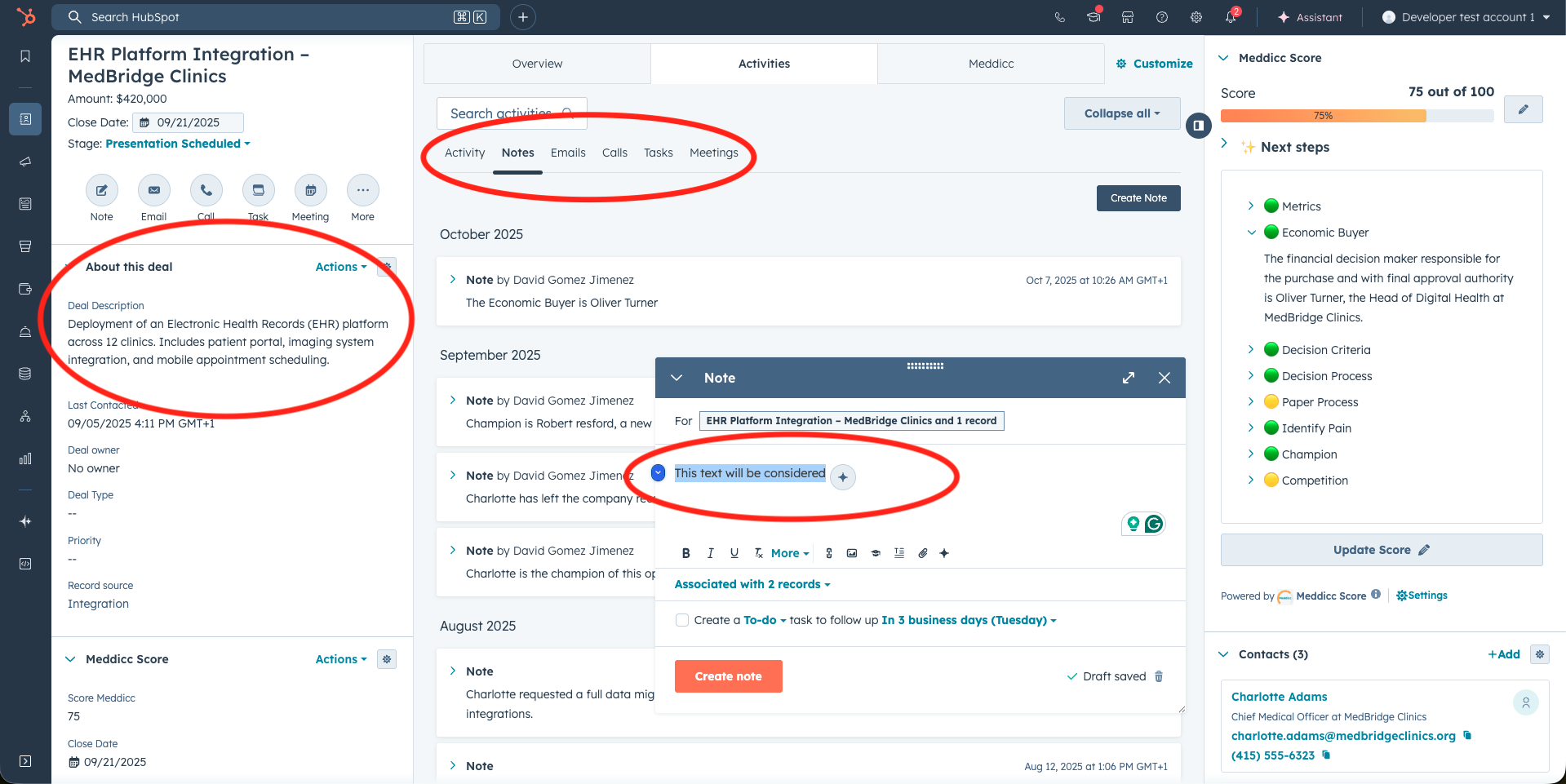
- Then the AI model returns a Score based on the data introduced, Next Steps for the Sellers and feedback for every category. The responses, feedback and score are stored.
- Users can manually update the pre-filled responses on the form at any time, by clicking on "Update Score" or in the pencil. If additional information has been recorded in the Deal, they can click on "Refill" to re-populate the form with updated AI-generated responses.
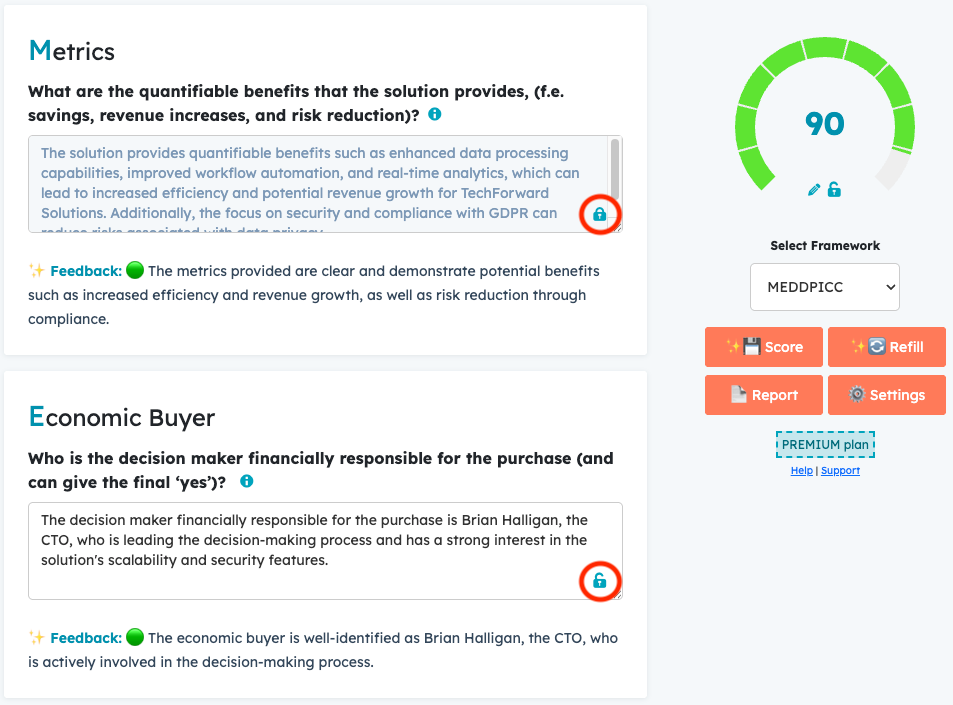
- To prevent specific responses from being modified or overwritten during a refill, users can lock those responses by clicking the lock icon. Locked responses will remain unchanged even after a refill.
- Clicking on Score will trigger the AI to reassess and recalculate the Score based on updated data.
- the AI model will provide ✨ Next Steps and suggested questions (and to whom), to help SDRs to know what they need to find out on the next call.
- If the Deal is already closed, it provides a Win Analysis or a Post-Mortem Analysis to learn from the errors and match the framework inputs with the results.
- If Use AI for Refill and Score is disabled in Settings, the Refill button is disabled and the Score button uses a deterministic completeness-based calculation from the text entered in each response. Empty responses or responses such as "I don't know" score zero for that question. Next Steps are also generated without AI from the resulting score and response completeness.
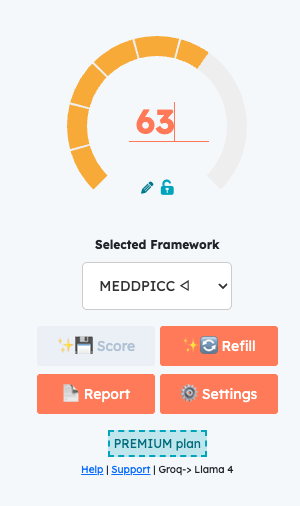
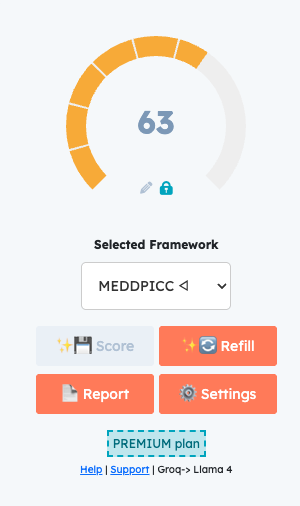
- Users can also modify the score manually by clicking the pencil icon below the score.
- Users can also lock the score value. When the score is locked, it will not be changed by manual edits or by Automations. This is useful if you want to update the form with new AI-generated responses or feedback, but keep the previously agreed score unchanged.
- All scores are stored in HubSpot as a property (custom variable) named
score_meddicc. If your Admin enables Sync MeddiccScore to HubSpot properties in Settings > General Settings > Automations, Meddicc Score can also sync framework, completion, missing categories, bad/medium/good categories, qualification status, last scored date, and next action back to HubSpot deal properties. These fields can then be used in HubSpot lists, workflows, reports, deal views, and dashboards. Please see below how to configure.
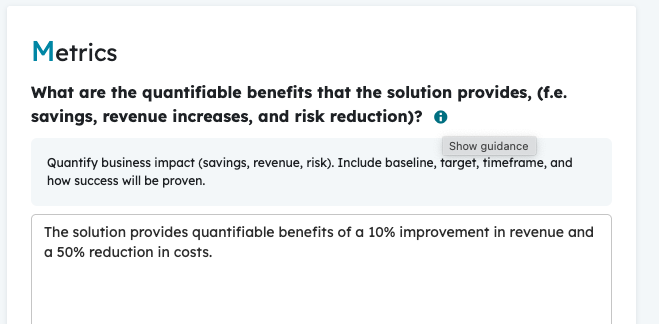
- Each question can include a short guidance text to help users provide better answers. By clicking the info icon, this guidance will be displayed. The text can also be customized in the Settings menu.
- On the Deal cards, the score and responses are displayed. Clicking "Next Steps" reveals recommended actions and suggested questions, and lets you send an email, schedule a meeting, or re-run the scoring and assessment. The sidebar and the tab card present the same information, however the interface adapts to the available space.
6.1 Organizational Charts:
- From the Deal form, you can access the Org Chart to visualize the stakeholder hierarchy. This feature helps you understand reporting structures and identify key decision-makers within the account. Moreover, the information will be used also to fill the Sales Framework Questions, especifically on buying roles like Economic Buyer or Champion.
- You can create multiple org charts for a single company, allowing you to map different departments or scenarios. The chart you create or select for a deal will become the default for that specific deal.
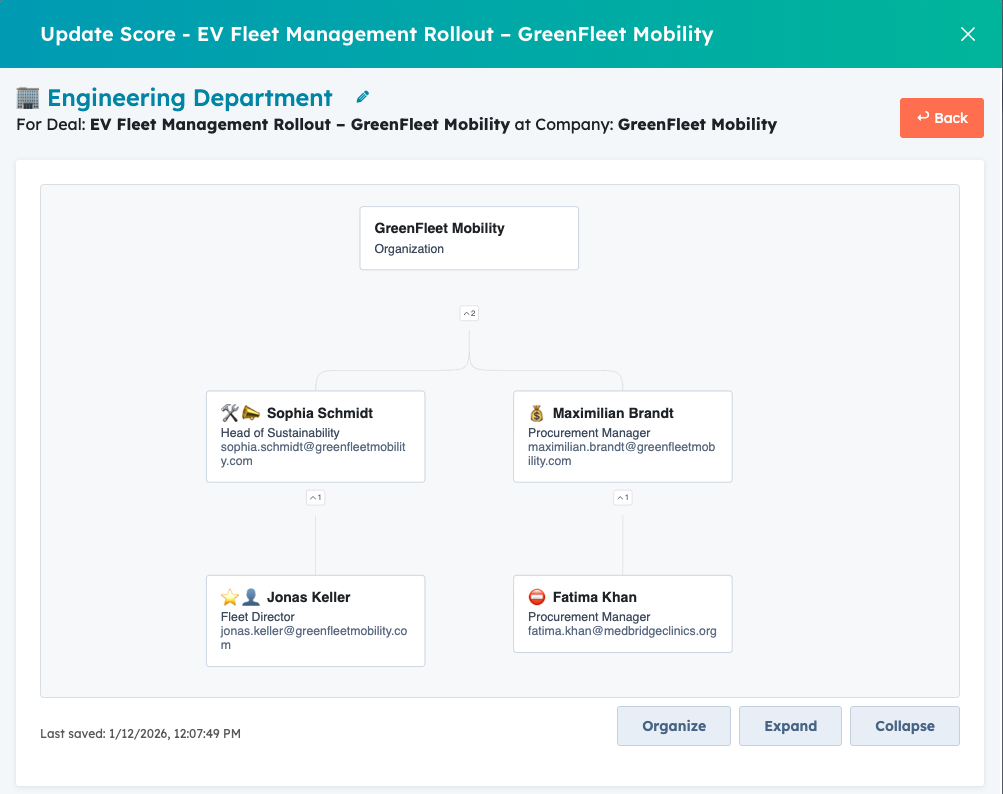
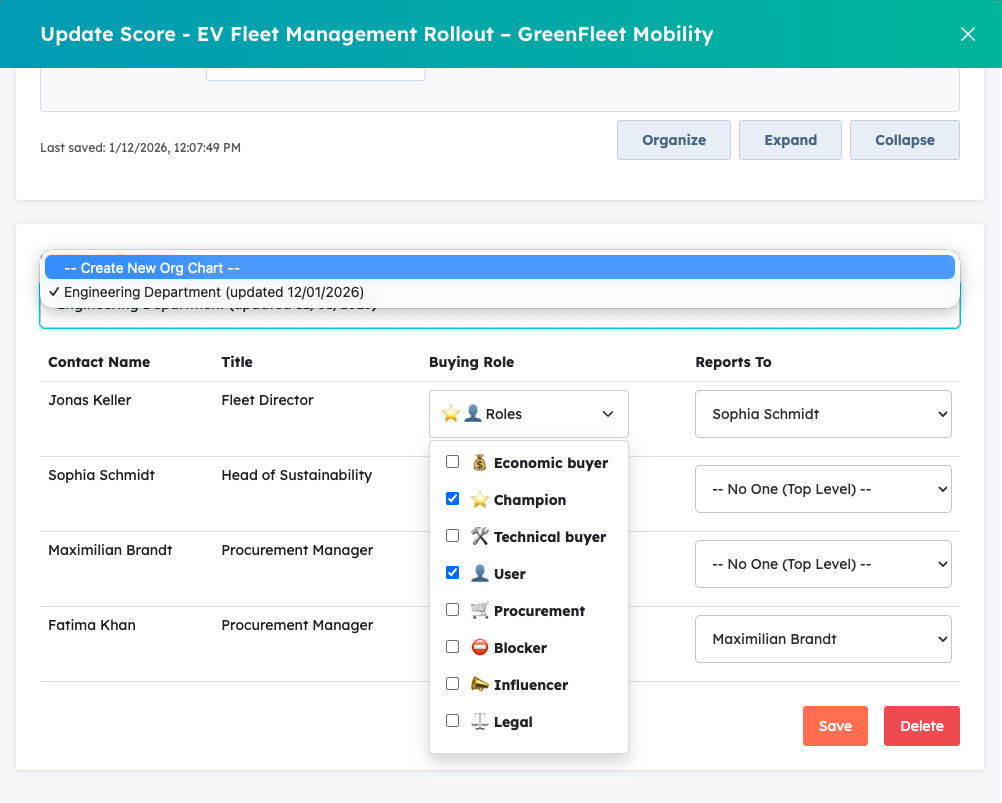
- Building the Chart: Define reporting structures by selecting a parent for each contact in the list. The chart will update in real-time to reflect the hierarchy. You can also assign specific Buying Roles to each contact. The available roles are:
- 💰 Economic Buyer
- ⭐ Champion
- 🛠️ Technical Buyer
- 👤 User
- 🛒 Procurement
- ⛔ Blocker
- 📣 Influencer
- ⚖️ Legal
- Organize with Drag-and-Drop: Click Organize to enter a visual editing mode. Simply drag one contact and drop them onto another to establish a reporting relationship. The target contact's border will highlight, confirming the change.
- When you're finished organizing, click Done. Your changes to the reporting structure will be saved automatically.
- Use the toolbar controls to Expand All nodes, or Collapse All nodes for easier navigation.
- The Chart can be moved and zoomed using the scroll of the mouse wheel.
6.2 Competitor Charts:
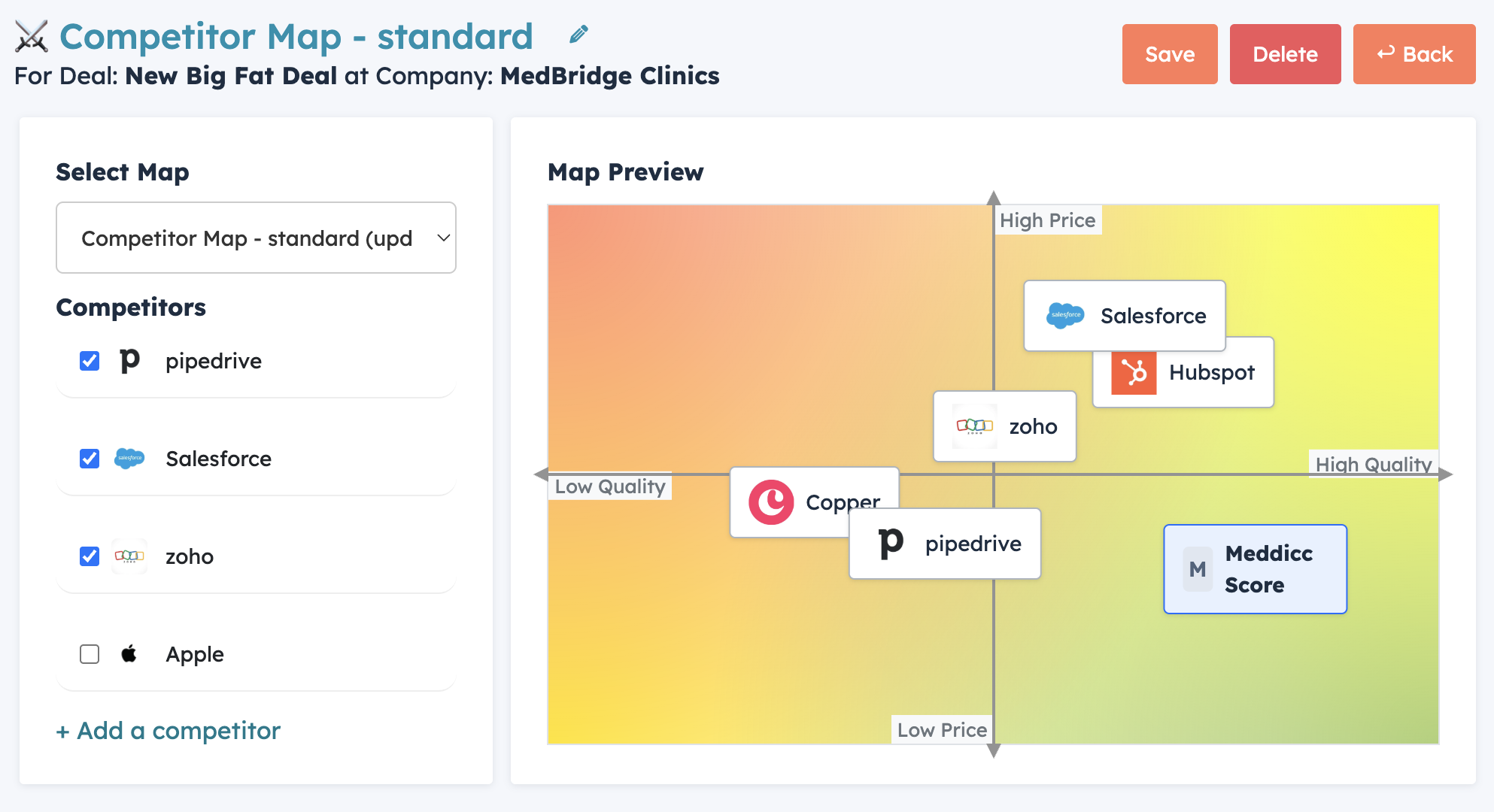
- From the Deal form, you can access the Competitor Charts to visualize and compare your company's offerings against competitors. This feature helps you identify strengths, weaknesses, and unique value propositions in your sales strategy.
- You can create multiple competitor charts to be applied in different Deals, allowing you to map different competitive scenarios or focus on specific market segments. The chart you create or select for a deal will become the default for that specific deal.
- Selecting and Moving Competitors: Competitors can be selected from the predefined list and positioned on the chart. You can drag and drop competitors to arrange them visually, representing their market positioning or threat level.
- Managing Charts: Different competitor charts can be selected from existing ones, or you can create a new chart tailored to the deal's context. This flexibility allows for customized competitive analysis per opportunity.
- Integration with Sales Framework: The information from the competitor chart will be considered to automatically fill up the sales framework on competitor-related questions, providing AI-generated insights based on the mapped competitive landscape.
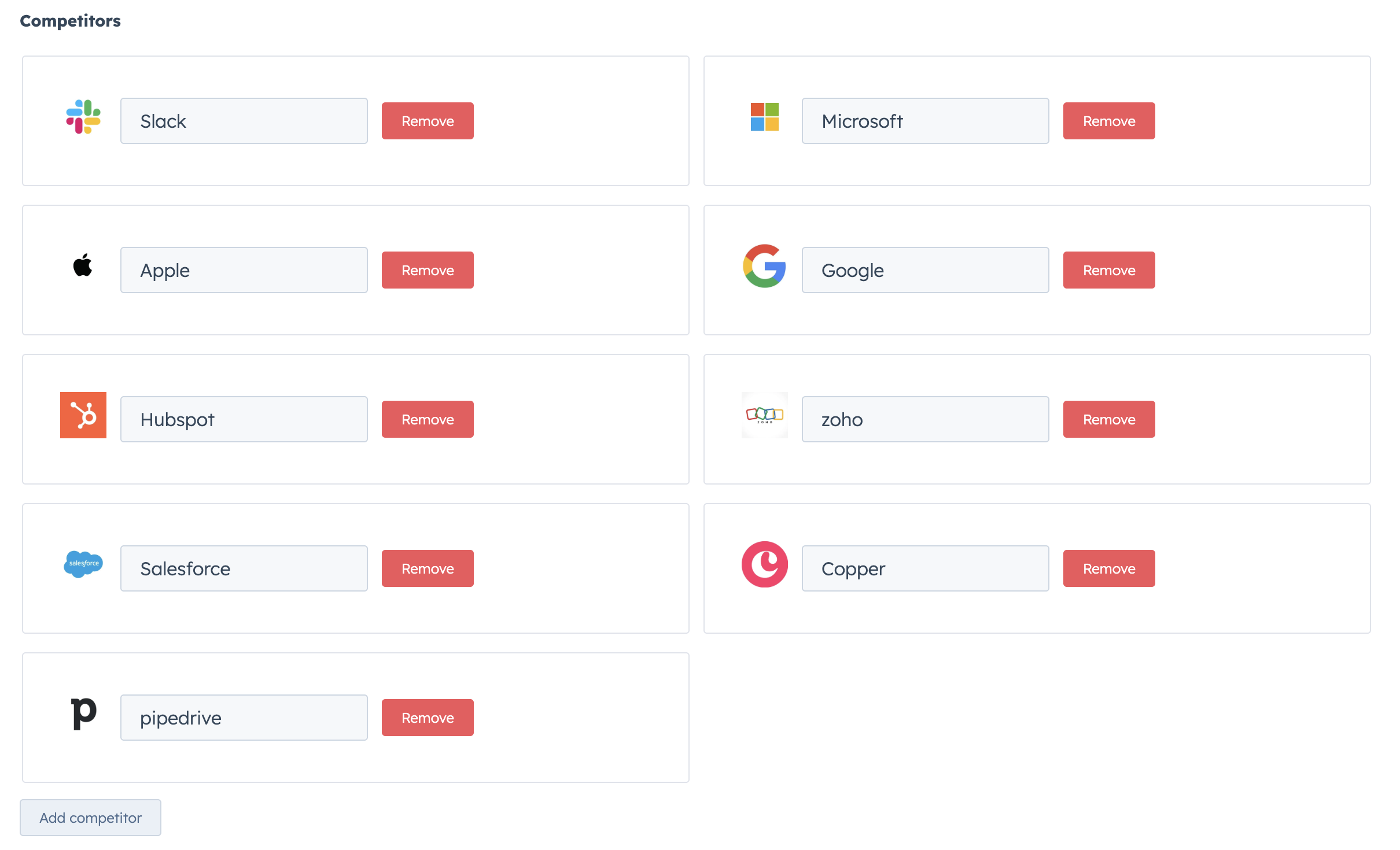
- The list of competitors can be edited or competitors can be deleted in Settings > Company Profile > Competitors.
7. Change the Framework
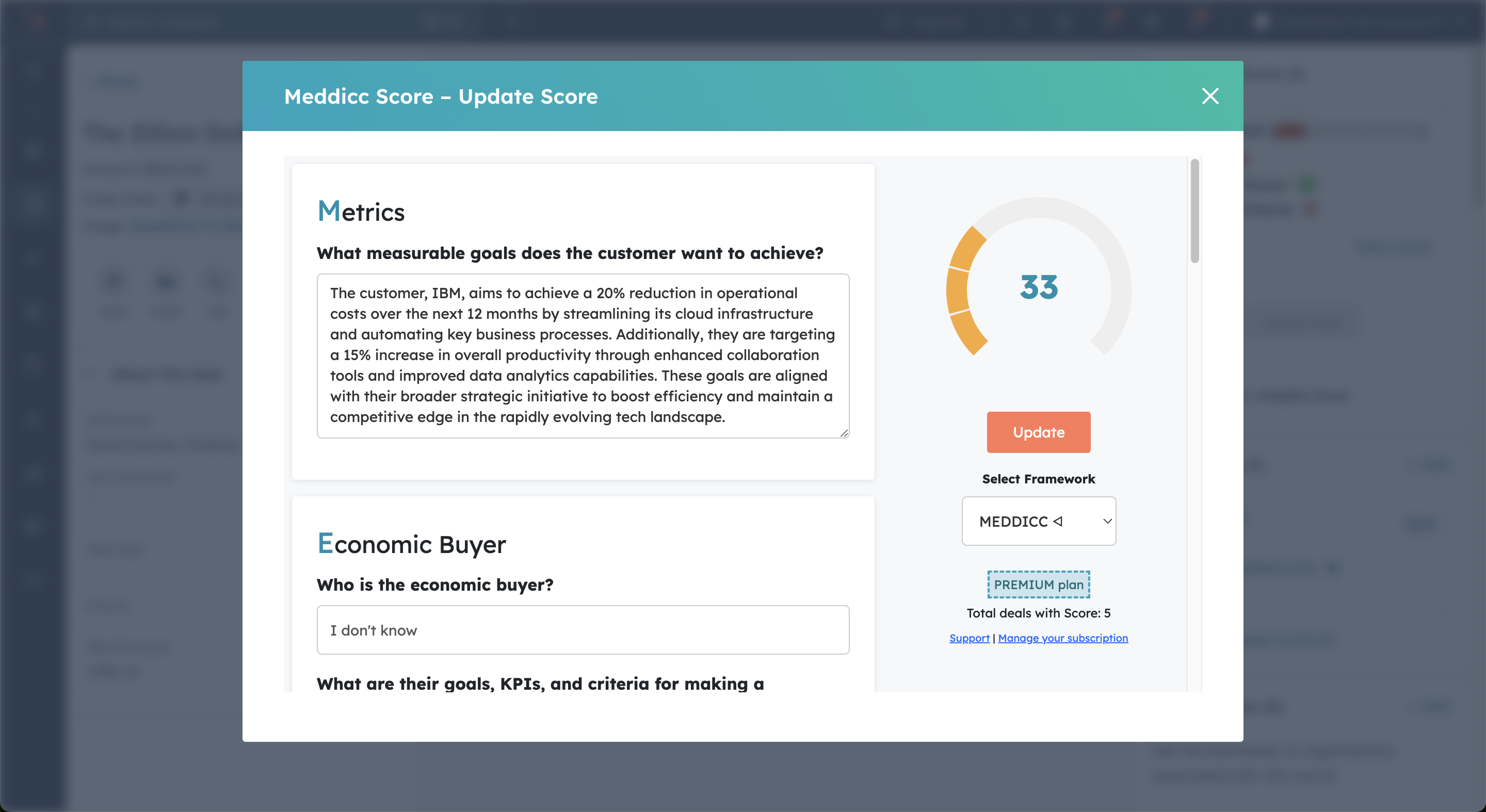
- Users (if allow by Admins) can select a different qualification framework for each Deal.
- AI will prepopulate the selected framework with relevant information from the Deal.
- However, switching frameworks will not automatically recalculate the score nor save the responses, ensuring that old responses remain accessible.
- Users can return to the previous framework at any time.
8. HubSpot Workflow Actions (Pro+ only)
Meddicc Score includes custom HubSpot workflow actions so Admins can automate common MEDDICC operations directly from deal-based workflows. These actions use the enrolled deal automatically, so you do not need to create a webhook, store an API key, or manually map the deal ID.
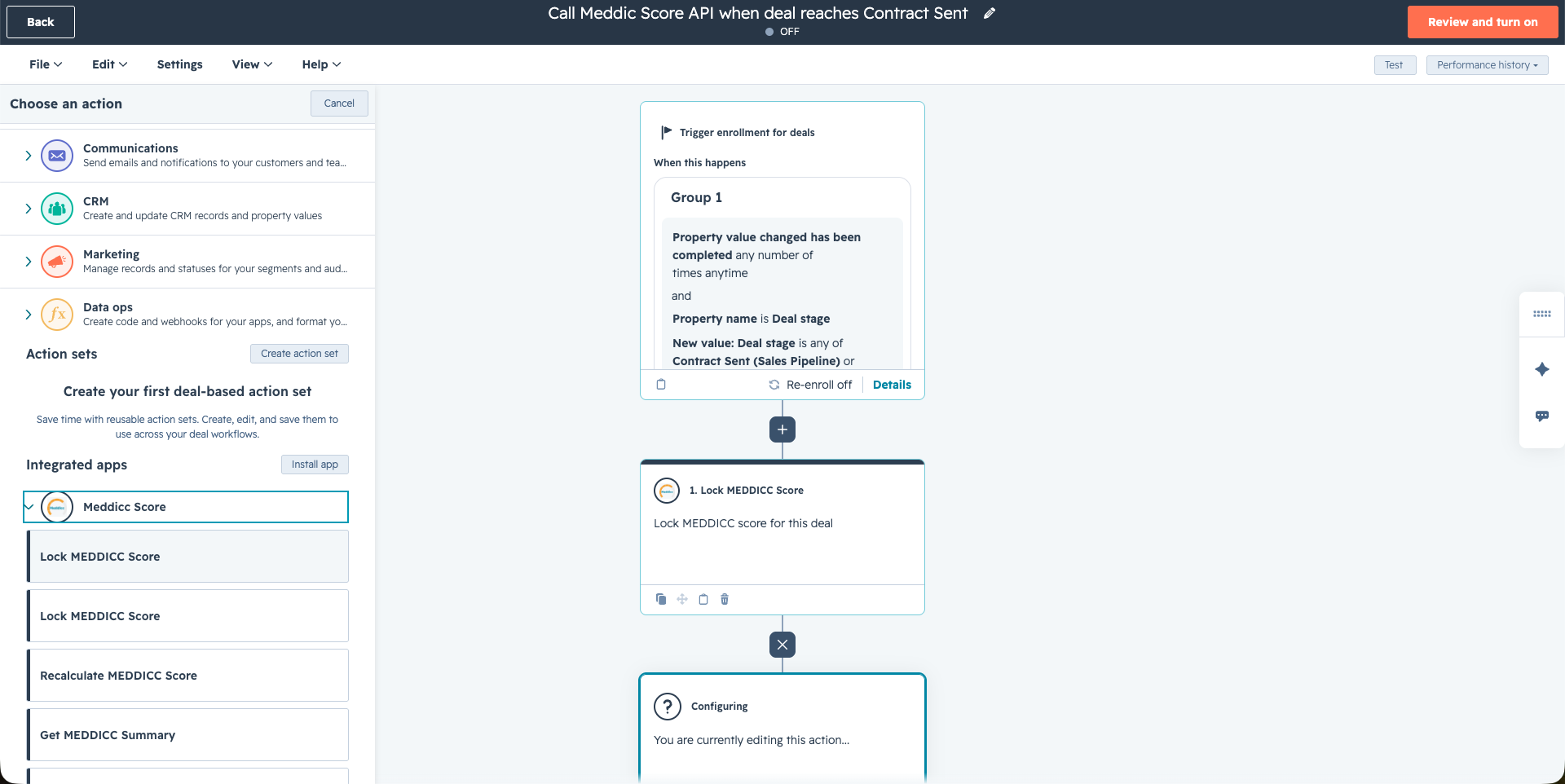
Workflow actions are available for Pro+ accounts with at least one premium user. The enrolled deal must already exist in Meddicc Score and have MEDDICC data.
| Workflow Action | What it does | Common use case |
|---|---|---|
| Get MEDDICC Summary | Returns the current framework, score, score lock status, completion percentage, and question/section progress for the enrolled deal. It does not change the deal. | Branch a workflow based on score, completion, or whether the score is locked. |
| Lock MEDDICC Score | Locks the current MEDDICC score for the enrolled deal. Future recalculations can update answers and feedback, but they will not overwrite the stored score while it is locked. | Freeze the score when a deal reaches a late stage such as Contract Sent. |
| Lock MEDDICC Deal | Locks the current score and all questions together for the enrolled deal, preserving the score and answer values. | Freeze the score and qualification answers when a deal reaches an agreed milestone. |
| Unlock MEDDICC Score | Unlocks the MEDDICC score for the enrolled deal so future recalculations can update it again. | Allow the score to change again if a deal moves backwards, is reopened, or needs new qualification work. |
| Recalculate MEDDICC Score | Recalculates the MEDDICC score using the current answers and syncs the score back to the HubSpot score_meddicc property when possible. |
Refresh the score at a specific stage or after important qualification data has been added. |
| Refill and Score MEDDICC | Refills unlocked answers from the latest HubSpot deal data and engagements, then recalculates the MEDDICC score. Locked answers remain unchanged, and a locked overall score is preserved. | Refresh qualification data and scoring when a deal reaches a workflow milestone. |
The actions return output fields that can be used in later workflow branches, including hubspotDealId, dealId, framework, score, lockedScore, completionPct, questionCount, answeredCount, sectionCount, completedSectionCount, errorCode, and errorMessage. The Lock MEDDICC Deal action also returns lockedQuestionCount. To unlock the score and all questions together, use /meddicc/deal-lock with locked: false; Unlock MEDDICC Score only unlocks the score. The score-changing actions also return hubspotSyncStatus, and the refill action returns refillStatus.
For a full example, see How to Lock and Unlock the Meddicc Score with a HubSpot Workflow. If you need lower-level control, the Meddicc Score API section below explains the webhook-based approach.
9. Settings (only Admin)
- Only Admins (considered that in Meddicc Score, may be different from HubSpot admins) can access Settings. This will get access to customize the experience of Meddicc Score. It is organized in four sections: General settings, Company Profile (to provide context to the AI), Framework (to modify the questions) and Users (to manage user access and licences).
- It can be accessed by clicking on "Settings" on the bottom part of the Cards or going to HubSpot Settings > Integrations > Connected Apps > Meddicc Score > Settings.
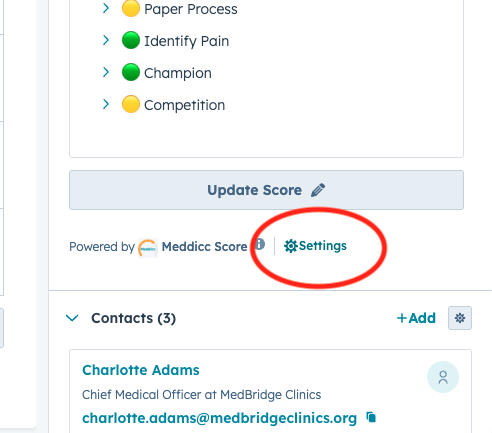
9.1 General Settings:
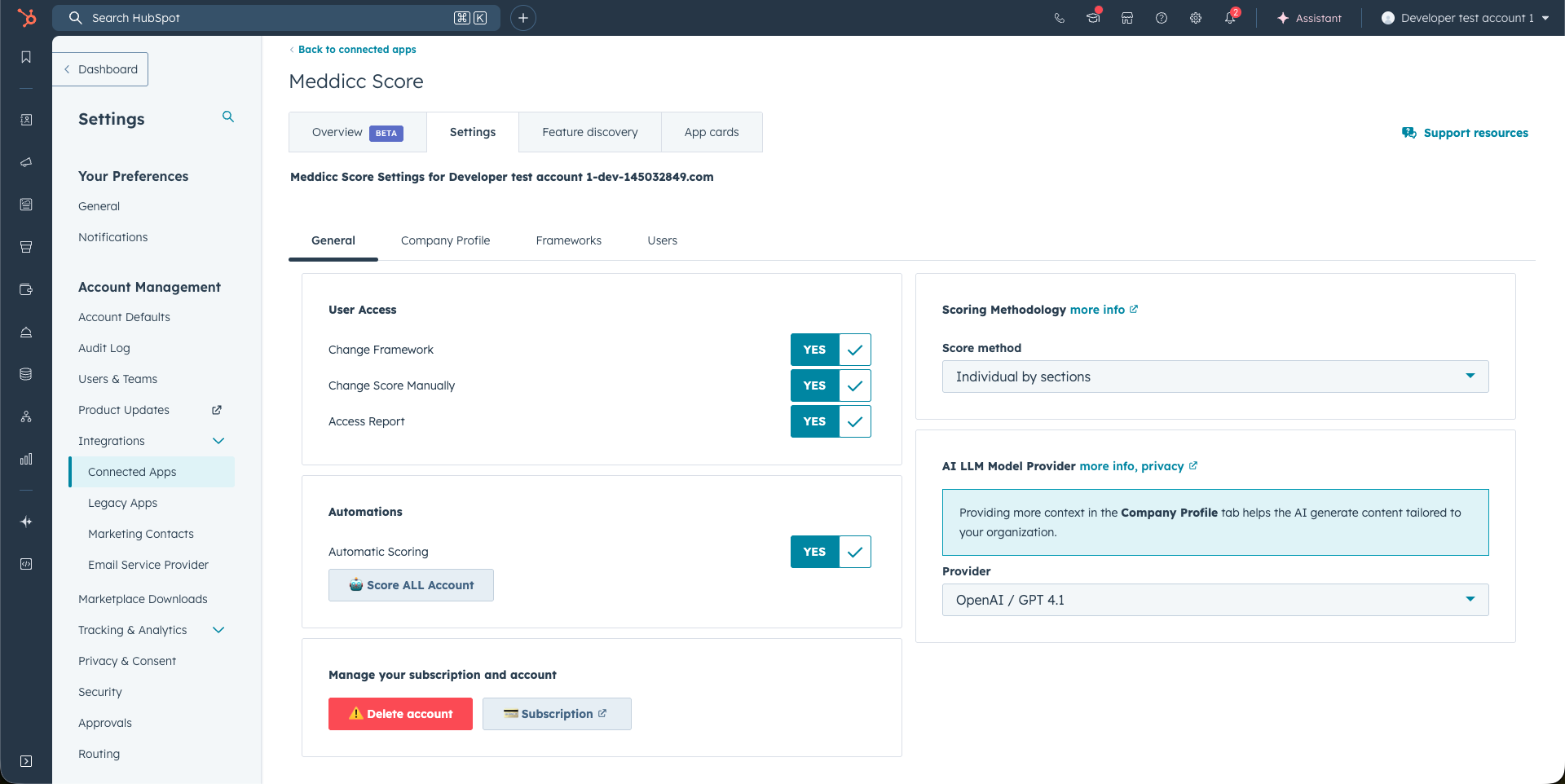
9.1.1 Users access:
- Change Framework: Allows non-admin users to switch between different sales qualification frameworks (e.g., MEDDICC, BANT).
- Change Score Manually: Enables non-admin users to manually adjust the scores assigned to deals or opportunities.
9.1.2 Lock qualification by deal stage:
- Enable stage-based locking: Controls whether Meddicc Score automatically locks the score and all qualification questions when a deal reaches a configured HubSpot stage.
- Stages that lock qualification: Select one or more stages from the account's HubSpot pipelines. The list is retrieved from HubSpot and groups every stage under its pipeline, so you can configure different locking points for different sales processes.
- When a deal enters a selected stage, its current score and qualification answers are preserved and cannot be overwritten by normal editing, refill, scoring, or automation. When the deal moves out of every selected stage, the automatic stage lock is released and its previous score-lock state is restored.
- Turn the feature off if sellers should remain able to update qualification at every stage, including after a deal closes.
- For existing accounts that have not saved this setting yet, Meddicc Score keeps the previous behavior: Closed Won and Closed Lost deals are locked automatically.
9.1.3 Automations:
- Automations help you streamline and automate the scoring process. They are shown before AI Settings in the General Settings tab and are available when Use AI for Refill and Score is enabled.
- When an automation retrieves activities, it uses the account’s Activity types used for AI selection. Excluding an activity type changes the evidence retrieved; it does not disable the automation or change its trigger.
-
Sync MeddiccScore to HubSpot properties: When enabled, Meddicc Score creates a Meddicc Score properties group on HubSpot Deals and syncs a small set of fixed deal properties. This is useful when you want Meddicc Score data available in HubSpot lists, workflows, reports, deal views, manager dashboards, or stage-gate automations.
The synced properties are:
score_meddicc: The overall Meddicc Score for the deal, from 0 to 100.meddicc_framework: The qualification framework used for the deal, such as MEDDICC, MEDDPICC, BANT, SPICED, or a custom framework.meddicc_last_scored_date: The date and time when the deal was last successfully scored and synced.meddicc_completion_pct: The percentage of framework questions that have been answered.meddicc_missing_categories: Categories where at least one required question is still empty.meddicc_bad_categories: Categories where the AI feedback is bad and the deal may need attention before moving forward.meddicc_medium_categories: Categories where the AI feedback is medium and the qualification may need improvement.meddicc_good_categories: Categories where the AI feedback is good.meddicc_qualification_status: A summary status for the deal: unscored, incomplete, qualified, or at risk.meddicc_next_action: A short recommended next action generated from the deal assessment.
-
Automatic Scoring: When enabled, this feature sets up a workflow so that every time a new engagement (Note, Meeting, Task, or Call) is logged in HubSpot, the Meddicc Score form is automatically re-filled with the latest information and rescored. Locked fields will not be changed, but unlocked fields and the overall score may be updated. Please note the following limitations due to the HubSpot API:
- The Meddicc Card in the sidebar will not refresh automatically; it updates only when the entire deal is refreshed.
- Automatic scoring is not triggered if an engagement is updated from a previous engagement already created.
- Automatic scoring does not trigger for new emails; it works only for Meetings, Calls, Tasks, or Notes.
-
Score Account: This option will trigger scoring for all deals* in your account. All previous information and scores will be overwritten, and this action cannot be undone. The process may take several minutes, and the Admin user will receive an email notification once it is complete.
* Limited to the last 2000 Deals created that are not closed yet. If you need more, please contact support.
9.1.4 AI Settings:
- Use AI for Refill and Score: Enabled by default. When set to YES, Meddicc Score can use the selected AI model to refill answers, score the form, generate feedback, create next steps, produce Win/Loss analysis, and generate the Closed Won onboarding handoff. When set to NO, no AI is used: Refill is disabled, scoring is calculated deterministically from the completeness of each answer, and contact action plans are based only on associated deal counts and scores. The provider, custom prompt, Automations, and Scoring Methodology controls are hidden while this option is disabled.
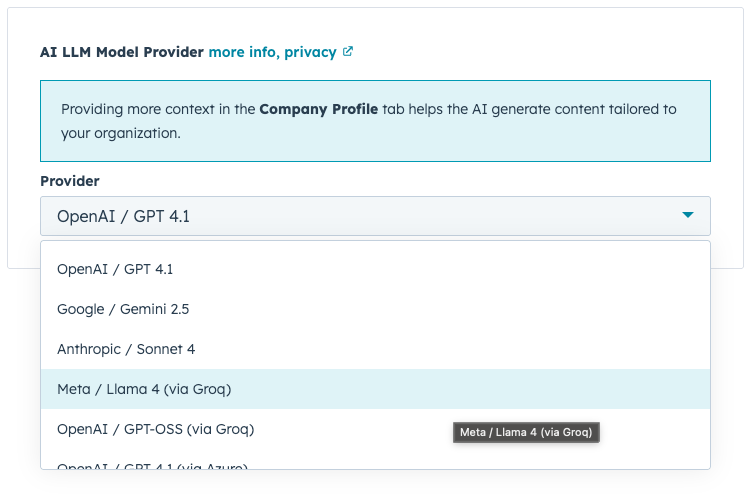
- Provider: Selects the Large Language Model (AI) provider used on the app, to pre-fill the forms and score the framework. The data will be shared with that provider, so please take into account their privacy policies, see more information here.
- Custom scoring prompt (Pro+ only): With the Pro+ add-on, you can customize the instructions used by the AI when scoring deals. The default prompt provides the recommended structure and scoring rules, so use it as a starting point and keep the same format when adapting it to your qualification process.
- Custom onboarding handoff prompt: Available for all accounts. Use this field to customize the Customer Success onboarding handoff generated for Closed Won deals. Leave it empty to use the default handoff instructions. The prompt can request different section names, priorities, tone, and level of detail. Meddicc Score still returns the handoff in a stable format with a summary and flexible sections, so the HubSpot UI, download, and API can render custom outcomes consistently.
-
Model selection balances extraction accuracy, structured-output consistency, latency, and cost. MEDDICC scoring is primarily an evidence-extraction and classification task, so a newer or more reasoning-intensive model does not automatically produce a better score. More reasoning can sometimes infer qualification details that are not supported by the CRM record. We recommend testing providers against representative deals and choosing the option that most consistently reflects the evidence in your CRM. If there’s a specific model you’d like us to add, please reach out to our support team.
-
Available providers:
- OpenAI / GPT 4.1 (default): more information on model capabilities ↗
- Google / Gemini 2.5 Flash: more information on model capabilities ↗
- Anthropic / Claude Sonnet 4.6 and Haiku 4.5 (Pro+ only): Sonnet 4.6 is used for the highest-quality scoring mode, while Haiku 4.5 is used for faster, lower-cost modes. more information on Claude ↗
- OpenAI / GPT OSS: more information on model capabilities ↗. GPT OSS is provided by Groq: more information ↗
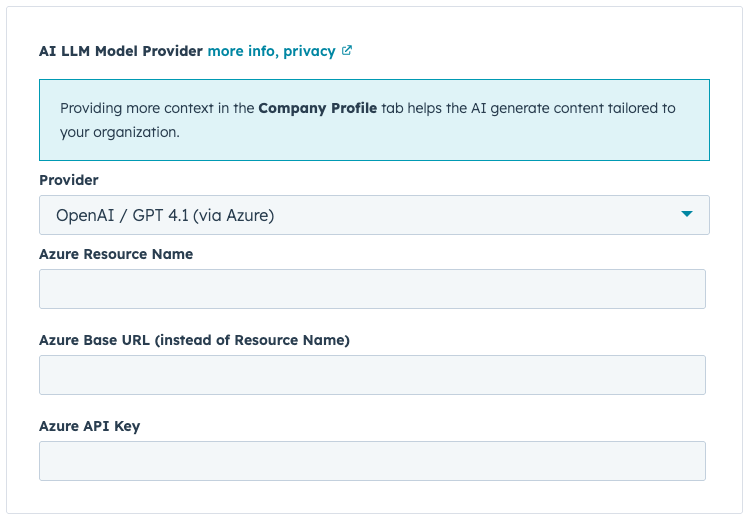
- Azure OpenAI / GPT 4.1: Microsoft Azure enables the use of OpenAI models (along with others) in a private, secure, enterprise-grade deployment, guaranteeing full data privacy (according to their claims). This allows organizations to leverage the latest OpenAI models without explicitly sharing their information with OpenAI.more information on Azure ↗. For this to work, more information is required:
- Resource name: The calls to the API will follow this URL https://{resourceName}.openai.azure.com/openai/v1{path}
- Base URL: Instead of Resource name, the Base URL can be provided. The calls to the API will follow this URL {baseURL}/v1{path}
- Api Key: Although the key is safely stored and encrypted, It is recommended to provide an exclusive Api Key for Meddicc Score and set limits of usage.
Choosing a provider: Compare providers using the same representative deals and review evidence accuracy, unsupported assumptions, structured-response consistency, latency, and cost. The quality and recency of the CRM activities and properties available to Meddicc Score often affect the result more than model generation alone.
9.1.5 Scoring Methodology:
- Score of the forms go from 0 to 100. This tile is shown only when Use AI for Refill and Score is enabled. There are two options for Scoring the forms:
- All the form together (default): The selected AI model evaluates the form holistically and assigns a single score based on the overall completeness and deal quality. Results can vary by model and interpretation, and may sometimes skew optimistic. In this mode, section weights are not used.
- Individual by sections (weighted): Each section of the form (e.g., Metrics, Economic Buyer, etc.) is rated as bad (0), medium (0.5), or good (1). The section score is multiplied by its weight configured in the Frameworks settings, and all section scores are summed to produce the final 0–100 score. If no weights are set, all sections are weighted equally. This method is more predictable and consistent, though it can lead to more repetitive scoring patterns.
- Activity types used for AI: Choose which HubSpot activities the AI uses: Notes, Calls, Emails, Meetings and Tasks. All are selected by default. Unchecked types are not fetched or used as activity context. This setting applies to everyone in the account, including refill, Score all and automations.
- Consider only the last XX days of engagements: The AI considers up to 100 recent activities from the selected types. Set a day limit to further restrict the activity context to that period. This limit works together with the activity-type selection.
- Consider only these deal properties for scoring: By default, the AI analyzes several key deal properties, such as Close Date, Amount, and existing MEDDIC fields. To better align with your specific business workflow, you can customize which properties the AI evaluates. For example, if your "Close Date" is often a placeholder, excluding it will prevent skewed scoring or feedback. To customize your settings, check the box and select only the properties you wish to include.
9.1.6 Manage your Subscription and account:
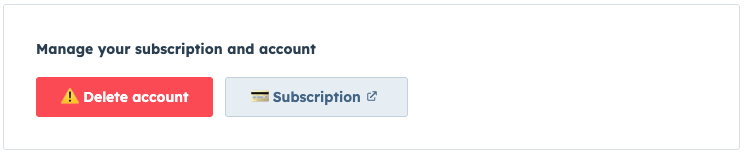
- Upgrade (Free users only): Upgrade your account to access premium features.
- Manage Subscription (Admin, paid users only): Opens the Customer Portal to update or cancel your subscription. For Corporate subscriptions, contact support by email. More information.
- Delete Account: Permanently deletes all MeddiccScore data (not your HubSpot account), including deals, users, and account information. This action cannot be undone. Please cancel any paid subscription before deleting your account.
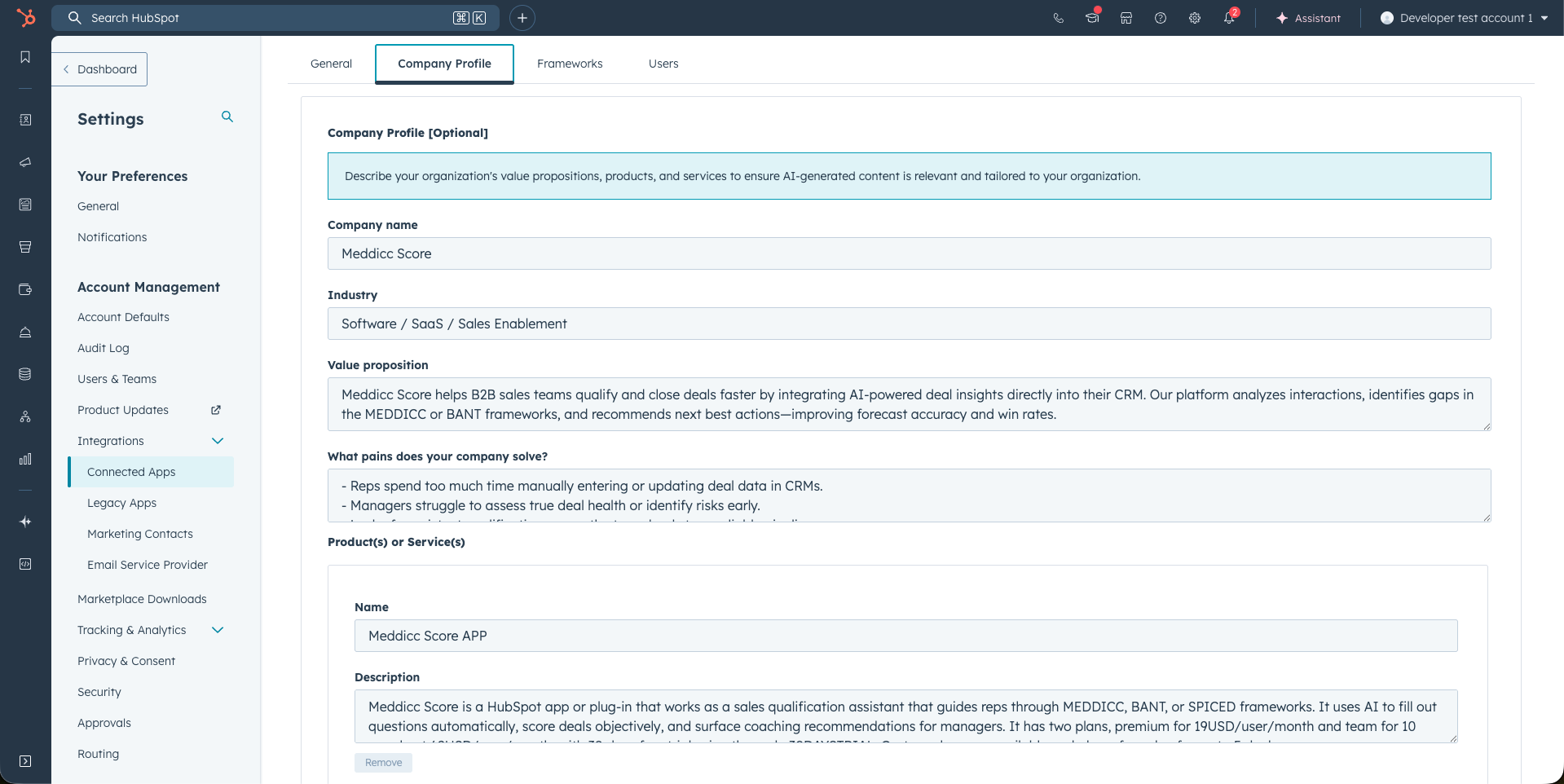
9.2 Company Profile: Provide context to tailor the AI responses (only Admin)
- In this section is possible to add more context about your organization's value propositions, products, and services to ensure AI-generated content is relevant and tailored to your organization. Filling this information is optional but recommended. The field that are available are:
- Company name
- Industry
- Value proposition
- What pains does your company solve?
- Product(s) or Service(s): A list of the offering with the name and description. At least one has to be provided.
9.3 Frameworks: Editing the framework questions and default framework (only Admin)
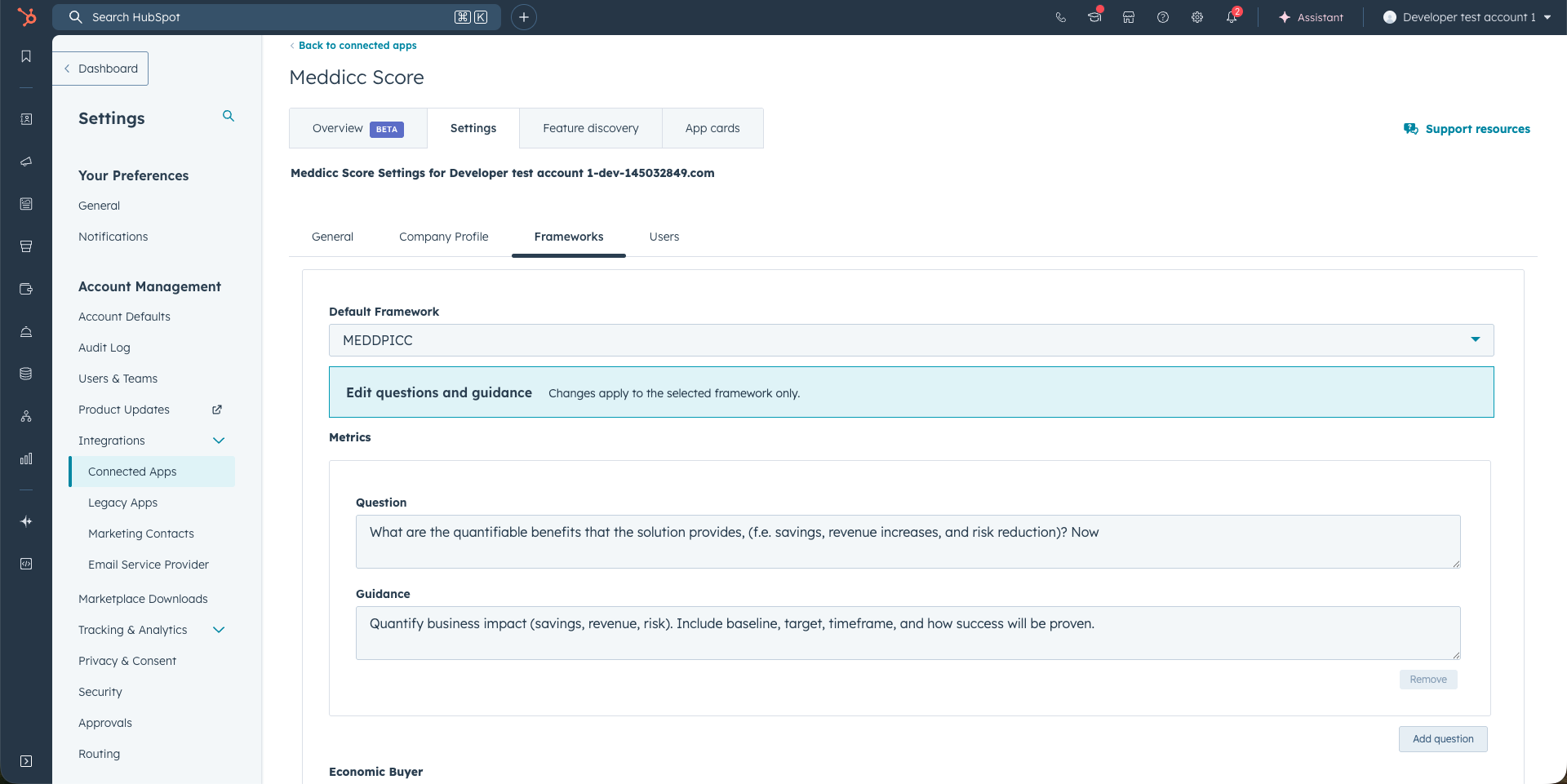
- Only Admins can access this feature. Clicking on the Frameworks tab, allows the Admins to edit the questions and the guidance for that framework. The change will apply to all account members (not just the individual user). The modification will not affect the answers or scores previously submitted but will update the questions and guidance for all deals where that framework has been used.
- The framework selected will also be the Default framework for the entire account. Every new deal will use this framework by default. The change will not affect the answers or frameworks previously submitted in existing deals. The default framework is initially set to MEDDICC.
- Section weights (Scoring): In the Frameworks tab you can assign a weight (as a percentage) to each category. Those weights define the maximum points for each category in the “Individual by sections (weighted)” scoring method. The final score is the sum of each category’s rating (bad/medium/good = 0/0.5/1) multiplied by its weight.
- Validation: The weights must add up to exactly 100% to be saved. The UI shows the total and any remaining or excess percentage. If the total is not 100%, the weights are not saved and the system falls back to equal weighting across categories.
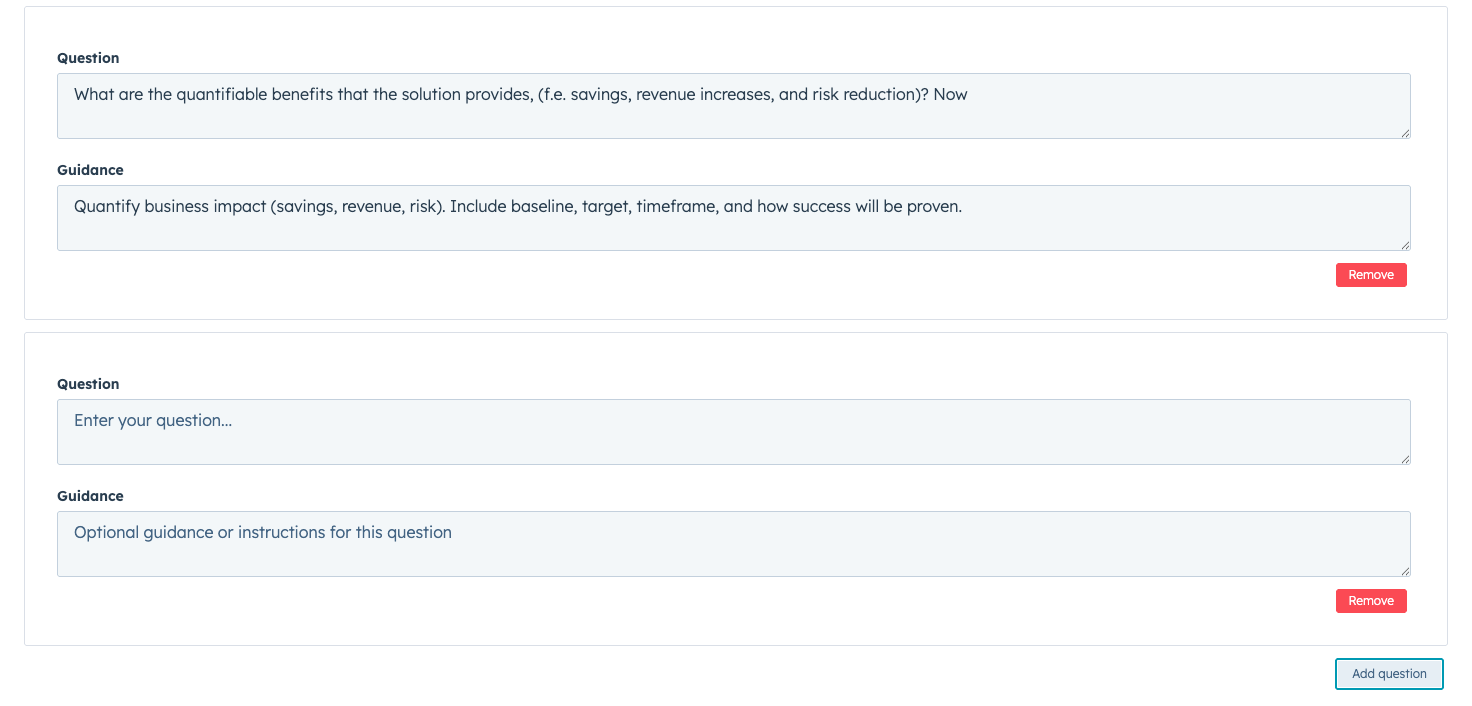
- You can add more questions to any category of the framework. Clicking in "Add question" will add one more set of question and guidance. It can be removed clicking on "Remove question", although it has to be at least one per category.
9.4 Users: Manage your users (only Admin)
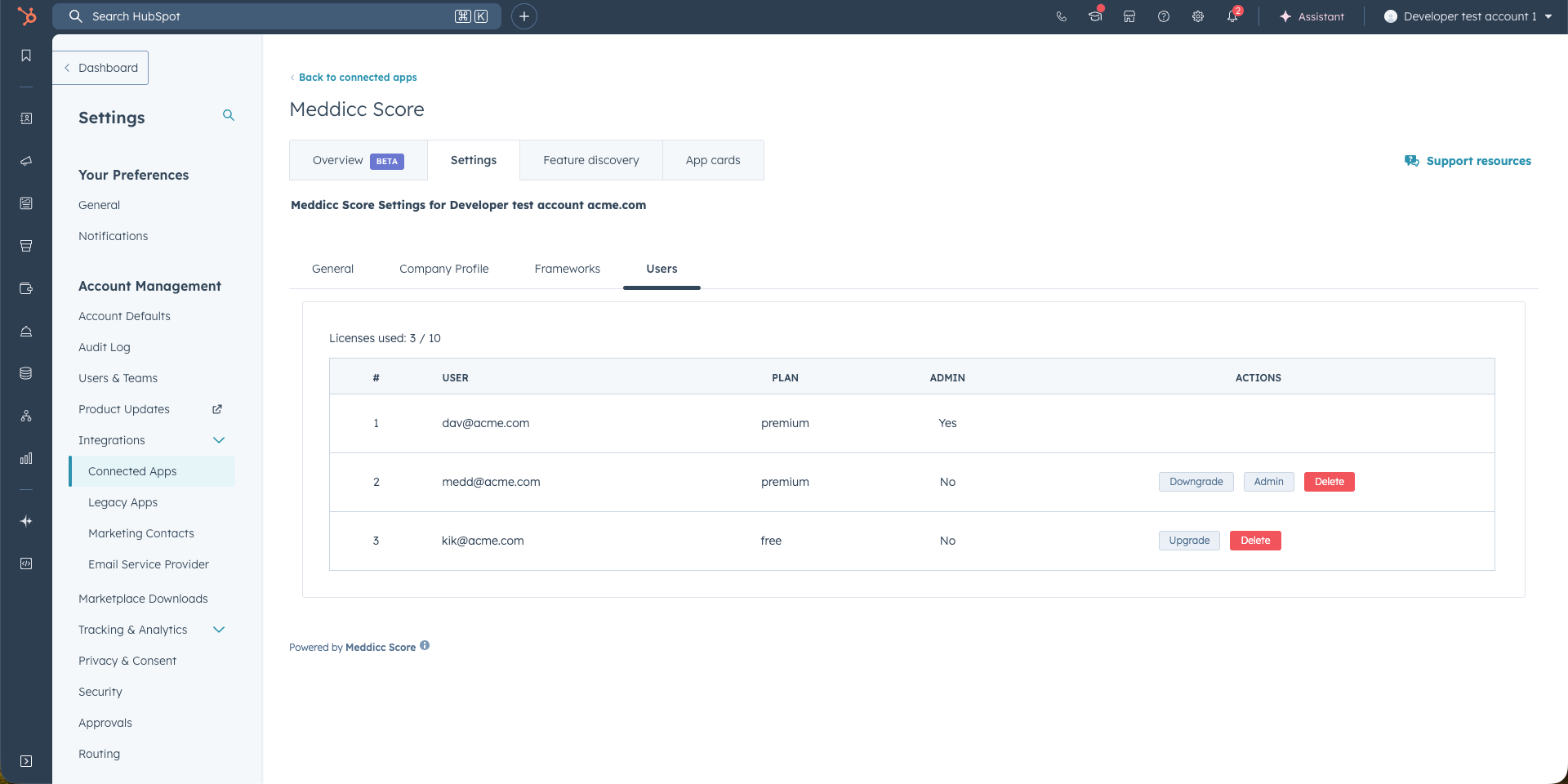
- Clicking on the "Users" tab displays the current Meddicc Score users for the account and their licence status. Team members are added when they first access Meddicc Score from HubSpot.
- Language Settings: You can set a preferred language for every user on the account. This ensures that Sales Frameworks (questions and answers), assessments, and next steps are generated in that specific language. This setting applies even if the original records are in a different language. By default, all users are set to English.
Supported Languages: Arabic, Chinese, English, French, German, Dutch, Spanish, Portuguese, Hindi, Japanese and Italian. (more can be added per request) - Weekly Pipeline Risk Digest: Admins can control the weekly email digest for each user from the Users tab. The digest highlights pipeline risks, missing qualification fields, and recommended next actions before the next pipeline review.
- Digest role: Admins can assign each user one of three digest roles:
- Sales Rep: receives a personal pipeline summary and the top deals assigned to them that need attention.
- Manager: receives a team summary, owner comparison, recommended focus areas, and the top team deals that need attention.
- RevOps / Admin: receives adoption and data quality metrics, framework usage, rep performance, and the top account-level deals that need attention.
- Weekly email toggle: Admins can enable or disable weekly email updates per user. Admin users are enabled by default, and Sales Rep users can be enabled manually by an Admin. New users are enabled by default and can be changed from this same section.
- Send test email: Admins can send a test digest from the Users tab to preview what a selected user would receive. Test emails are delivered to the Admin who sends the test and are marked as a test preview.
- Pipelines: Admins can configure to what pipelines the user will be subscribed to on the email digest.
- In the right column of the list, three actions are available only to the Admin users:
- Upgrade/Downgrade: Change the user's status to Premium or Free. This action either assigns or frees up a license. If no licenses are available, additional licenses can be purchased, or the account can be upgraded to the Team plan. Please note the downgrade DO NOT cancel the subcription, just free the seat or the licences count.
- Delete: Marks the user for deletion. If the HubSpot account remains connected, the user can be created again when they next access a Meddicc Score card.
- Make Admin: Assigns administrative privileges to the selected user, granting them access to manage account settings and users. There can be more than one Admin, but at least one.
- Remove Admin: Remove administrative privileges to the selected user. There has to be at least one Admin user.
- Weekly digest schedule: This controls when enabled users receive their weekly digest.
10. Report and Export
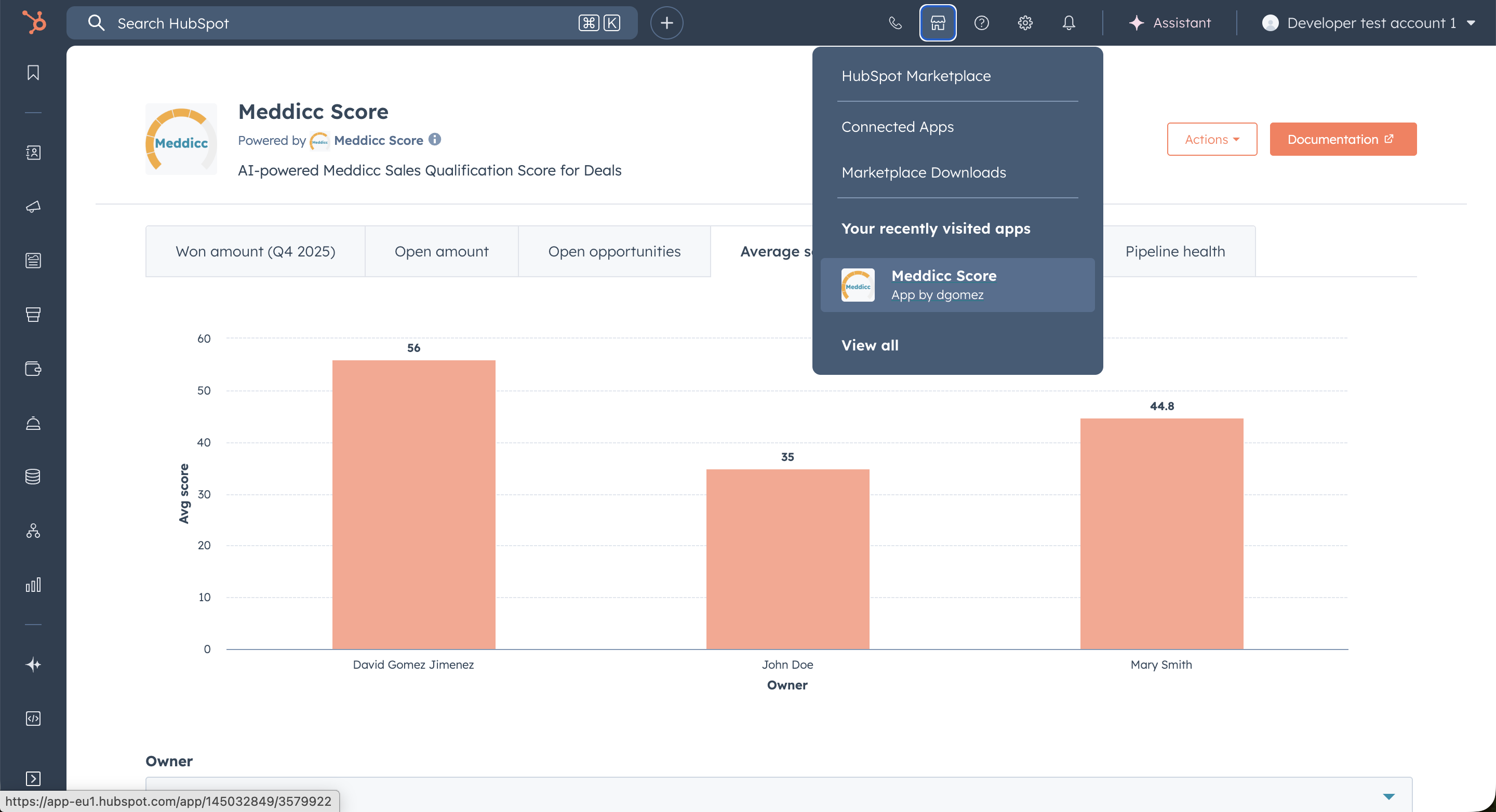
- Open the Meddicc Score Home: click the marketplace icon in the top bar and select “Meddicc Score.” The Home screen provides an overview of account opportunities and key metrics.
- Access Full Report: when “Access Full Report” is enabled in Settings, permitted users can view team-wide statistics; otherwise non-admins see only their own data. Admins always have full access.
- Filter by Opportunity Owner: use the Owner dropdown to filter the report and view deals assigned to a specific user.
- Changes shown (increase/decrease) reflect the difference compared with the previous week’s data (e.g., percentage or absolute delta).
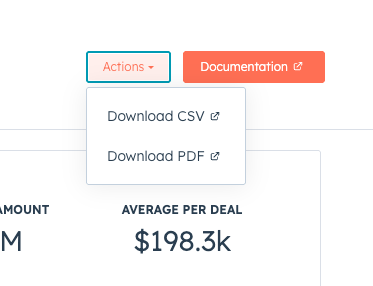
- From the menu "Actions" report is possible to download a CSV with all the notes and scores saved. It is also possible to download the report on PDF format.
- It includes a Bubble Quadrant Graph, which displays the current year’s opportunities with their Score, Close Date, and Amount represented by the bubble size. It will only shows deals that have Close Date and Amount recorded.
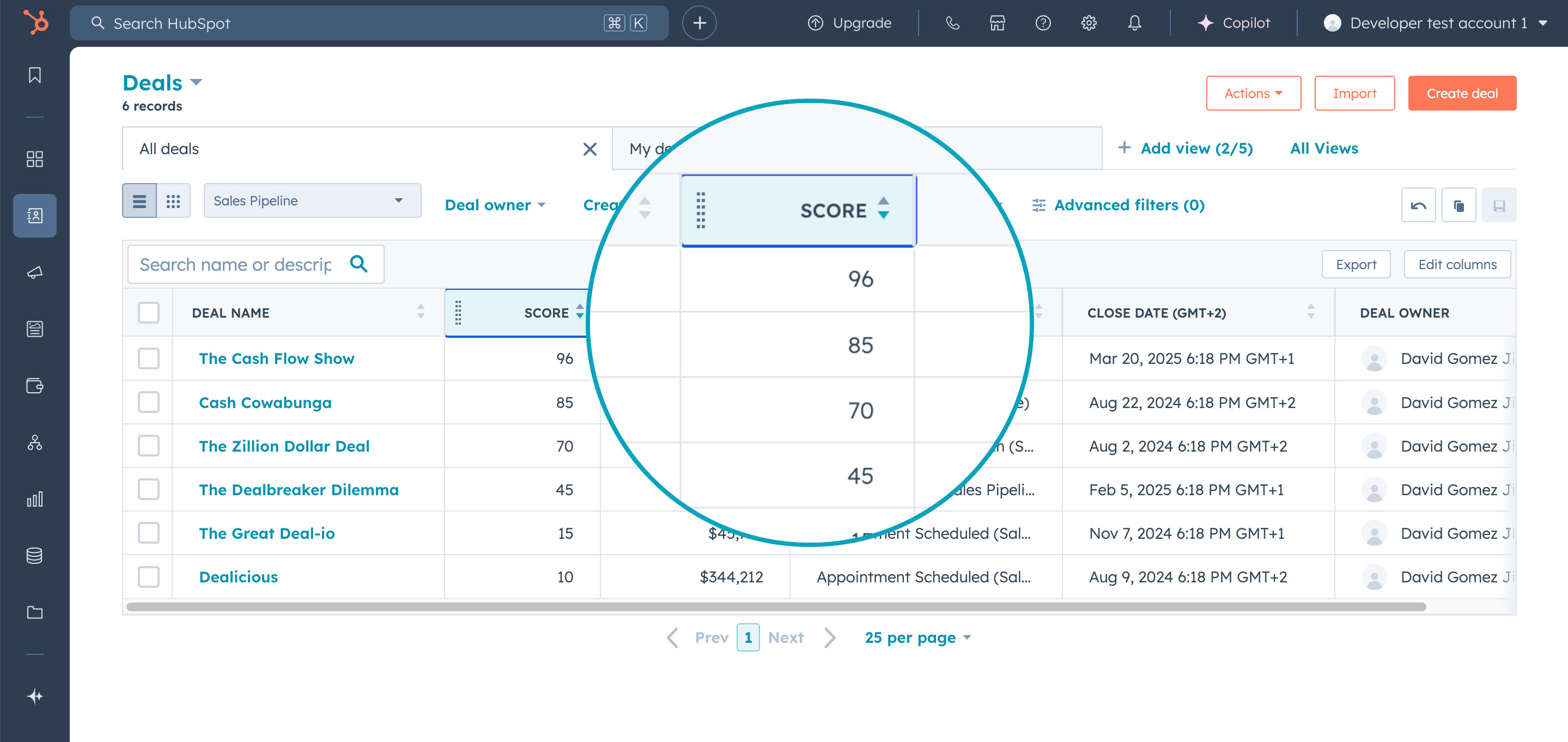
- The Score is also available as a custom HubSpot property (
score_meddicc), and can be used in reporting, columns, etc. If Sync MeddiccScore to HubSpot properties is enabled in Settings > General Settings > Automations, HubSpot can also receive the framework, last scored date, completion percentage, missing categories, bad/medium/good categories, qualification status, and next action.
10.1 Qualification Analysis
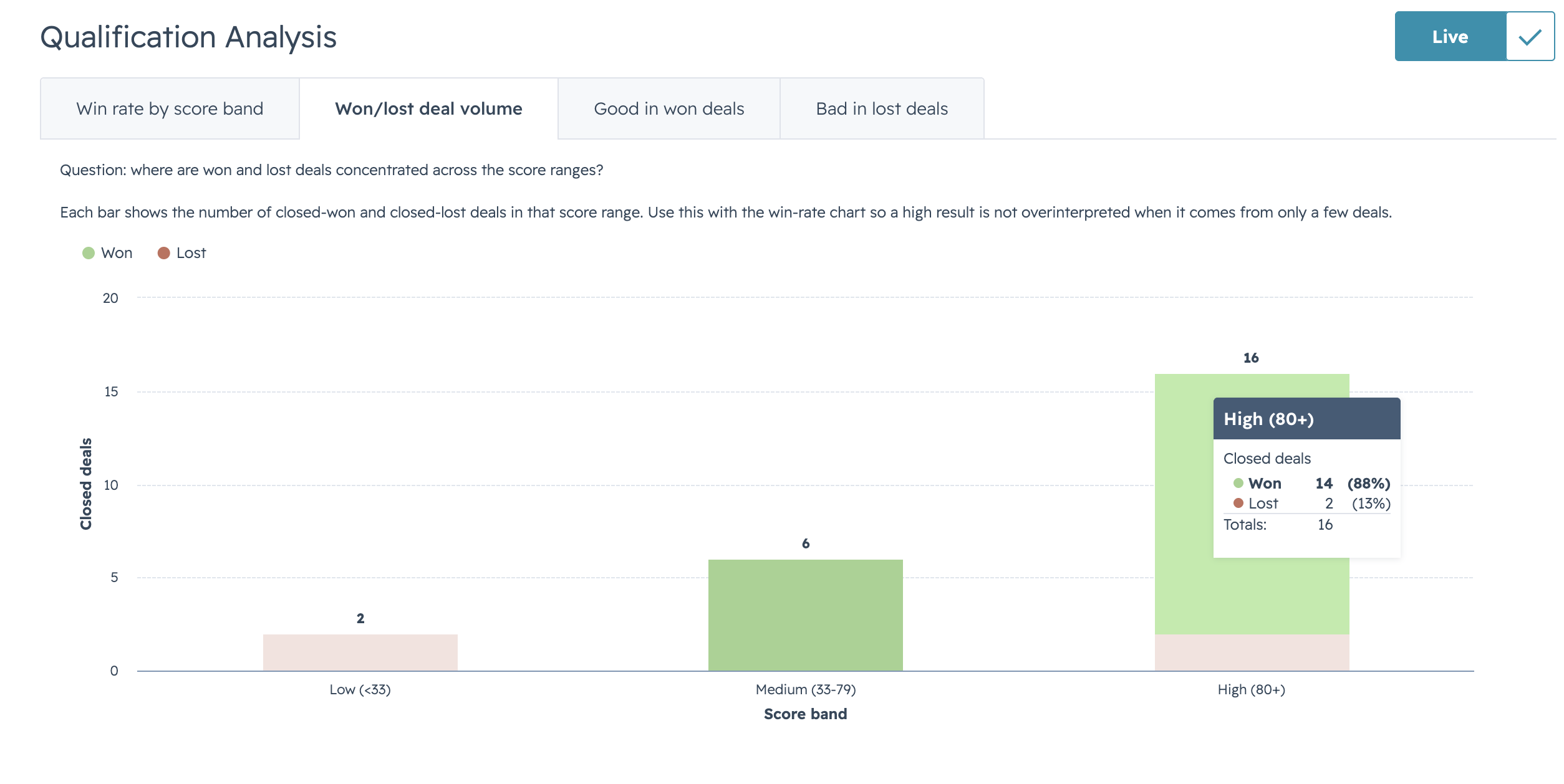
The Home page also includes Qualification Analysis, a historical view of closed deals and their recorded MEDDICC qualification. Use the switch at the top of Home to move between Live pipeline, which contains the current open-deal reporting, and Qualification Analysis, which contains historical outcome analysis.
Qualification Analysis is filtered independently using the same Home controls:
- Time range: select a year or another available period, or provide a custom close-date range.
- Pipeline: limit the analysis to a specific HubSpot pipeline.
- Owner: review the closed deals assigned to a particular HubSpot owner when team visibility is enabled.
The graphs are shown in tabs so the page remains easy to scan:
- Win rate by score band: compares the percentage of deals won in the low, medium, and high final-score bands.
- Won/lost deal volume: shows how many won and lost deals are in each score band. Use this together with win rate because a percentage based on very few deals can be misleading.
- Good in won deals: shows the percentage of closed-won deals where each MEDDICC section was marked good.
- Bad in lost deals: shows the percentage of closed-lost deals where each MEDDICC section was marked bad.
The summary statistics include the number of closed scored deals, win rate, average final score for won and lost deals, and the score gap between those outcomes. The Historical patterns section adds concise observations about score progression and deals that moved stages without a later qualification improvement.
The closed-deal list includes the deal name, owner, amount, outcome, actual close date, score, good and bad MEDDICC categories, and a collapsible timeline. The timeline records important qualification events such as score changes and deal-stage changes. Use the deal link to open the corresponding HubSpot record.
These reports describe patterns that are associated with wins or losses; they do not establish that a score or MEDDICC section caused the outcome. Outcome patterns are shown only when enough local closed-deal history is available. When there is not enough historical data, the page still shows basic coverage and progression information and indicates that more data is needed.
11. Upgrade to Premium
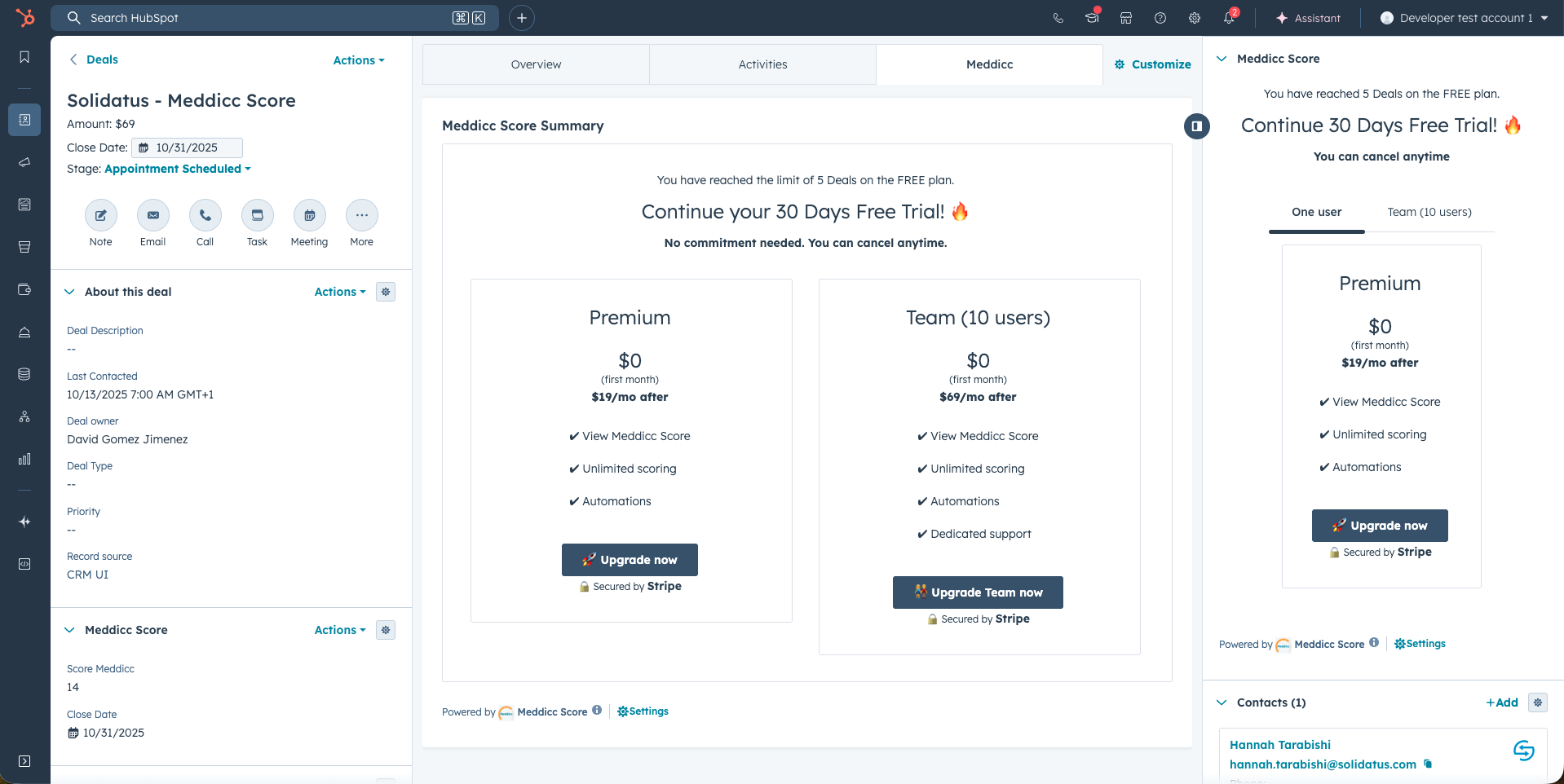
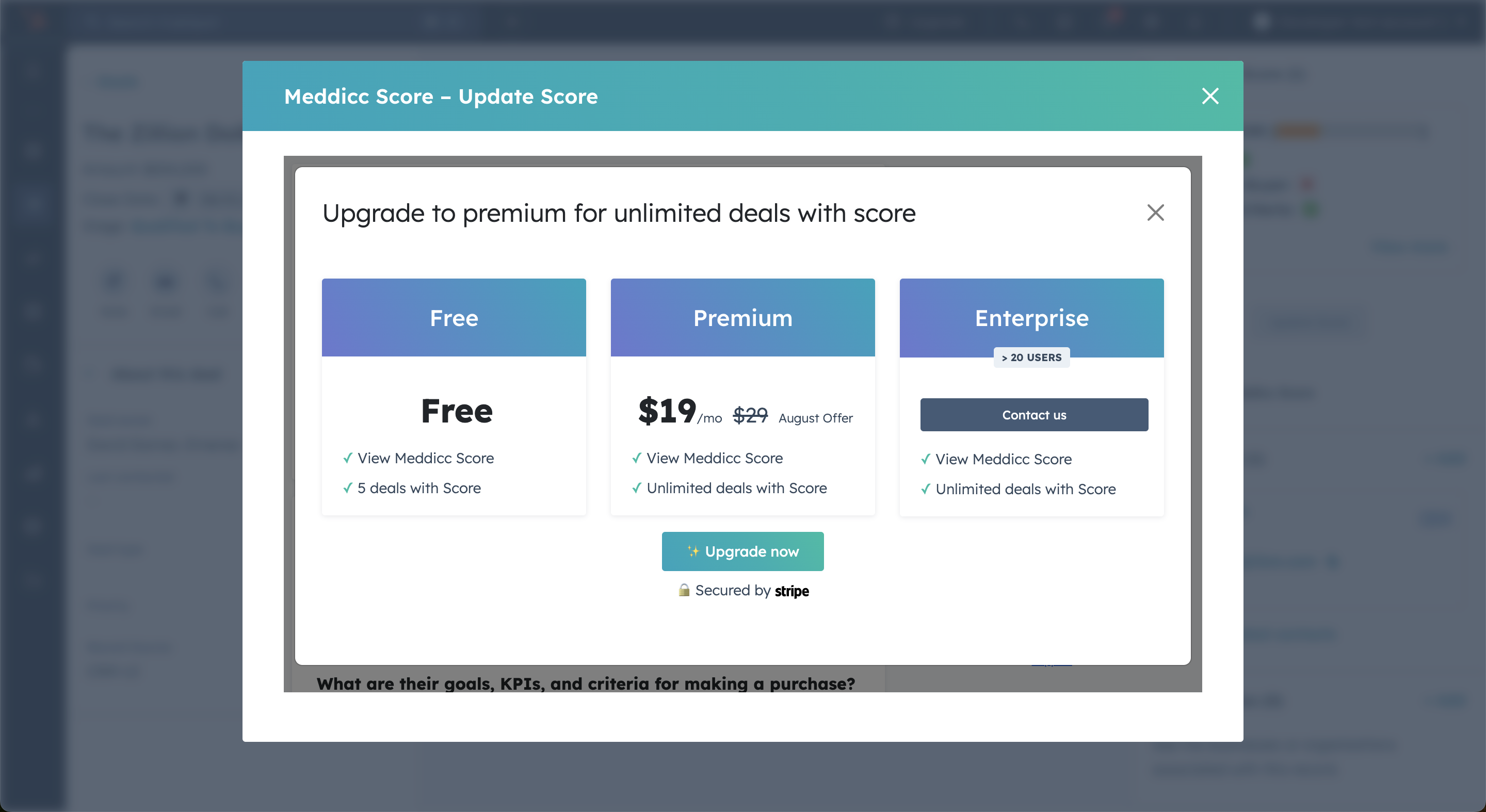
If you like Meddicc Score and want to use it for more than 5 deals, you can upgrade easily from the own app. Click on “Upgrade Now” and you will go to a checkout powered by Stripe.
12. Change the subscription plan or billing details.
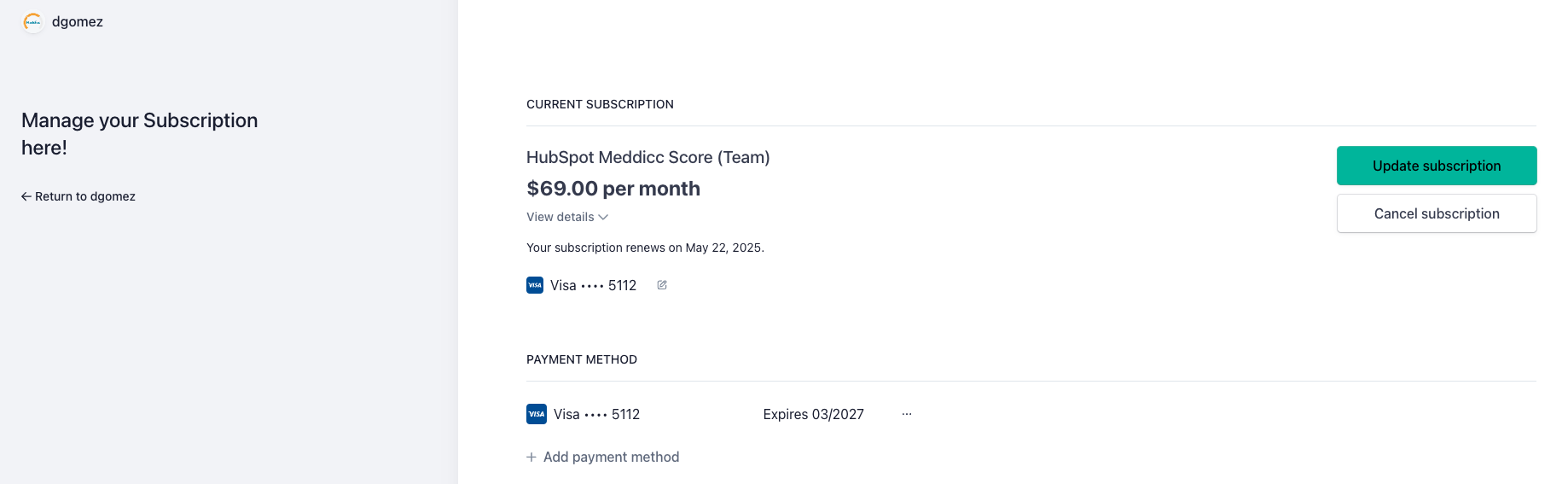
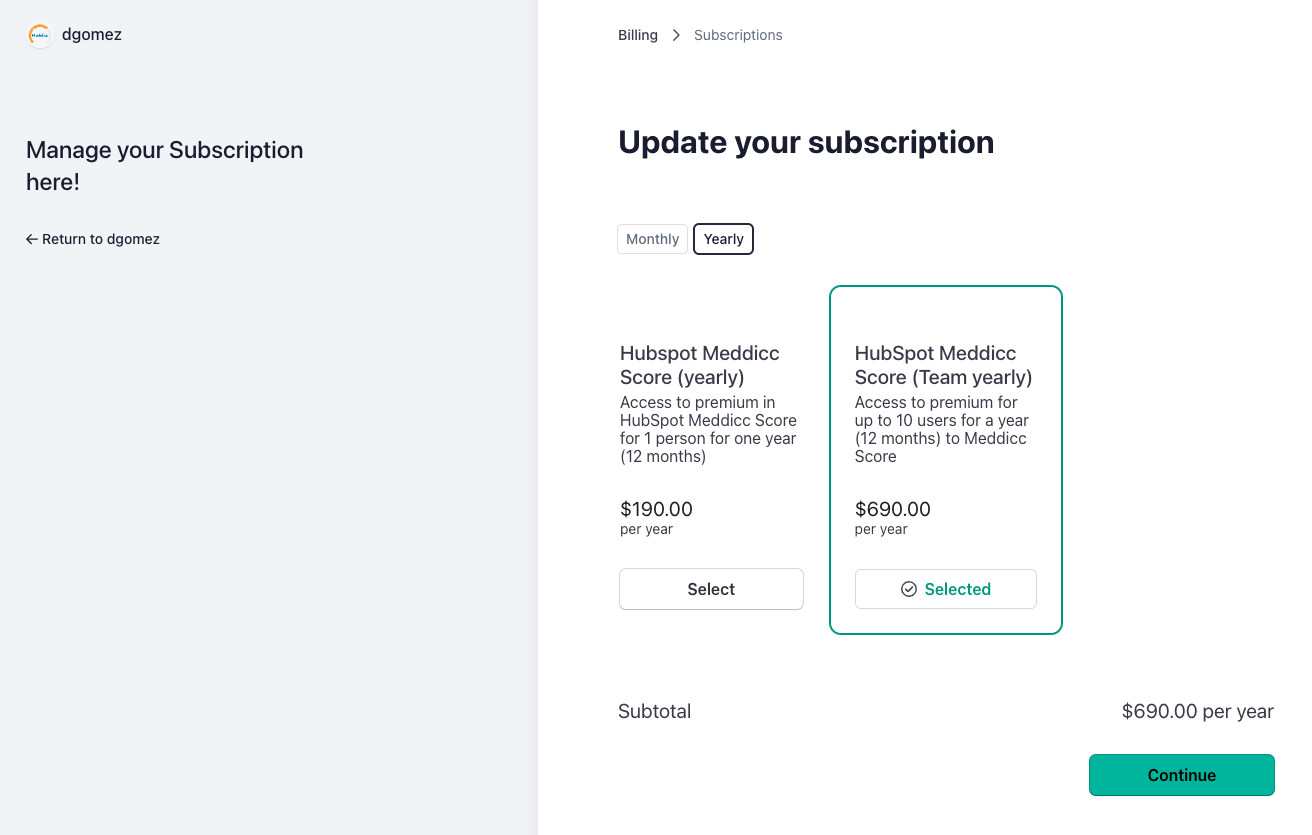
If you're already enjoying the premium benefits of Meddicc Score but want to upgrade to a Team plan or switch to a yearly subscription to unlock significant savings, you can easily make the change through the Customer Portal. Take advantage of these exclusive discounts today and maximize your Meddicc Score experience!
You can access Customer Portal going to Settings > Subscription.
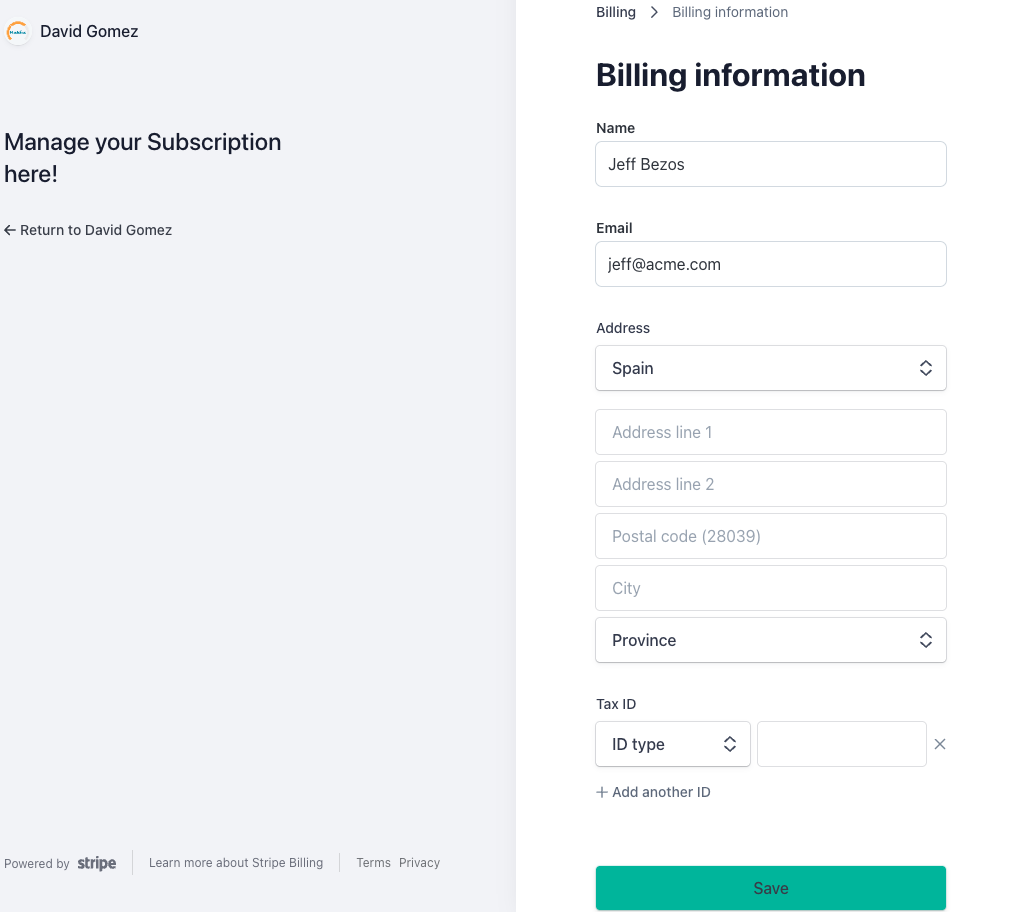
You can also change your billing details by clicking on Billing Information > "Update information".
13. Meddicc Score API Overview (Pro+ only)
Download the Postman collection: Meddicc Score API Postman Collection
Meddicc Score also provides an API so external automations and workflows can read and update MEDDICC data programmatically for HubSpot-connected accounts.
This API is currently available only for premium feature accounts where:
- The account has Pro+ add-on enabled.
- The account has at least one premium user.
- An account-scoped API token has been configured for the workspace.
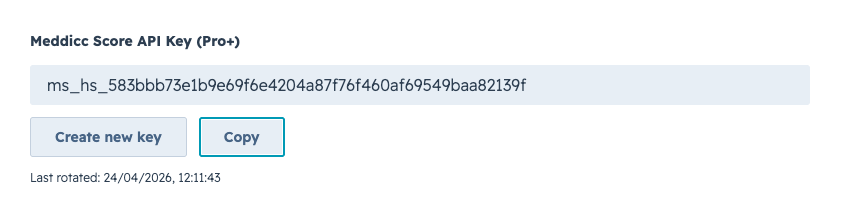
The token is account-scoped, so it gives access to the deals that belong to that HubSpot account. If API access has not been enabled for your workspace yet, please contact Meddicc Score support. It can be generated on Settings > General > Meddicc Score API Key. This is you YOUR_ACCOUNT_API_TOKEN
13.1 Authentication
Requests can authenticate either with a Bearer token (YOUR_ACCOUNT_API_TOKEN) in the Authorization header or with a direct API key header (without Bearer) such as apikey, api-key, api_key, x-api-key or x-apikey.
Authorization: Bearer YOUR_ACCOUNT_API_TOKEN
apikey: YOUR_ACCOUNT_API_TOKEN
Base path:
/hubspot/api/v113.2 Available Endpoints
| Method | Endpoint | Purpose |
|---|---|---|
GET |
/deals?page=1&limit=25 |
Returns the deals stored in Meddicc Score for the authenticated account with pagination metadata. |
POST |
/deals |
Workflow-friendly paginated deal listing endpoint that accepts page and limit in the JSON body. |
GET |
/contacts?page=1&limit=25 |
Returns the contacts stored in Meddicc Score for the authenticated account with pagination metadata. |
POST |
/contacts |
Workflow-friendly contact endpoint. Without a contact ID it lists contacts; with hs_object_id or contactId it returns one contact. |
GET |
/contacts/{contactId} |
Returns one account-owned HubSpot contact by contact ID. |
GET |
/meddicc?hs_object_id=123456789 |
Returns the full MEDDICC payload plus flattened questions and summary data. |
GET |
/meddicc-summary?hs_object_id=123456789 |
Returns a compact summary including score, lock state, completion and per-section status. |
GET |
/onboarding-handoff?hs_object_id=123456789 |
Returns the Customer Success onboarding handoff for a Closed Won deal. |
POST |
/meddicc |
Workflow-friendly read endpoint that accepts hs_object_id or dealId in the JSON body. |
POST |
/meddicc-summary |
Workflow-friendly summary endpoint that accepts hs_object_id or dealId in the JSON body. |
POST |
/onboarding-handoff |
Generates or refreshes the Customer Success onboarding handoff for a Closed Won deal. |
POST |
/meddicc/questions/lock |
Locks or unlocks a single question using hs_object_id or dealId, plus questionId and locked in the body. |
POST |
/meddicc/score-lock |
Locks or unlocks the overall score using hs_object_id or dealId and locked in the body. |
POST |
/meddicc/deal-lock |
Locks or unlocks the score and all questions together using hs_object_id or dealId and locked in the body. |
POST |
/meddicc/score |
Updates the score manually from the request body using hs_object_id or dealId and score. |
POST |
/meddicc/recalculate |
Recalculates the score from the current MEDDICC answers using hs_object_id or dealId in the body. |
Note: the API accepts hs_object_id, dealId, deal_id or objectId as the HubSpot Deal ID. For HubSpot workflows, hs_object_id is the recommended field name because that is what HubSpot exposes directly.
Note: questionId currently maps to the internal question name, for example metrics, economicBuyer, decisionCriteria, champion, etc.
Stage-based deal locking: account Admins can choose whether qualification is locked and select the exact HubSpot stages that trigger the lock under Settings > General > Lock qualification by deal stage. Selections are pipeline-specific. While a deal is in a selected stage, all questions and the score are returned as locked, and automated/API score updates do not overwrite the framework. Moving the deal out of the selected stages releases the automatic lock. Accounts that have not saved this setting retain the previous default behavior, where Closed Won and Closed Lost deals are locked. A genuine closed-stage change still refreshes the Win Analysis or Post-mortem Analysis from the frozen framework. For Closed Won deals, Meddicc Score can also generate an Onboarding Handoff for Customer Success from the closed deal information, MEDDICC answers, contacts, companies, activities, and Win Analysis. In the HubSpot card, users can download the handoff as an editable Markdown file or refresh it with the latest won-deal information.
13.3 Endpoint Details and Examples
The read endpoints support both GET and POST. For HubSpot workflows, prefer the POST variants because workflow actions can send JSON bodies more easily than query-string parameters.
GET /deals and POST /deals
Purpose: list the deals that already exist in the Meddicc Score database for the authenticated account.
Accepted pagination fields:
page: optional, default1.limit: optional, default25, maximum100.
Typical GET request:
curl --request GET \
  --url "https://app.meddiccscore.com/hubspot/api/v1/deals?page=1&limit=25" \
  --header "apikey: YOUR_ACCOUNT_API_TOKEN"
Typical POST request:
curl --request POST \
  --url https://app.meddiccscore.com/hubspot/api/v1/deals \
  --header "apikey: YOUR_ACCOUNT_API_TOKEN" \
  --header "Content-Type: application/json" \
  --data '{
    "page": 1,
    "limit": 25
  }'
Typical response:
{
  "page": 1,
  "limit": 25,
  "total": 142,
  "totalPages": 6,
  "hasNextPage": true,
  "hasPreviousPage": false,
  "deals": [
    {
      "hs_object_id": "123456789",
      "dealId": "123456789",
      "dealname": "Acme Expansion",
      "dealstage": "contractsent",
      "amount": 50000,
      "hasMeddicc": true,
      "summary": {
        "hs_object_id": "123456789",
        "dealId": "123456789",
        "score": 78,
        "lockedScore": false,
        "completionPct": 64
      }
    }
  ]
}
GET /contacts, POST /contacts and GET /contacts/{contactId}
Purpose: retrieve HubSpot contact records that Meddicc Score has stored for the authenticated account. Contacts are created or refreshed when a user opens the Meddicc Score contact or company card.
Accepted pagination fields for list requests:
page: optional, default1.limit: optional, default25, maximum100.
Accepted contact identifier fields for single-contact requests are hs_object_id, contactId, contact_id and objectId.
Typical list request:
curl --request GET \
  --url "https://app.meddiccscore.com/hubspot/api/v1/contacts?page=1&limit=25" \
  --header "apikey: YOUR_ACCOUNT_API_TOKEN"
Typical single-contact request:
curl --request GET \
  --url https://app.meddiccscore.com/hubspot/api/v1/contacts/987654321 \
  --header "apikey: YOUR_ACCOUNT_API_TOKEN"
Typical list response:
{
  "page": 1,
  "limit": 25,
  "total": 38,
  "totalPages": 2,
  "hasNextPage": true,
  "hasPreviousPage": false,
  "contacts": [
    {
      "hs_object_id": "987654321",
      "contactId": "987654321",
      "contactname": "Ada Lovelace",
      "contactemail": "ada@example.com",
      "contactjobtitle": "VP Finance",
      "roles": ["economicBuyer"],
      "associatedDeals": [
        {
          "hs_object_id": "123456789",
          "dealname": "Acme Expansion"
        }
      ],
      "contactAss": {
        "summary": "Strong stakeholder"
      },
      "hasAssessment": true,
      "lastEvaluation": "2026-06-17T10:00:00.000Z"
    }
  ]
}
Typical single-contact response:
{
  "contact": {
    "hs_object_id": "987654321",
    "contactId": "987654321",
    "contactname": "Ada Lovelace",
    "contactemail": "ada@example.com",
    "contactjobtitle": "VP Finance",
    "roles": ["economicBuyer"],
    "associatedDeals": [],
    "contactAss": null,
    "hasAssessment": false
  }
}
GET /meddicc and POST /meddicc
Purpose: return the full stored MEDDICC payload for one deal, plus a flattened questions array and a computed summary.
Required deal identifier:
GET: passhs_object_idin the query string.POST: passhs_object_idin the JSON body.
Accepted alternative field names are dealId, deal_id and objectId, but hs_object_id is recommended.
Typical POST request:
curl --request POST \
  --url https://app.meddiccscore.com/hubspot/api/v1/meddicc \
  --header "apikey: YOUR_ACCOUNT_API_TOKEN" \
  --header "Content-Type: application/json" \
  --data '{
    "hs_object_id": "123456789"
  }'
Typical response:
{
  "hs_object_id": "123456789",
  "dealId": "123456789",
  "updatedAt": "2026-04-25T10:21:00.000Z",
  "summary": {
    "hs_object_id": "123456789",
    "dealId": "123456789",
    "score": 78,
    "lockedScore": false,
    "closureLock": {
      "locked": false,
      "effectiveLocked": false,
      "outcome": null
    },
    "completionPct": 64
  },
  "questions": [
    {
      "id": "economicBuyer",
      "section": "economicBuyer",
      "value": "VP Finance",
      "locked": false
    }
  ],
  "meddicc": {
    "framework": "meddicc",
    "score": 78
  }
}
GET /meddicc-summary and POST /meddicc-summary
Purpose: return only the computed summary for one deal. This is usually the best endpoint for workflows that just need the score, lock status, completion, and section-level progress.
Required deal identifier:
GET:hs_object_idin the query string.POST:hs_object_idin the JSON body.
Typical GET request:
curl --request GET \
  --url "https://app.meddiccscore.com/hubspot/api/v1/meddicc-summary?hs_object_id=123456789" \
  --header "apikey: YOUR_ACCOUNT_API_TOKEN"
Typical response:
{
  "hs_object_id": "123456789",
  "dealId": "123456789",
  "framework": "meddicc",
  "score": 78,
  "lockedScore": false,
  "closureLock": {
    "locked": false,
    "effectiveLocked": false,
    "outcome": null
  },
  "questionCount": 14,
  "answeredCount": 9,
  "completionPct": 64,
  "sectionCount": 7,
  "completedSectionCount": 4
}
GET /onboarding-handoff and POST /onboarding-handoff
Purpose: return or refresh the Customer Success onboarding handoff for a Closed Won deal. The handoff is generated from deal properties, MEDDICC answers and feedback, contacts, companies, activities, and the Win Analysis. Admins can customize the handoff output in Settings > General Settings > AI Settings > Custom onboarding handoff prompt. Custom prompts can define the section names and content priorities; the response keeps a stable summary plus sections structure. In the HubSpot UI, users can download a ready handoff as an editable Markdown file.
Required deal identifier:
GET:hs_object_idin the query string.POST:hs_object_idin the JSON body. Addregenerate: truewhen you want to force a refresh.
Typical GET request:
curl --request GET \
  --url "https://app.meddiccscore.com/hubspot/api/v1/onboarding-handoff?hs_object_id=123456789" \
  --header "apikey: YOUR_ACCOUNT_API_TOKEN"
Typical POST request:
curl --request POST \
  --url https://app.meddiccscore.com/hubspot/api/v1/onboarding-handoff \
  --header "apikey: YOUR_ACCOUNT_API_TOKEN" \
  --header "Content-Type: application/json" \
  --data '{
    "hs_object_id": "123456789",
    "regenerate": true
  }'
Typical response:
{
  "hs_object_id": "123456789",
  "dealId": "123456789",
  "closureLock": {
    "locked": true,
    "effectiveLocked": true,
    "outcome": "won"
  },
  "onboardingHandoff": {
    "status": "ready",
    "generatedAt": "2026-07-09T10:21:00.000Z",
    "data": {
      "title": "Onboarding Handoff",
      "summary": "The customer bought to reduce onboarding delays.",
      "sections": [
        {
          "title": "Customer goals",
          "content": ["Launch the first team within 30 days"]
        },
        {
          "title": "Success criteria",
          "content": ["Time-to-value under 30 days"]
        },
        {
          "title": "First actions",
          "content": ["Schedule kickoff", "Confirm technical owner"]
        }
      ]
    }
  }
}
POST /meddicc/questions/lock
Purpose: lock or unlock a single MEDDICC question so that it cannot be edited by later automations or by the user interface until unlocked again.
Required body fields:
hs_object_id: the HubSpot Deal ID.questionId: the internal question name.locked: boolean, eithertrueorfalse.
Typical request:
curl --request POST \
  --url https://app.meddiccscore.com/hubspot/api/v1/meddicc/questions/lock \
  --header "apikey: YOUR_ACCOUNT_API_TOKEN" \
  --header "Content-Type: application/json" \
  --data '{
    "hs_object_id": "123456789",
    "questionId": "economicBuyer",
    "locked": true
  }'
Typical response:
{
  "success": true,
  "questionId": "economicBuyer",
  "locked": true,
  "summary": {
    "hs_object_id": "123456789",
    "dealId": "123456789",
    "score": 78,
    "lockedScore": false
  }
}
POST /meddicc/score-lock
Purpose: lock or unlock the overall MEDDICC score. When the score is locked, recalculation does not overwrite the stored score.
Required body fields:
hs_object_id: the HubSpot Deal ID.locked: boolean, eithertrueorfalse.
Typical request:
curl --request POST \
  --url https://app.meddiccscore.com/hubspot/api/v1/meddicc/score-lock \
  --header "apikey: YOUR_ACCOUNT_API_TOKEN" \
  --header "Content-Type: application/json" \
  --data '{
    "hs_object_id": "123456789",
    "locked": true
  }'
Typical response:
{
  "success": true,
  "lockedScore": true,
  "summary": {
    "hs_object_id": "123456789",
    "dealId": "123456789",
    "score": 78,
    "lockedScore": true
  }
}
POST /meddicc/deal-lock
Purpose: lock or unlock the score and all questions in one action. Send locked: true to lock both, or locked: false to unlock both. Existing answers, feedback entries, and the score value are preserved.
Required body fields:
hs_object_id: the HubSpot Deal ID.locked: boolean, eithertrueorfalse.
Typical request:
curl --request POST \
  --url https://app.meddiccscore.com/hubspot/api/v1/meddicc/deal-lock \
  --header "apikey: YOUR_ACCOUNT_API_TOKEN" \
  --header "Content-Type: application/json" \
  --data '{
    "hs_object_id": "123456789",
    "locked": true
  }'
Example response (summary abbreviated):
{
  "success": true,
  "lockedScore": true,
  "lockedQuestionCount": 12,
  "summary": {
    "hs_object_id": "123456789",
    "dealId": "123456789",
    "score": 78,
    "lockedScore": true,
    "questionCount": 12,
    "lockedQuestionCount": 12
  }
}
An invalid or missing boolean locked returns HTTP 400. Missing MEDDICC data returns HTTP 409. Unlocking both is also rejected with HTTP 409 and CLOSED_QUALIFICATION_LOCKED while a closed qualification lock is active. An explicit combined lock applied to a closed deal remains in place if the deal is later reopened.
POST /meddicc/score
Purpose: set the deal score directly through the API.
Required body fields:
hs_object_id: the HubSpot Deal ID.score: numeric value. The API stores it as an integer and clamps it to the0to100range.
Typical request:
curl --request POST \
  --url https://app.meddiccscore.com/hubspot/api/v1/meddicc/score \
  --header "apikey: YOUR_ACCOUNT_API_TOKEN" \
  --header "Content-Type: application/json" \
  --data '{
    "hs_object_id": "123456789",
    "score": 78
  }'
Typical response:
{
  "success": true,
  "score": 78,
  "hubspotSync": {
    "success": true,
    "property": "score_meddicc",
    "score": 78
  },
  "summary": {
    "hs_object_id": "123456789",
    "dealId": "123456789",
    "score": 78,
    "lockedScore": false
  }
}
POST /meddicc/recalculate
Purpose: recompute the score using the current MEDDICC answers already stored in Meddicc Score.
Required body fields:
hs_object_id: the HubSpot Deal ID.
Typical request:
curl --request POST \
  --url https://app.meddiccscore.com/hubspot/api/v1/meddicc/recalculate \
  --header "apikey: YOUR_ACCOUNT_API_TOKEN" \
  --header "Content-Type: application/json" \
  --data '{
    "hs_object_id": "123456789"
  }'
Typical response:
{
  "success": true,
  "hubspotSync": {
    "success": true,
    "property": "score_meddicc",
    "score": 81
  },
  "summary": {
    "hs_object_id": "123456789",
    "dealId": "123456789",
    "score": 81,
    "lockedScore": false,
    "completionPct": 64
  }
}
POST /meddicc/refill-and-score
Purpose: refill unlocked MEDDICC answers from the latest HubSpot deal data and engagements, then recalculate the score. Locked answers are preserved. If the overall score is locked, answers and feedback can be refreshed but the stored score remains unchanged.
Required body fields:
hs_object_id: the HubSpot Deal ID.
Typical request:
curl --request POST \
  --url https://app.meddiccscore.com/hubspot/api/v1/meddicc/refill-and-score \
  --header "apikey: YOUR_ACCOUNT_API_TOKEN" \
  --header "Content-Type: application/json" \
  --data '{
    "hs_object_id": "123456789"
  }'
Typical response:
{
  "success": true,
  "refillStatus": "success",
  "hubspotSync": {
    "success": true,
    "property": "score_meddicc",
    "score": 84
  },
  "summary": {
    "hs_object_id": "123456789",
    "dealId": "123456789",
    "score": 84,
    "lockedScore": false,
    "completionPct": 79
  },
  "meddicc": {}
}
13.4 Responses and HubSpot Sync
Score-changing endpoints return the local result plus a hubspotSync object.
The API always stores the MEDDICC change locally first. Then, when the endpoint changes the score, Meddicc Score also tries to update the HubSpot custom property score_meddicc on the deal.
If the HubSpot property update succeeds, the response includes a successful hubspotSync result. If HubSpot rejects the update or the user token needs reauthorization, the local change is still saved and the response explains that the HubSpot sync failed.
completionPct is the percentage of MEDDICC questions that currently have an answer. It is a completeness metric, not a quality metric. In other words, it helps you know how much of the framework has been filled in, while score represents the actual MEDDICC evaluation. It is calculated from answeredCount / questionCount and rounded to an integer percentage.
Example response after a manual score update:
{
  "success": true,
  "score": 78,
  "hubspotSync": {
    "success": true,
    "skipped": false,
    "property": "score_meddicc",
    "score": 78
  },
  "summary": {
    "hs_object_id": "123456789",
    "dealId": "123456789",
    "framework": "meddicc",
    "score": 78,
    "lockedScore": false,
    "completionPct": 64
  }
}
13.5 Error Responses and Error Codes
When an API request fails, Meddicc Score returns a JSON error response with a human-readable message and a stable machine-readable code. Existing integrations can continue reading the error field, while new integrations should use code for branching logic.
Typical error response:
{
  "success": false,
  "error": "Missing API token.",
  "code": "MISSING_API_TOKEN",
  "status": 401
}
For unknown API routes, the response also includes request details:
{
  "success": false,
  "error": "API route not found.",
  "code": "ROUTE_NOT_FOUND",
  "status": 404,
  "details": {
    "method": "GET",
    "path": "/hubspot/api/v1/unknown"
  }
}| HTTP status | Code | Meaning |
|---|---|---|
400 |
INVALID_JSON |
The request body could not be parsed as valid JSON. |
400 |
MISSING_DEAL_ID |
The request did not include a HubSpot Deal ID. Send hs_object_id, dealId, deal_id or objectId. |
400 |
INVALID_QUESTION_LOCK |
The question lock request is missing questionId or a boolean locked value. |
400 |
INVALID_LOCKED_VALUE |
The score lock request is missing a boolean locked value. |
400 |
INVALID_SCORE_VALUE |
The manual score request is missing a numeric score value. |
401 |
MISSING_API_TOKEN |
No API token was sent in the request. |
401 |
INVALID_API_TOKEN |
The API token does not match an enabled account token. |
403 |
VIP_REQUIRED |
API access is not enabled for the authenticated account. |
403 |
PREMIUM_USER_REQUIRED |
The account needs at least one premium user before API access can be used. |
403 |
AI_DISABLED |
The requested AI-generated handoff cannot be created because AI is disabled for the account. |
404 |
DEAL_NOT_FOUND |
The deal does not exist in Meddicc Score or does not belong to the authenticated account. |
404 |
CONTACT_NOT_FOUND |
The contact does not exist in Meddicc Score or does not belong to the authenticated account. |
404 |
QUESTION_NOT_FOUND |
The supplied questionId was not found in the deal's MEDDICC form. |
404 |
ROUTE_NOT_FOUND |
The requested API path does not exist under /hubspot/api/v1. |
409 |
MEDDICC_NOT_AVAILABLE |
The deal exists, but it does not have MEDDICC data stored yet. |
409 |
CLOSED_QUALIFICATION_LOCKED |
The deal is closed and the MEDDICC framework is frozen for analytics. |
409 |
HANDOFF_NOT_APPLICABLE |
The onboarding handoff was requested for a deal that is not Closed Won. |
409 |
HUBSPOT_AUTH_REQUIRED |
HubSpot must be reconnected before Meddicc Score can read current deal activity. |
500 |
INTERNAL_ERROR |
An unexpected server error occurred. |
500 |
RECALCULATE_FAILED |
The API could not recalculate the MEDDICC score for the deal. |
500 |
REFILL_AND_SCORE_FAILED |
The API could not refill and score the MEDDICC data for the deal. |
500 |
HANDOFF_GENERATION_FAILED |
The API could not generate the onboarding handoff. |
13.6 Workflow Usage
This API is intended mainly for advanced automations. A common pattern is:
- Read the current MEDDICC summary for a deal.
- Use workflow logic to decide whether to lock the score, a specific answer, or the score and all questions together with Lock MEDDICC Deal.
- Update the score manually or trigger a recalculation.
- Use the returned
score,lockedScore,completionPctorhubspotSyncfields in the next automation step.
If you are a paid or premium user, you need to cancel your subcription before uninstalling, by visiting the Customer Portal. More information.
Additionally, you may want to delete all the data stored in MeddiccScore, including users and account information, before uninstalling. More information. If you plan to reinstall the app later, the data will reappear unless the account has been deleted beforehand.
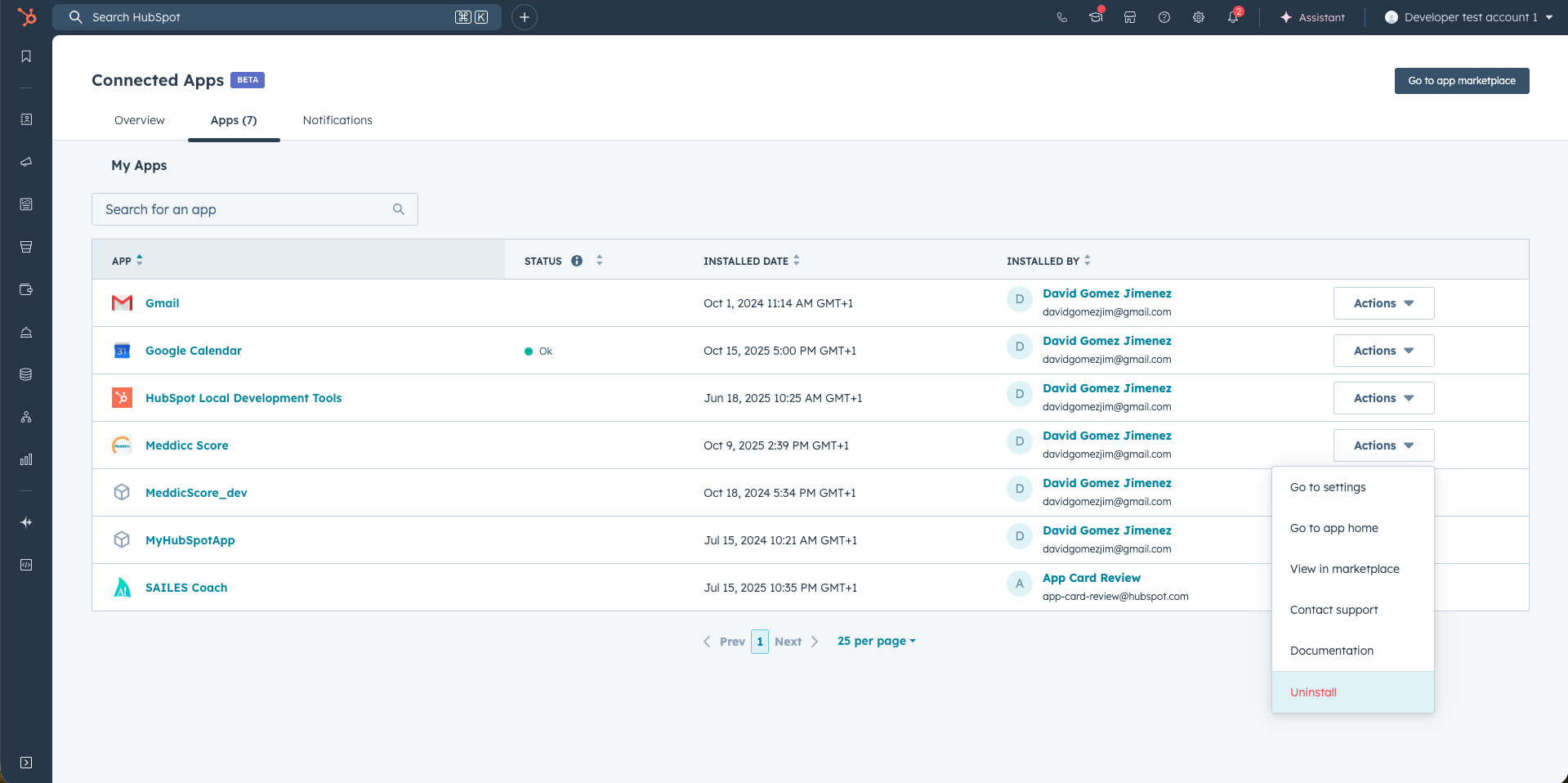
To uninstall, navigate to Settings > Integrations > Connected Apps. Click in Actions and then "Uninstall". This will uninstall Meddicc Score without impacting your HubSpot data.
I cannot install the APPPermalink
Only one authorized user needs to install Meddicc Score for the HubSpot account. Ask a Super Admin, or a user with HubSpot marketplace access and the permissions requested by the app, to complete the connection. Other team members do not need marketplace installation permission after the account is connected.
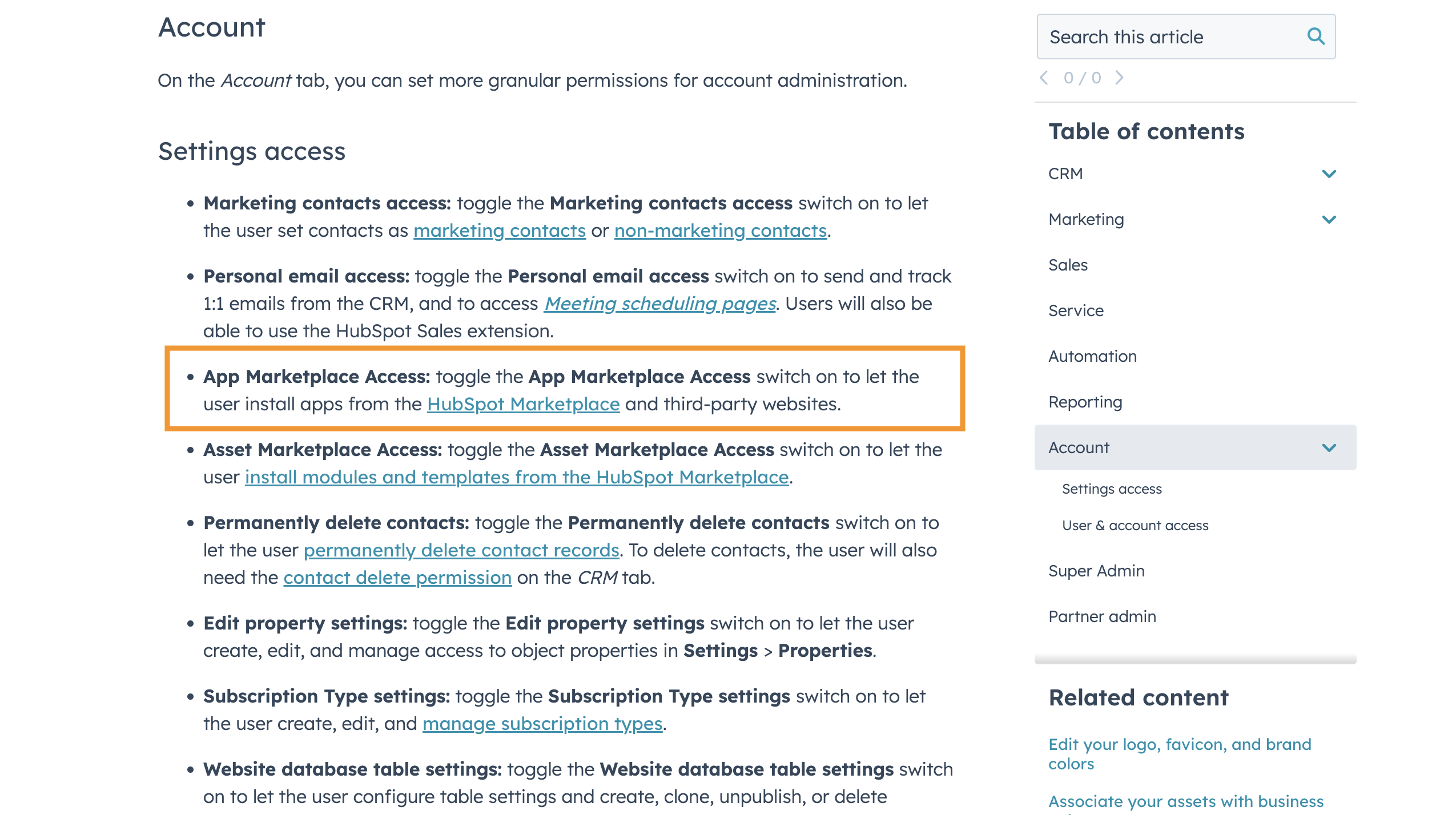
For more information on user permissions, visit the HubSpot User Permissions Guide, or this link.
I cannot add cards to my viewPermalink
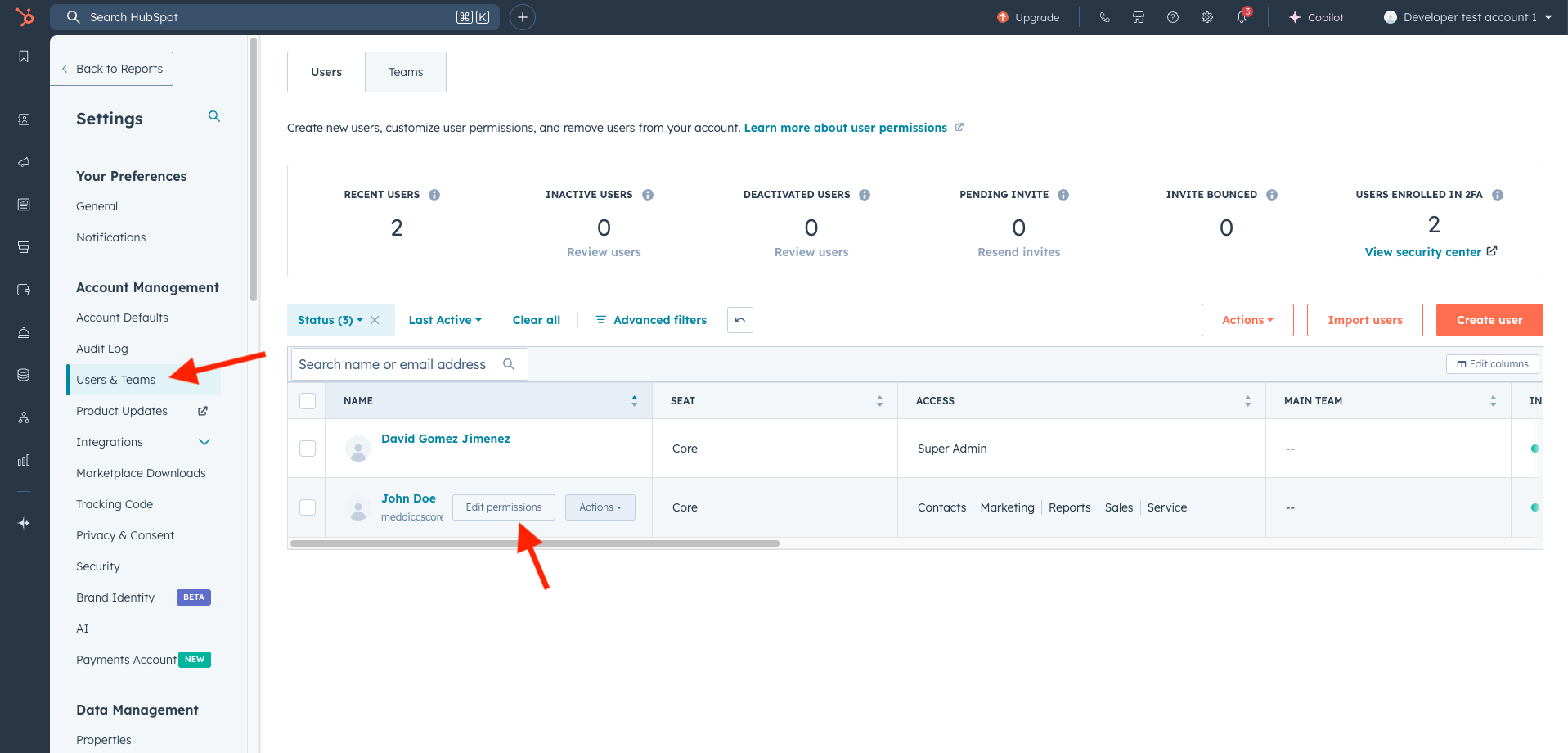
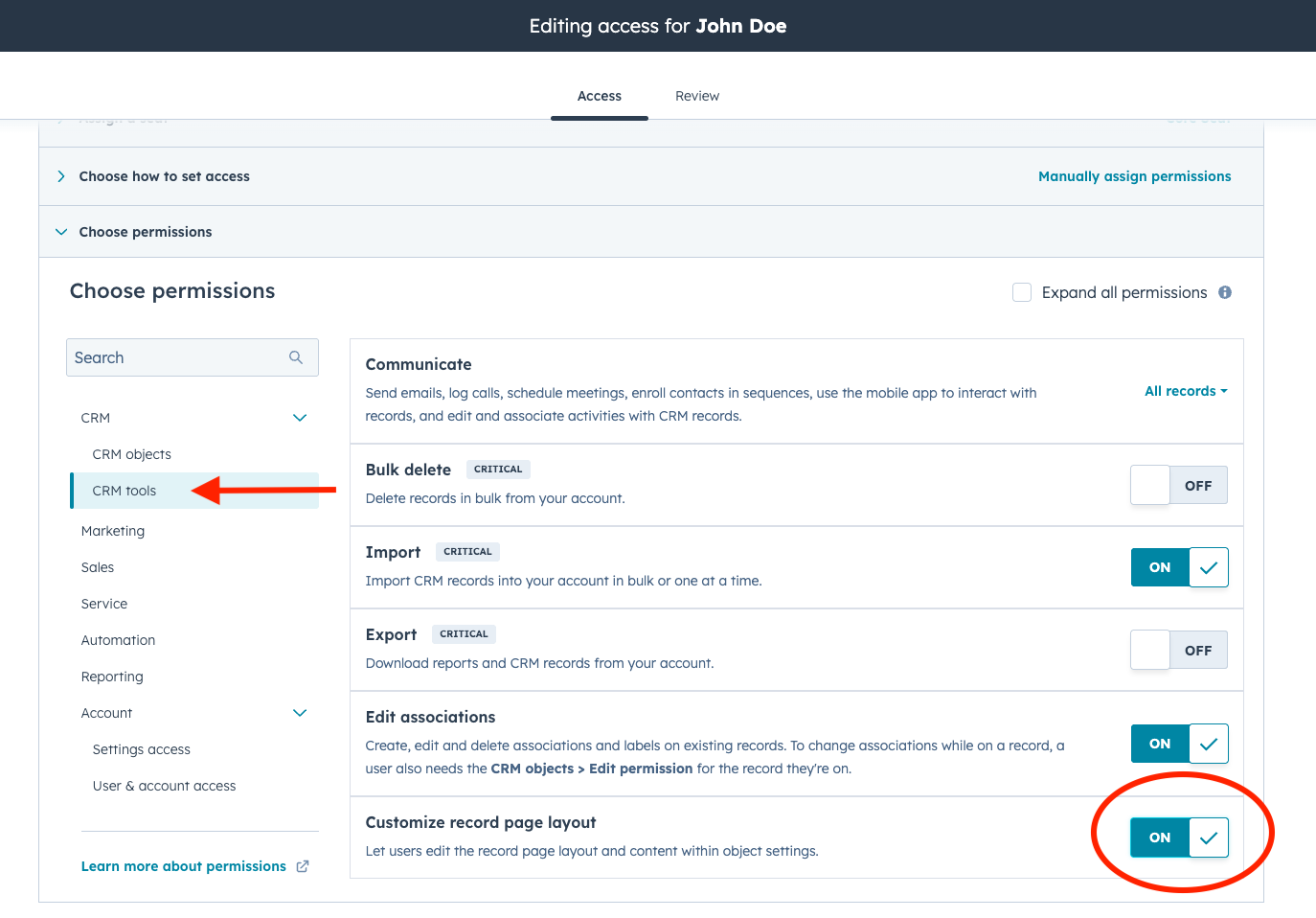
Users must have Customize record page layout permissions or Super Admin permissions to create cards and customize a record. For more details, see the HubSpot guide on creating cards.
I cannot see Score as a property / The Score property in HubSpot is not updated automaticallyPermalink
To enable this, you may need to reauthorize the app so Meddicc Score can create or update HubSpot deal properties. Please click here:
You may also need a HubSpot user with permission to create or edit properties, usually a Super Admin. If the app was installed by a user without the required permissions, ask a HubSpot Super Admin to reinstall or reauthorize the app.
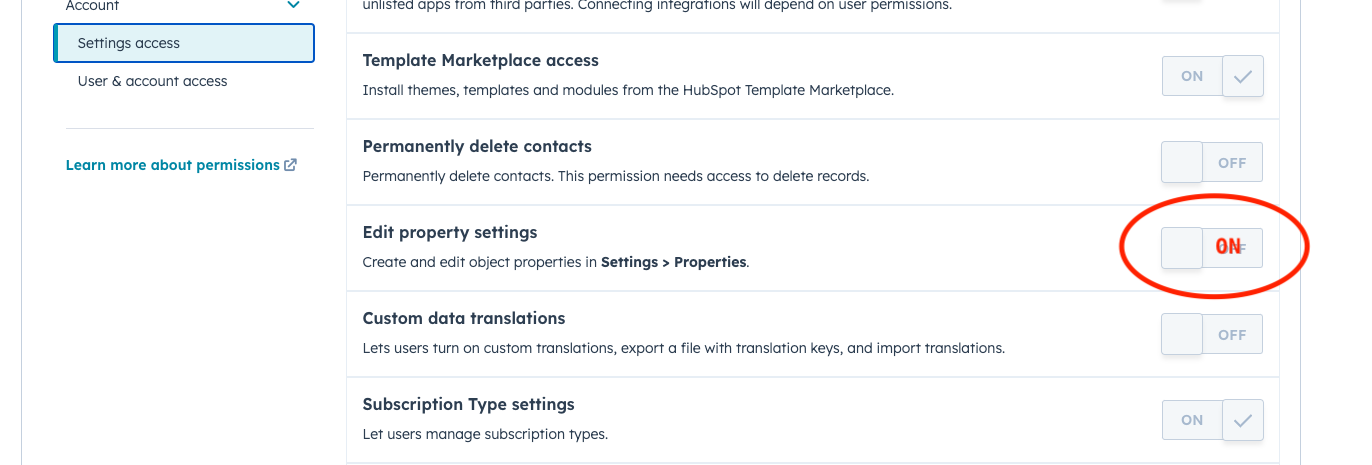
If does not work even after re-installation, then user needs to create the variable manually. It can be done in Settings > Data Management > Properties > Create property:
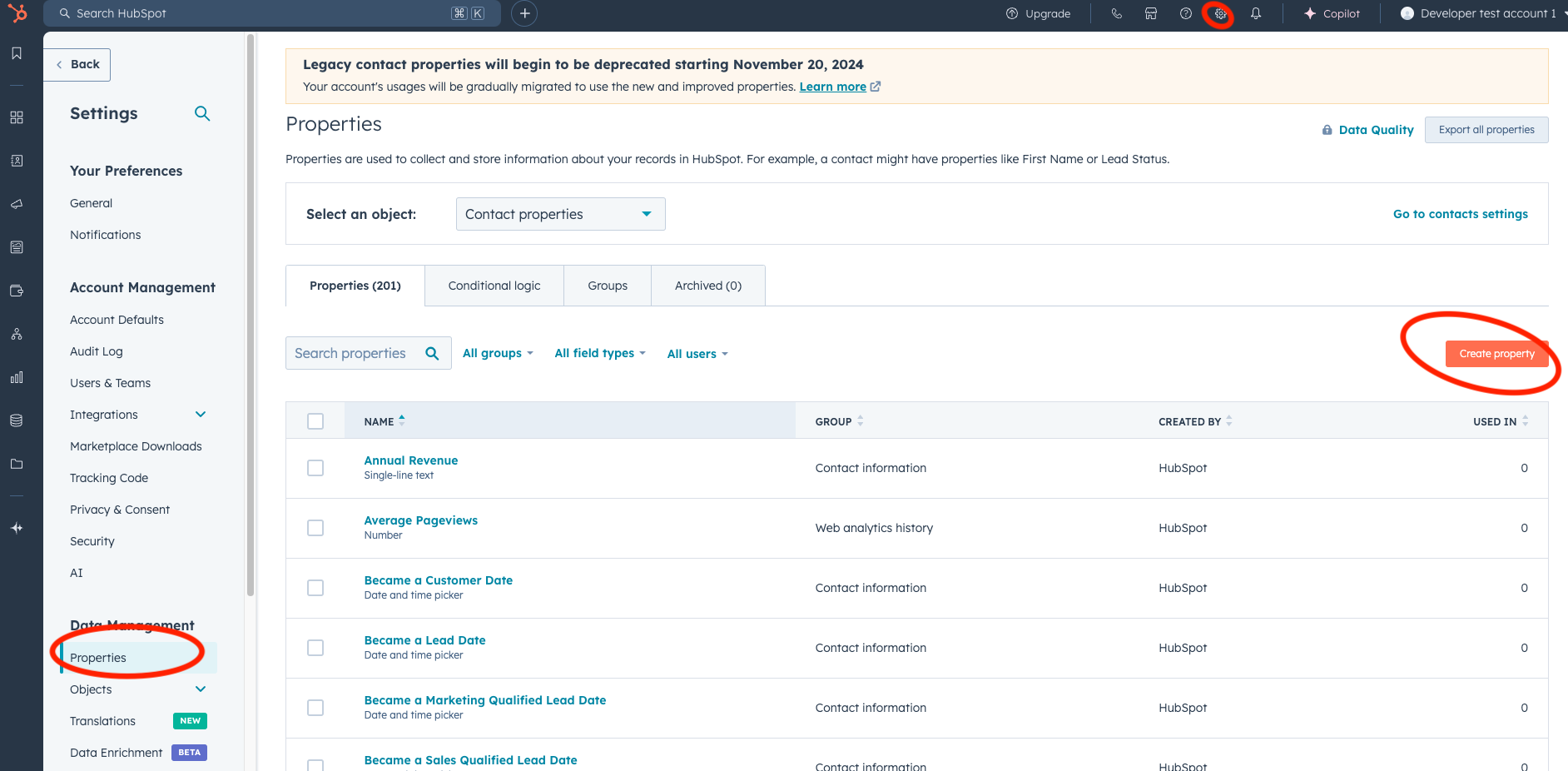
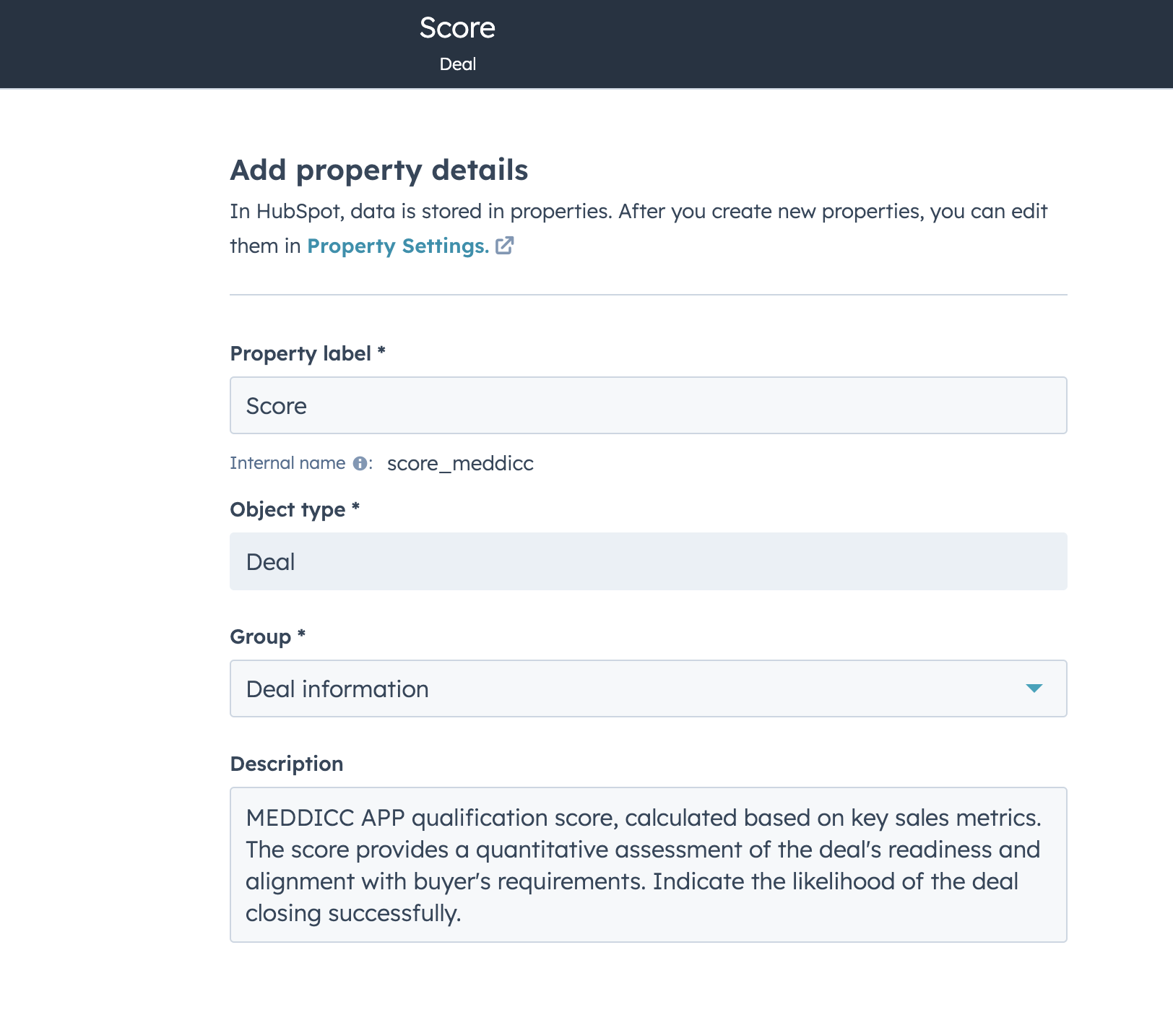
It is very important to make it work that:
- The internal name be exactly “score_meddicc”
- Object type is “Deal”
- Group is “Meddicc Score properties” if available; otherwise “Deal information” is acceptable for this score-only property.
- The property label “Score” or "Score Meddicc" (or any other)
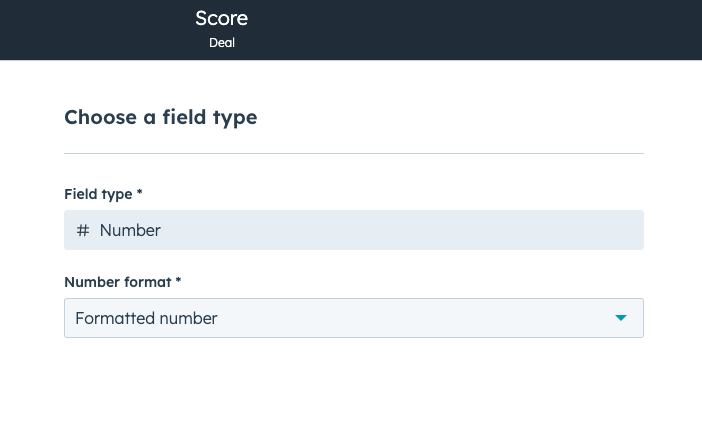
- "Field type": # Number
- "Number format": Formatted number
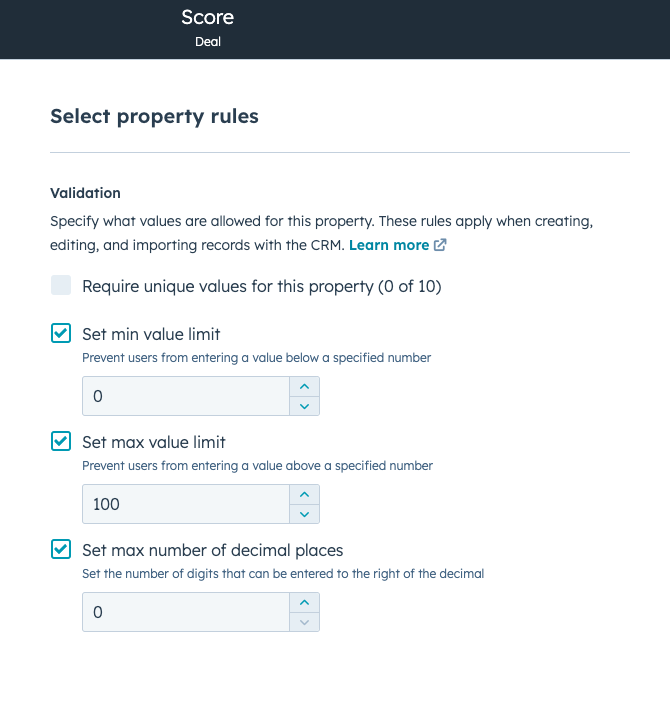
These are optional but recommended for validation:
- "Set min value limit": 0
- "Set max value limit": 100
- "Set max number of decimal places": 0
- After that, the Score property will be available as a custom HubSpot property (score_meddicc), and can be used in reporting, columns, etc.
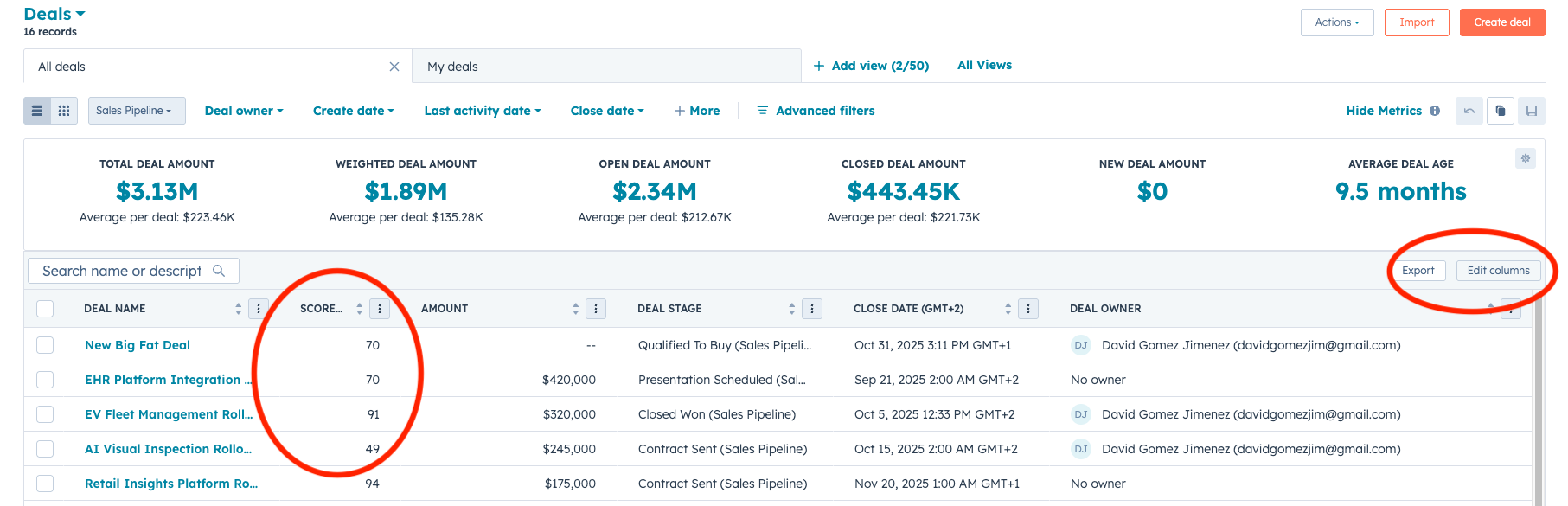
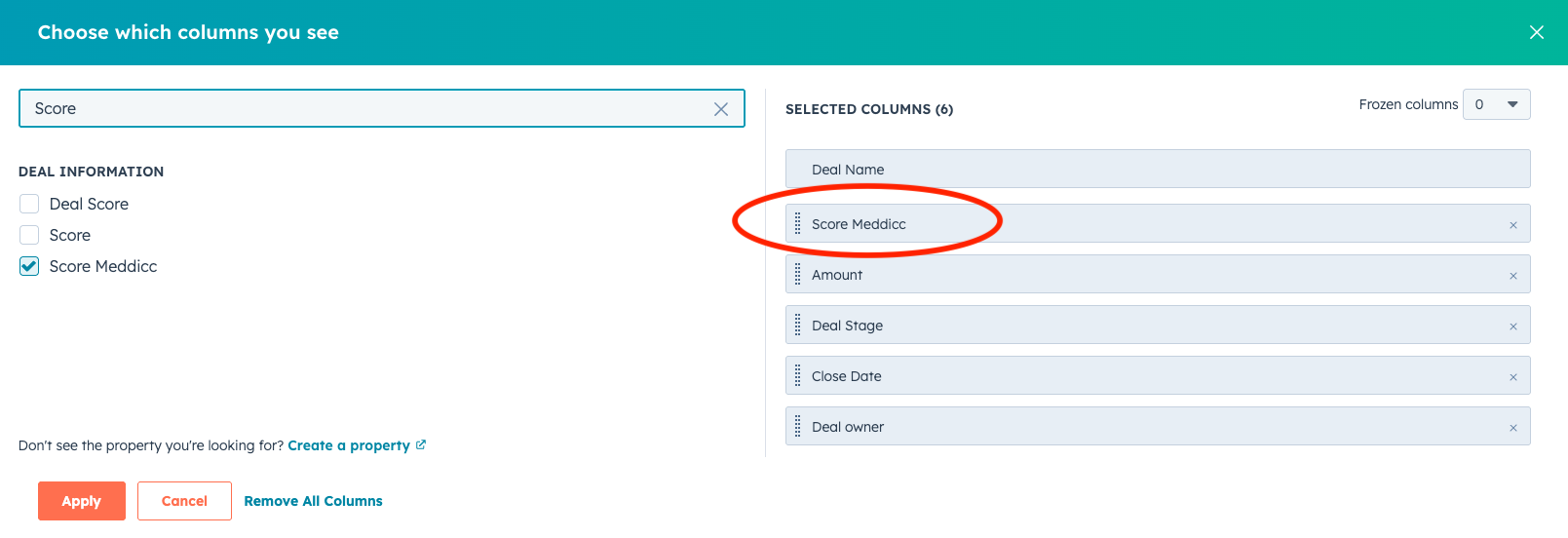
Troubleshooting: sync Meddicc Score properties to HubSpotPermalink
The Sync MeddiccScore to HubSpot properties toggle is located in Settings > General Settings > Automations. When enabled, Meddicc Score tries to create a HubSpot Deal property group named Meddicc Score properties and then creates or updates the fixed properties used for reporting, workflows, and stage-gate rules.
If you see HubSpot property sync needs permissions, HubSpot did not allow the app to create or update those properties. The most common reasons are:
- The app was authorized by a HubSpot user who is not allowed to create or edit deal properties.
- The app was installed before the property-sync permissions were available.
- Your HubSpot portal requires a Super Admin to approve additional CRM property permissions.
To fix it:
- Ask a HubSpot Super Admin to reinstall or reauthorize Meddicc Score using the install button below.
- Approve the requested CRM permissions.
- Open Meddicc Score > Settings > General Settings > Automations.
- Turn Sync MeddiccScore to HubSpot properties off and on again, or score a deal again.
Once permissions are correct, Meddicc Score will create or update these HubSpot Deal properties:
score_meddiccmeddicc_frameworkmeddicc_last_scored_datemeddicc_completion_pctmeddicc_missing_categoriesmeddicc_bad_categoriesmeddicc_medium_categoriesmeddicc_good_categoriesmeddicc_qualification_statusmeddicc_next_action
If your team cannot grant those permissions, Meddicc Score can still save data inside the app and will keep trying to sync the basic score property when possible.
The AI Autofill is not taking information from my EmailsPermalink
To enable this, you may need to reauthorize the app for the new permits required (access to read emails basically). Please click here:
In all cases, the information extracted from emails is limited to the initial portion of each email. This helps avoid processing repetitive long threads, legal disclaimers, and other non-essential content. However, if critical Deal information is buried deep within the email threads or other engagements, the AI might not capture or interpret it accurately. Also AI tends to allucinate sometimes, please check important facts.
The Stage is not correct on the reportPermalink
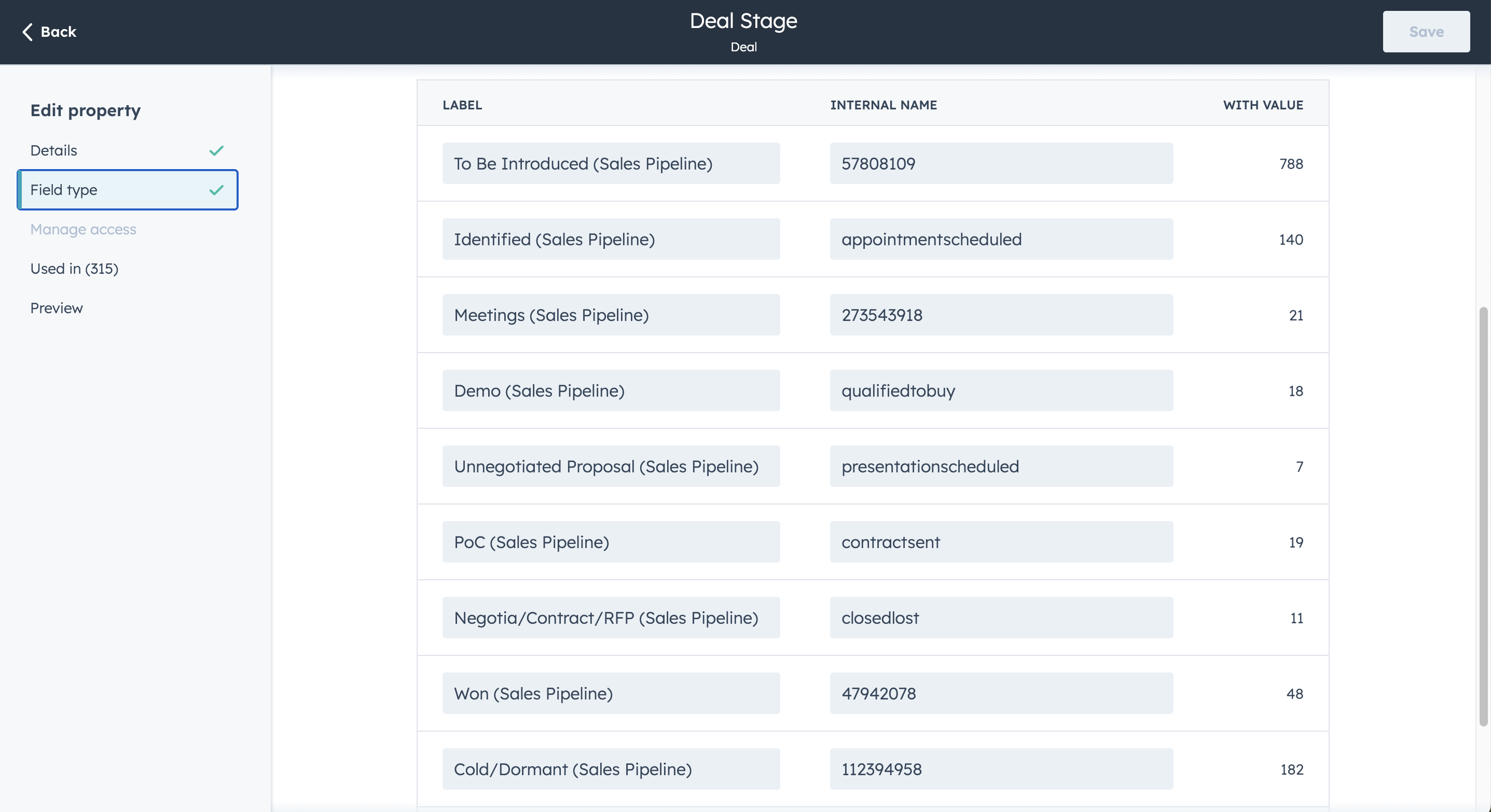
The Stage property in HubSpot can be modified. Ensure that the internal name for lost opportunities includes the string "lost" and for won opportunities, it includes the string "won". Note that sometimes the internal name might be a number, which is the standard when the stage is created.
How can add a discount codePermalink
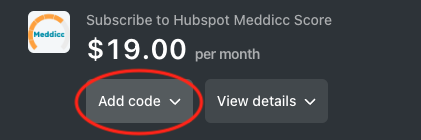
On the checkout Stripe page, there is a button ‘Add Code’ where you can add yu discount code. The price will be automatically updated. If you face any problem or the code not longer works, please Contact Us:
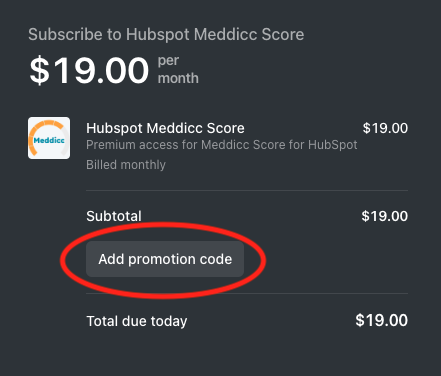
If you already have a subscription and want to add a coupon code, it cannot be done automatically, please Contact Us
How can I cancel or manage my subscription?Permalink
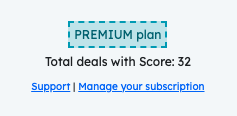
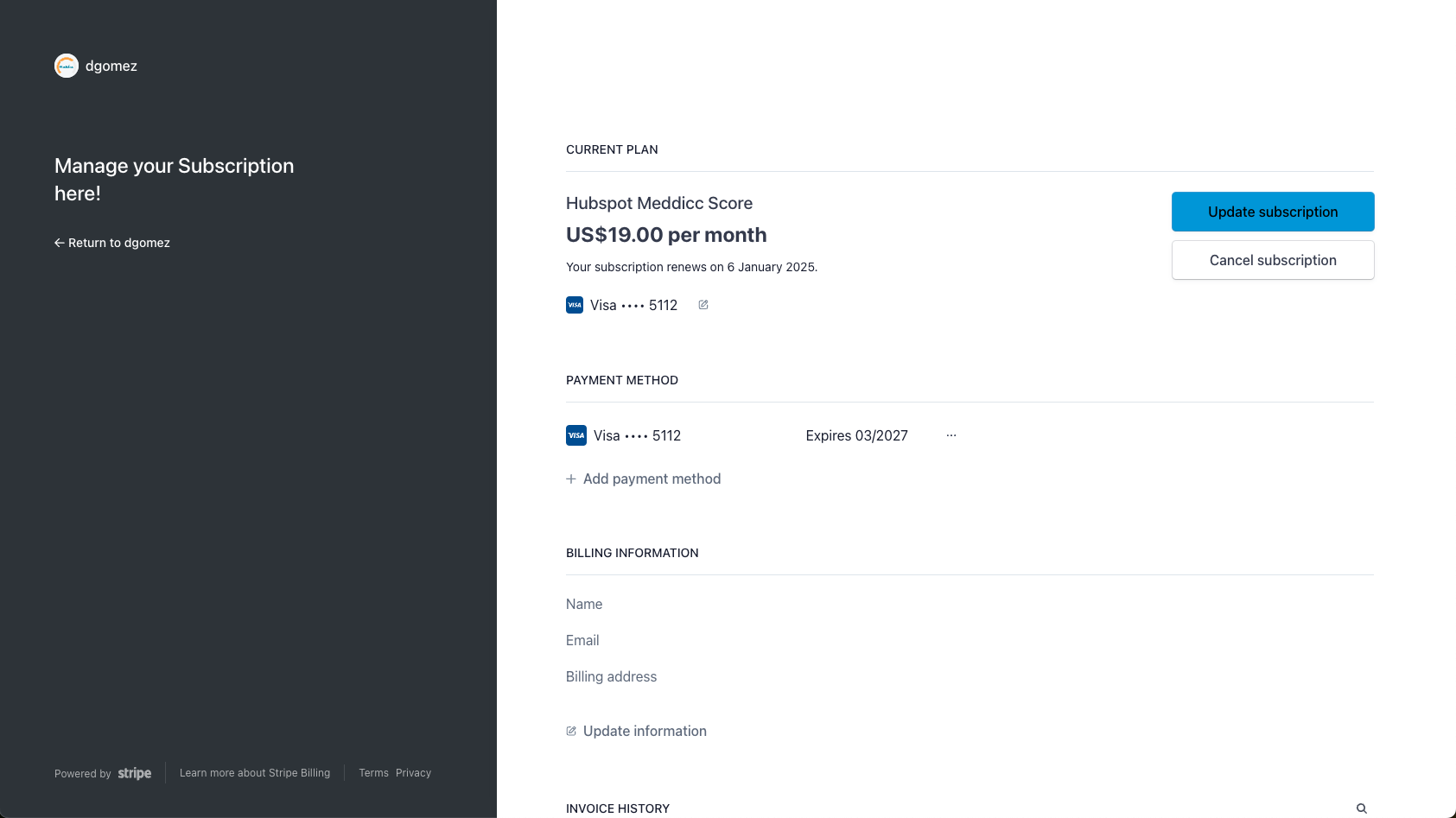
If you want to cancel your subscription or change the invoice details, you can access the Customer Portal (or send and email to Support) by clicking on “Subscription” button inside the settings. (Only admin users)
Please cancel your subscription BEFORE uninstalling the APP, since the latter does not automatically cancel de subcription. (this is a HubSpot limitation)
What information is considered when filling the sales framework?Permalink
When you click "Update Score" or "Refill" on a Deal, Meddicc Score's AI analyzes multiple data sources from your HubSpot account to automatically populate the sales framework questions. Understanding what information is considered can help you ensure the AI has the best data to work with.
The AI considers the following information sources:
- Deal Engagements (last 100): The AI retrieves and analyzes up to 100 recent engagements associated with the Deal, subject to the account’s activity-type selection, optional day limit and HubSpot permissions. All of these types are enabled by default:
- Notes
- Emails (body content only, not attachments)
- Calls
- Tasks
- Meetings
- Deal Information: General deal data such as:
- Deal Description
- Close Date
- Amount
- Deal Stage
- Other custom deal properties
- Associated Records: Information from related records:
- Associated Contacts
- Associated Companies
- Associated Deals
- Previous Meddicc Fields: Any previously saved responses in the sales framework are also considered to maintain continuity.
- Organizational Charts: If you've created an org chart for the deal, the buying roles and reporting structure are used to fill relevant framework questions (e.g., Economic Buyer, Champion).
- Competitor Charts: If you've created a competitor chart for the deal, this information is used to fill competitor-related questions.
Important limitations:
- Comments on engagements and attachments are not available through the HubSpot API and therefore cannot be analyzed.
- Only the initial portion of each email is extracted to avoid processing repetitive threads and legal disclaimers.
- If critical information is buried deep in long email threads, the AI might not capture it accurately.
- The AI analyzes up to 100 recent engagements from the selected activity types, subject to the optional day limit. Excluded types are not fetched, and older engagements may not be considered.
Best practices for better AI results:
- Keep important deal information in the Deal Description field
- Log key insights as Notes rather than relying solely on email threads
- Use the org chart and competitor chart features to provide structured context
- Review and manually edit AI-generated responses to ensure accuracy
- Use the lock feature to preserve important responses from being overwritten during refills
Migrate from Legacy App CardsPermalink
You may have installed a version of Meddicc Score that use the legacy App Cards on the Deal section. You can easily migrate without loosing any data or any interrumpting your current workflows.
You may see a message indicating that the card has available updates. For account admins, a link to the app's settings page will be included. Non-admin users will see similar messaging, but will be guided to contact their account admin to assist with setup.
The process will be the same that when adding a fresh installation, described before
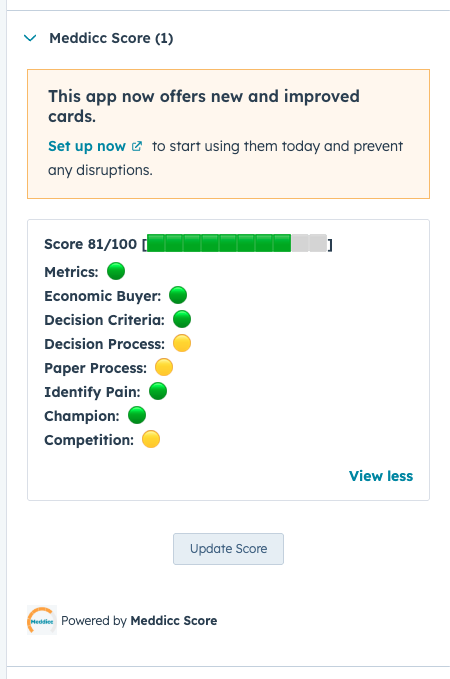
After adding the new cards, you can safely remove the old card version on the Deal sidebar. Eventually all the old cards will be hidded sometime after 2026.
If you want to access the setup and usage guide of the old Legacy cards, it can be accessed from here.