Meddicc Score for Salesforce installs as a Salesforce package and gives your team a dedicated Meddicc Score Lightning app, guided scoring directly inside Opportunities, supporting views for Contacts and Accounts, plus a Meddicc Dashboard and Meddicc Settings tab.
This guide is designed to help Salesforce admins get the package live quickly, avoid the most common setup blockers, and make sure reps get a strong first experience from day one.
Success looks like this: users can open the Meddicc Score app, access Opportunities without permission errors, refill and score deals, and managers can review pipeline quality in the dashboard.
1. Install the Salesforce Package
Start with the package install link below and sign in with a Salesforce admin user in the target org.
 Install APP
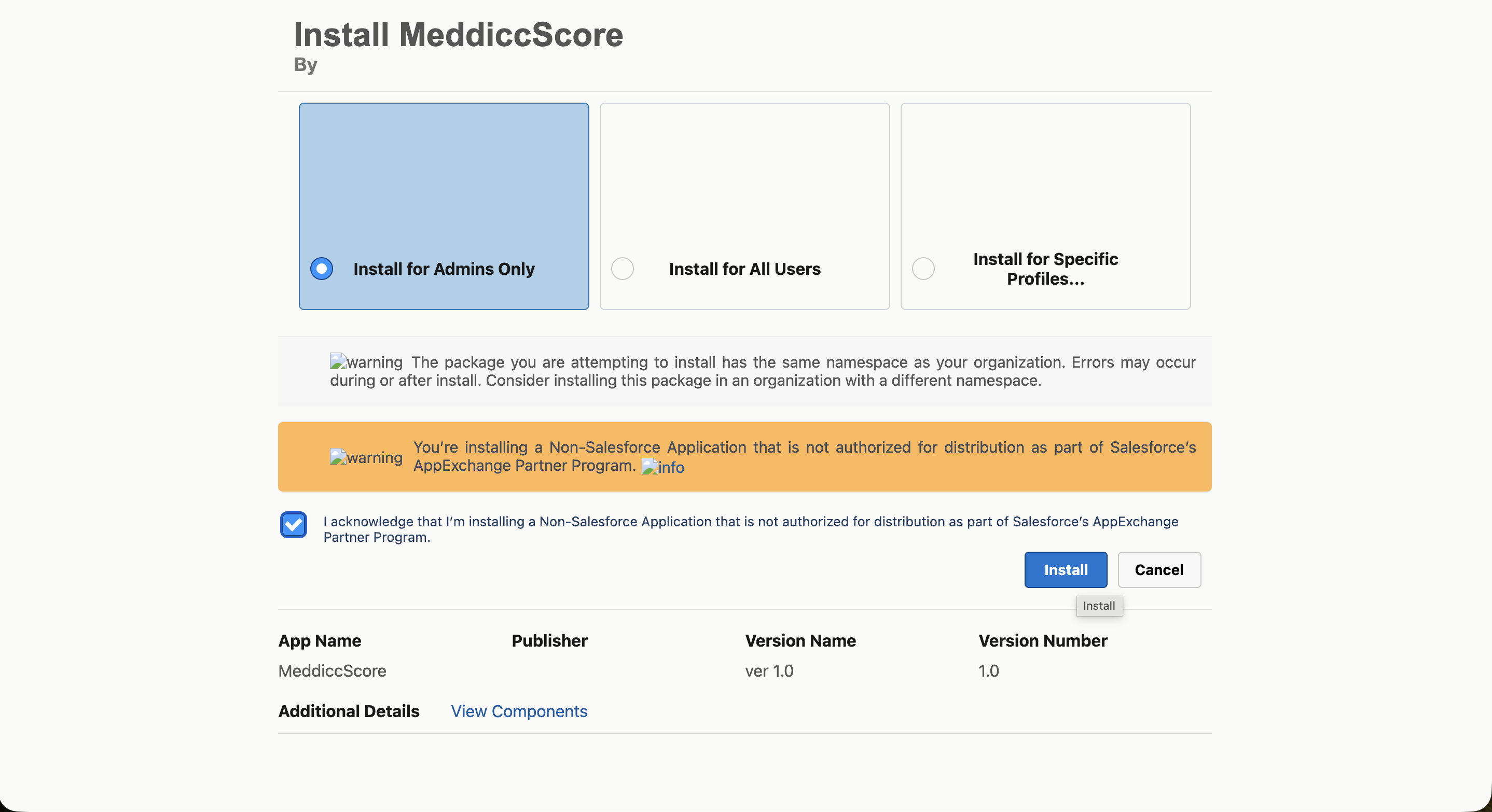
 For the first installation, we recommend selecting Install for Admins Only. This gives you a controlled rollout: first validate the experience as an admin, then assign the packaged permission set to the end users who should start with the app.
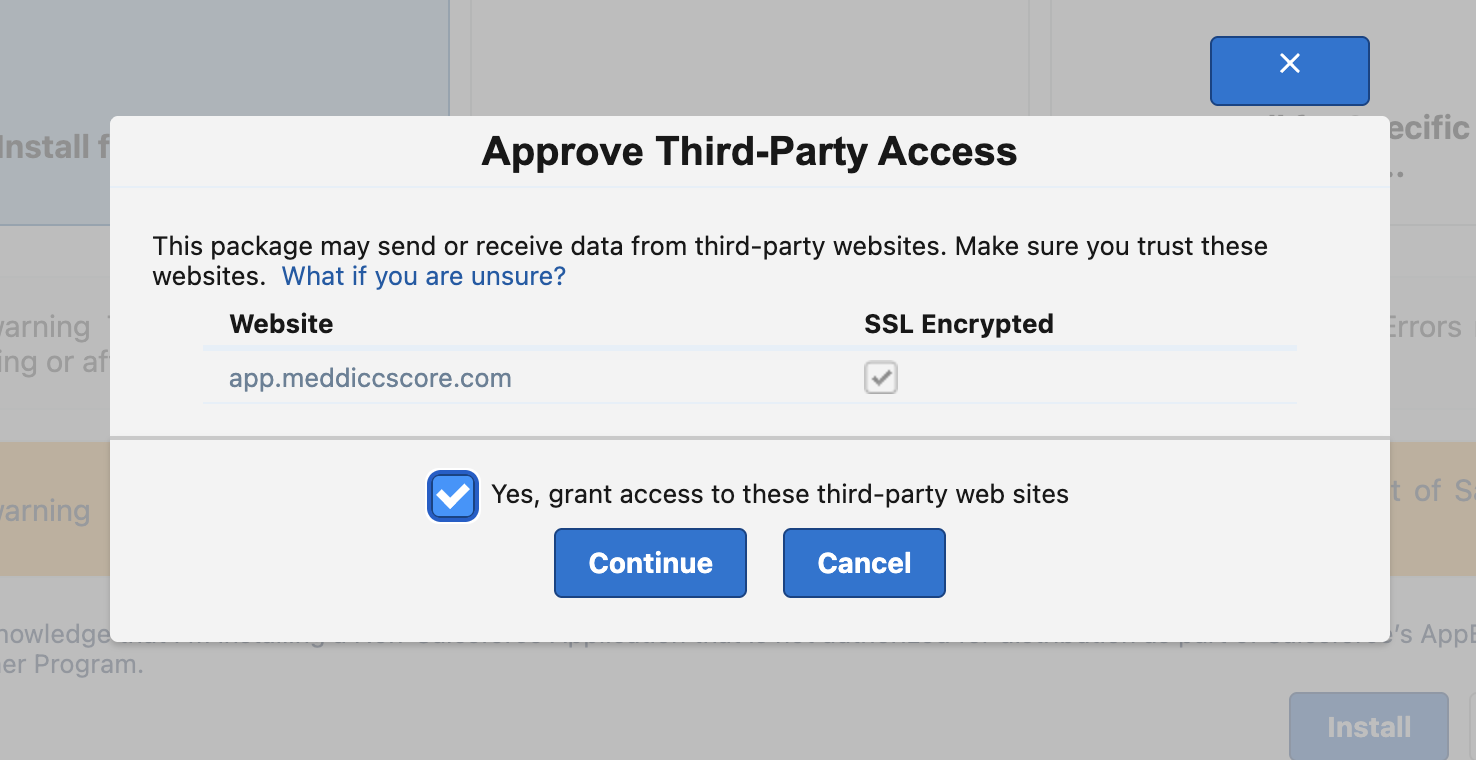
If Salesforce asks for access to an external site or third-party callout, approve it so the package can reach the Meddicc Score backend for scoring, refill, and settings sync.
2. Confirm the Package Finished Installing
After installation completes, take one minute to verify the package assets are visible. This saves time later and confirms the org is ready for user rollout.
You should now be able to find:
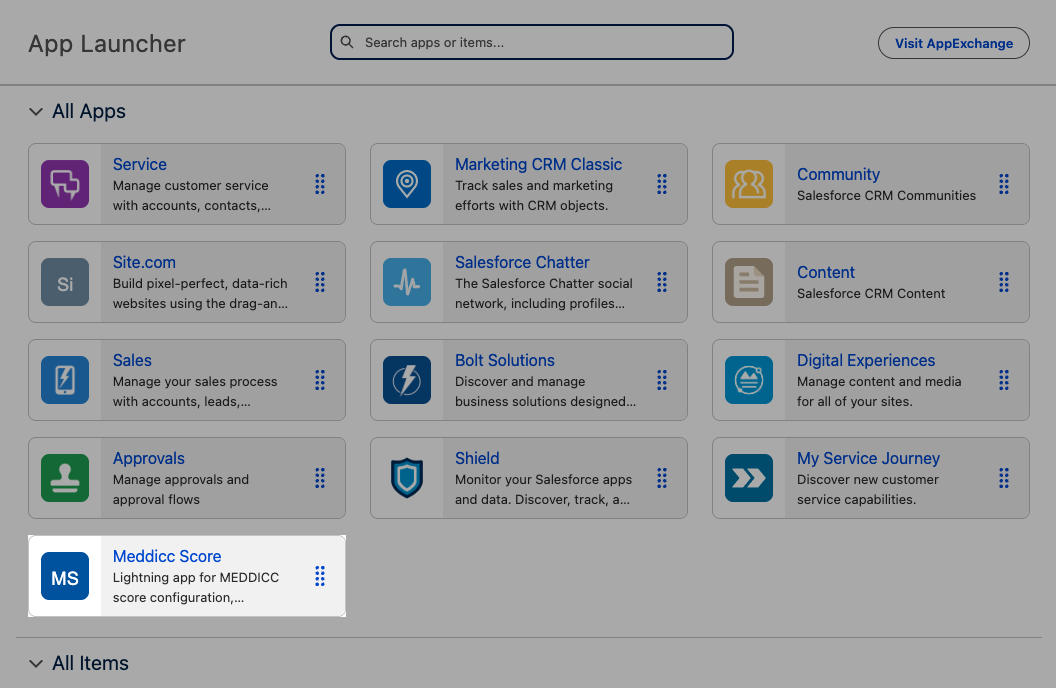
- Meddicc Score in the App Launcher
- Meddicc Settings in Navigation or App Launcher
- Meddicc Dashboard in Navigation or App Launcher
- Meddicc Score permissions under Permission Sets
3. Assign the Permission Set
The package includes a permission set named Meddicc Score permissions. Assign it to every user who should use Meddicc Score. This is the most important step after installation, because it determines whether users see the full experience or hit access-related errors.
Go to Setup > Permission Sets > Meddicc Score permissions > Manage Assignments, then add the relevant users.
This permission set grants access to:
- The packaged Apex controllers and tabs
- The Meddicc Settings object and fields
- The MEDDICC reporting fields on Opportunity
- The Salesforce objects Meddicc Score reads by default for richer scoring and refill, such as Opportunities, Contacts, Accounts, Tasks, Events, and Chatter posts
Important: if a user is missing this permission set, they may see access errors, missing tabs, or incomplete refill behavior.
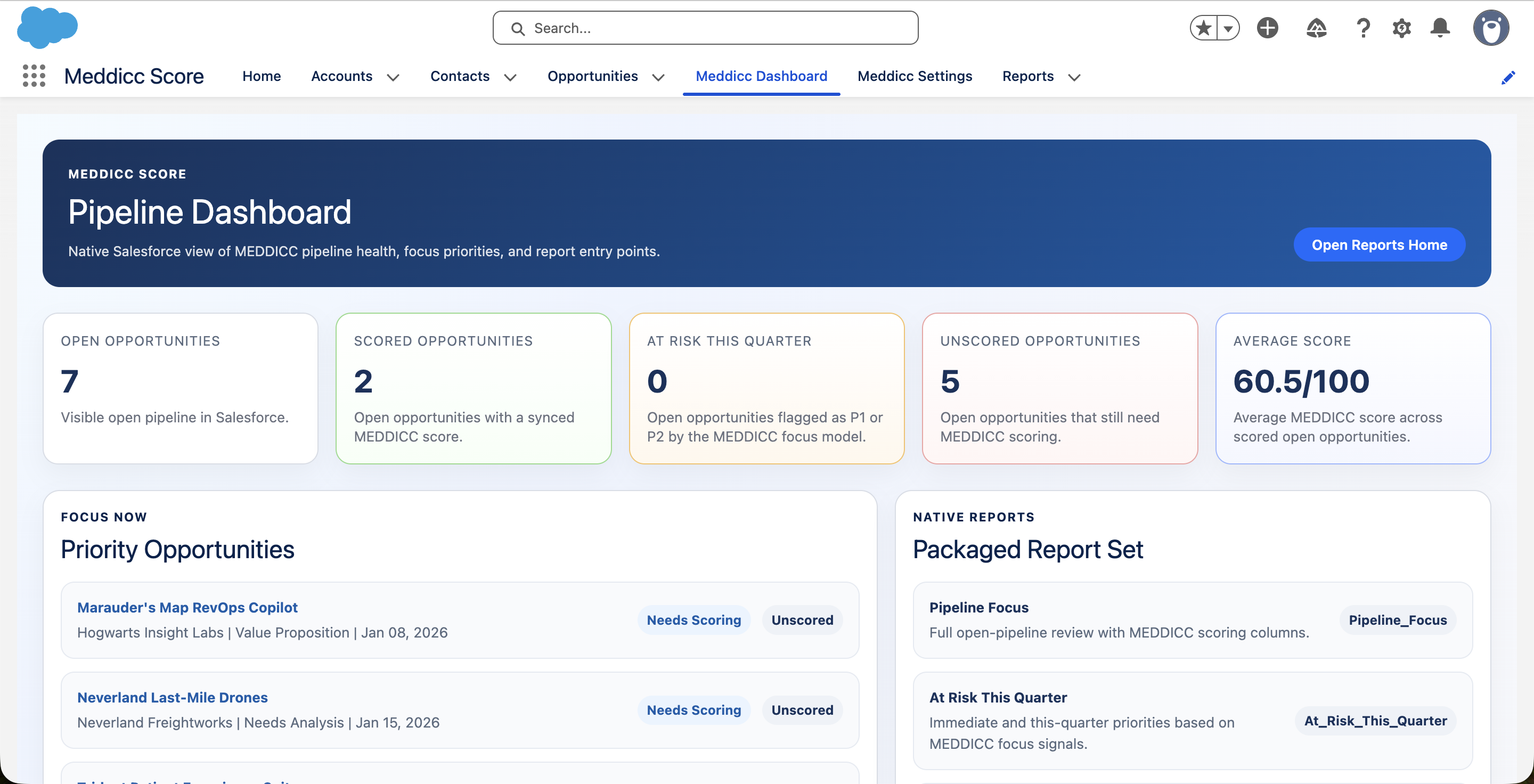
4. Open the Packaged Lightning App
Open the Meddicc Score app from the App Launcher. The packaged app includes the standard sales tabs plus:
- Meddicc Dashboard
- Meddicc Settings
This gives admins and users a clean default entry point without manually creating a Lightning app first. For onboarding and training, this is the easiest place to start because all key tabs are already grouped together.
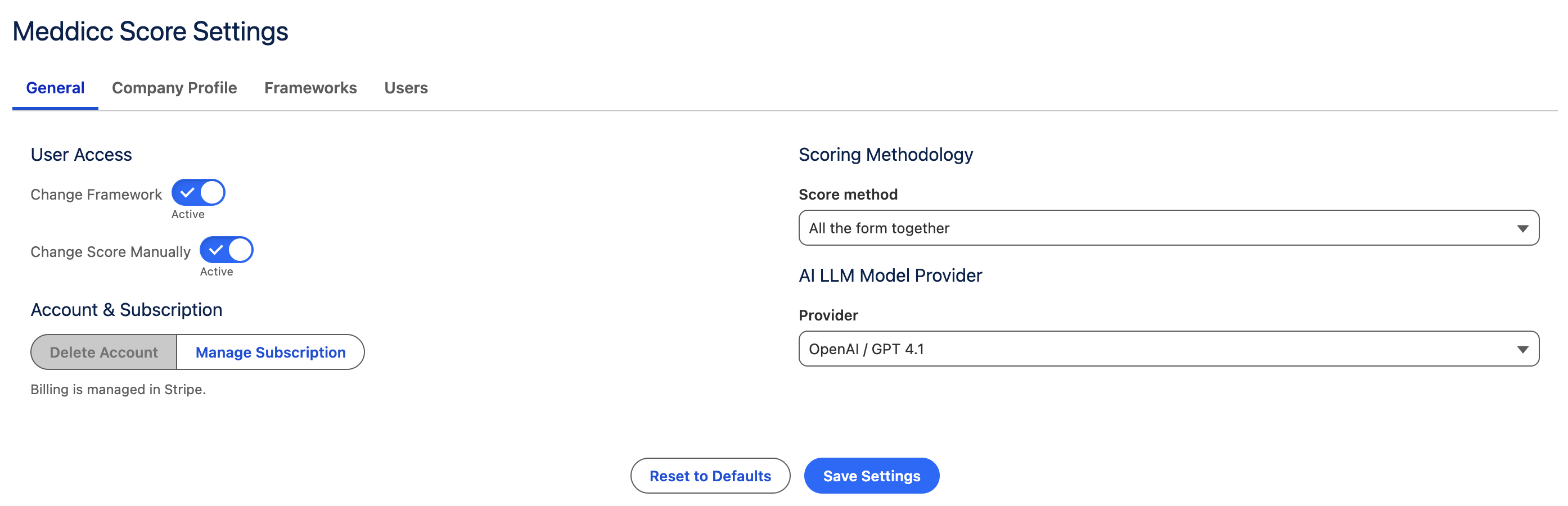
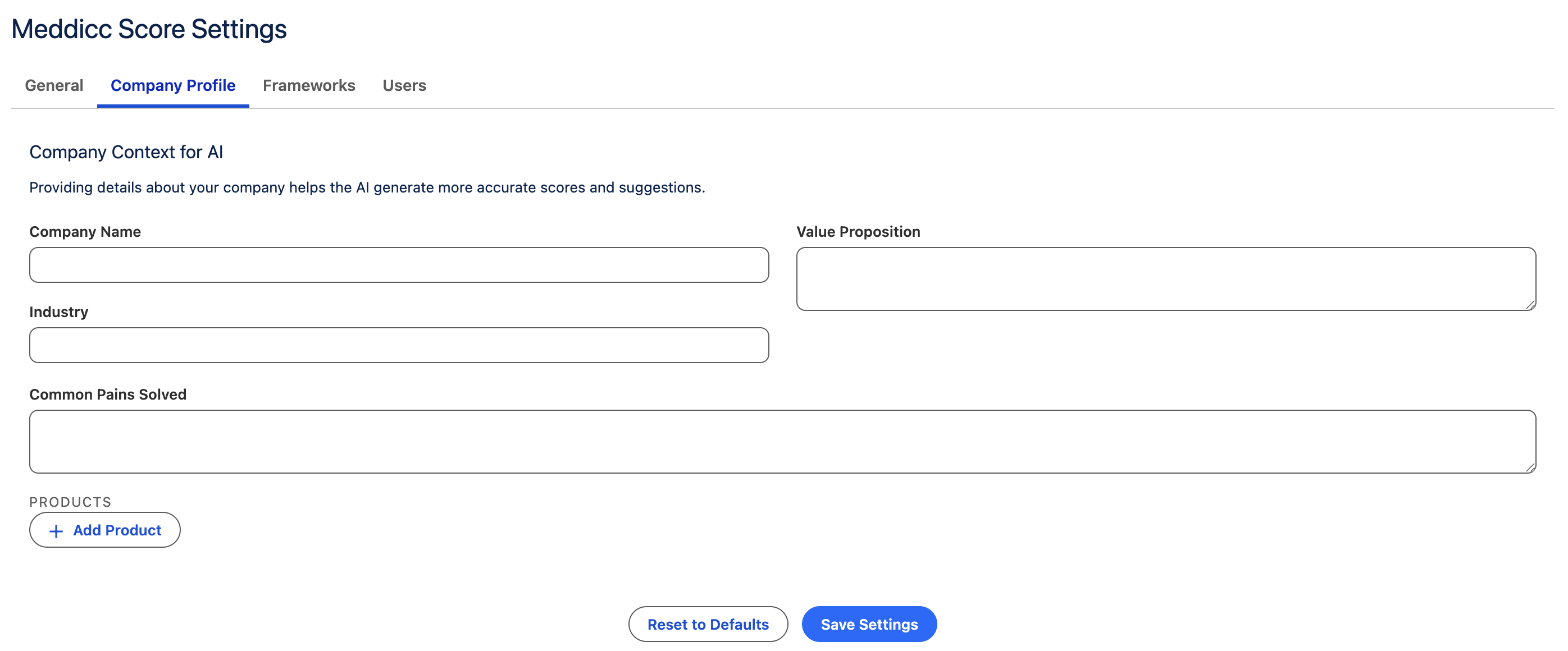
5. Review the Default Settings
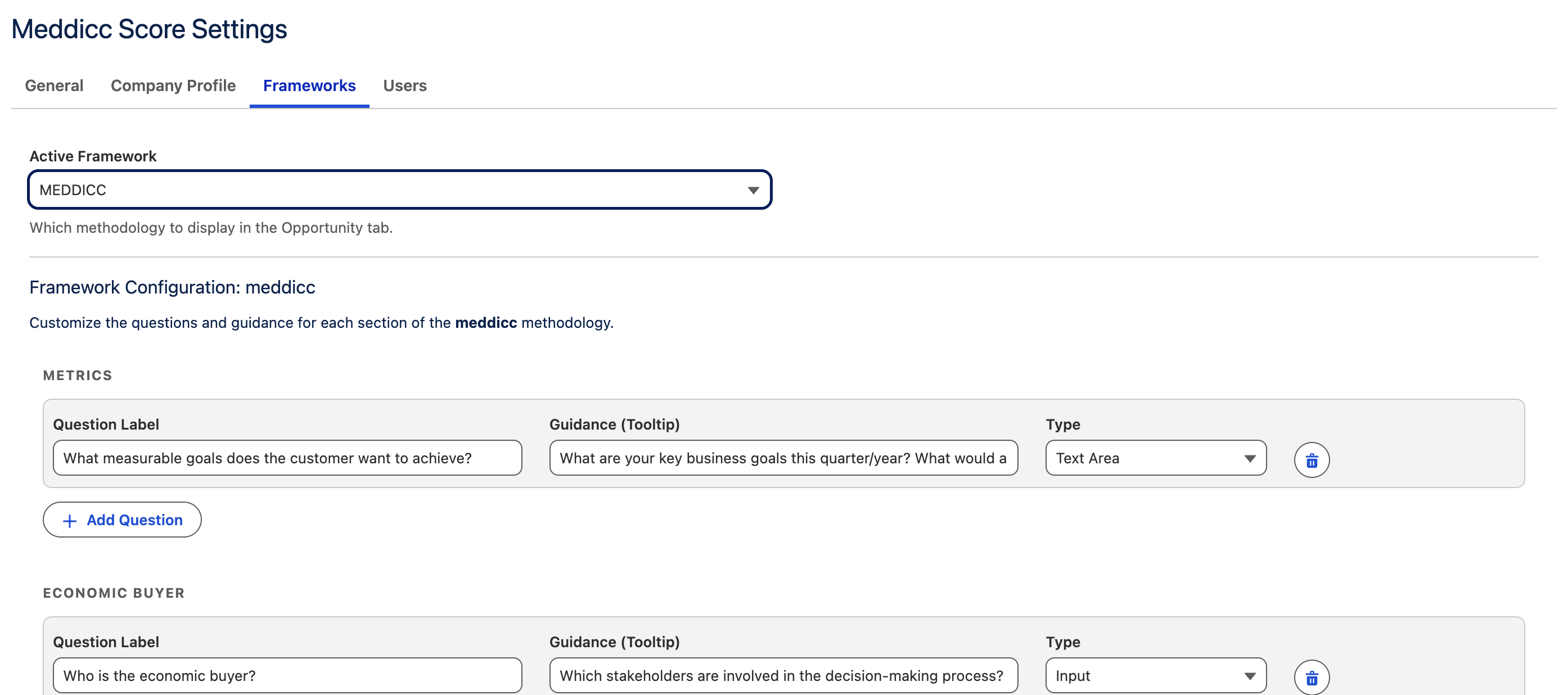
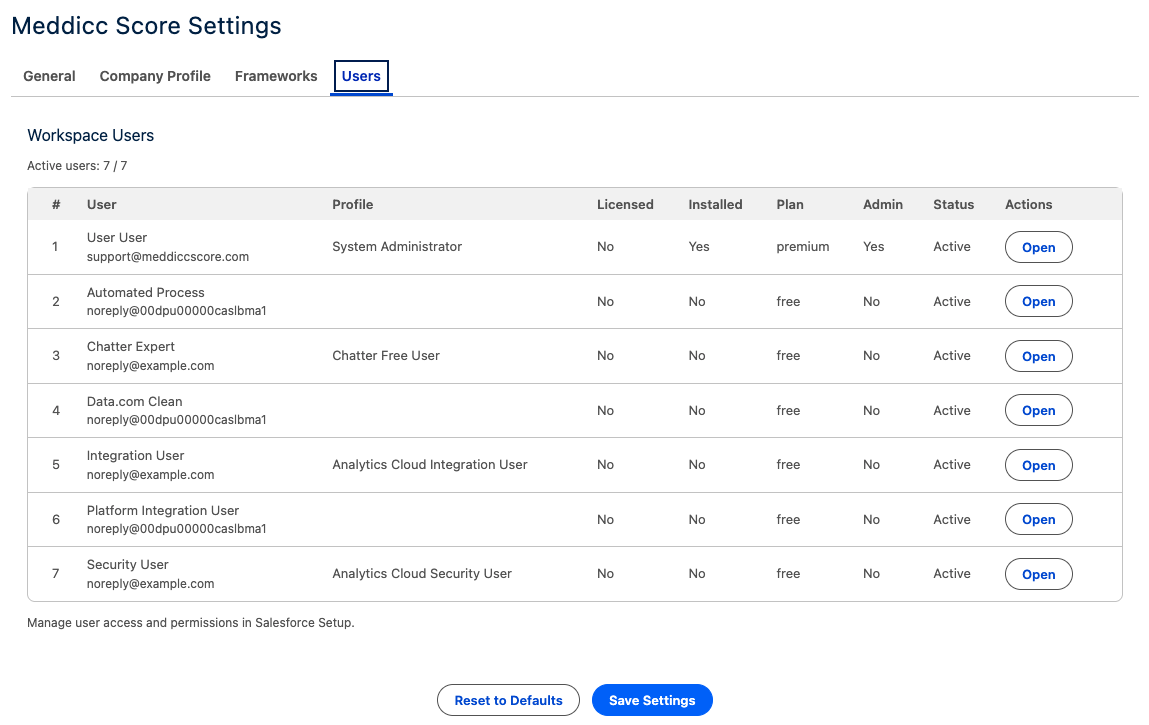
When the package is installed, a default Meddicc Setting record is created automatically. Open Meddicc Settings to review it before you invite the broader sales team into the app.
Recommended first checks:
- Confirm the active framework is the one you want to use first, usually MEDDICC
- Review your framework questions and guidance text
- Review scoring behavior and provider settings
- Save the settings once so the admin can confirm everything loads correctly in the org
If you want to support multiple frameworks, customize guidance text, or fine-tune scoring behavior before rollout, this is the place to do it.
6. Check Opportunity, Contact, and Account Pages
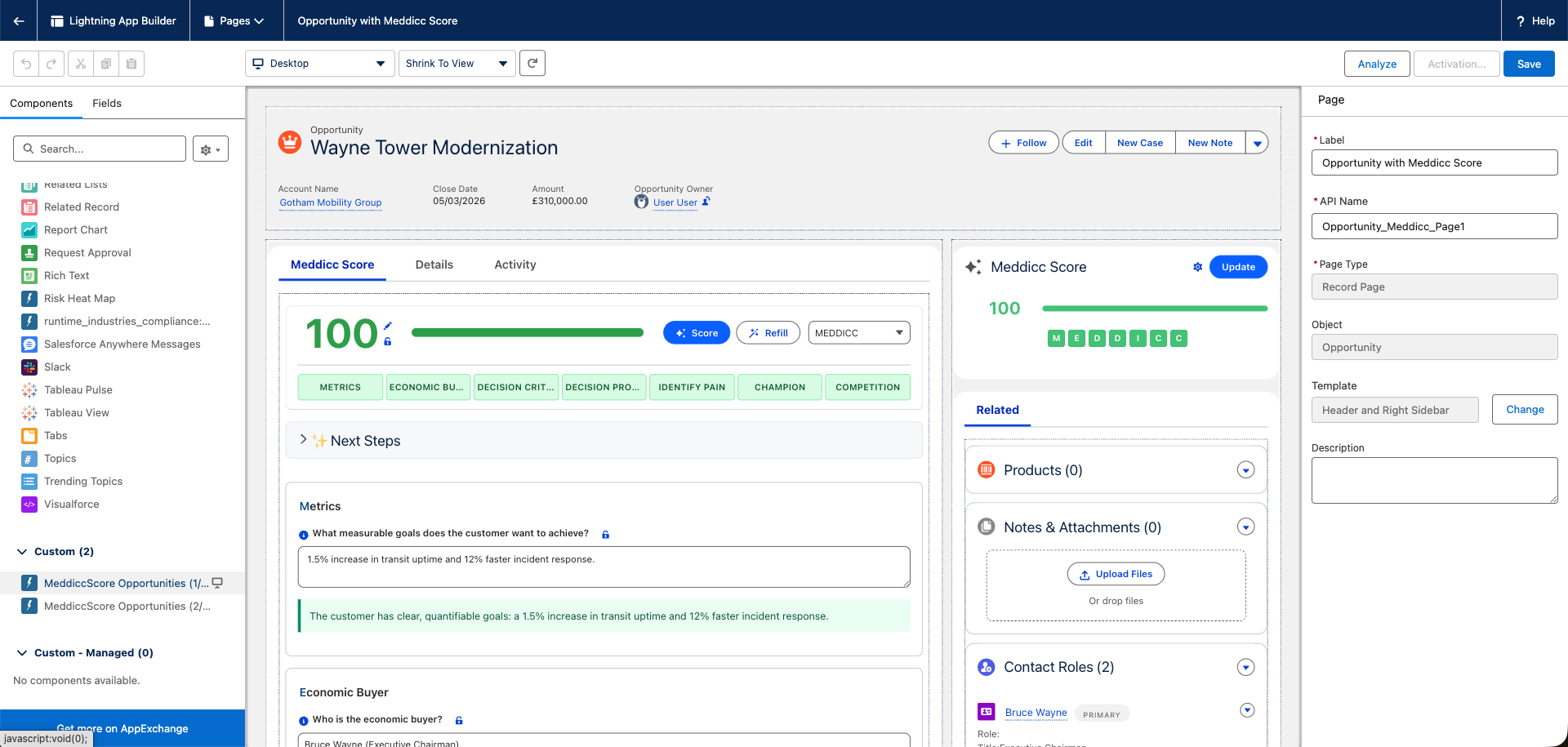
In most installations, the packaged components should be available immediately. Before rolling out to users, open one Opportunity, one Contact, and one Account to confirm the Meddicc Score components are visible where your team actually works.
If you do not see them, a Salesforce admin should check the Lightning record pages and make sure the packaged components are present and the page assignment is active for the correct apps, profiles, or record types. This is the step that most often decides whether the launch feels smooth for end users.
7. Work Inside an Opportunity
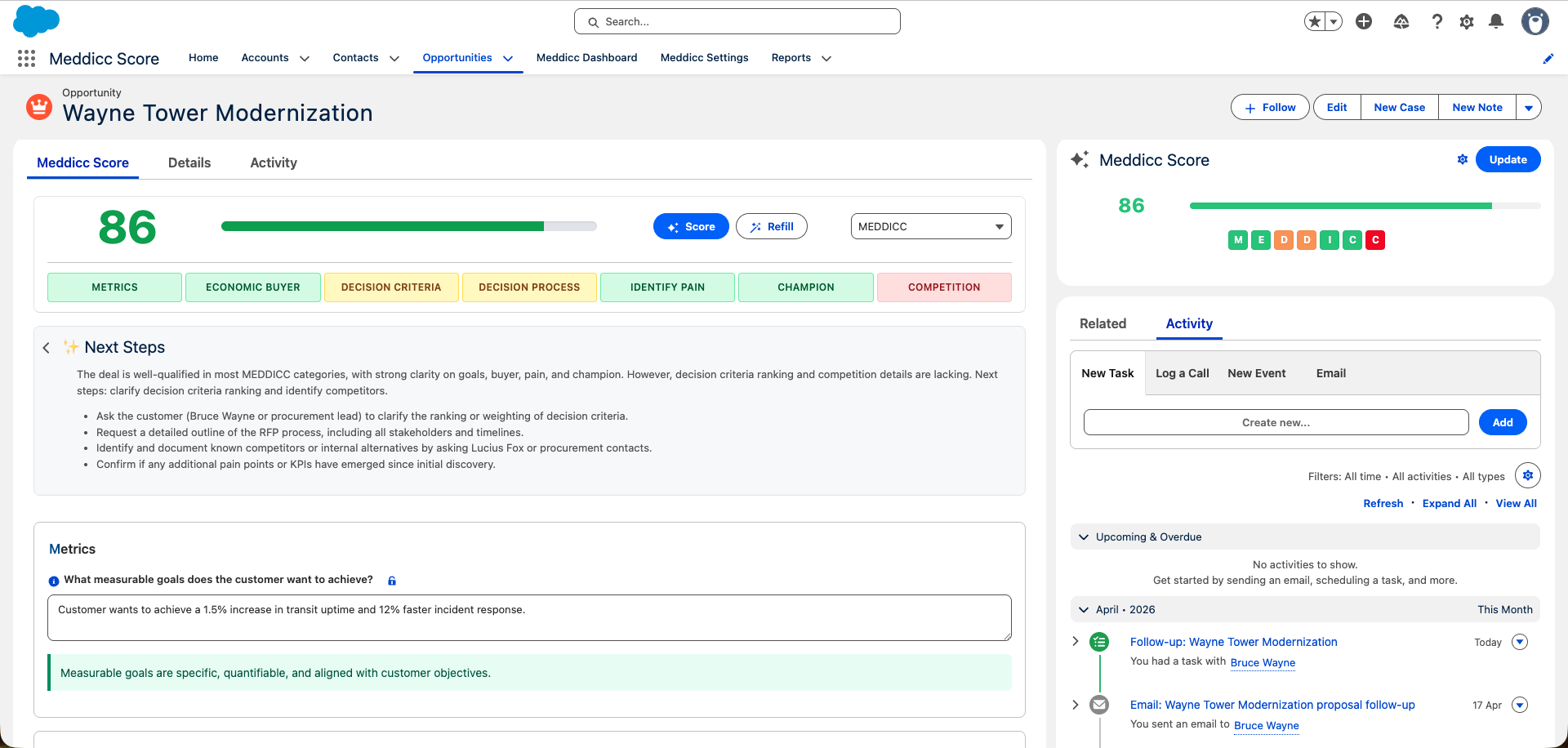
The Opportunity view is the main Meddicc Score experience in Salesforce and the first place most reps will form an opinion about the tool.
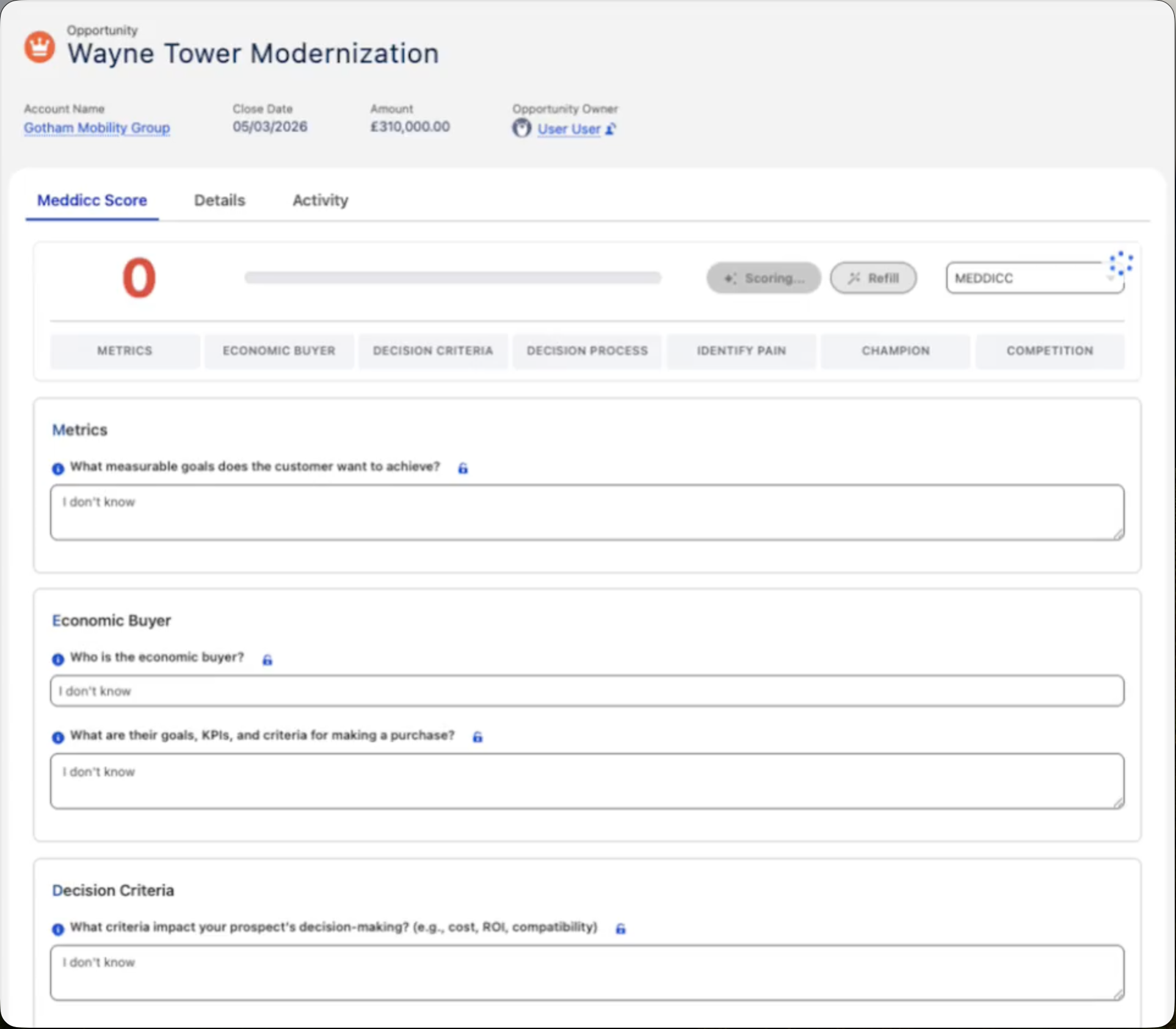
When a user opens a new Opportunity for the first time:
- The default framework is loaded automatically
- The score starts at 0 until the deal is scored
- The form questions are shown by section
- The user can manually type answers or use Refill to prefill them from Salesforce data
8. Use Refill and Score
Refill reads the Opportunity plus the accessible Salesforce activity context, such as tasks, events, and Chatter posts, and uses AI to prefill the framework answers. This helps reps get to a useful first draft quickly instead of starting from a blank form.
Score analyzes the form and returns:
- An overall MEDDICC score
- Feedback for each section
- Suggested next steps
- Win analysis or post-mortem analysis for closed opportunities
Users can then review the responses, edit them, refill again later, or rescore at any time. In practice, this means the score can evolve with the deal instead of becoming a one-time exercise.
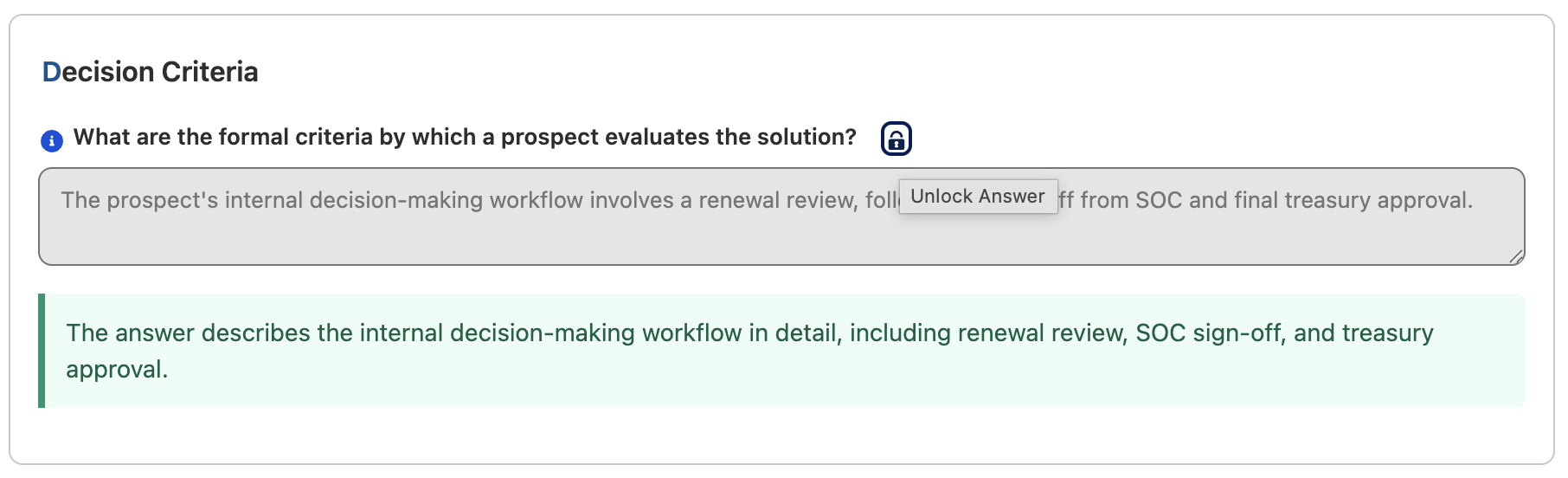
9. Lock Answers and Override the Score
Each answer can be locked individually so it is not overwritten during a future refill. Users can also manually adjust the score and lock the score value. This gives managers and reps a practical way to keep trusted inputs stable while still benefiting from AI updates elsewhere.
This is useful when:
- A rep wants to preserve a validated answer
- A manager wants to agree on a score manually
- The team wants AI feedback refreshed without changing a locked score
10. Use Contact and Account Views
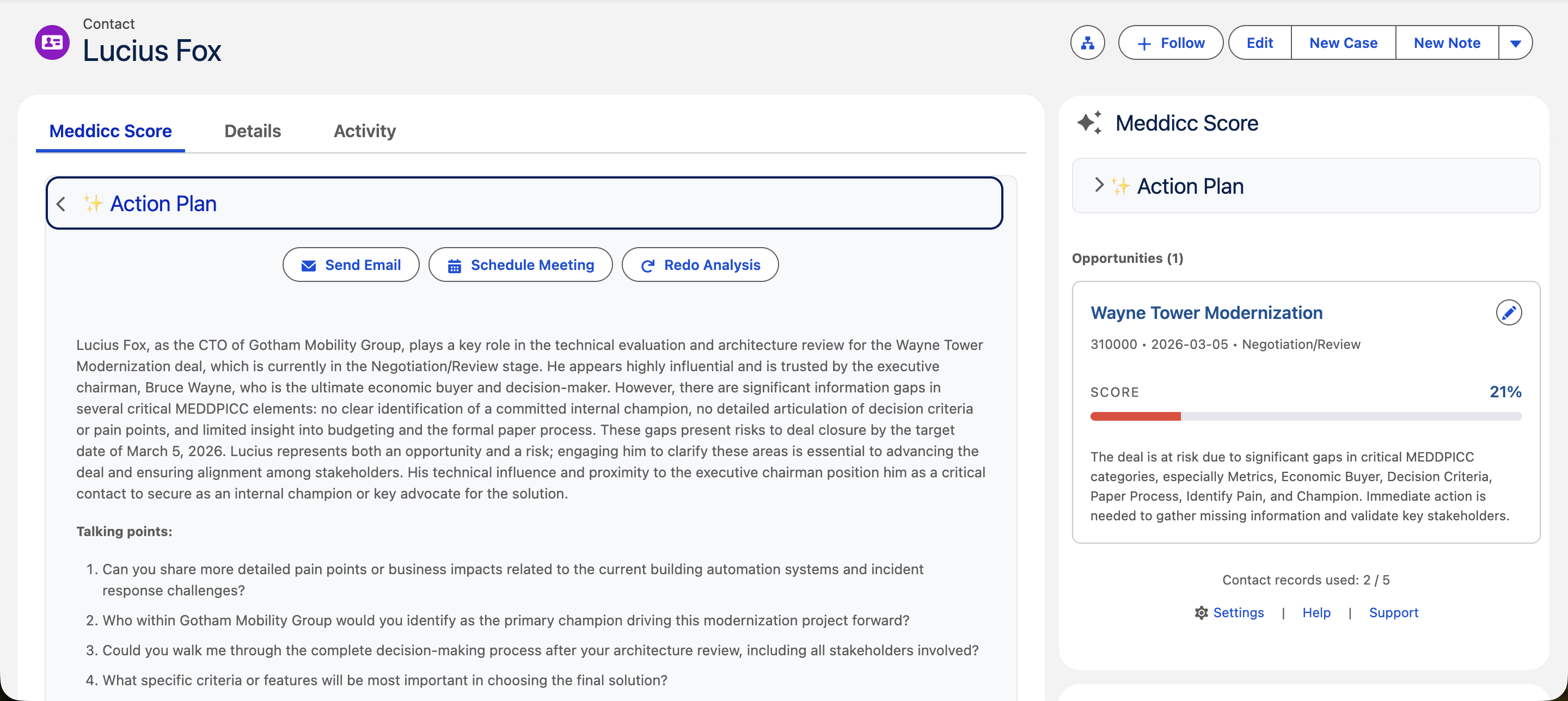
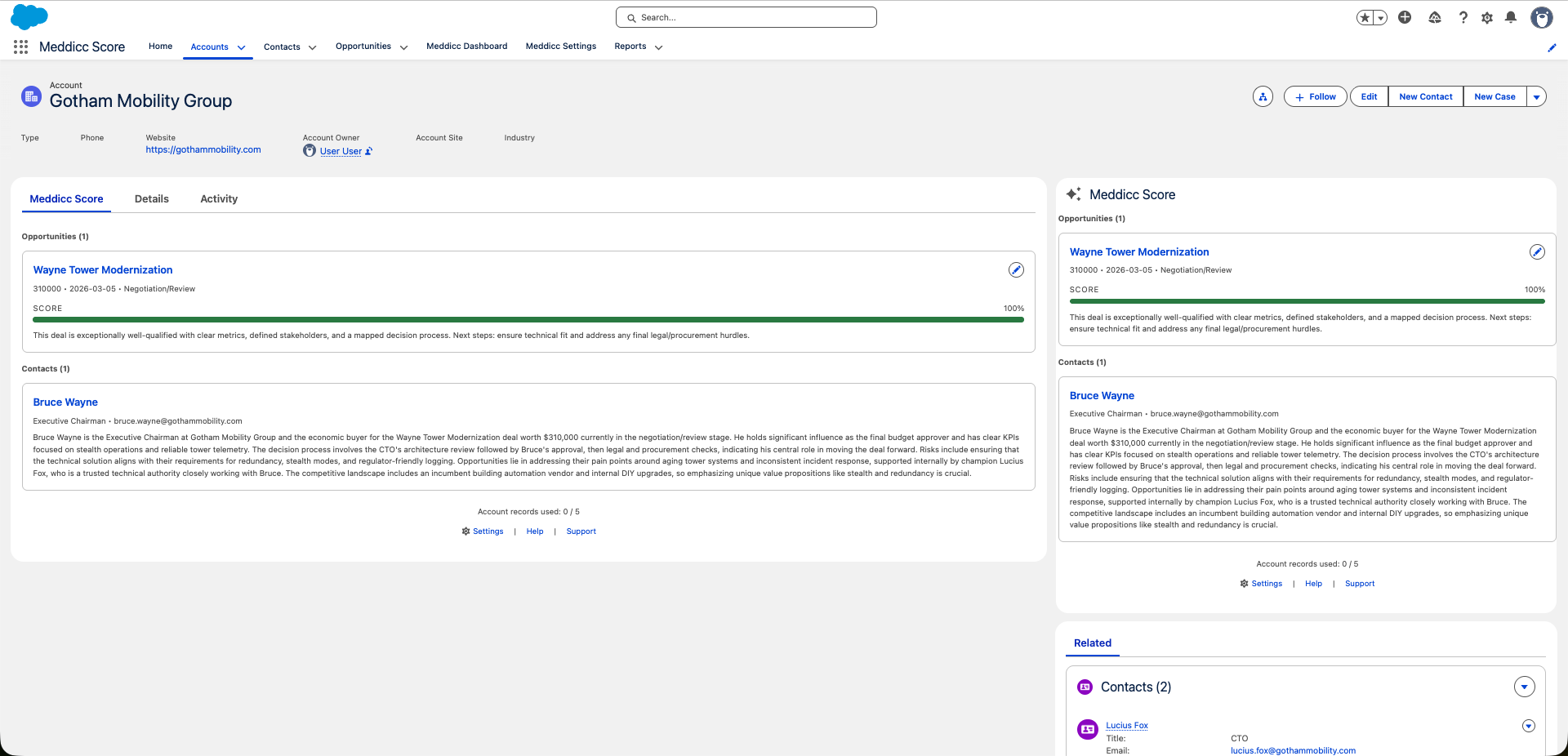
Meddicc Score also adds supporting views for Contacts and Accounts, so your team can work from the full account context instead of treating MEDDICC as a deal-only exercise.
On Contacts, users can review related opportunities and see AI-generated contact context. On Accounts, users can review the set of related deals and contacts in one place.
This helps teams work from the person and account perspective, not only from the opportunity record.
11. Use the Dashboard
The Meddicc Dashboard gives admins and sales leaders a quick view of open pipeline quality, adoption, and follow-up priorities.
It includes:
- Open opportunities
- Scored opportunities
- At-risk opportunities
- Unscored opportunities
- Average MEDDICC score
Use it as the shared starting point for pipeline review, coaching, and identifying which opportunities need scoring attention first.
12. I Installed the Package but I Do Not See the Components
Check these items first. In most cases, the issue is page assignment or missing permission-set assignment, not a failed installation.
- The user has the Meddicc Score permissions permission set
- The user is opening the Meddicc Score app or another Lightning app where the record pages are assigned
- The record pages for Opportunity, Contact, and Account include the packaged components and are activated for the relevant app, profile, or record type
13. I See an Access Error When Using Refill, Score, or Settings
This usually means one of the following. The fastest fix is usually to verify the packaged permission set first, then retest with an admin user.
- The user does not have the Meddicc Score permissions permission set
- The org has additional restrictions on standard Salesforce objects used by the package
- The admin has not granted the package access to the relevant record pages or objects for the user population
Start by assigning the packaged permission set, then test again with an admin user.
14. Settings or the Dashboard Do Not Load
Open the Meddicc Settings tab first and confirm the default settings record exists and can be saved. If the page still does not load, check that the package installation finished successfully and that the user has access to the packaged tabs and permission set. This is also a good admin smoke test before enabling the package for a wider team.
15. Need Help?
If you still need help after checking the steps above, contact us at support@meddiccscore.com.