How to Use HubSpot Workflows to Gate Stages on Deals
Pipeline stage gates are useful when you need a required score before a deal can move forward. But many teams want something more practical: a workflow that checks whether a deal is really qualified and pushes it back when important MEDDICC areas are weak.
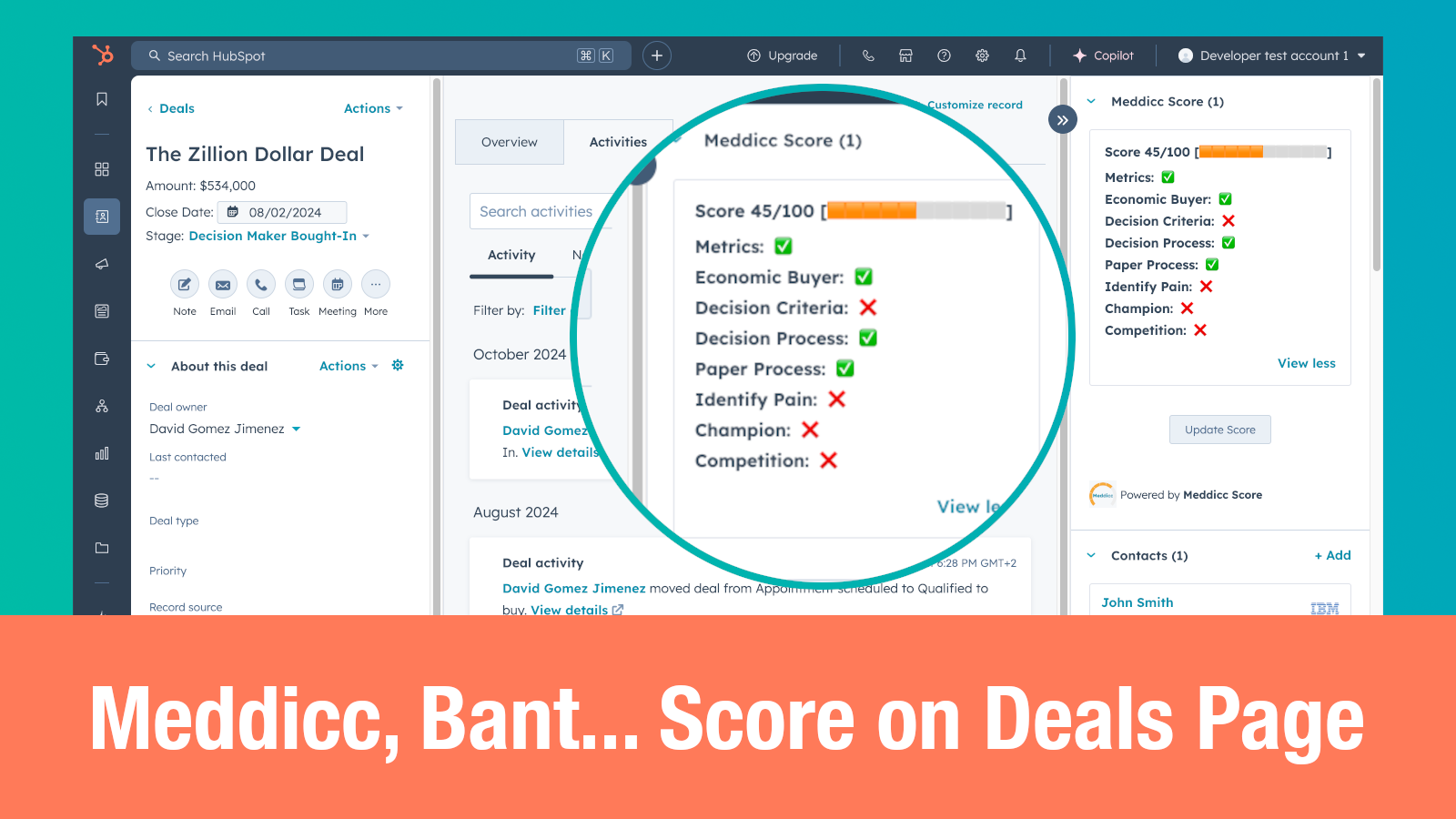
With the Sync MeddiccScore to HubSpot properties setting enabled, Meddicc Score can write qualification insights into HubSpot deal properties. That means HubSpot workflows can use MEDDICC data to keep your pipeline cleaner, notify owners, and make weak qualification visible to managers.
This guide shows one example workflow:
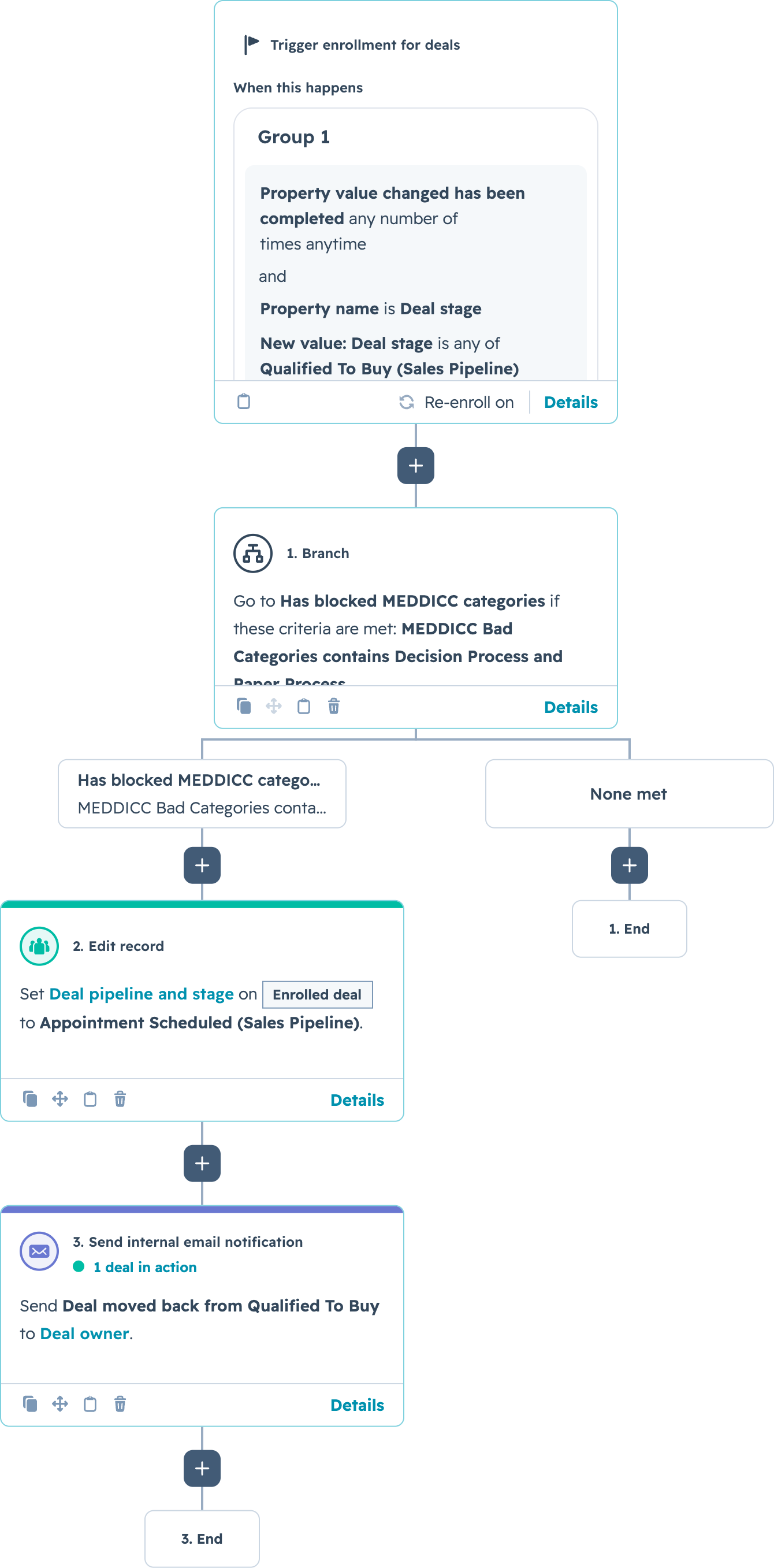
- When a deal moves to Qualified To Buy
- Check whether MEDDICC Bad Categories contains blocked categories such as Decision Process or Paper Process
- If blocked categories are present, move the deal back to Appointment Scheduled
- Send an internal email notification to the deal owner
This is a reactive workflow. HubSpot runs it after the stage change, so it does not hard-block the UI in the same way as required pipeline properties. If you need the simpler hard gate for requiring the score itself, start with the pipeline stage gate guide.
Before You Start
Make sure the Meddicc Score HubSpot properties are available in your portal.
In Meddicc Score, go to:
General Settings > Automations > Sync MeddiccScore to HubSpot properties
Enable the toggle and save your settings. Meddicc Score will create or reuse a small fixed set of HubSpot deal properties, including:
- Meddicc Score
- MEDDICC Missing Categories
- MEDDICC Bad Categories
- MEDDICC Medium Categories
- MEDDICC Good Categories
- MEDDICC Completion Percent
- MEDDICC Qualification Status
- MEDDICC Next Action
If HubSpot shows a permissions error while creating the properties, follow the setup guide here:
Troubleshooting: sync Meddicc Score properties to HubSpot
You also need at least one scored deal, because the workflow depends on the synced MEDDICC category properties.
Example Workflow
The workflow below moves deals back to Appointment Scheduled and emails the deal owner when bad MEDDICC categories are present at Qualified To Buy.
Step 1: Create a Deal-Based Workflow
In HubSpot, go to:
Automation > Workflows > Create workflow
Choose a deal-based workflow. This is important because the MEDDICC properties are synced to the deal record.
Give the workflow a clear name, for example:
Move back unqualified MEDDICC deals
Step 2: Trigger When the Deal Enters the Target Stage
Set the enrollment trigger to:
Deal stage has changed to Qualified To Buy
If your team can edit the deal stage multiple times, enable re-enrollment for deal stage changes. Otherwise, the workflow may only run the first time a deal meets the trigger.
For a different pipeline stage, use the stage where you want the qualification check to happen, such as Proposal, Negotiation, or Commit.
Step 3: Add a Branch for Blocked MEDDICC Categories
Add an if/then branch.
For the condition, use:
MEDDICC Bad Categories contains Decision Process
You can add more blocked categories depending on your sales process. For example:
- MEDDICC Bad Categories contains Paper Process
- MEDDICC Bad Categories contains Economic Buyer
- MEDDICC Bad Categories contains Pain
In the example workflow, bad Decision Process or Paper Process means the deal is not ready for Qualified To Buy.
Step 4: Move the Deal Back
In the branch where blocked categories are present, add an Edit record action.
Set:
Deal pipeline and stage = Appointment Scheduled
This pushes the deal back to the earlier stage where the rep should complete the missing qualification work.
Be careful not to create a loop. The trigger should watch for the later stage, and the workflow should move the deal back to an earlier stage.
Step 5: Email the Deal Owner
After moving the deal back, add a Send internal email notification action.
Send it to:
Deal owner
A simple notification can be enough:
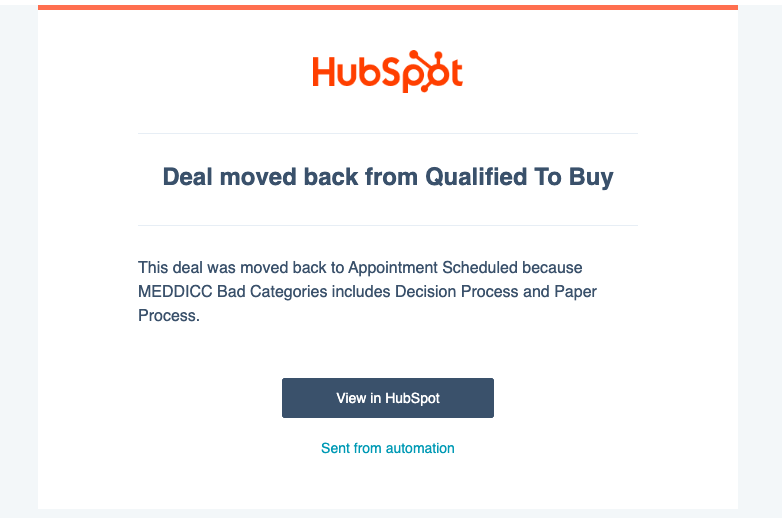
Subject: Deal moved back from Qualified To Buy

This deal was moved back to Appointment Scheduled because one or more MEDDICC categories are marked as bad.

Review the MEDDICC Bad Categories property, update the qualification details, and score the deal again before moving it forward.
Here is an example of the internal email received by the deal owner:
You can also include HubSpot personalization tokens for the deal name, deal owner, deal stage, and MEDDICC next action.
Other Useful Gate Criteria
Bad categories are a strong signal, but they are not the only property you can use.
Here are other workflow conditions that work well:
- MEDDICC Missing Categories contains Economic Buyer
- MEDDICC Completion Percent is less than 100
- MEDDICC Qualification Status is incomplete
- MEDDICC Qualification Status is at risk
- MEDDICC Medium Categories contains Metrics
For example, a stricter Commit stage workflow could require 100 percent completion and no bad categories. A lighter Proposal stage workflow could allow medium categories but block missing categories.
When to Use This Instead of a Required Score Gate
Use a required score gate when the only rule is:
The deal must have a Meddicc Score before it enters this stage.
Use a workflow gate when the rule is more nuanced:
The deal can only stay in this stage if the qualification is strong enough.
The workflow approach is useful because managers can adapt it to the real sales process without creating many custom properties or one-off fields for every MEDDICC category.
Final Thoughts
This workflow makes MEDDICC visible inside HubSpot where reps and managers already work. Instead of letting weak deals move forward unnoticed, HubSpot can automatically move them back, alert the owner, and keep the pipeline aligned with your qualification process.
If you have not installed Meddicc Score for HubSpot yet, you can get it from the HubSpot Marketplace.
Written by David Gomez, founder of Meddicc Score and Sailes Coach AI.