1. Connect Your Zoho Account
Click the Install app button below to link your Zoho account.
 Install app
You may need to grant permission to the user to install external apps. Ask your Administrator.
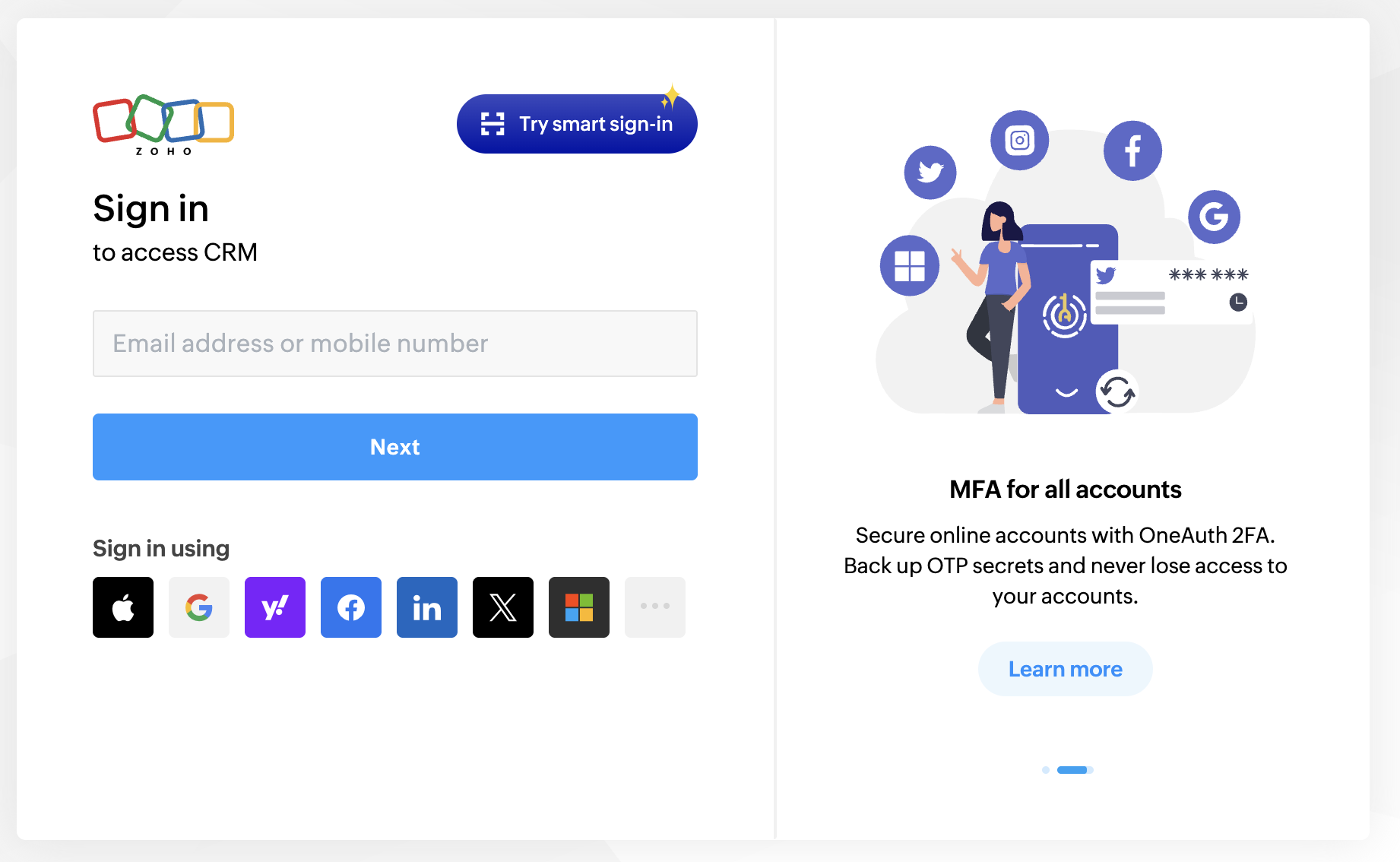
2. Login to Your Zoho Account
Simply use your standard Zoho login credentials.
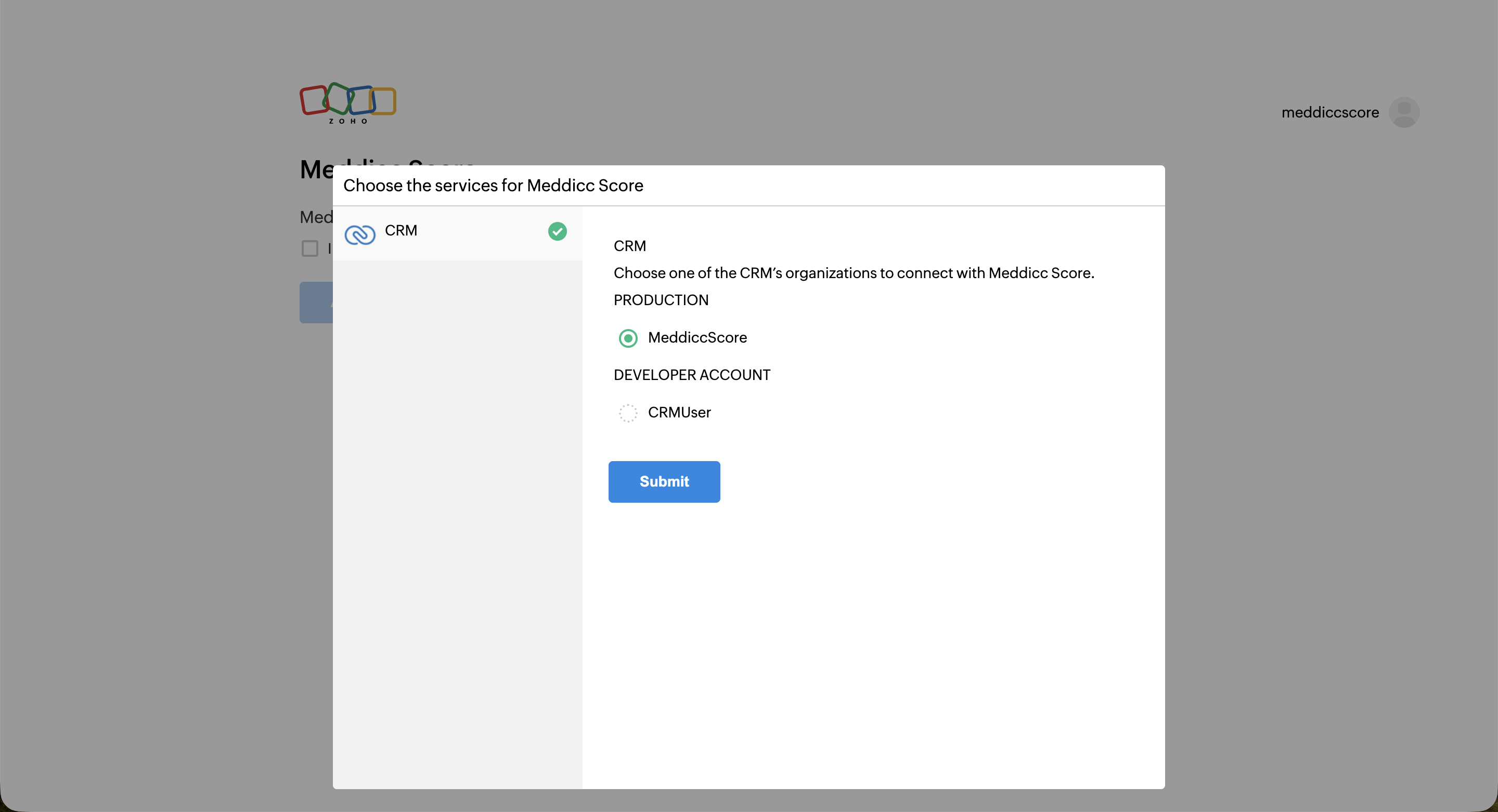
3. Select Your Zoho Account
If you have multiple accounts, select the one you wish to use. Single accounts will be chosen automatically.
Agree on the Terms and the Authorization and Click on Install Now.
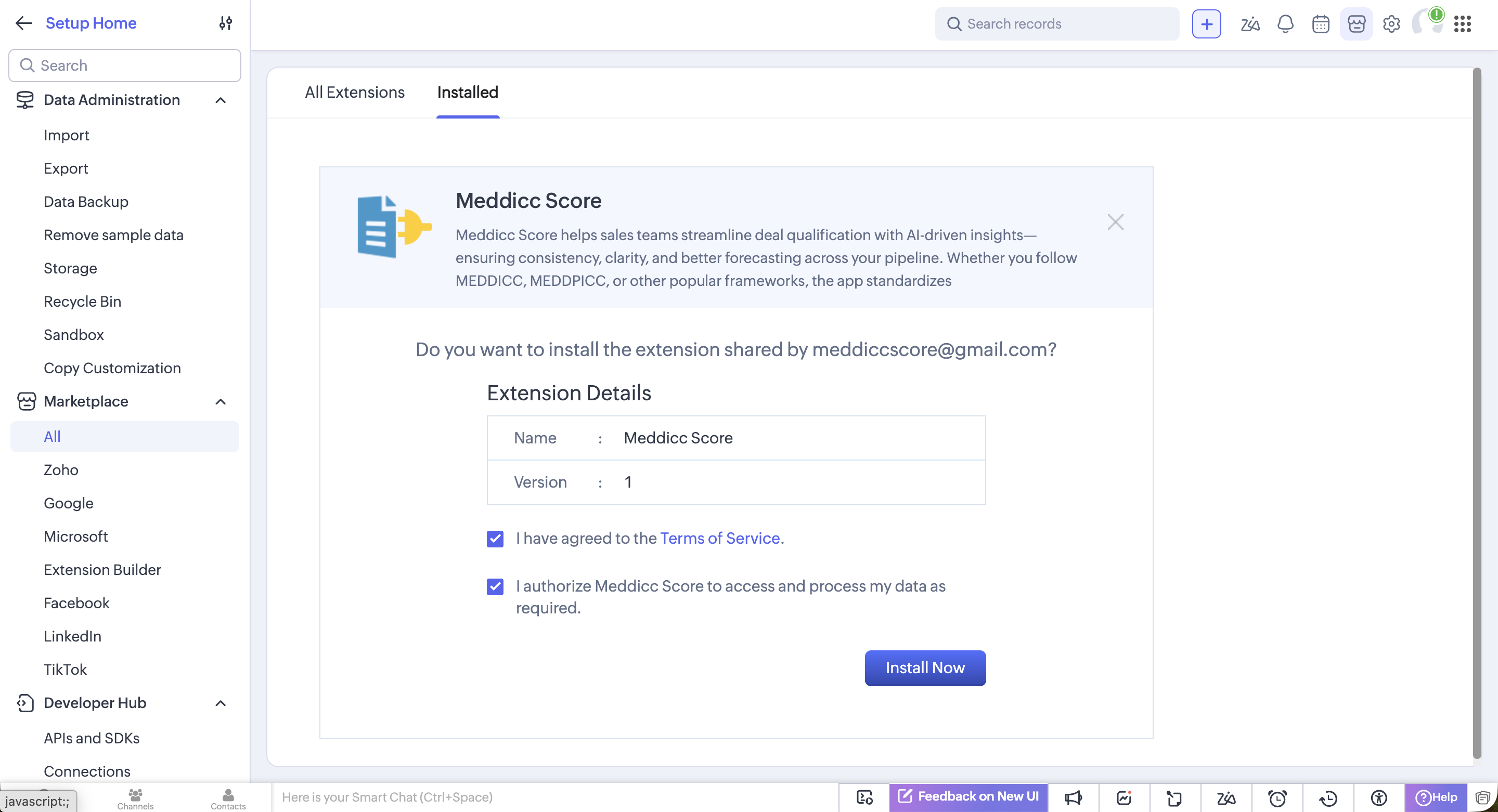
It will take a few minutes to be installed and you will be notified when ready.
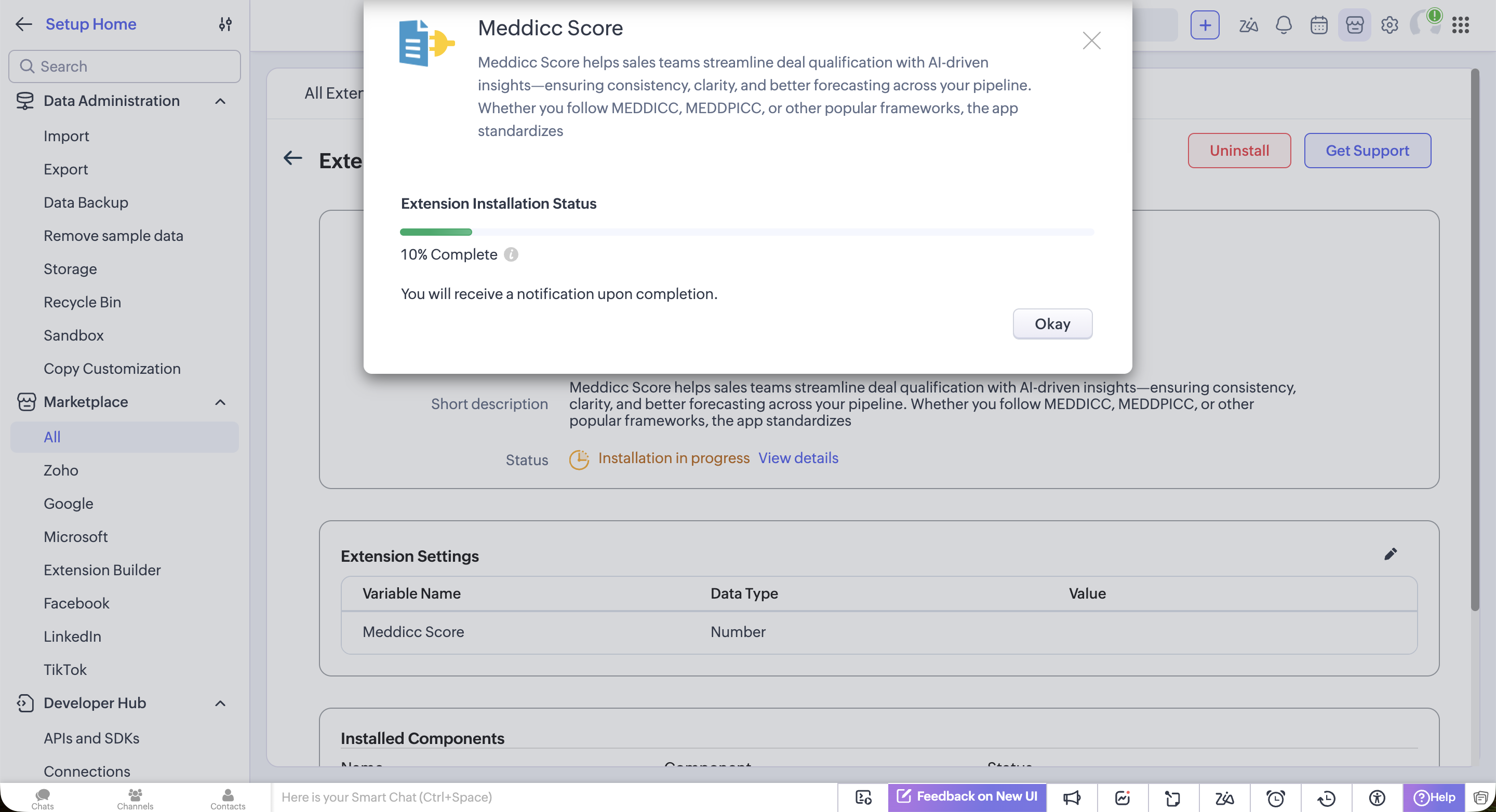
4. Confirm Permissions
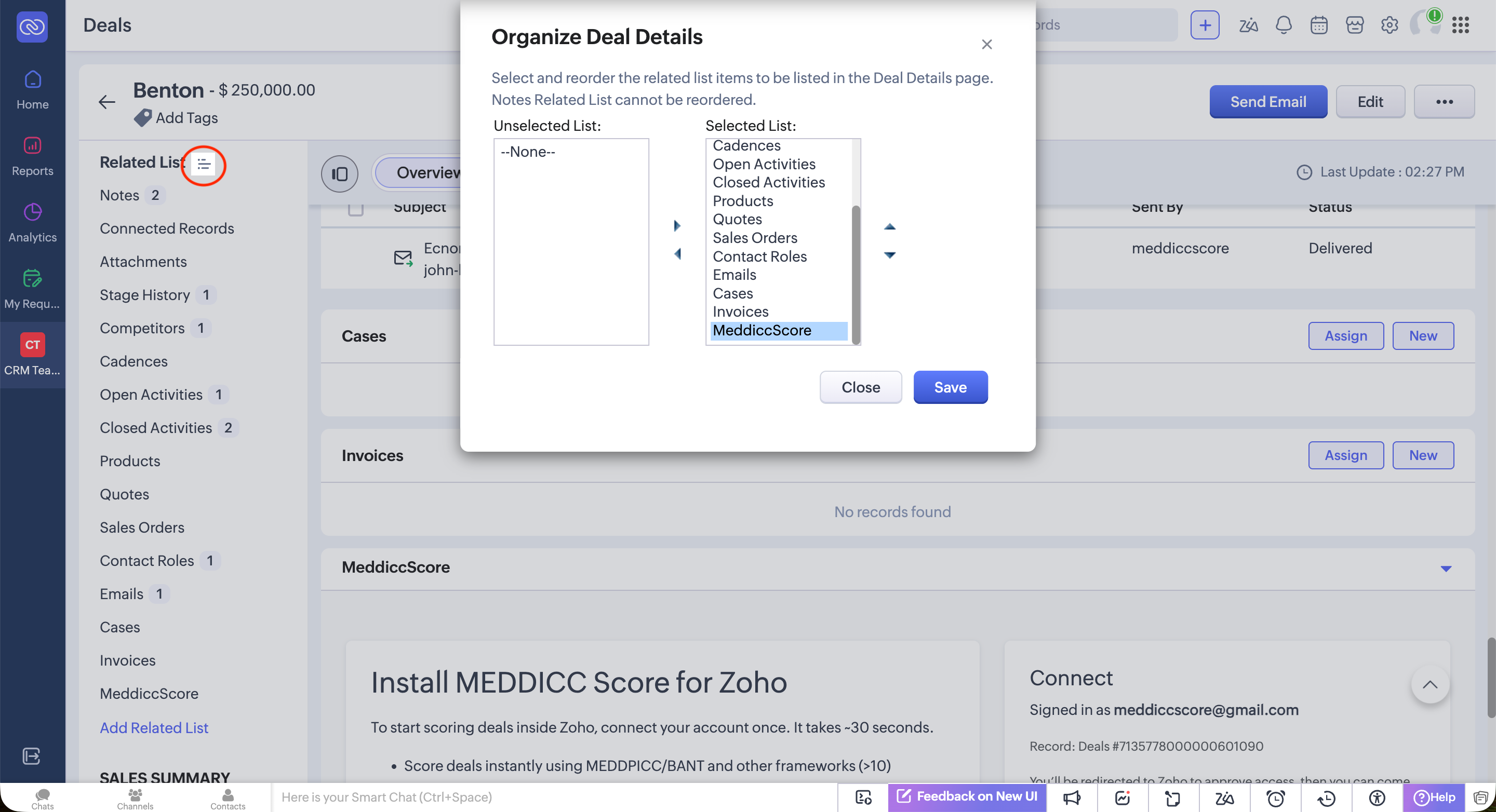
You can find Meddicc Score on the Related List of Deals.
The first time you access, you also need to authorize the necessary permissions for Meddicc Score to interface with your Zoho CRM. and click on “Connect app”.
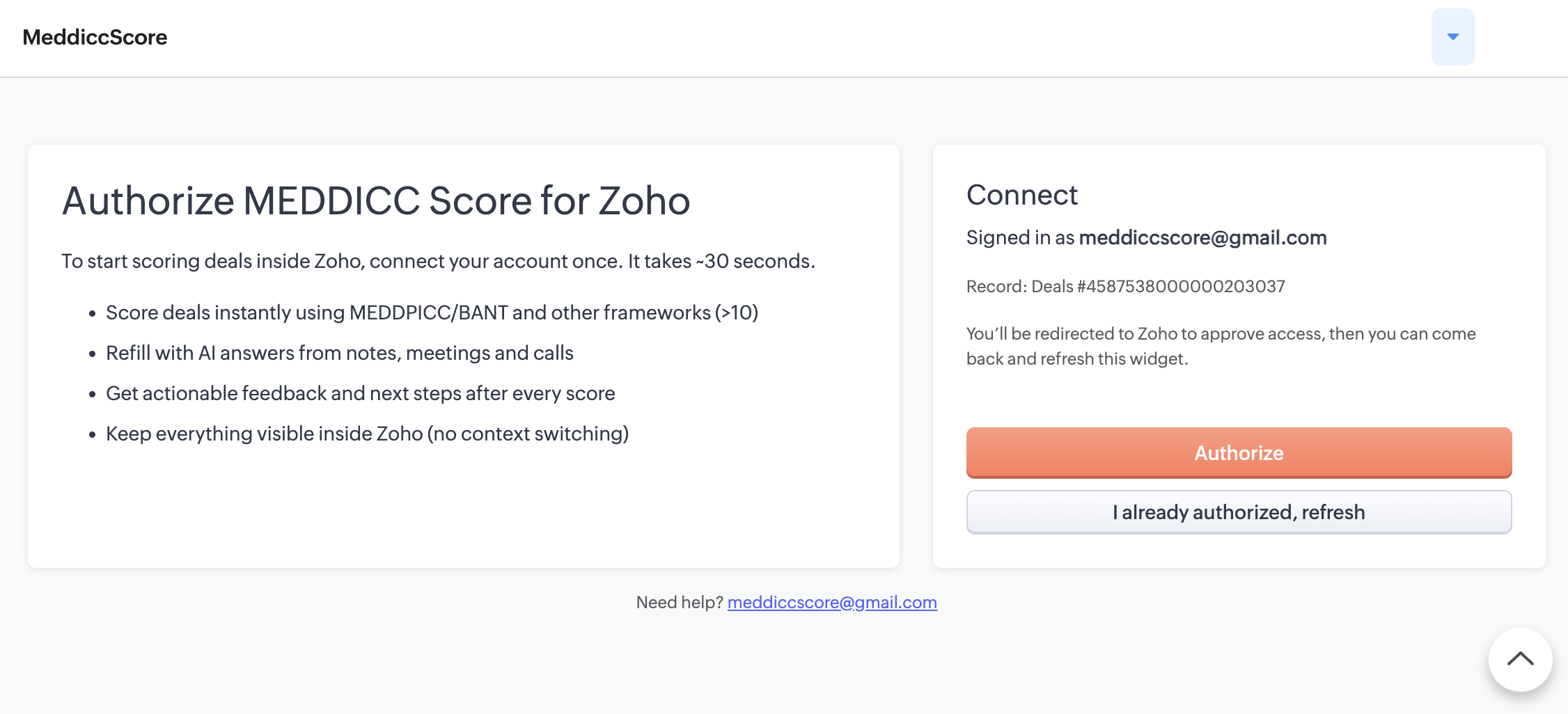
Congratulations, you have installed Meddicc Score.
The first user of the account is the Admin by default, but there can be more users on the same account.
5. Access Meddicc Score from the Zoho Related List
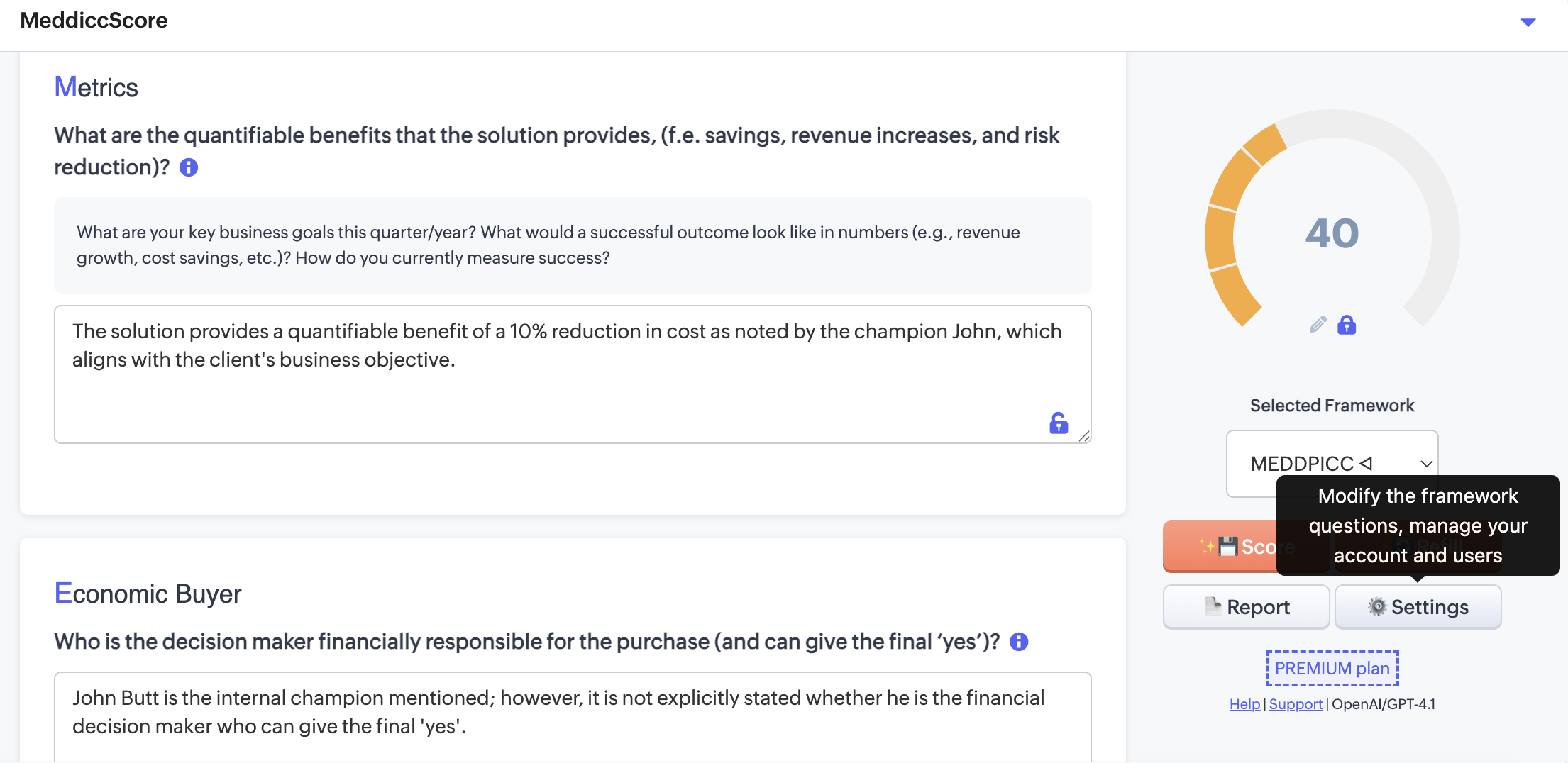
Find Meddicc Score in the Zoho Related List under Deal. It displays the sales framework form and the current score.
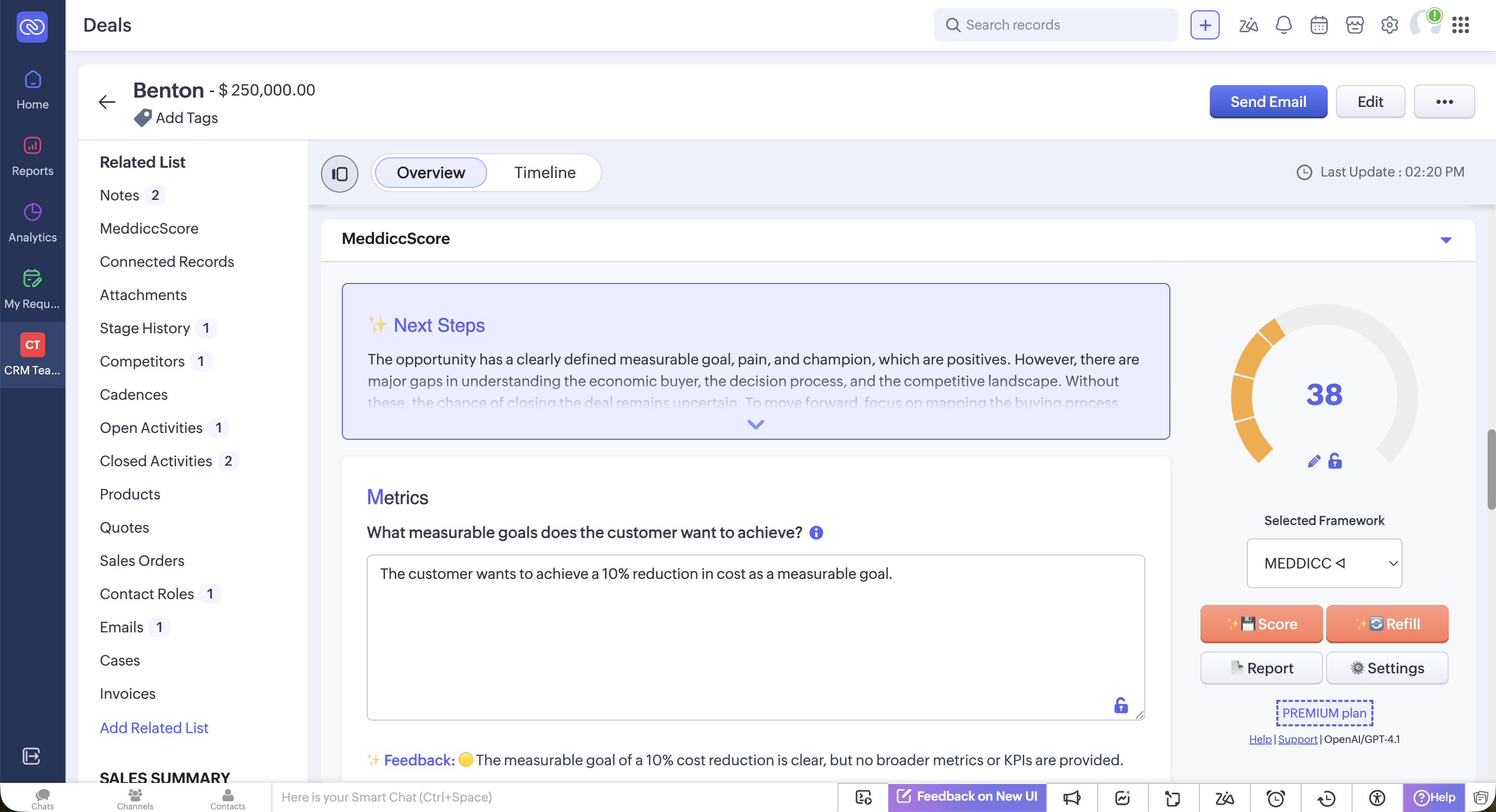
You can also organize the Related lists by clicking on the icon that appears when hover over the Related List header.
6. Begin Scoring
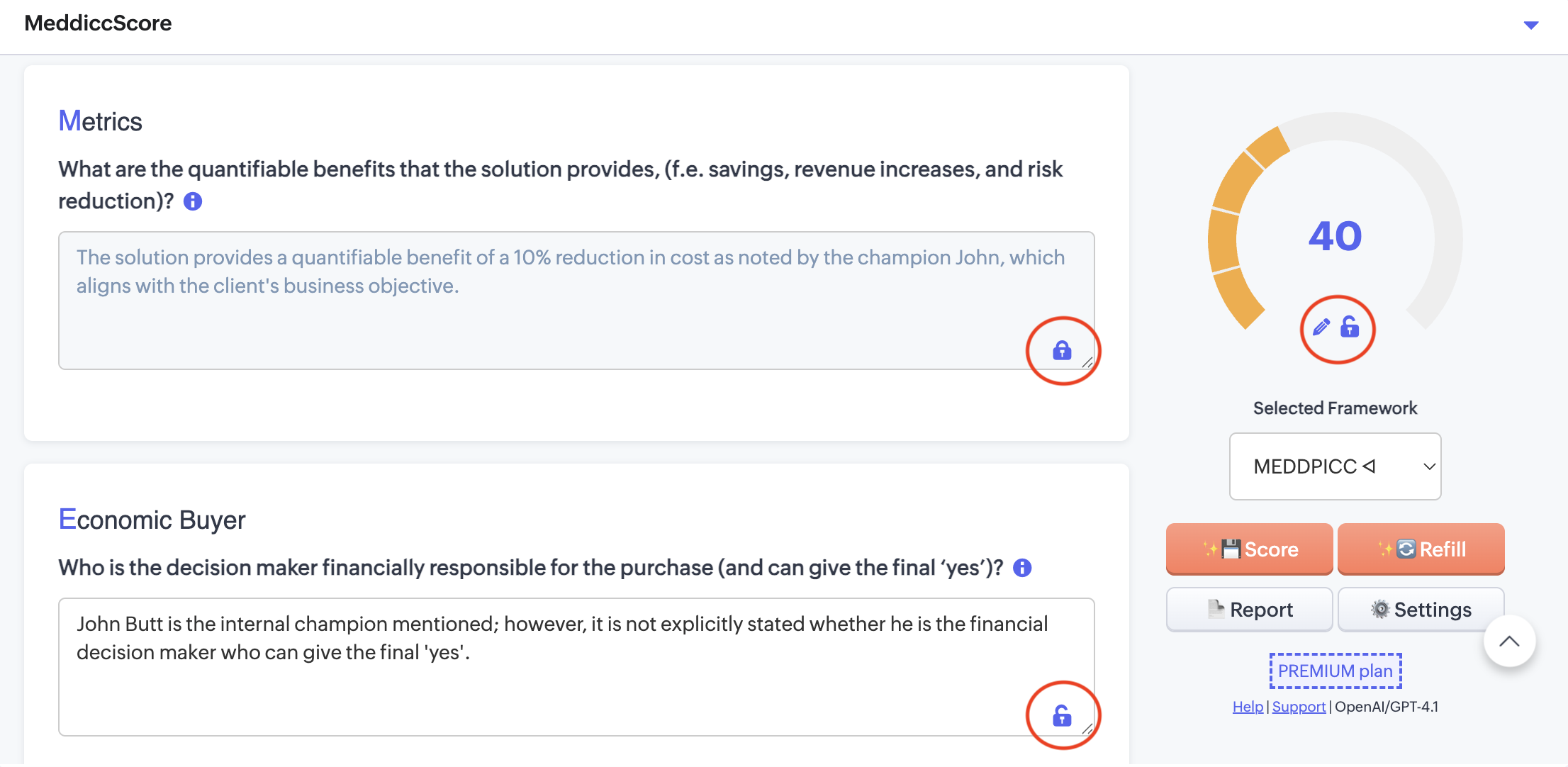
- The first time you access a Deal, the default framework (normally MEDDICC) is used. (The default framework can be changed in the Settings.)
- Meddicc Score retrieves the relevant information of the last 100 Deal Engagements (Emails, Meetings, Calls, Tasks, Notes…) recorded in Zoho. General data from teh deal such as description, close date, contacts etc is also considered. AI analyzes this data to auto-fill responses for the Framework Questions.
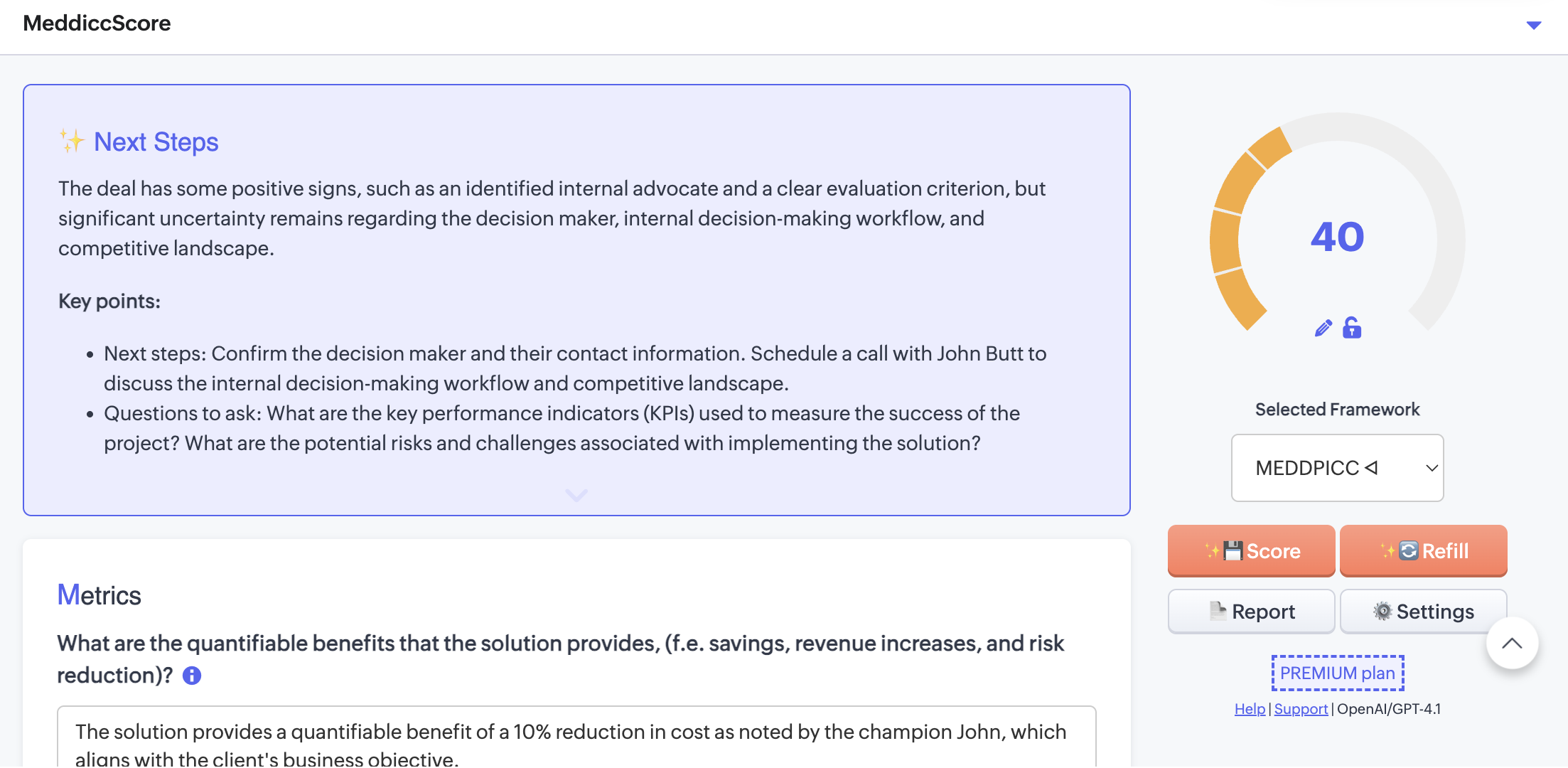
- Then the AI model returns a Score based on the data introduced, Next Steps for the Sellers and feedback for every category. The responses, feedback and score are stored.
- Users can manually update the pre-filled responses on the form at any time. If additional information has been recorded in the Deal, they can click on "Refill" to re-populate the form with updated AI-generated responses.
- To prevent specific responses from being modified or overwritten during a refill, users can lock those responses by clicking the lock icon. Locked responses will remain unchanged even after a refill.
- Clicking on Score will trigger the AI to reassess and recalculate the Score based on updated data.
- the AI model will provide ✨ Next Steps and suggested questions (and to whom), to help SDRs to know what they need to find out on the next call.
- If the Deal is already closed, it provides a Win Analysis or a Post-Mortem Analysis to learn from the errors and match the framework inputs with the results.
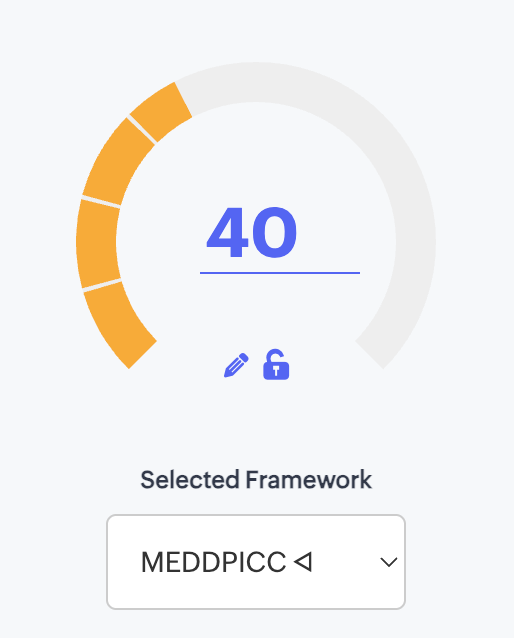
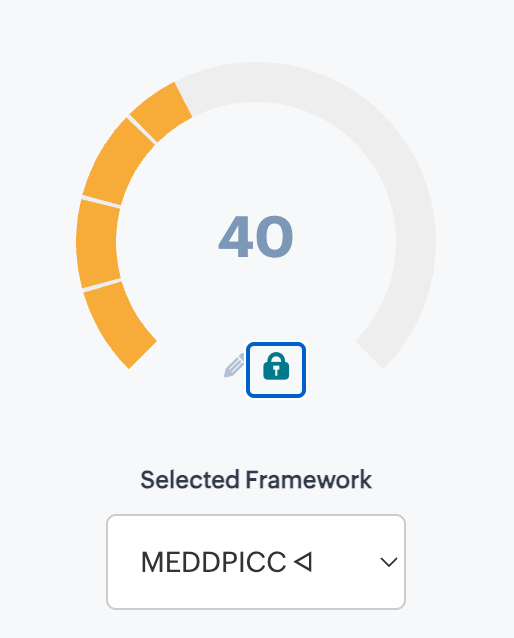
- Users can also modify the score manually by clicking the pencil icon below the score.
- Users can also lock the score value. When the score is locked, it will not be changed by manual edits or by Automations. This is useful if you want to update the form with new AI-generated responses or feedback, but keep the previously agreed score unchanged.
- The score can also be written back to Zoho CRM on the Deal as a custom field. See how to configure.
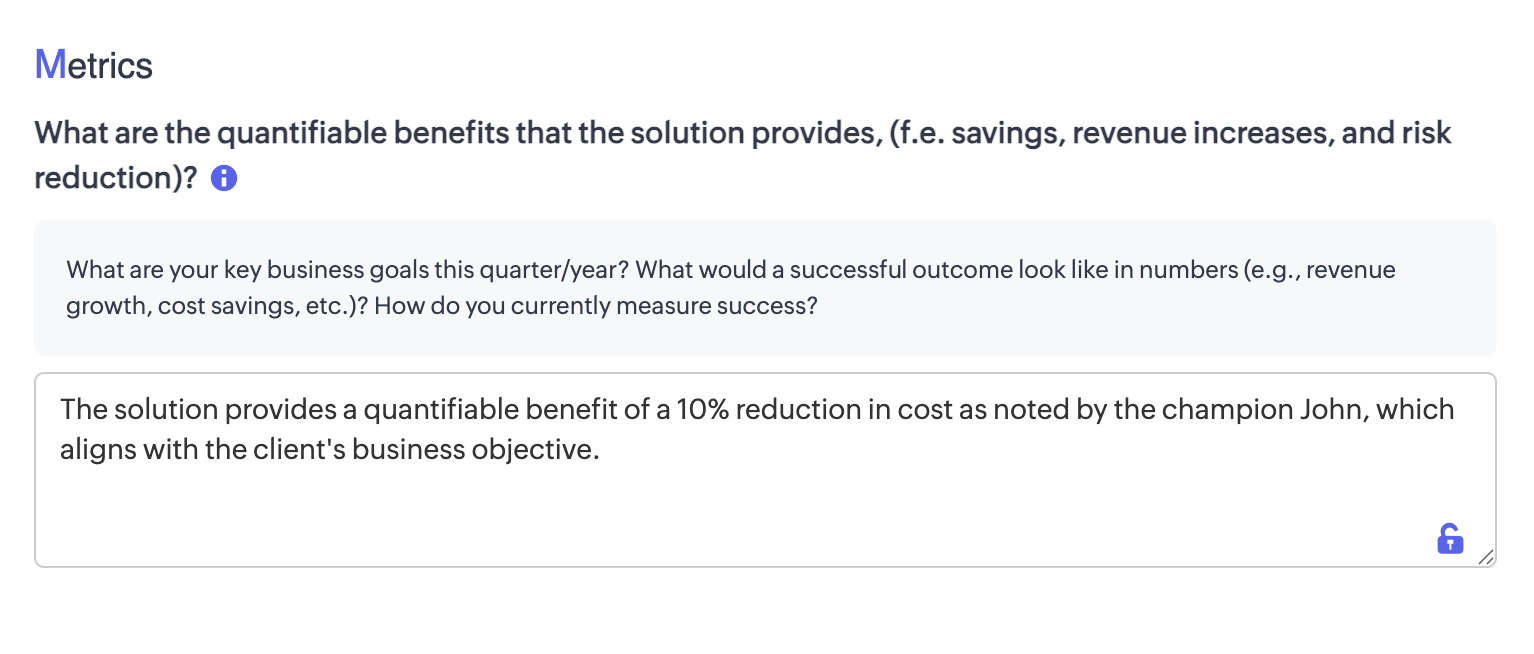
- Each question can include a short guidance text to help users provide better answers. By clicking the info icon, this guidance will be displayed. The text can also be customized in the Settings menu.
7. Change the Framework
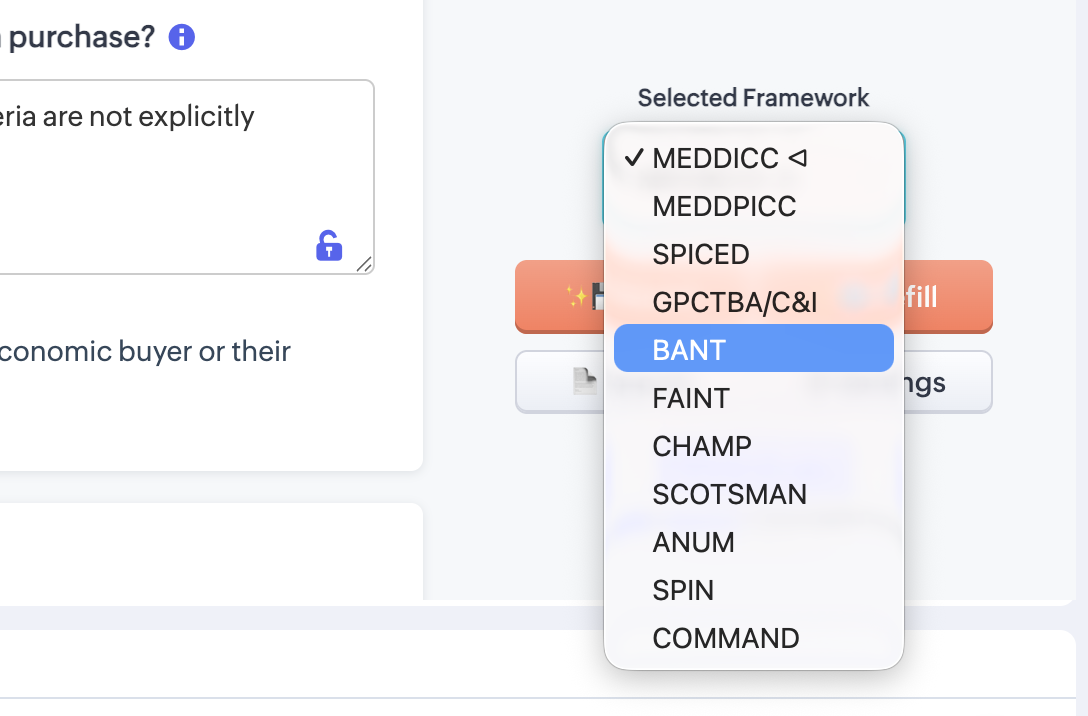
- Users (if allow by Admins) can select a different qualification framework for each Deal.
- AI will prepopulate the selected framework with relevant information from the Deal.
- However, switching frameworks will not automatically recalculate the score nor save the responses, ensuring that old responses remain accessible.
- Users can return to the previous framework at any time.
8. Settings (only Admin)
- Only Admins (considered that in Meddicc Score, may be different from HubSpot admins) can access Settings. This will get access to customize the experience of Meddicc Score. It is organized in four sections: General settings, Company Profile (to provide context to the AI), Framework (to modify the questions) and Users (to manage user access and licences).
- It can be accessed by clicking on "Settings" on the bottom part of the Cards or going to HubSpot Settings > Integrations > Connected Apps > Meddicc Score > Settings.
8.1 General Settings:
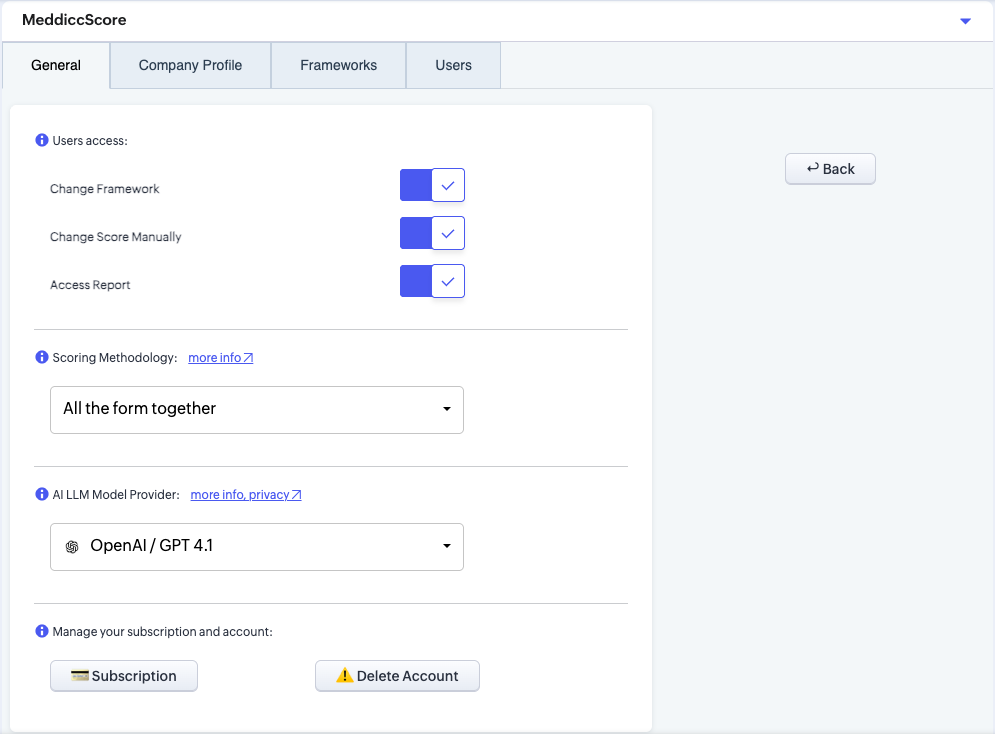
8.1.1 Users access:
- Change Framework: Allows non-admin users to switch between different sales qualification frameworks (e.g., MEDDICC, BANT).
- Change Score Manually: Enables non-admin users to manually adjust the scores assigned to deals or opportunities.
- Access Report: Grants access to non-admin user to a detailed report summarizing deal scoring.
8.1.3 Scoring Methodology:
- Score of the forms go from 0 to 100. There are two options for Scoring the forms.
- All the form together (default): When enabled, the entire form is evaluated by the selected AI LLM model, which generates a score based on the overall responses within the sales qualification framework and assesses the likelihood of successfully closing the deal. Please note that results may vary depending on the chosen model and the specific evaluation, and may sometimes be subject to interpretation or appear optimistic in nature.
- Individual by sections: With this option, each section of the form (e.g., Metrics, Economic Buyer, etc.) is scored as either bad (0), medium (0.5), or good (1). The individual section scores are then summed, divided by the total number of sections, and multiplied by 100 to produce a final score between 0 and 100. This method provides more predictable and consistent results, though it may also lead to more repetitive scoring patterns.
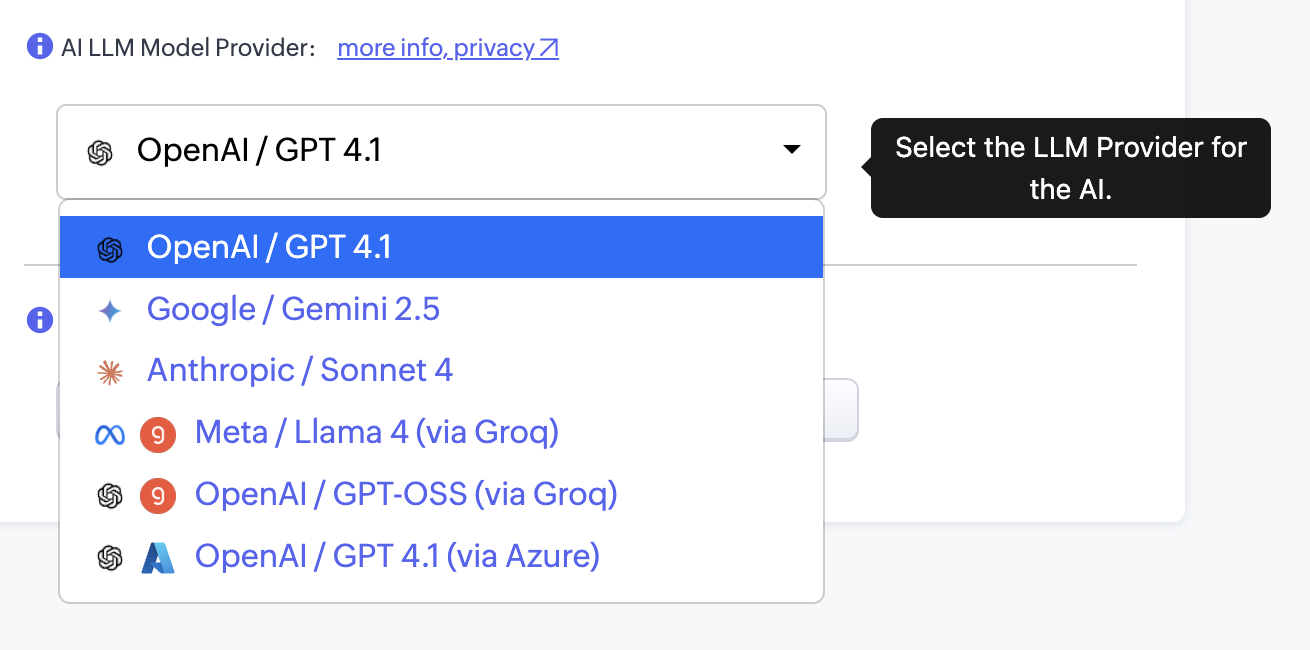
8.1.4 AI LLM Model Provider:
- This allows the user to select the Large Language Model (AI) provider used on the app, to pre-fill the forms and score the framework. The data will be shared with that provider, so please take into account their privacy policies, see more information here.
-
Every model comes with its own strengths in terms of capabilities, latency/speed, and intelligence. We encourage you to try different options and choose the one that best fits your needs for both quality and performance. If there’s a specific model you’d like us to add, please reach out to our support team.
-
Available providers:
- OpenAI / GPT 4.1 (default): more information on model capabilities ↗
- Google / Gemini 2.5: more information on model capabilities ↗
- Anthropic / Sonnet 4: more information on model capabilities ↗
- Meta / Llama 4: more information on model capabilities ↗. Meta Llama is provided by Groq: more information ↗
- OpenAI / GPT OSS: more information on model capabilities ↗. GPT OSS is provided by Groq: more information ↗
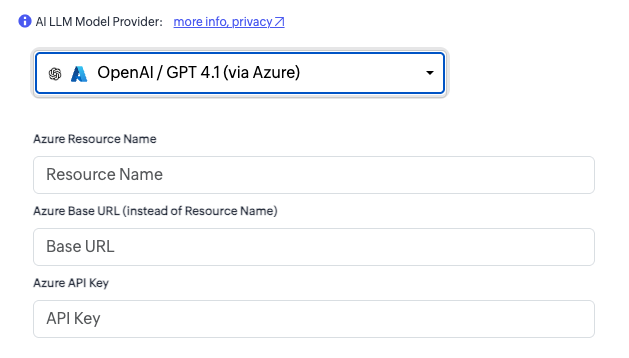
- Azure OpenAI / GPT 4.1: Microsoft Azure enables the use of OpenAI models (along with others) in a private, secure, enterprise-grade deployment, guaranteeing full data privacy (according to their claims). This allows organizations to leverage the latest OpenAI models without explicitly sharing their information with OpenAI.more information on Azure ↗. For this to work, more information is required:
- Resource name: The calls to the API will follow this URL https://{resourceName}.openai.azure.com/openai/v1{path}
- Base URL: Instead of Resource name, the Base URL can be provided. The calls to the API will follow this URL {baseURL}/v1{path}
- Api Key: Although the key is safely stored and encrypted, It is recommended to provide an exclusive Api Key for Meddicc Score and set limits of usage.
| Provider / Model | Speed (Latency & Throughput) | Intelligence (Reasoning & Output Quality) | Notes |
|---|---|---|---|
| OpenAI GPT-4.1 (Direct API) | ⚡⚡ (fast; depends on load) | 🧠🧠🧠🧠 (excellent reasoning, creative and reliable) | Strong balance of speed and intelligence; widely adopted. |
| OpenAI GPT-4.1 (Azure OpenAI) | ⚡⚡⚡ (enterprise-grade stability) | 🧠🧠🧠🧠 (same model quality as direct API) | Often steadier latency due to Microsoft infrastructure. |
| Google Gemini (Pro / Ultra) | ⚡ (slower than the rest) | 🧠🧠🧠🧠🧠 (very strong reasoning, multimodal) | Excels at complex reasoning & and more verbose. |
| Anthropic Claude (Sonnet / Opus) | ⚡⚡ (good, especially with long contexts) | 🧠🧠🧠🧠 (strong reasoning; alignment-focused) | Handles long contexts well; polished, safe outputs. |
| Meta Llama (via Groq) | ⚡⚡⚡⚡ (ultra-low latency on Groq) | 🧠🧠🧠 (solid; generally below GPT-4/Gemini for reasoning) | Best when speed is critical; slightly weaker reasoning depth. |
| GPT OSS (via Groq) | ⚡⚡⚡⚡ (extremely fast; Groq hardware optimized for OSS models) | 🧠🧠🧠🧠 (similar or better than GPT 4.1) | Good combination of speed and reasoning. |
Legend: ⚡ = relative speed; 🧠 = relative intelligence.
Disclaimer: This is a generalized, high-level comparison (as of 2025). Actual performance varies by model version, prompt, context length, provider load, and infrastructure.
8.1.5 Manage your Subscription and account:
- Upgrade (Free users only): Upgrade your account to access premium features.
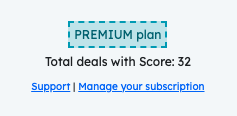
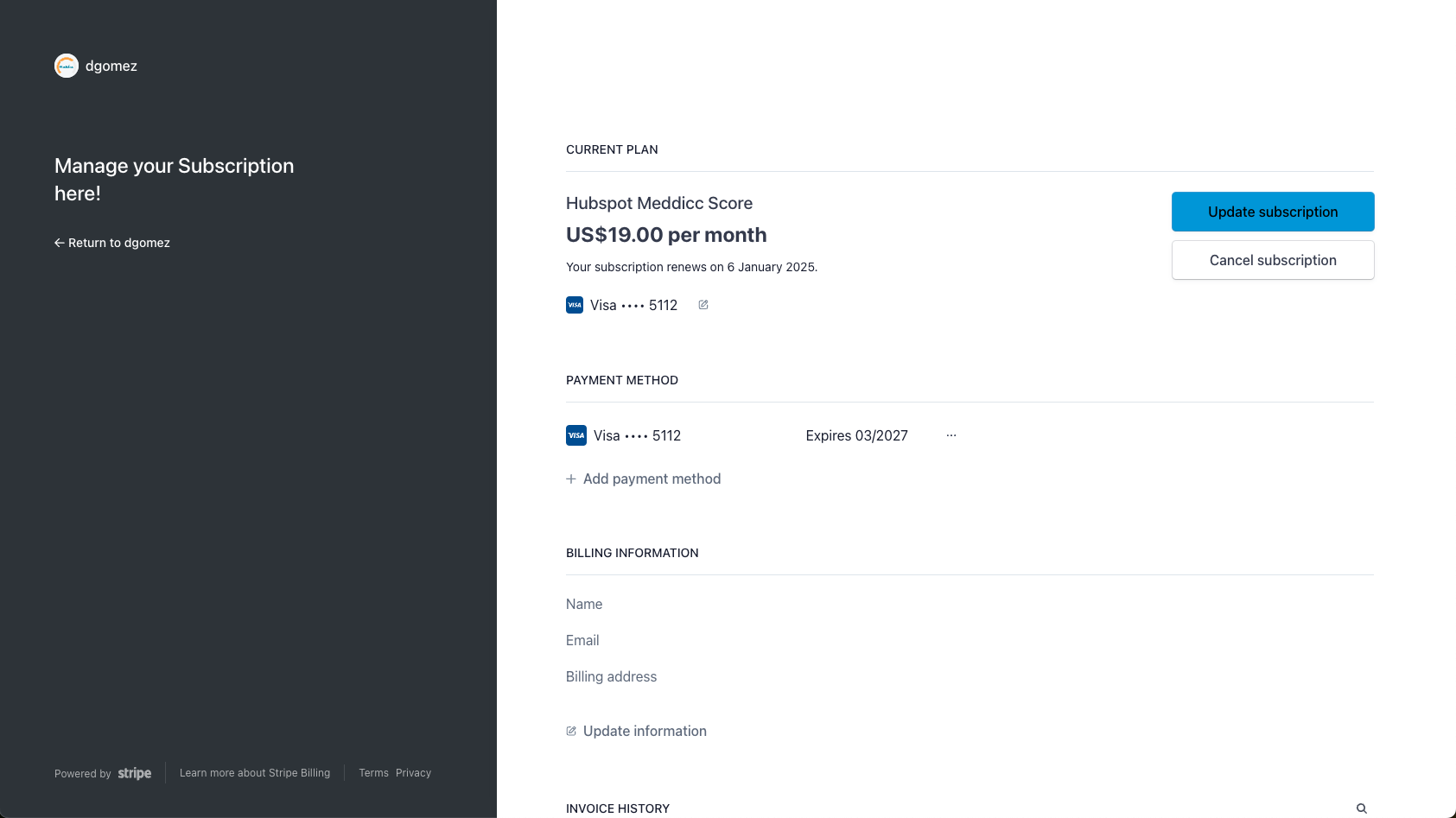
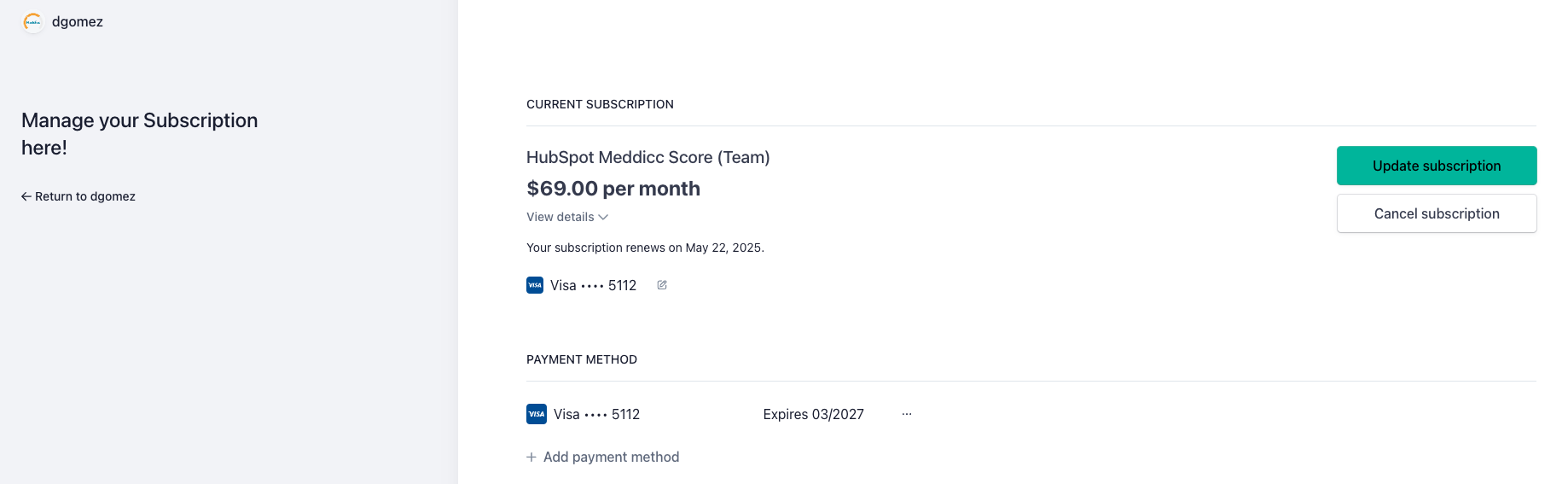
- Manage Subscription (Admin, paid users only): Opens the Customer Portal to update or cancel your subscription. For Corporate subscriptions, contact support by email. More information.
- Delete Account: Permanently deletes all MeddiccScore data (not your HubSpot account), including deals, users, and account information. This action cannot be undone. Please cancel any paid subscription before deleting your account.
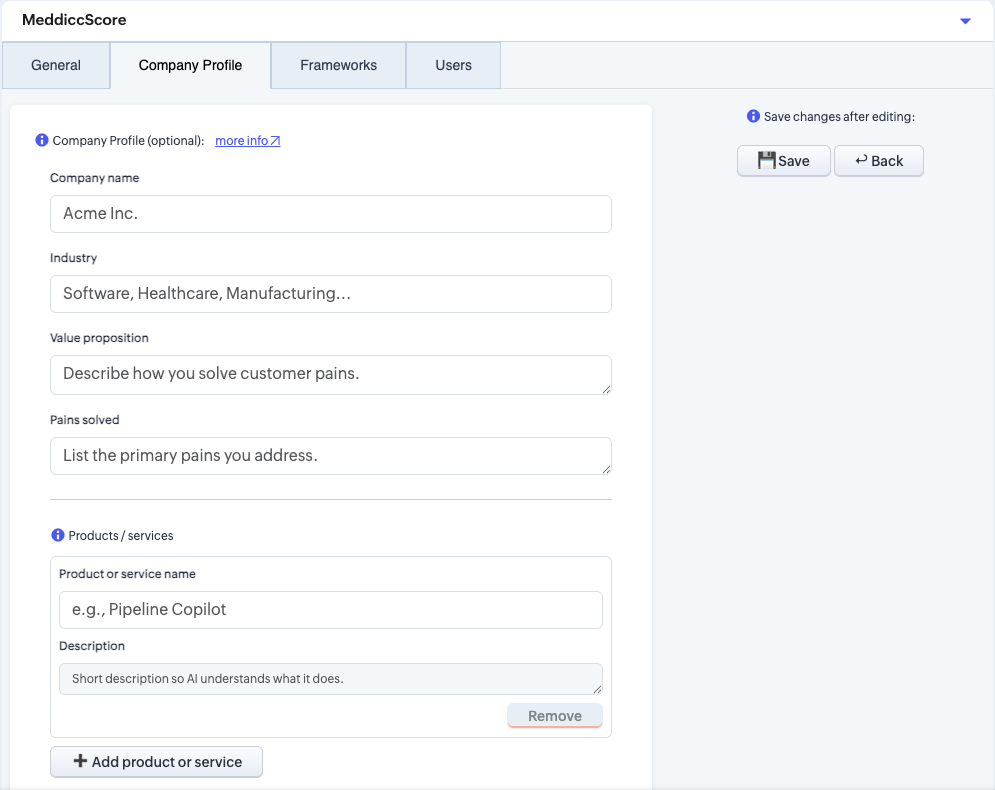
8.2 Company Profile: Provide context to tailor the AI responses (only Admin)
- In this section is possible to add more context about your organization's value propositions, products, and services to ensure AI-generated content is relevant and tailored to your organization. Filling this information is optional but recommended. The field that are available are:
- Company name
- Industry
- Value proposition
- What pains does your company solve?
- Product(s) or Service(s): A list of the offering with the name and description. At least one has to be provided.
8.3 Frameworks: Editing the framework questions and default framework (only Admin)
- Only Admins can access this feature. Clicking on the Frameworks tab, allows the Admins to edit the questions and the guidance for that framework. The change will apply to all account members (not just the individual user). The modification will not affect the answers or scores previously submitted but will update the questions and guidance for all deals where that framework has been used.
- The framework selected will also be the Default framework for the entire account. Every new deal will use this framework by default. The change will not affect the answers or frameworks previously submitted in existing deals. The default framework is initially set to MEDDICC.
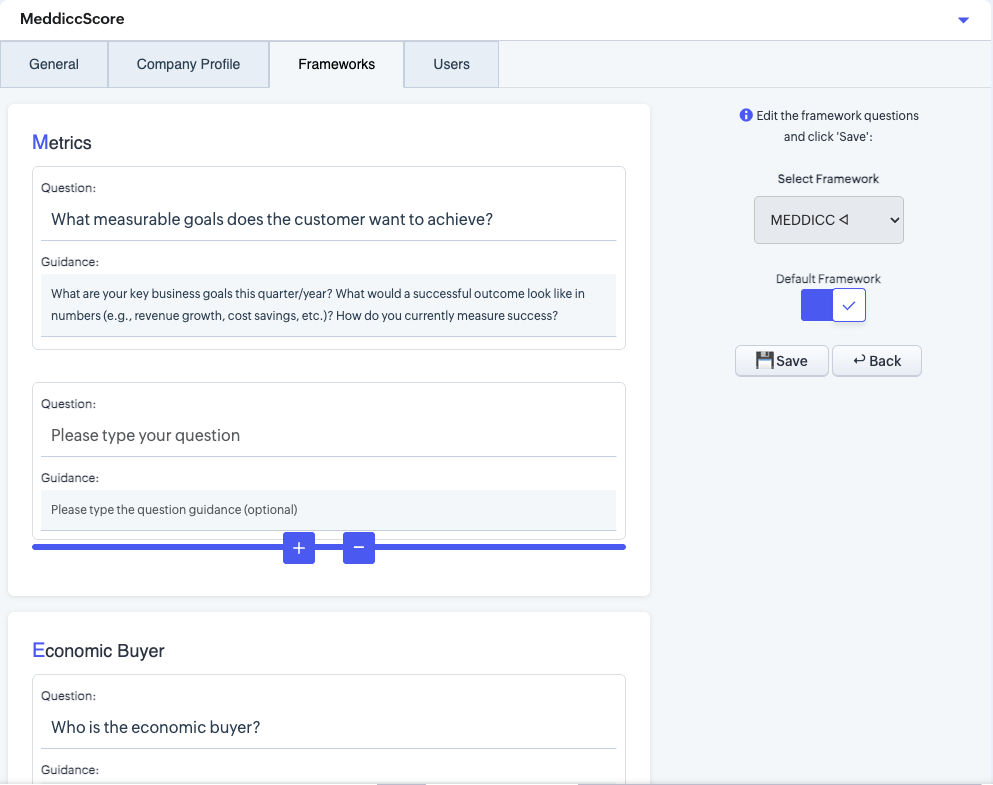
- You can add more questions to any category of the framework. Clicking in "+" will add one more set of question and guidance. It can be removed clicking on "-", although it has to be at least one per category.
8.4 Users: Manage your users (only Admin)
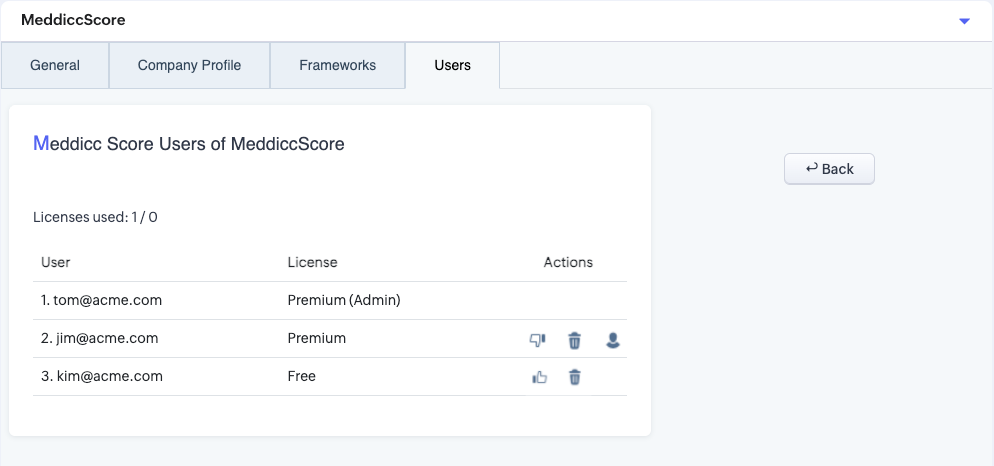
- Clicking on the "Users" tab displays a list of current users who have installed MeddiccScore.
- In the right column of the list, three actions are available only to the Admin users:
- Upgrade/Downgrade: Change the user's status to Premium or Free. This action either assigns or frees up a license. If no licenses are available, additional licenses can be purchased, or the account can be upgraded to the Team plan. Please note the downgrade DO NOT cancel the subcription, just free the seat or the licences count.
- Delete: Marks the user for deletion. Once deleted, the user will need to reinstall MeddiccScore to regain access.
- Make Admin: Assigns administrative privileges to the selected user, granting them access to manage account settings and users. There can be more than one Admin, but at least one.
- Remove Admin: Remove administrative privileges to the selected user. There has to be at least one Admin user.
9. Report and Export
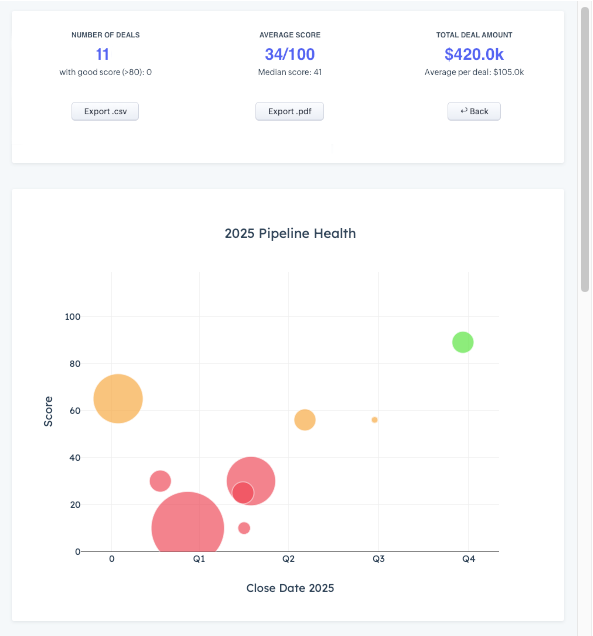
- Clicking on Report, a full account pipeline summary can be found.
- It includes a Bubble Quadrant Graph, which displays the current year’s opportunities with their Score, Close Date, and Amount represented by the bubble size. It will only shows deals that have Close Date and Amount recorded.
- From the report is possible to download a CSV with all the notes and scores saved.
- It is also possible to download the report on PDF format.
10. Upgrade to Premium
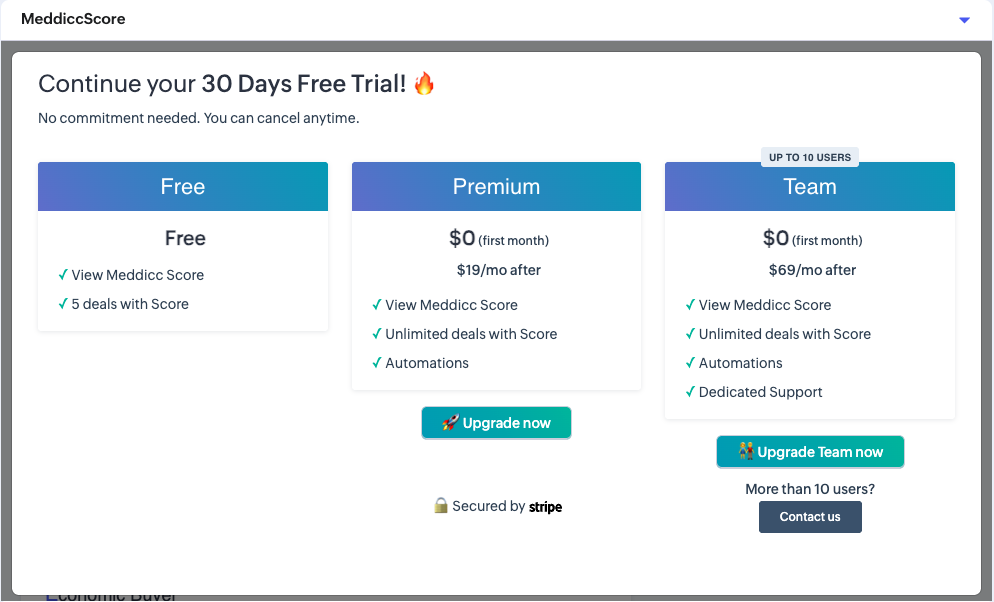
If you like Meddicc Score and want to use it for more than 5 deals, you can upgrade easily from the own app. Click on “Upgrade Now” and you will go to a checkout powered by Stripe.
11. Change the subscription plan or billing details.
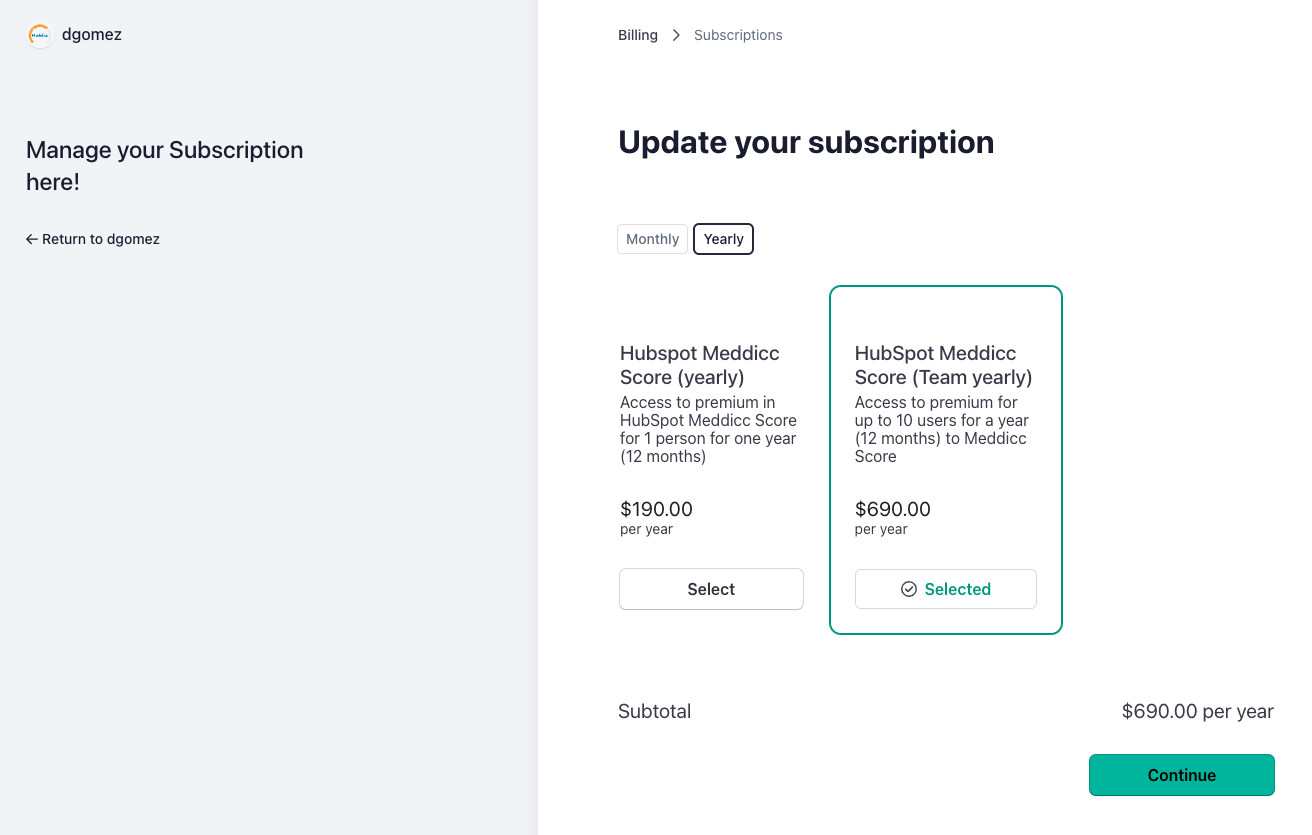
If you're already enjoying the premium benefits of Meddicc Score but want to upgrade to a Team plan or switch to a yearly subscription to unlock significant savings, you can easily make the change through the Customer Portal. Take advantage of these exclusive discounts today and maximize your Meddicc Score experience!
You can also change your billing details by clicking on "Update Subscription".
If you are a paid or premium user, you need to cancel your subcription before uninstalling, by visiting the Customer Portal. More information.
Additionally, you may want to delete all the data stored in MeddiccScore, including users and account information, before uninstalling. More information. If you plan to reinstall the app later, the data will reappear unless the account has been deleted beforehand.
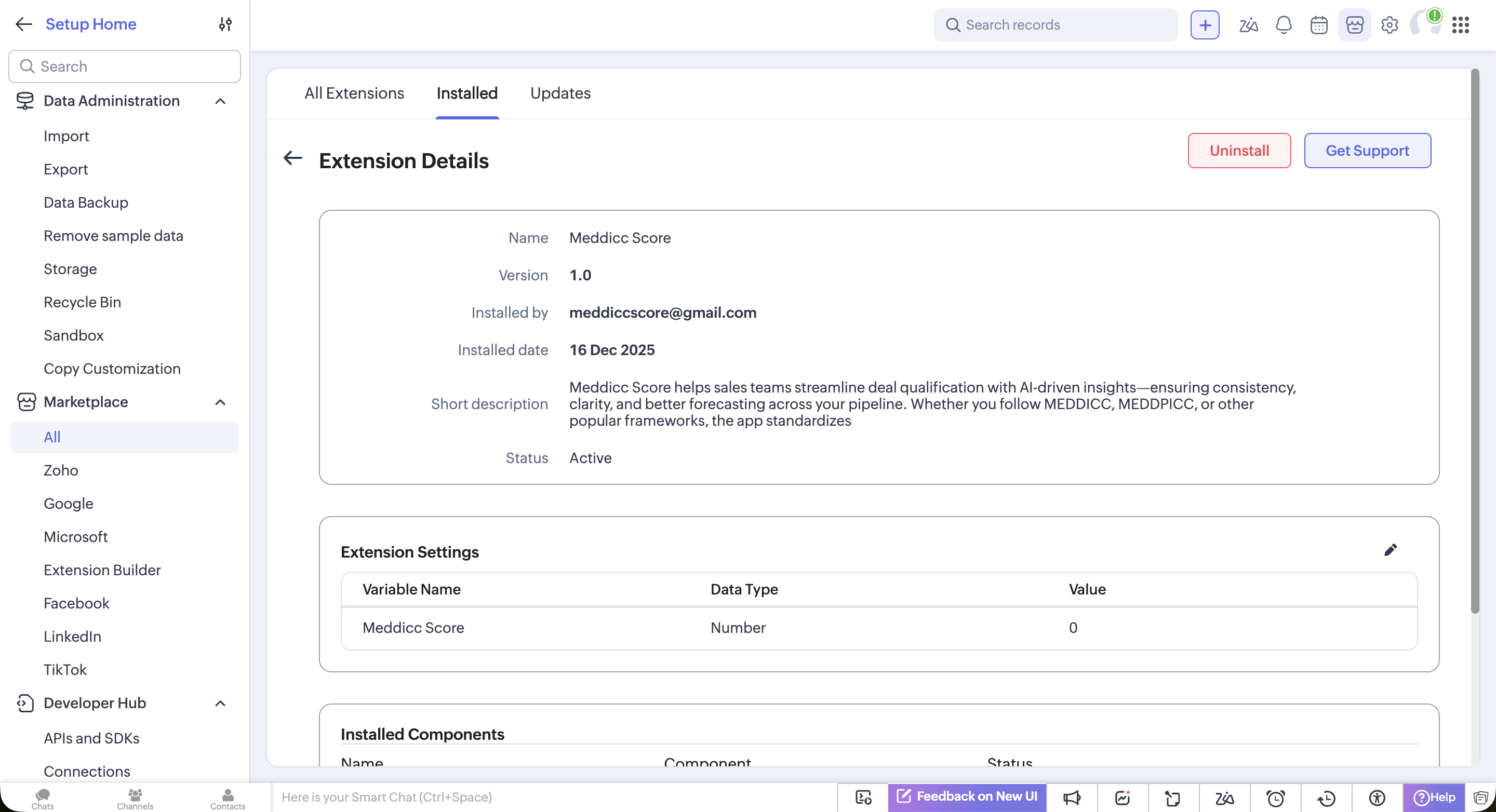
To uninstall, navigate to Settings > Marketplace > All > Installed > Meddicc Score. Click in "Uninstall". This will uninstall Meddicc Score without impacting your Zoho data.
Score field not updatedPermalink
Meddicc Score can write the score back to Zoho CRM on the Deal (module: Deals) as a custom field.
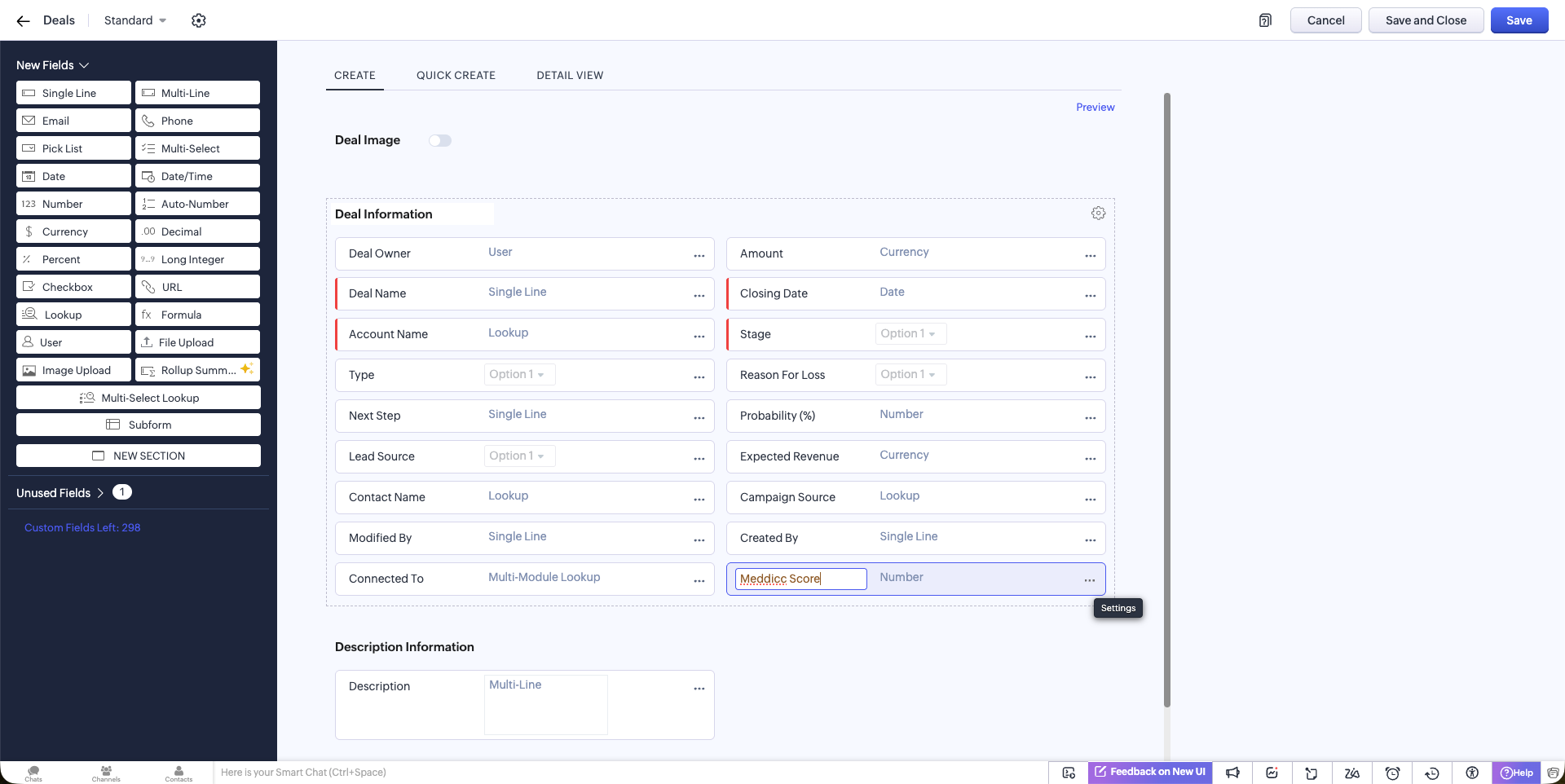
- On first connect, Meddicc Score will try to automatically create a Number field on Deals named Meddicc Score (range 0–100) and store its field API name.
- If your Zoho user/org doesn’t allow creating fields (permissions/scopes), create the Deals field manually and add it to your Deal layout.
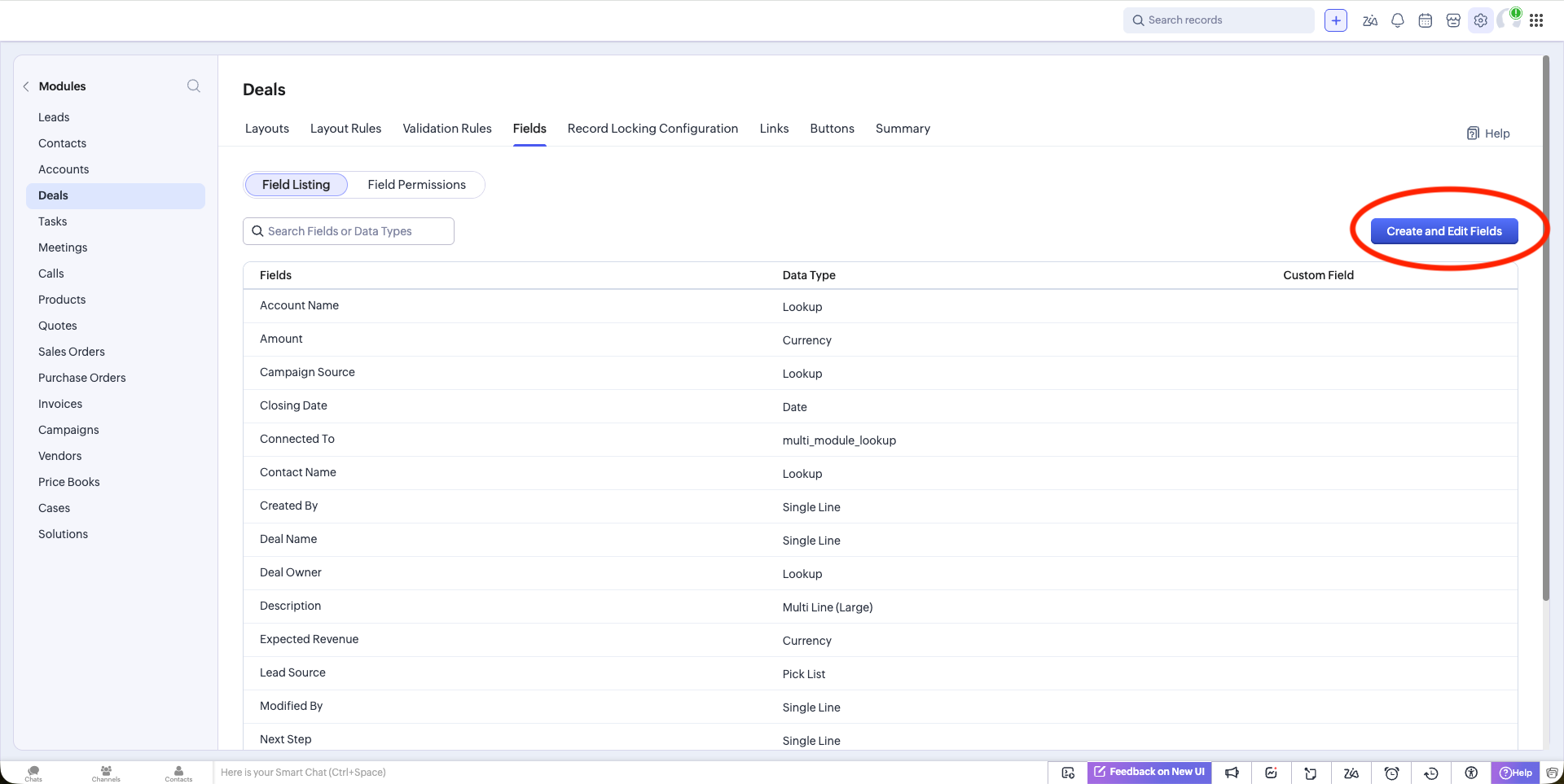
- For doing so, go to Settings → Customization → Modules and Fields → Deals → Fields → Create and Edit Fields.
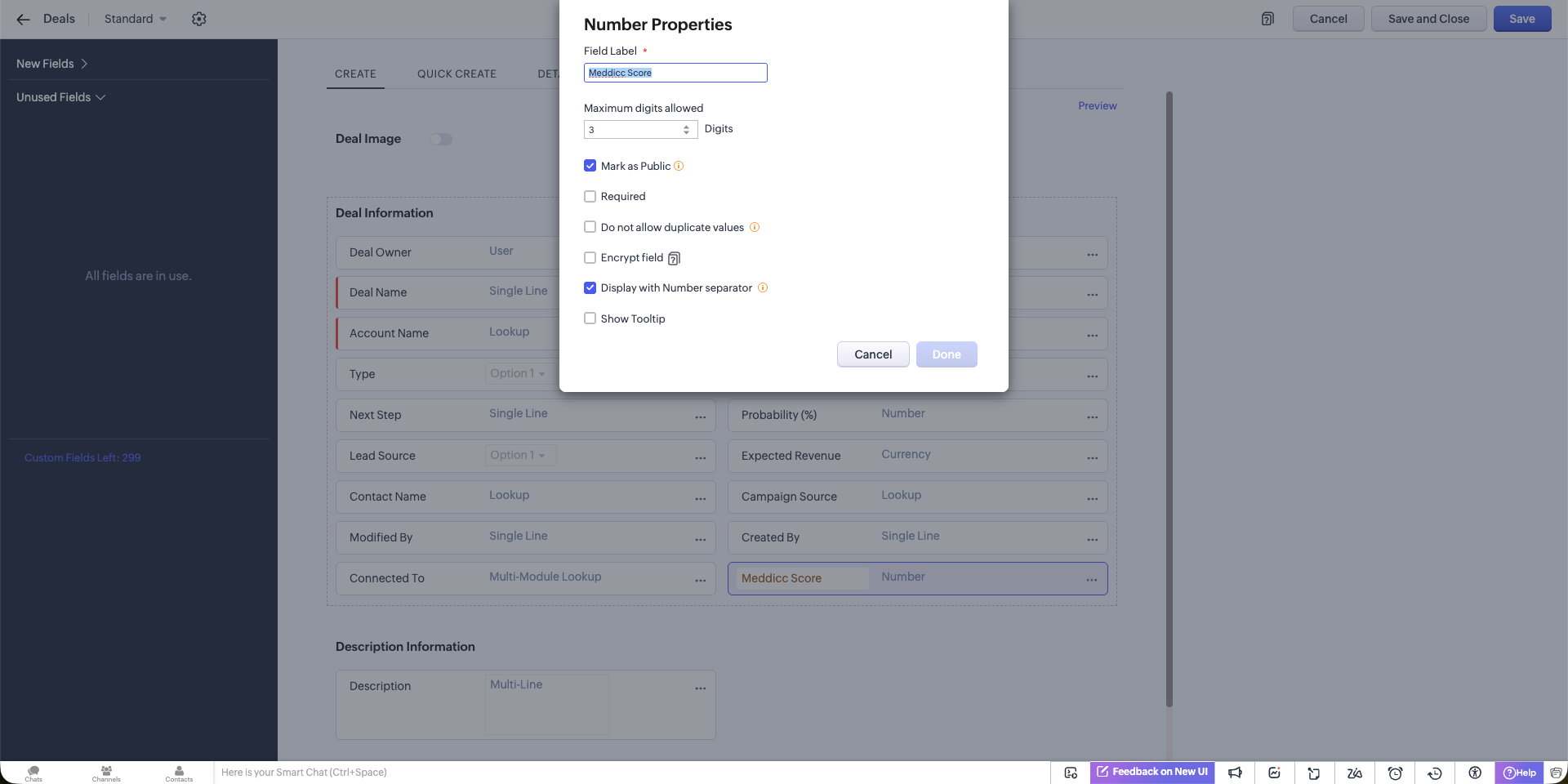
- You need to add a new Number field, with 3 digits and Mark as Public.
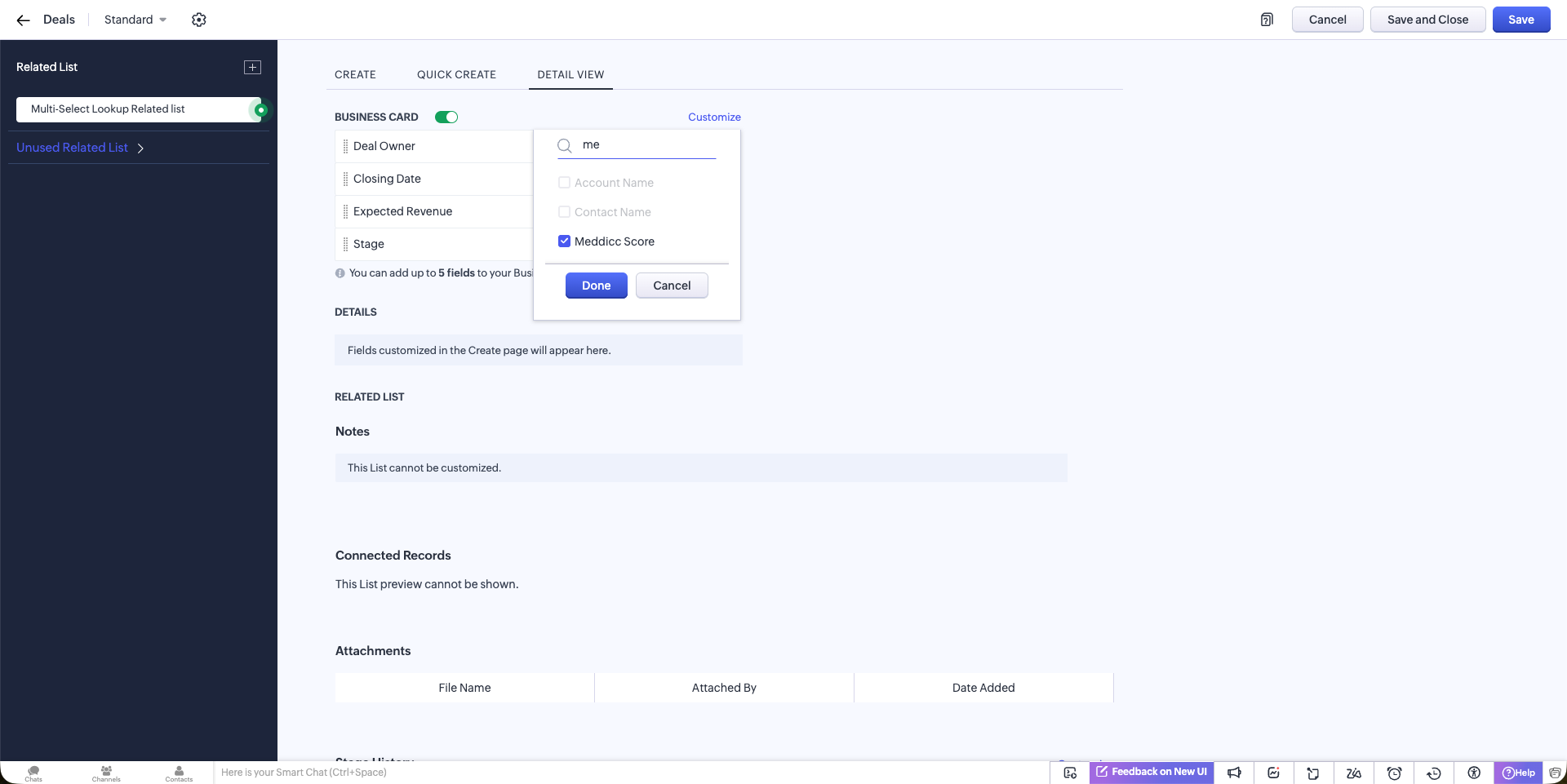
- You can also add it to the views of the Cards or the Lists.
- If your field API name is different, go to Meddicc Score → Settings → General and set Zoho Deals score field API name to the field’s API Name (example:
Meddicc_Score). - Re-score the Deal to trigger the update.
- If it still doesn’t update, reinstall/reconnect the app so Zoho grants write permissions to Deals.
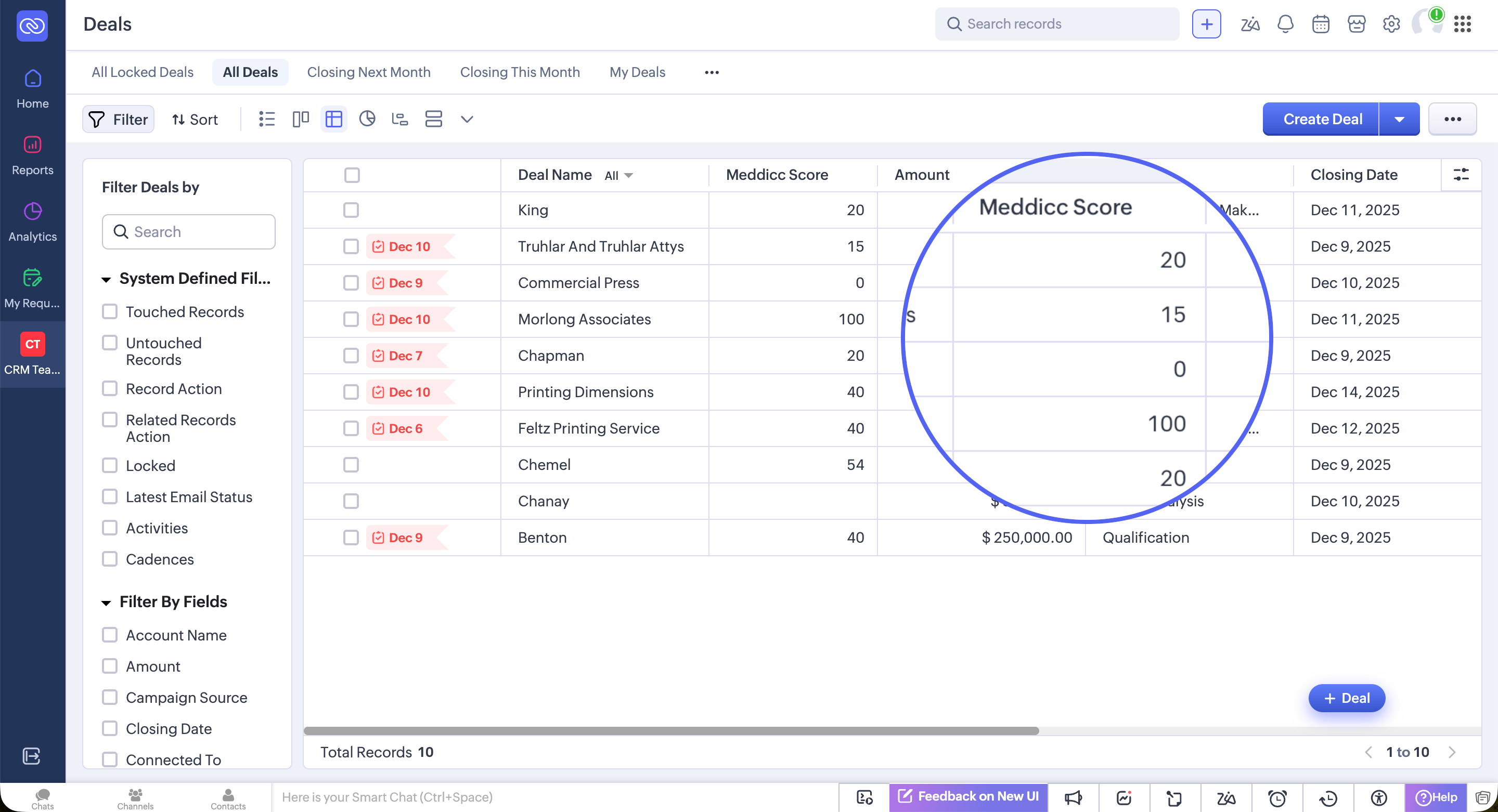
The AI Autofill is not taking information from my EmailsPermalink
To enable this, you may need to authorize Zoho to share information about emails:
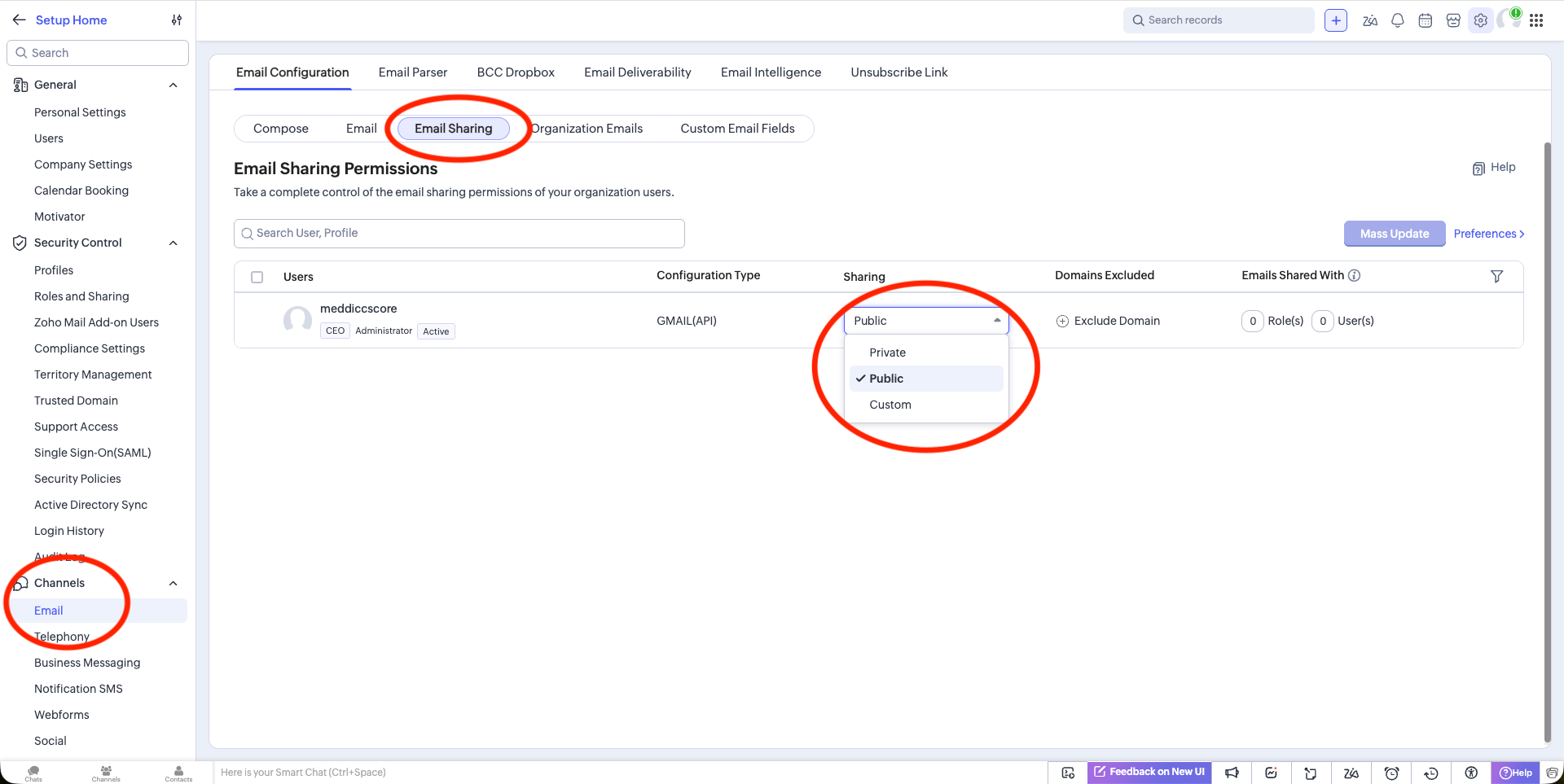
In all cases, the information extracted from emails is limited to the initial portion of each email. This helps avoid processing repetitive long threads, legal disclaimers, and other non-essential content. However, if critical Deal information is buried deep within the email threads or other engagements, the AI might not capture or interpret it accurately. Also AI tends to allucinate sometimes, please check important facts.
How can add a discount codePermalink
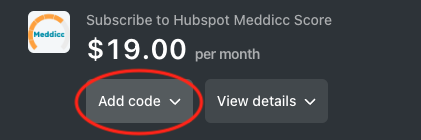
On the checkout Stripe page, there is a button ‘Add Code’ where you can add yu discount code. The price will be automatically updated. If you face any problem or the code not longer works, please Contact Us:
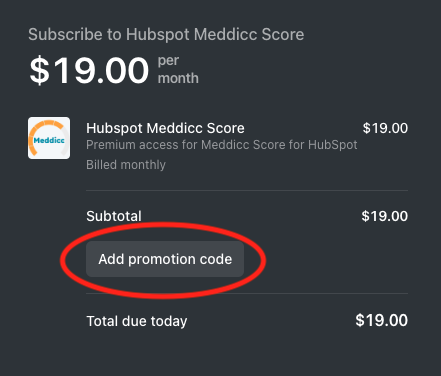
If you already have a subscription and want to add a coupon code, it cannot be done automatically, please Contact Us
How can I cancel or manage my subscription?Permalink
If you want to cancel your subscription or change the invoice details, you can access the Customer Portal (or send and email to Support) by clicking on “Subscription” button inside the settings. (Only admin users)
Please cancel your subscription BEFORE uninstalling the APP, since the latter does not automatically cancel de subcription. (this is a Zoho limitation)