Use this guide to work with Meddicc Score CRM (deals, contacts, companies).
Quick start and access
- Create an account at
/auth/signupor follow the invite email sent from Settings → Users. Set a password via/auth/set-passwordif prompted, then open/crm. - The top bar shows your plan, data source (CRM or HubSpot), and a global search. The Upgrade button opens the paywall/customer portal depending on your plan.
- Free workspaces can store up to five deals, five contacts, and five companies. The paywall appears when you try to create the 6th record of any type.
- Optional: connect HubSpot in Settings → Data sources. When connected, HubSpot deals/contacts/companies appear mixed into the views but stay read-only inside this CRM; CRM-native records remain fully editable.
Navigation and dashboards
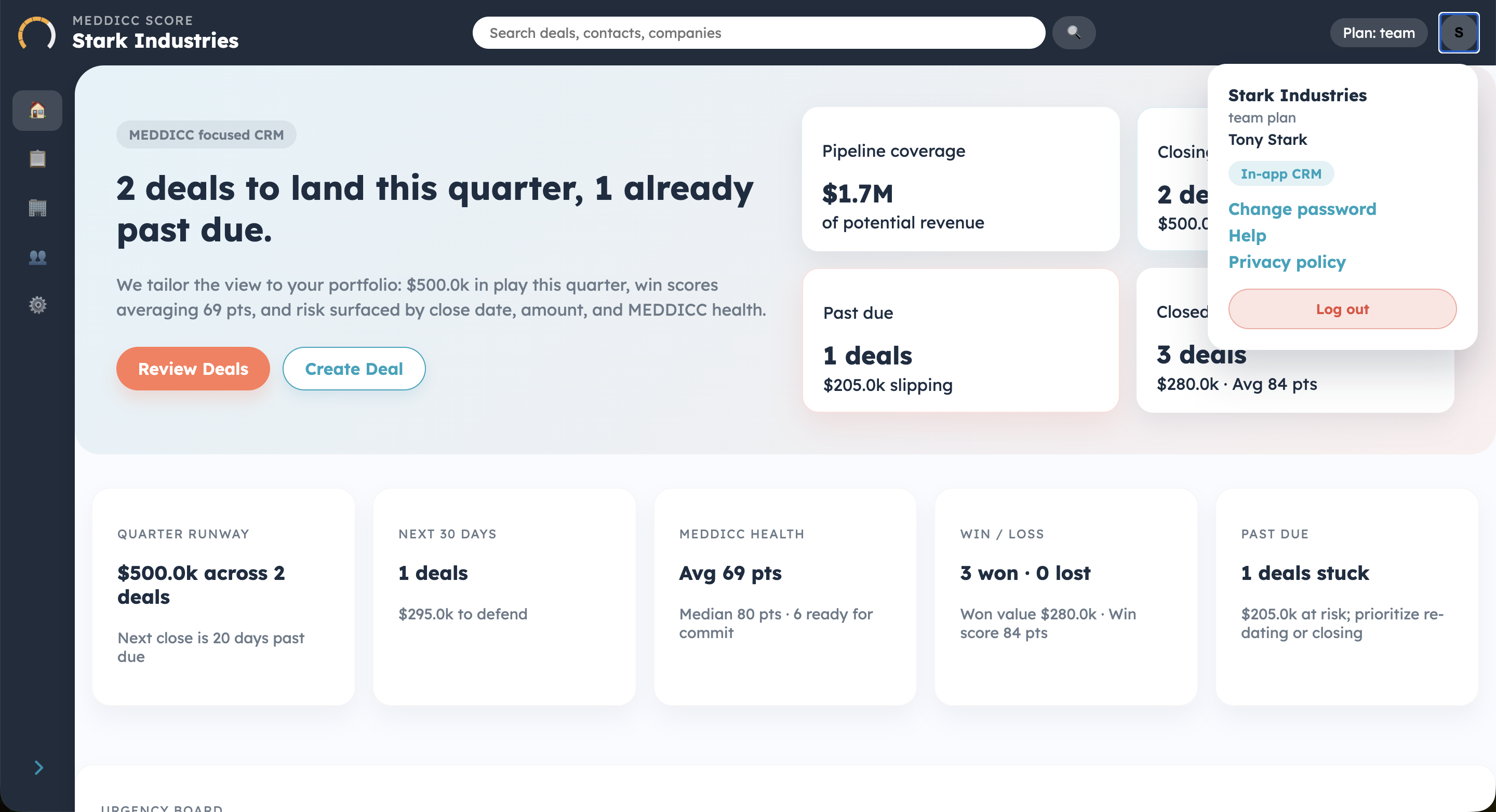
- Home dashboard shows pipeline coverage (total value, closing this quarter, past-due, win/loss), average/median MEDDICC scores, and a “ready to commit” counter (80+ scores).
- Urgency board orders dated deals by soonest close date and lowest score so you can triage by risk.
- Contact follow-ups panel surfaces contacts linked to dated deals, with assessment status, talking points, and draft email availability.
- Quick actions in the hero let you jump to Review deals or Create deal. Global search in the header looks across deals, contacts, and companies; pass
userIdin the URL to fetch the right workspace when you rely on HubSpot sync.
Deals workspace
- List view: filter by stage, framework, or free-text search. Columns show stage, framework tag, score gauge (0–100), close date, and amount.
- Built-in stages: Prospecting, Qualification, Discovery, Demo/Presentation, Proposal, Negotiation, Commit, Closed Won, Closed Lost.
- Actions on CRM deals: create, clone, or delete. HubSpot-synced deals stay visible but cannot be edited here.
- Associations: link contacts and companies from the deal form. Links are kept in sync both ways so related records always show each other.
Deal form and scoring flow
- Core fields: name, amount, close date, stage, and framework selector. Framework catalog includes MEDDICC, MEDDPICC, BANT, SPICED, GPCTBA/C&I, FAINT, CHAMP, SCOTSMAN, ANUM, SPIN, and Command of the Message.
- MEDDICC questions include optional inline guidance (info icon). AI feedback appears under each section and stays attached to the latest scoring run.
- Score with AI (or manual score edit) uses the model picked in Settings. AI returns per-section feedback, a numeric score (0–100), and Next steps / deal assessment.
- Manual overrides: if allowed in Settings, reps can change frameworks per deal and edit the numeric score. Automatic rescoring after edits can be toggled in Settings.
- Prerequisites: save the deal first; scoring needs completed MEDDICC fields. Automatic scoring re-runs after form edits when enabled.
Contacts workspace
- Fields: name, email, job title, and associated companies. Link deals so the contact appears in the follow-up queue.
- Assess with AI becomes available after saving the contact and linking at least one deal. The assessment returns a summary, talking points, and (when present) a draft email you can open from the card.
- When HubSpot sync is active, HubSpot contacts display read-only; create CRM contacts to edit directly.
Companies workspace
- Track company name, website, industry, address, and description.
- Link deals and contacts; gauges on the card show deal scores so you can judge account health. You can create a new deal directly from the company view and associate existing deals via the modal.
Settings and administration (admins only)
- Data sources & access: CRM data is always on. Optionally connect HubSpot; pick whether reps can switch frameworks, edit scores, and view reports.
- Scoring & AI:
- Scoring method: “All questions combined” vs. “Per section averages” (0/0.5/1 per section, averaged and scaled to 0–100).
- AI provider: OpenAI (GPT 4.1), Google (Gemini 2.5), Anthropic (Sonnet 4), Meta (Llama 4 via Groq), GPT-OSS (via Groq), or Azure OpenAI. Azure fields (resource/base URL, API key) are stored encrypted.
- Automatic scoring toggle: when on, rescoring runs after users edit MEDDICC fields.
- Company profile: add name, industry, value proposition, pains, and product list to keep AI answers on-brand.
- Frameworks: choose the default framework for new deals and edit questions/guidance per section. At least one question per section is required; changes apply to all workspace members going forward.
- Users & licenses: see seats used vs. available, invite teammates (free or premium), upgrade/downgrade seats, promote/demote admins, or delete users. Premium/Team plans add included seats; free workspaces start with zero included seats.
- Billing: open the customer portal or upgrade flow from Settings. The UI “danger zone” delete option is intentionally disabled right now.
Limits and billing behavior
- Free plan: up to 5 deals, 5 contacts, 5 companies; creating the 6th shows the paywall.
- Premium/Team: removes low record limits and adds seats. Upgrade via the header button or Settings → Billing & workspace health.
Troubleshooting tips
- Seeing sample data or empty lists? Make sure you are signed in; if relying on HubSpot sync, pass the correct
userIdand verify the connection in Settings → Data sources. - Cannot edit a record? HubSpot-synced records are read-only inside this CRM; create or clone a CRM record to edit.
- “Score with AI” disabled? Save the deal and fill in MEDDICC fields; scoring is available once the deal exists and has content.
- Contact assessment button missing? Save the contact and link at least one deal so AI has context.
- Hitting seat or record limits? Check Settings → Users for seat usage, or upgrade from the header or Settings.